How to Install TFlix on FireStick Using Downloader App
Since TFlix is an unofficial app, it is not available on the Amazon App Store. To install the TFlixlatestAPK (v2.0), you must sideload it using the Downloader app.
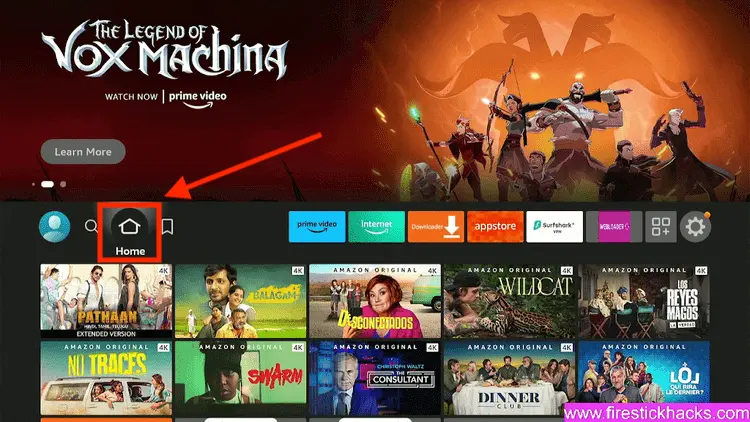
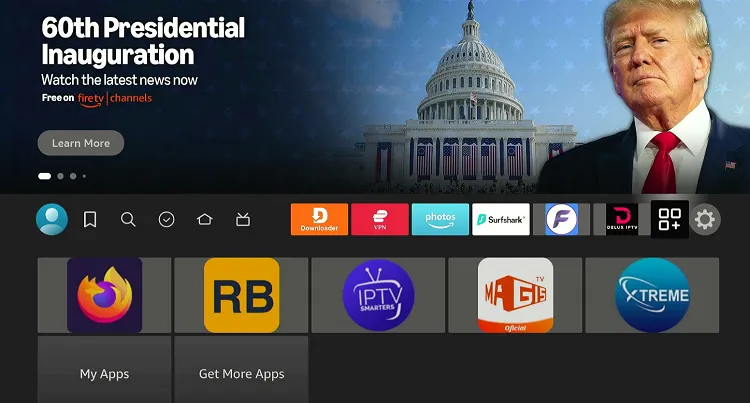
Step 1: Turn ON your FireStick device and Go to FireStick Home
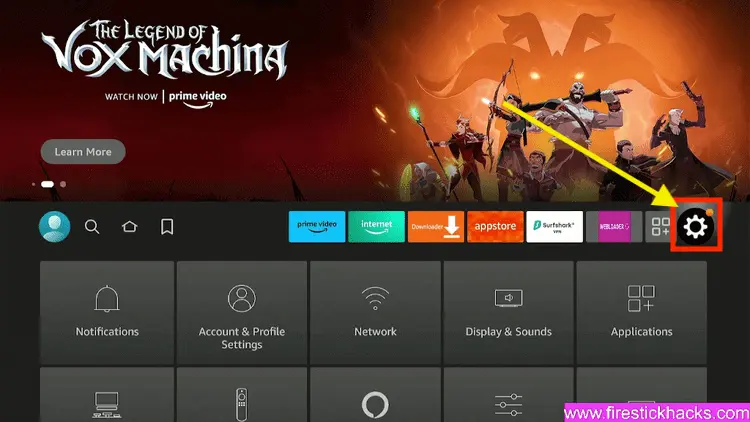
Step 2: Click on the Settings icon
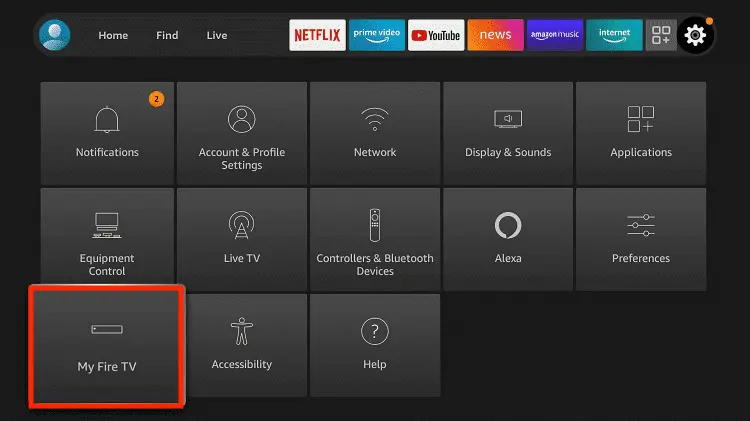
Step 3: Select the My Fire TV option
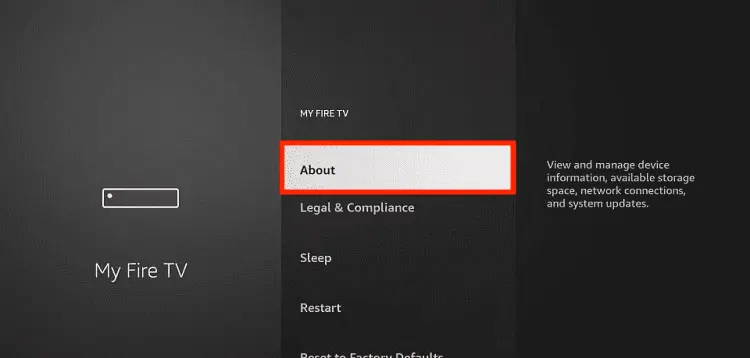
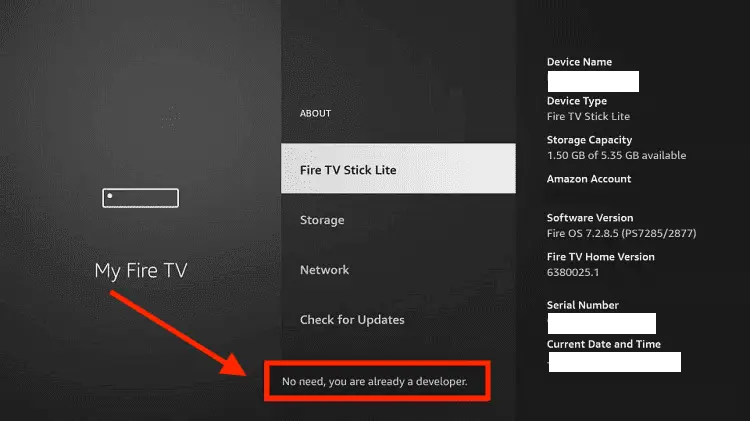
Step 4: To enable the Developer Option, click About.
Note: If you have already enabled the Developer Option, then proceed to Step 10
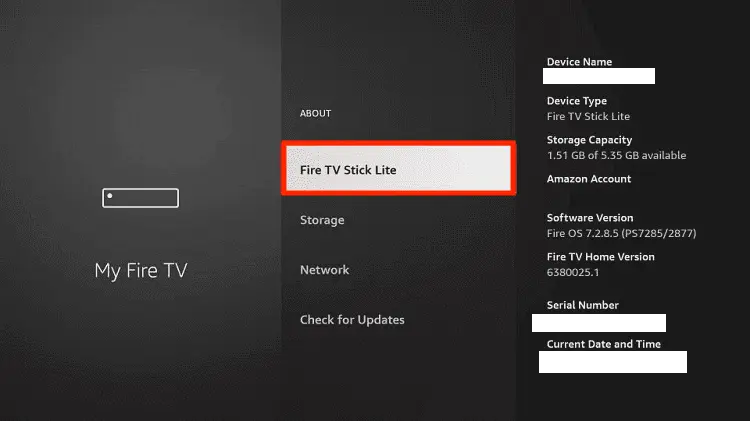
Step 5: Click on the Fire TV Stick option quickly at least 7 times
Step 6: Now you will see this message at the bottom saying "No need, you are already a developer". So stop clicking then
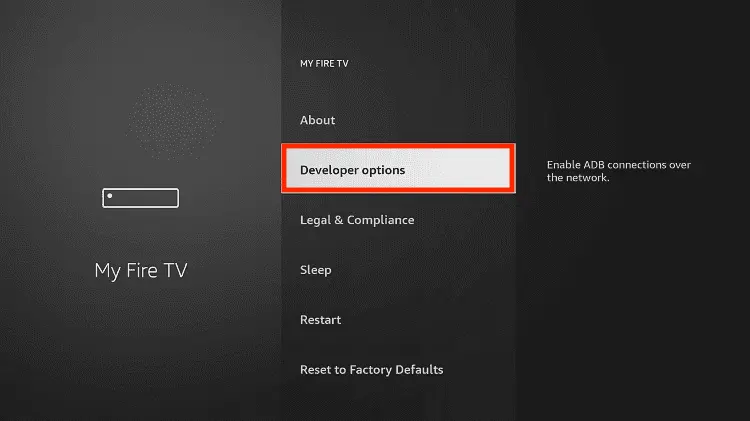
Step 7: Now the Developer Option will appear in the menu so click on it
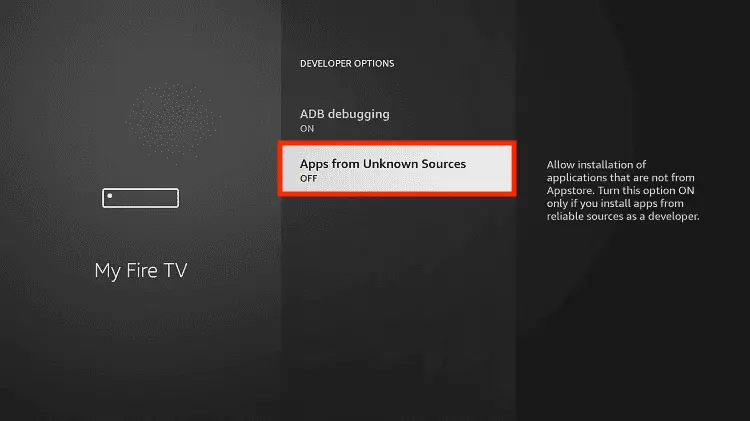
Step 8: Choose Apps from Unknown Sources to turn it ON
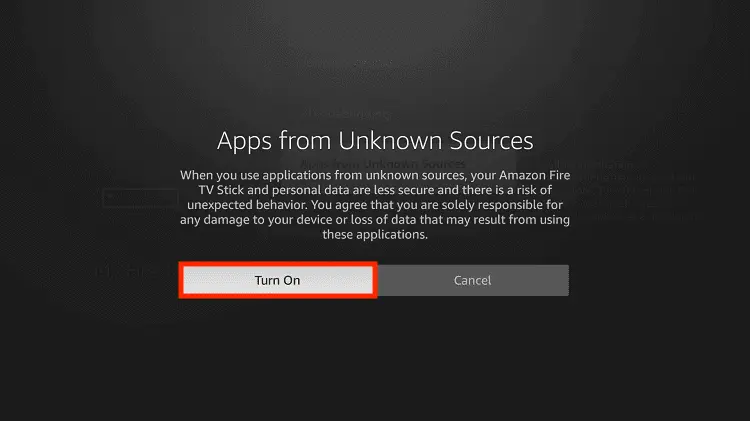
Step 9: Simply click Turn On
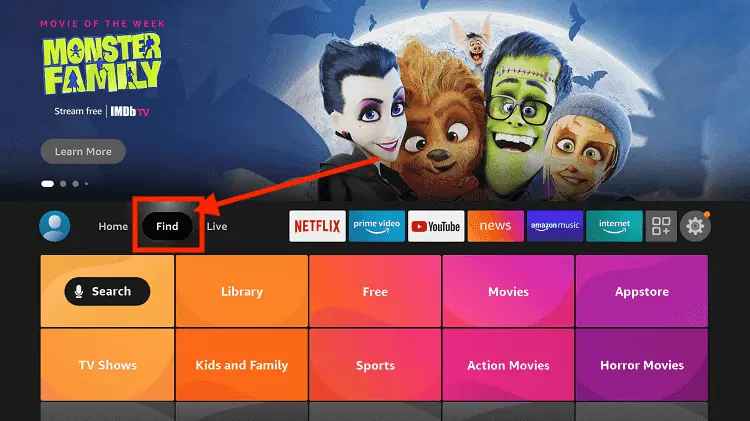
Step 10: Now return to the FireStick Home menu by pressing the "Home" icon on the remote and click on Find
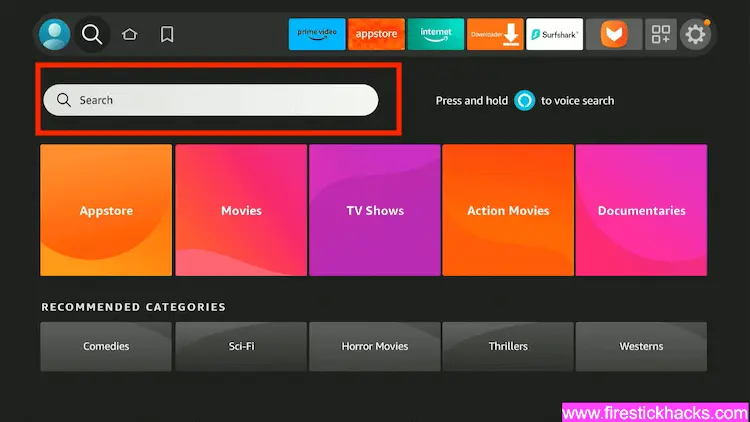
Step 11: Now select the Search icon
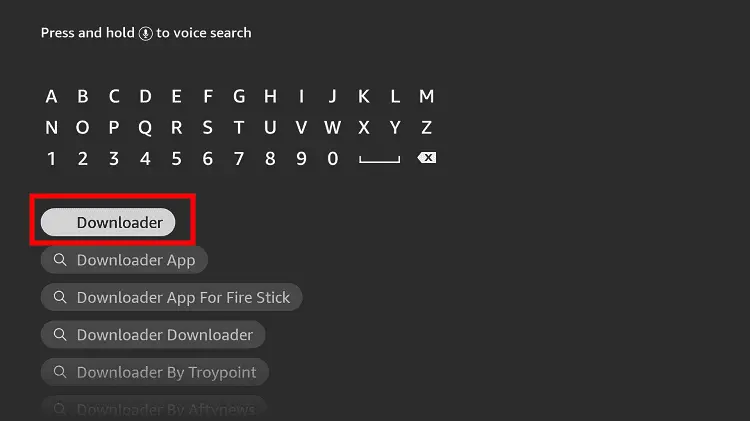
Step 12: Type Downloader and press search
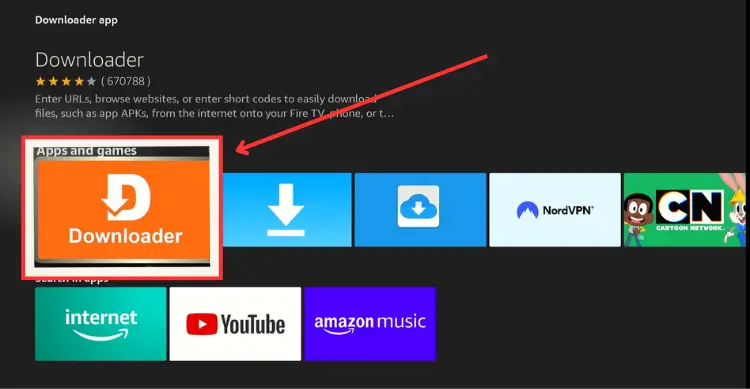
Step 13: Select the Downloader App icon from the list available in the Amazon Store
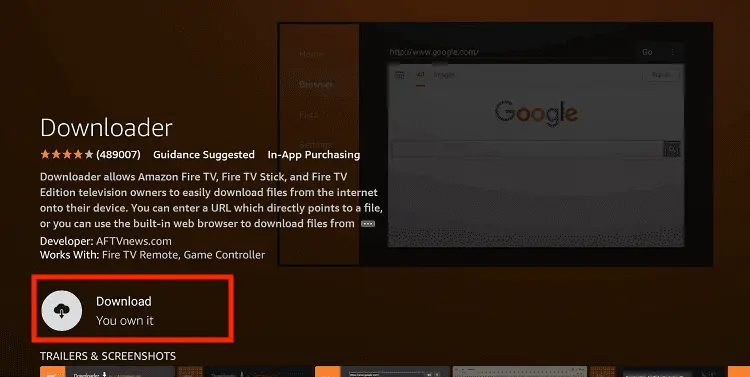
Step 14: Tap Get/Download
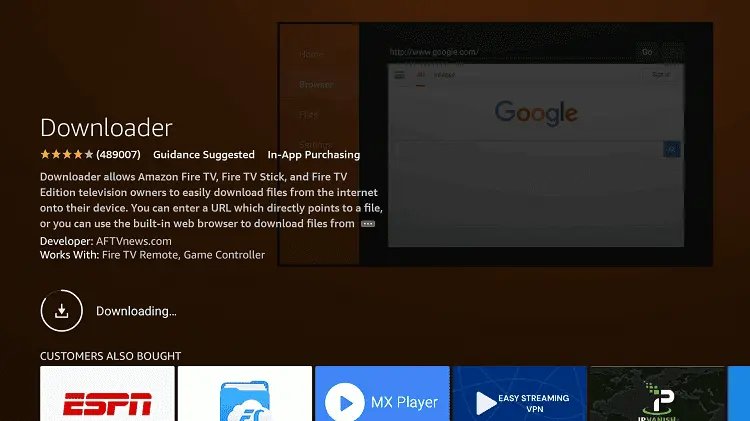
Step 15: Wait for a while until the installation process is completed
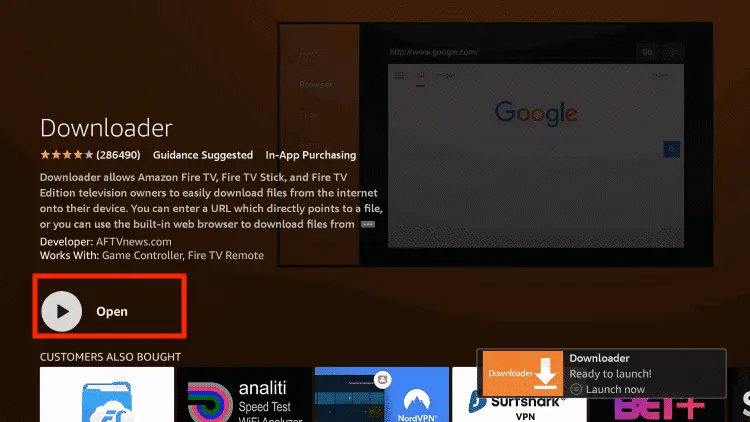
Step 16: Now click Open
Step 17: You will see a popup about Downloader app latest update. Click "OK".
Step 18: Click OK again
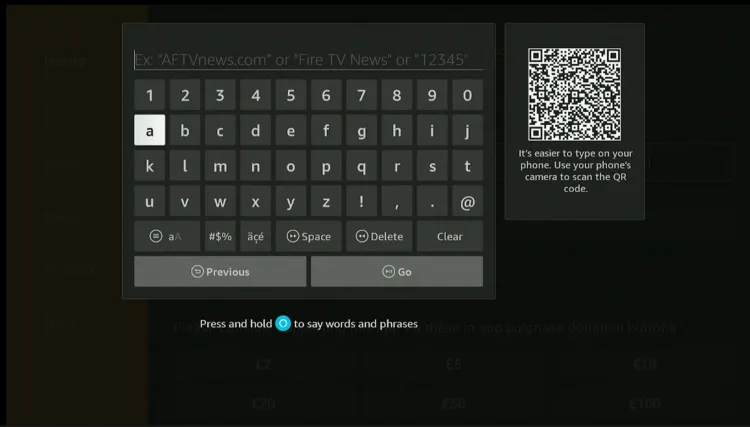
Step 19: This is the Downloader App interface, Click the Search Bar on top
Step 20: Now, enter the TFlix Downloader Code 730116 in the search box OR enter this URL bit.ly/fsh-downloads and click Go.
Note:The referenced link is the official URL of this app/website. FIRESTICKHACKS does not own, operate, or resell any app, streaming site, or service and has no affiliation with its developers.
Step 21: Scroll down and select “Tflix” from the “Sports Apps” category.
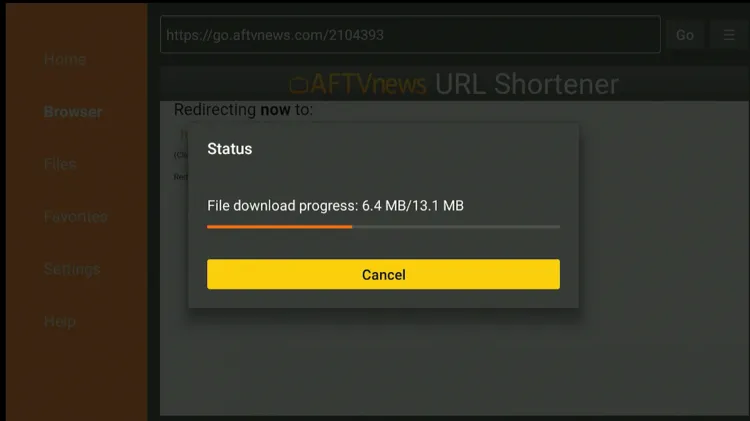
Step 22: The installation process will start. Please wait until it is “done.”
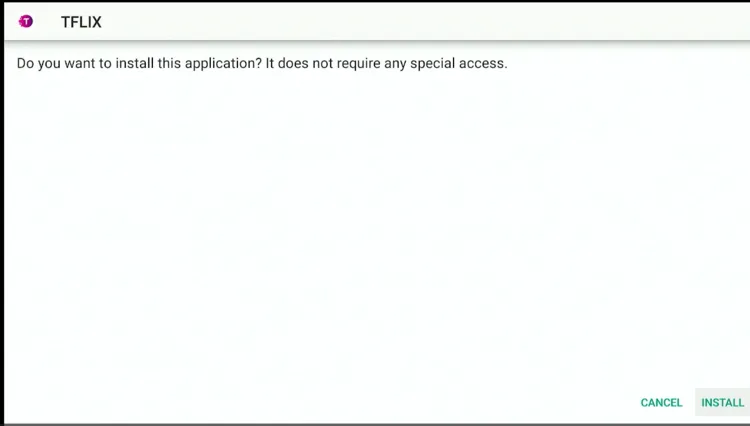
Step 23: Then click “Install.”
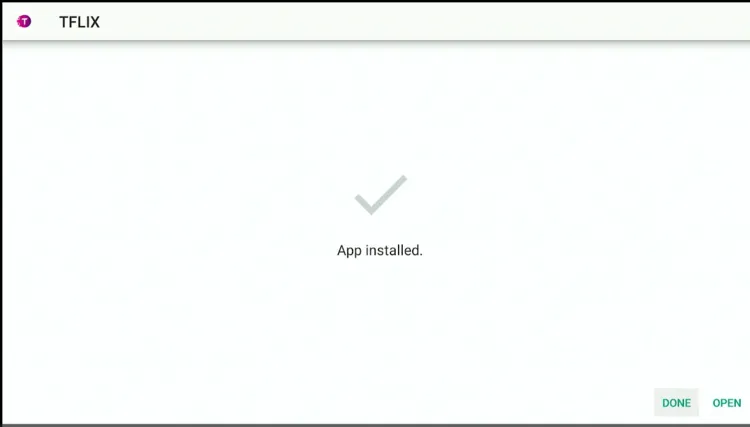
Step 24: Once the installation completes, click “Done.”
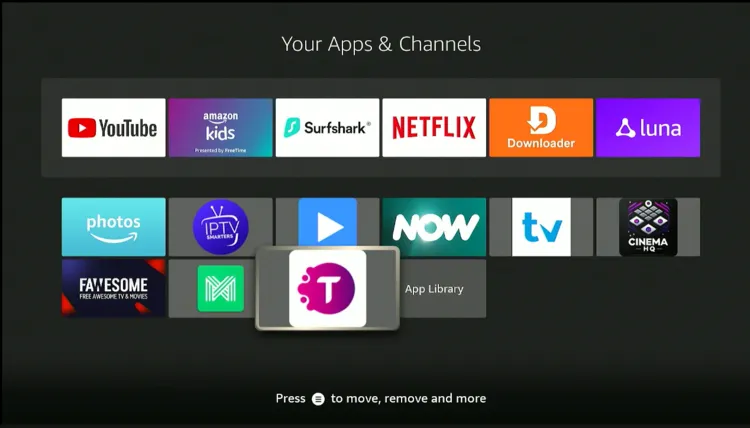
After installing the TFlix latest APK (v2.0) on your FireStick, you can access exclusive sports channels, including SuperSport, Premier Sports, Sky Sports, and beIN Sports, in high definition.
With the TFlix app, you can create your own custom playlistby simply adding an M3U URL. This feature lets you personalize your streaming experience with multiple playlists.
Sometimes typing a long URL with the Firestick remote can be frustrating. Use the firestick remote app to easily add URLs from your phone in just a few seconds.
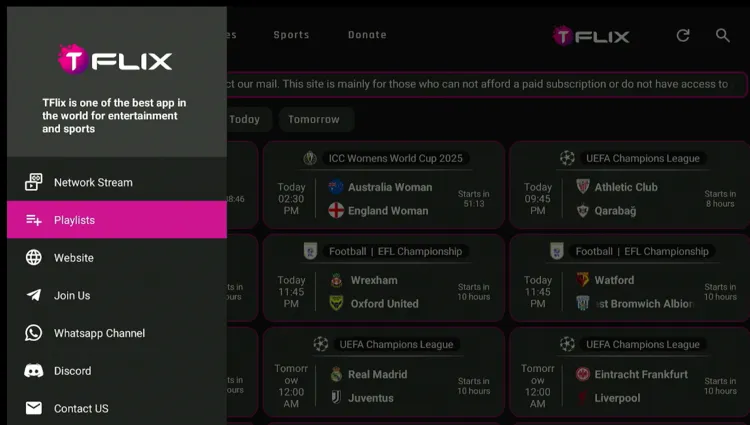
Step 1: Click the “Menu” icon in the top left corner.
Step 2: Click “Playlists”.
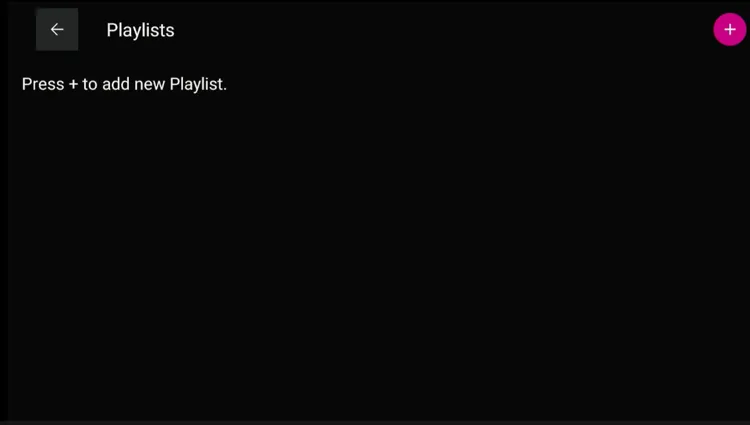
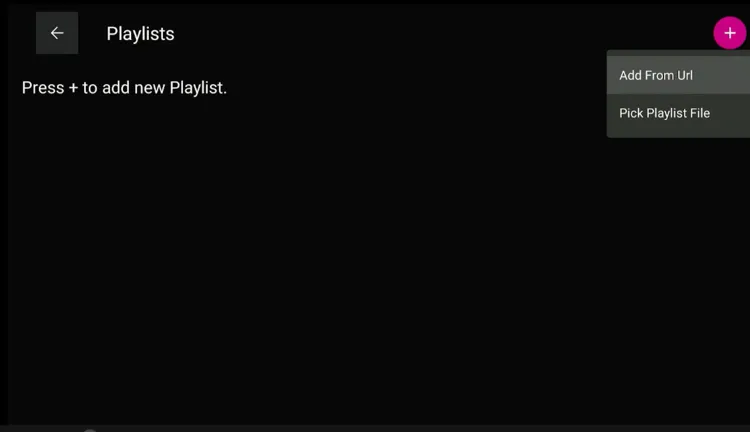
Step 3: Press “+” to create new playlist
Step 4: Click “Add URL”.
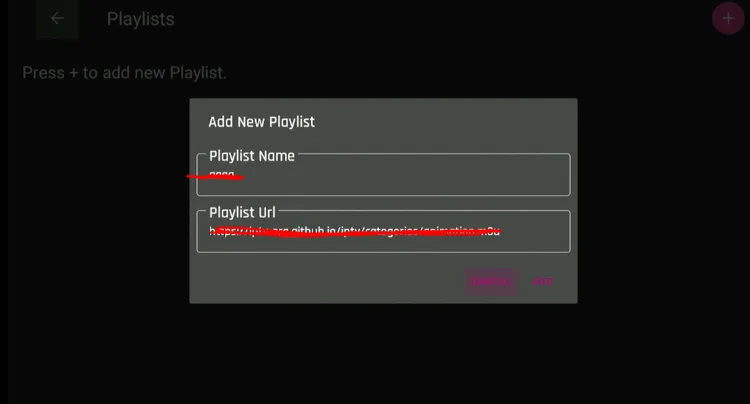
Step 5: Create a name for your playlist, then type the m3u URL and click “Add”.
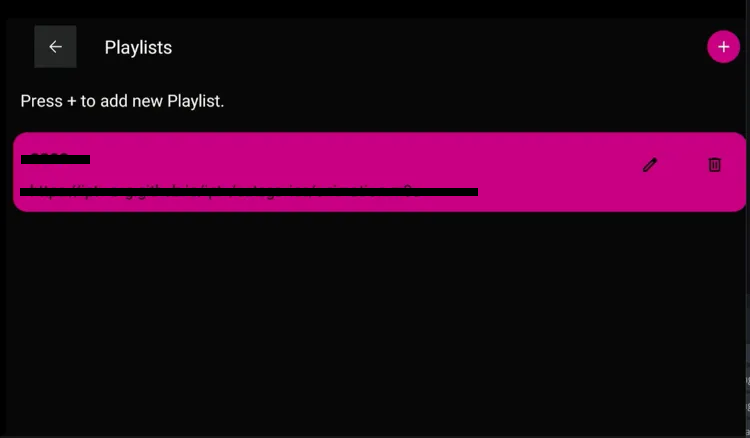
Step 6: Once the playlist is created, click on it.
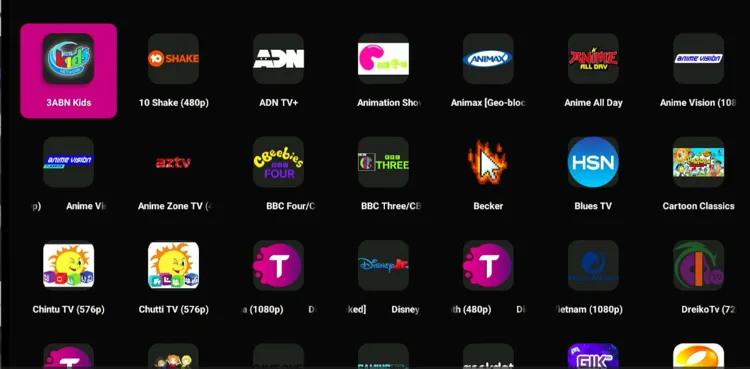
Step 7: Select your desired channel to watch
Step 8: Enjoy your streaming!
Overview of the TFlix App
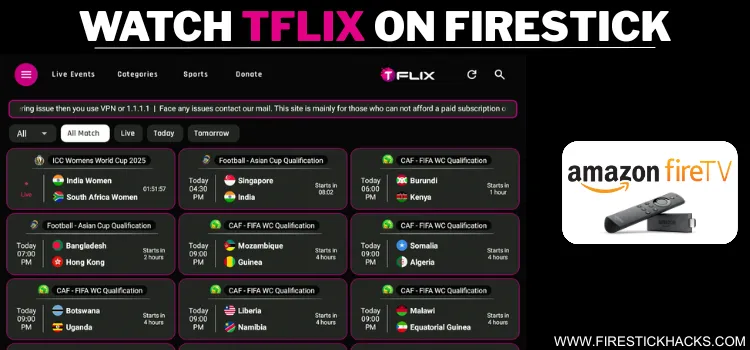
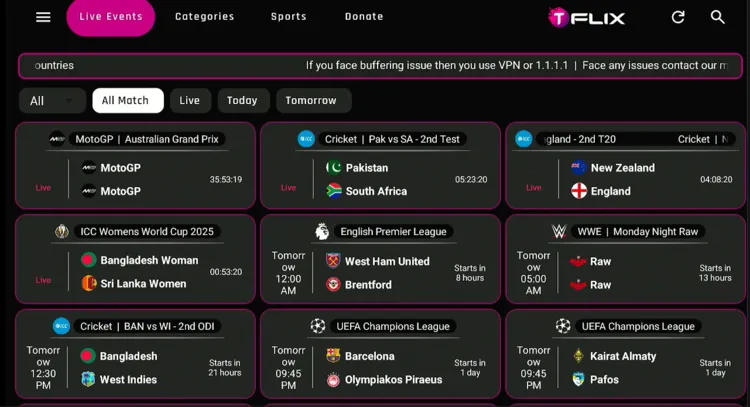
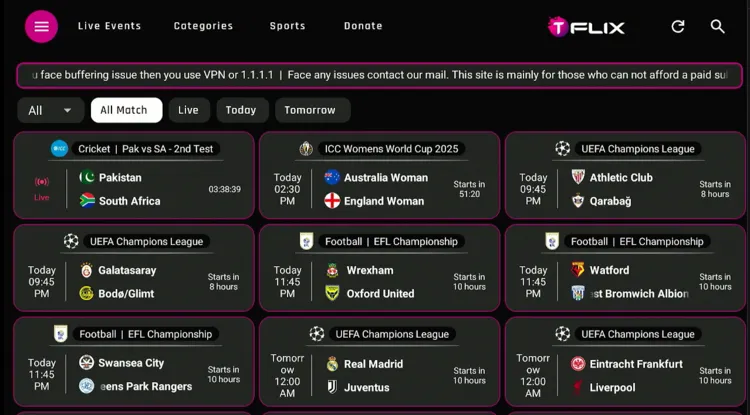
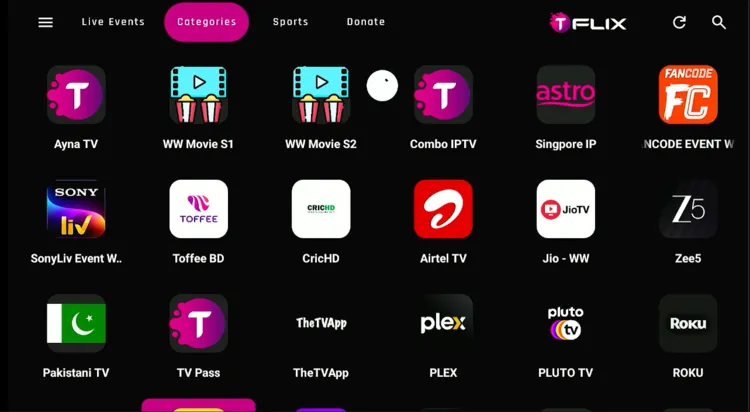
If you want to explore TFlix channels, click on “Categories“,and you will find tons of live TV channels across multiple countries like the UK, the US, Germany, and India.
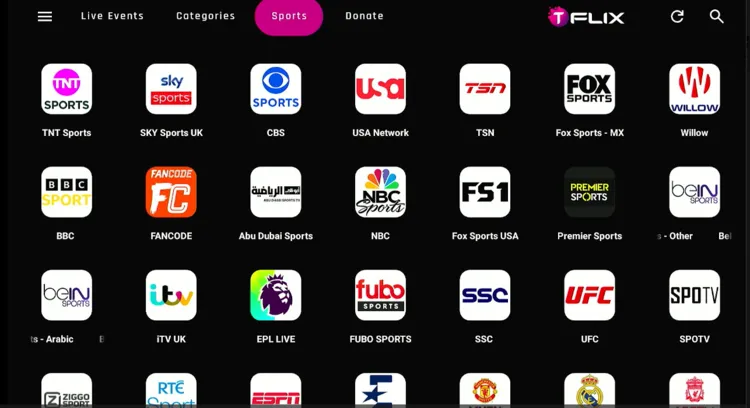
There’s a separate sports category that features multiple sports channels, allowing you to watch football, cricket, UFC, WWE, MotoGP, etc.
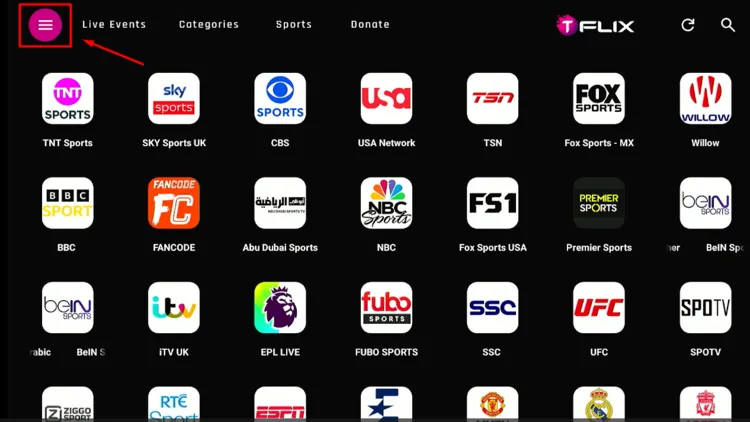
From the top left corner, you can select the “Menu”
TFlix (v2.0) is completely safe to use. We scanned this APK file using VirusTotal and found no malware or viruses.
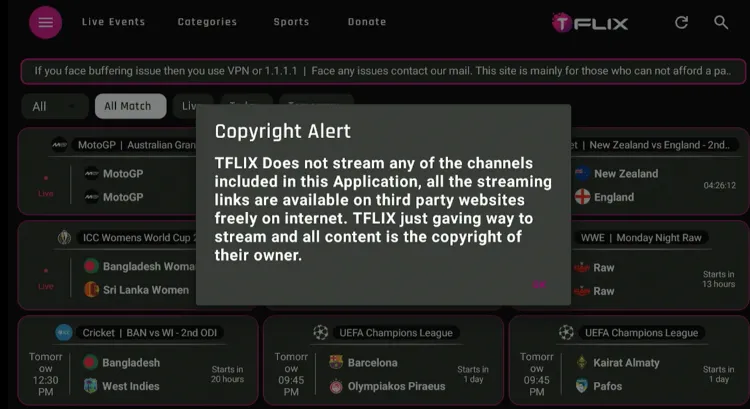
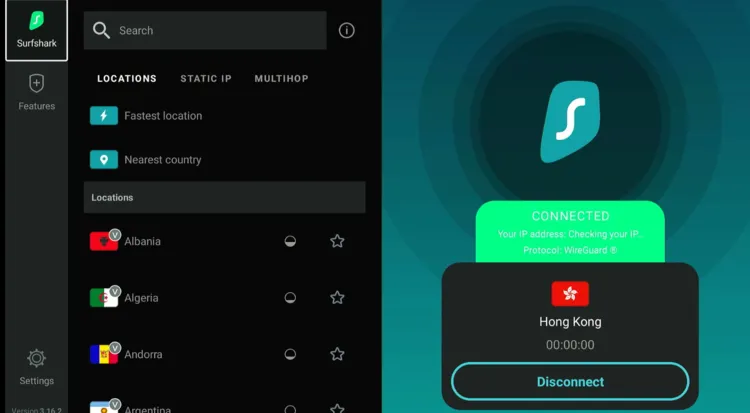
However, the app clearly states it sources links from third-party providers. That’s why you must install and use SurfShark VPN on FireStick to enhance your online security.
All You Need to Know About TFlix APK
Check out the key information about the TFlix APK in the table below:
Content-Type
Live Sports/Live TV
Price
Free
File Size
13.1 MB
Is It Safe to Use?
Yes, but with a VPN
Version
V2.0
Developer
TFlix
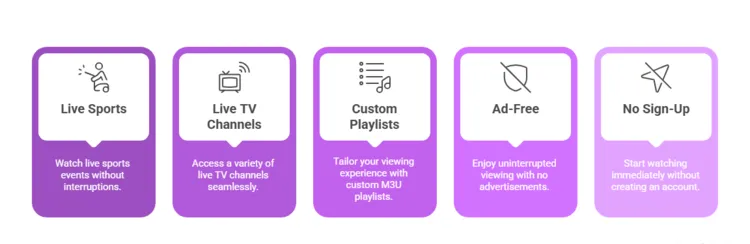
Top Features of the TFlix app
Check out some of the best TFlix app features:
✅ Live sports (football, cricket, and tennis)
✅ Live TV channels (UK, USA, Germany, etc.)
✅ Supports custom M3U playlists
✅ Ad-free
✅ No sign-up required
✅ HD streaming
Yes,TFlixisafreestreamingapplicationthatallowsuserstoaccessavarietyof content, such as sports, movies, news, etc.
Can I adjust the streaming quality on the TFlix app?
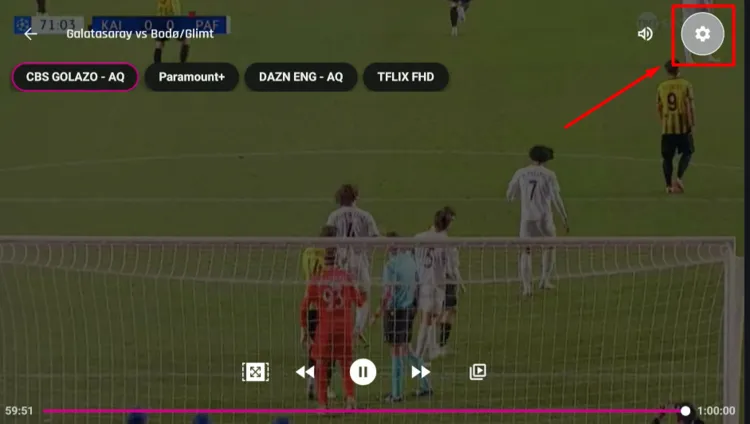
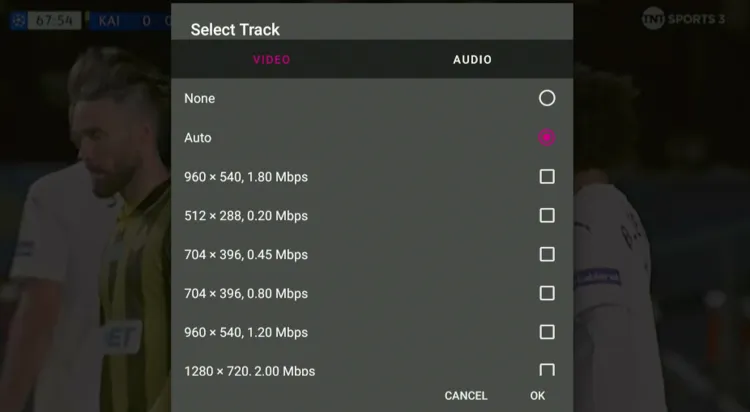
Yes, you can switch between 1080p, 720p, or 480p depending on your internet speed.
Can I install TFlix on FireStick?
Yes, you can easily install TFlix on FireStick using the Downloader app and using our Downloader code 730116.
Does TFlix show ads?
No, TFlix is completely ad-free.
Conclusion
While the TFlix app mainly focuses on sports, it also offers a variety of live TV channels to cover all your entertainment needs.
The TFlix app is completely ad-free and lets you stream content in high definition, and even allows M3U URLs for custom playlists.
However, since TFlix fetches content from third-party sources, users should always use a reliable VPN like Surfshark to protect their data and avoid potential risks to their device.
About Black Joseph
Black Joseph is a tech enthusiast and creative mind behind firestickhacks.com. With a passion for optimizing streaming experiences, he's dedicated to sharing innovative hacks and solutions for Firestick users. Joseph's expertise and insights help users unlock the full potential of their devices, making entertainment more accessible and enjoyable
"We use cookies to enhance your browsing experience, analyze site traffic, and personalize content. By continuing to use this site, you agree to our use of cookies. Manage your preferences anytime.
Functional
Always active
The technical storage or access is strictly necessary for the legitimate purpose of enabling the use of a specific service explicitly requested by the subscriber or user, or for the sole purpose of carrying out the transmission of a communication over an electronic communications network.
Preferences
The technical storage or access is necessary for the legitimate purpose of storing preferences that are not requested by the subscriber or user.
Statistics
The technical storage or access that is used exclusively for statistical purposes.The technical storage or access that is used exclusively for anonymous statistical purposes. Without a subpoena, voluntary compliance on the part of your Internet Service Provider, or additional records from a third party, information stored or retrieved for this purpose alone cannot usually be used to identify you.
Marketing
The technical storage or access is required to create user profiles to send advertising, or to track the user on a website or across several websites for similar marketing purposes.














Is Tflix (1.0)) download to fire sticks being blocked?
Hi Bart. Once you click TFlix in Step 21, a timer will start. Wait for the timer to finish (10 seconds roughly) and the file will start downloading.