Disclosure: Our experts test apps for security before recommending them. If you buy through our links, we may earn a commission. See how it works.

Launcher Manager Mini is a free utility tool that lets you set a default app to launch automatically every time FireStick restarts.
This means you can use it as Launch on Boot alternative to replace the default Fire TV homescreen with custom launchers such as Wolf Launcher or Projectivity Launcher.
You can also configure it to launch a streaming app like Paramount+, Netflix, or Hulu, making navigation easier for less tech-savvy users, like your parents.
P.S. You will have to set up the Launcher Manager Mini every time you update your FireStick device.
How to Install Launcher Manager Mini on FireStick [Video]
How to Install Launcher Manager Mini on FireStick
Launcher Manager Mini is an unofficial/third-party app, which means you will have to sideload it using the Downloader app.
Knowing that third-party sources are not as secure, be sure to install and use SurfShark VPN on FireStick to hide your IP address.
Follow the steps below:
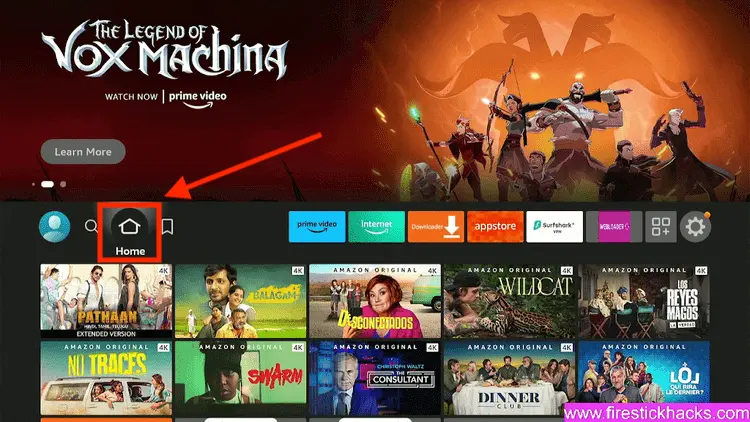
Step 1: Turn ON your FireStick device and Go to FireStick Home
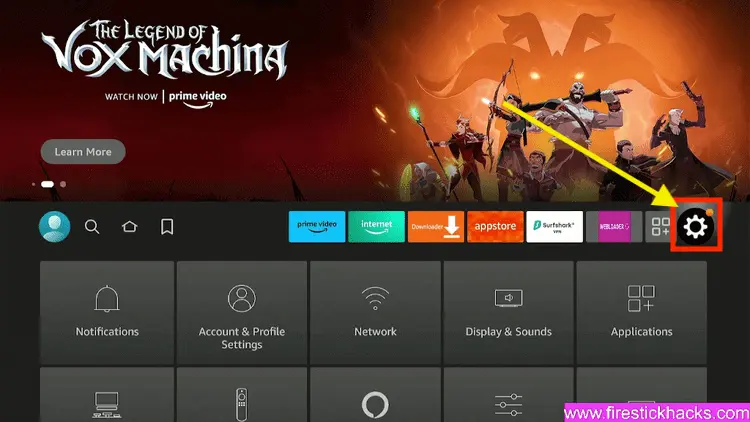
Step 2: Click on the Settings icon
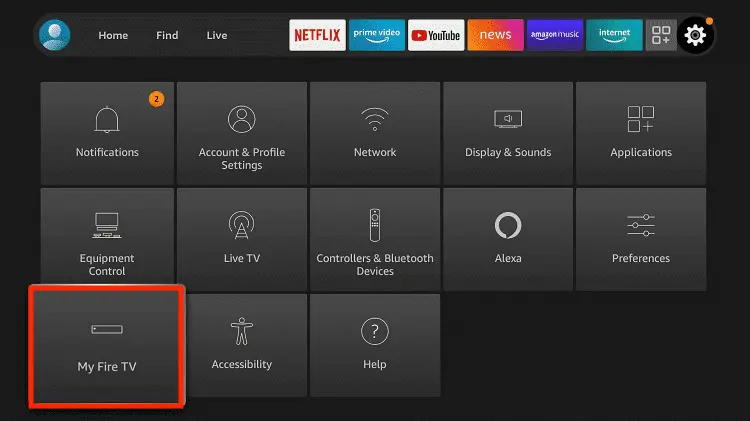
Step 3: Select the My Fire TV option
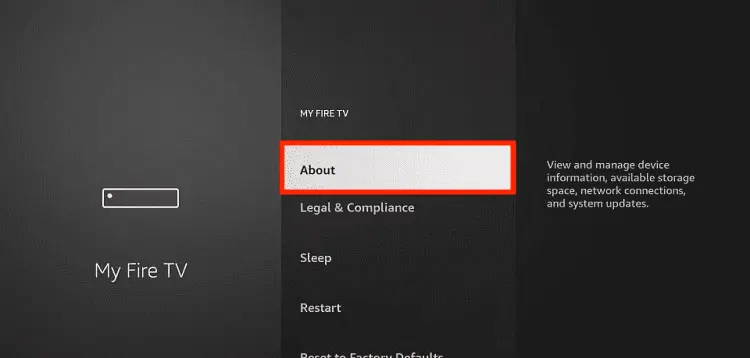
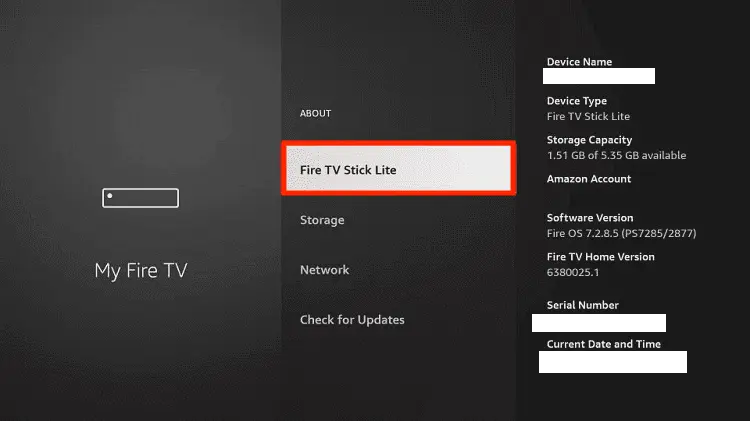
Step 4: To enable the Developer Option, click About.
Note: If you have already enabled the Developer Option, then proceed to Step 10
Step 5: Click on the Fire TV Stick option quickly at least 7 times
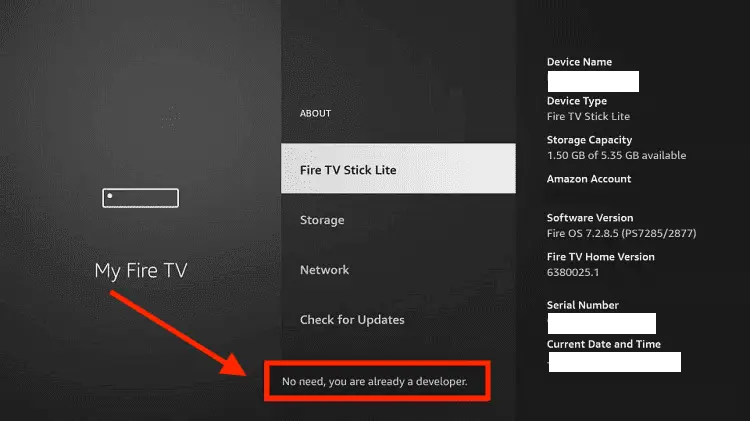
Step 6: Now you will see this message at the bottom saying "No need, you are already a developer". So stop clicking then
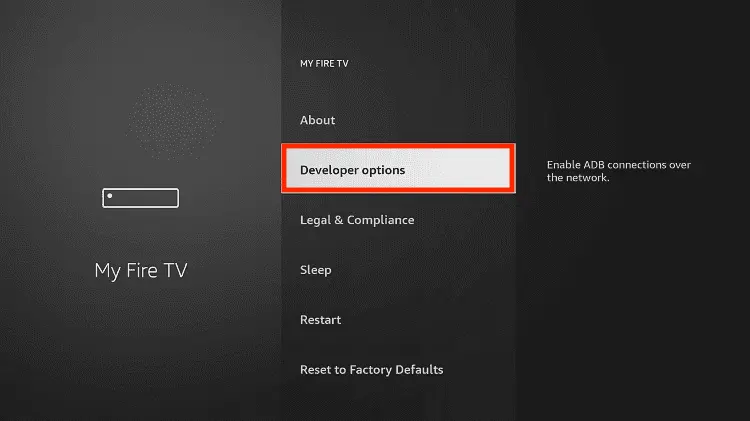
Step 7: Now the Developer Option will appear in the menu so click on it
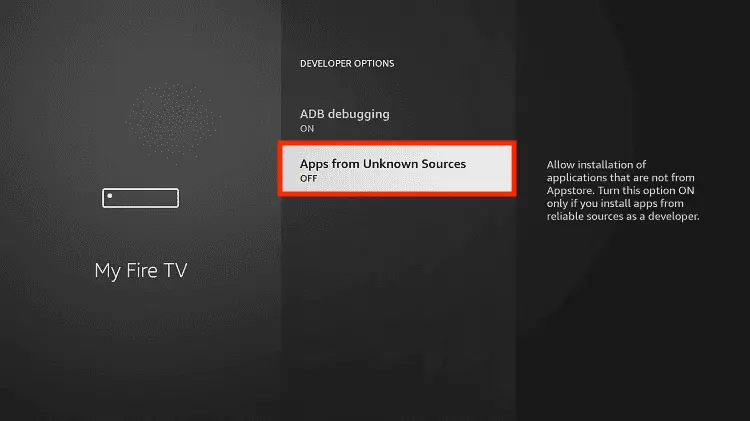
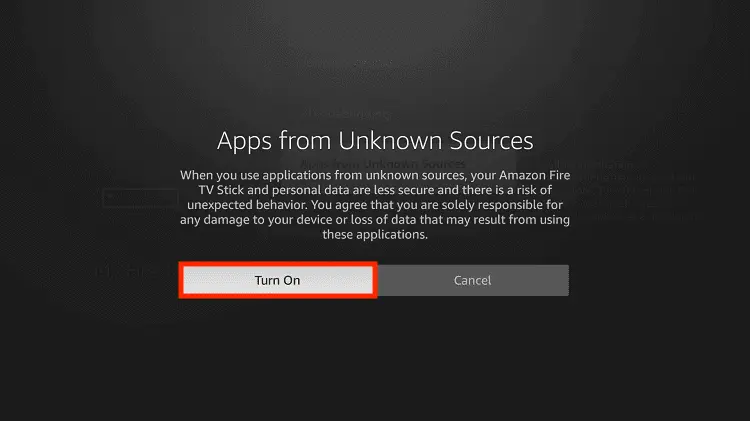
Step 8: Choose Apps from Unknown Sources to turn it ON
Step 9: Simply click Turn On
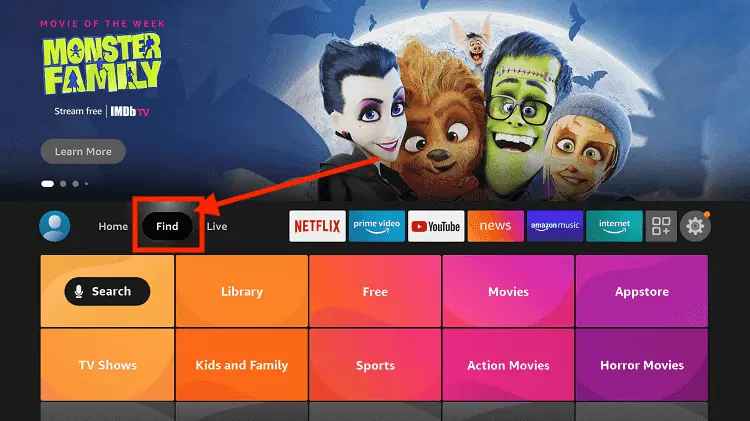
Step 10: Now return to the FireStick Home menu by pressing the "Home" icon on the remote and click on Find
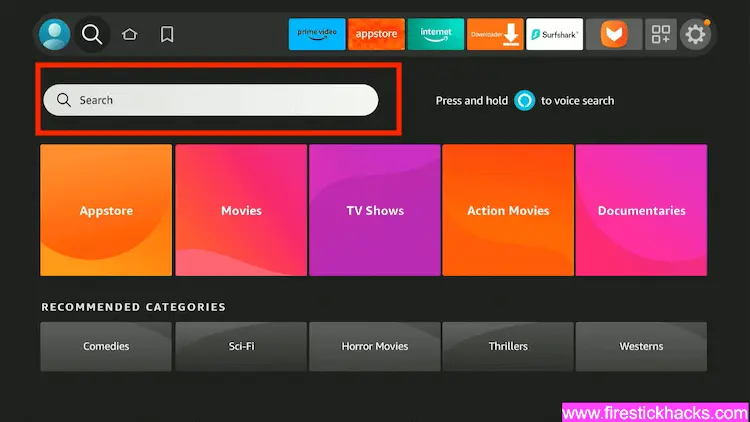
Step 11: Now select the Search icon
Step 12: Type Downloader and press search
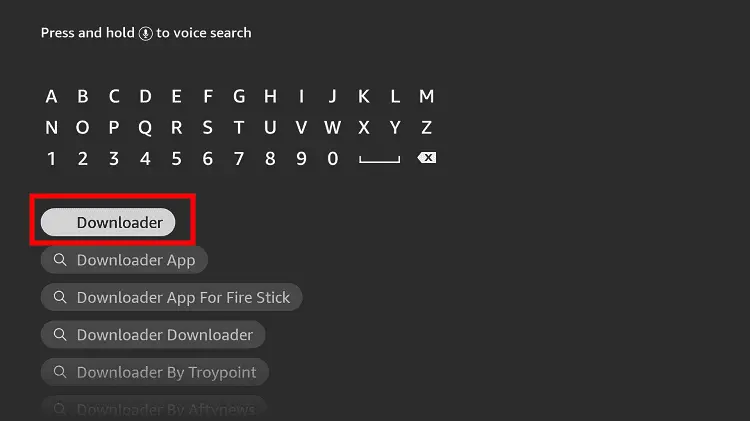
Step 13: Select the Downloader App icon from the list available in the Amazon Store
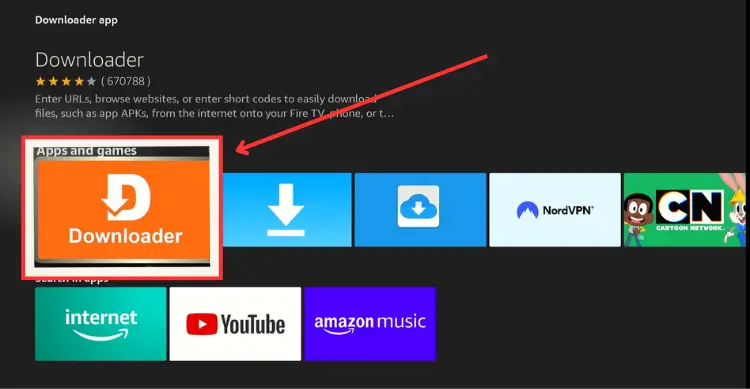
Step 14: Tap Get/Download
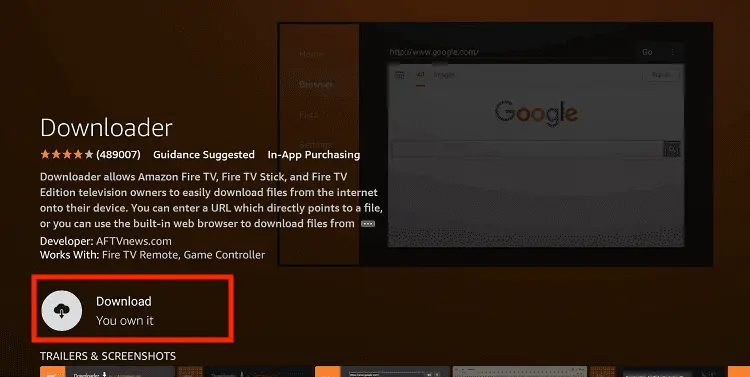
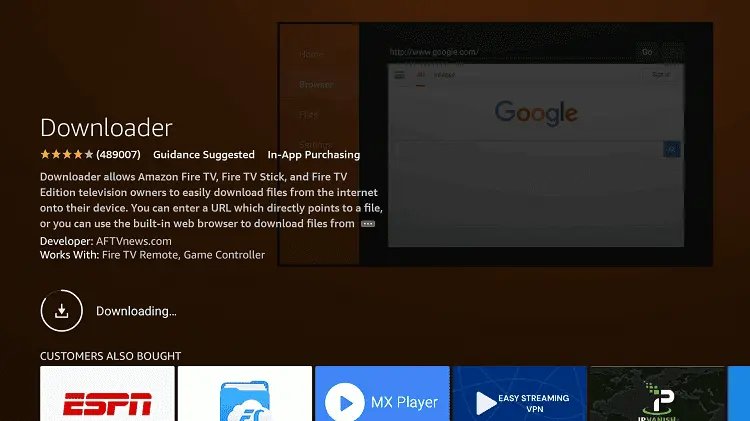
Step 15: Wait for a while until the installation process is completed
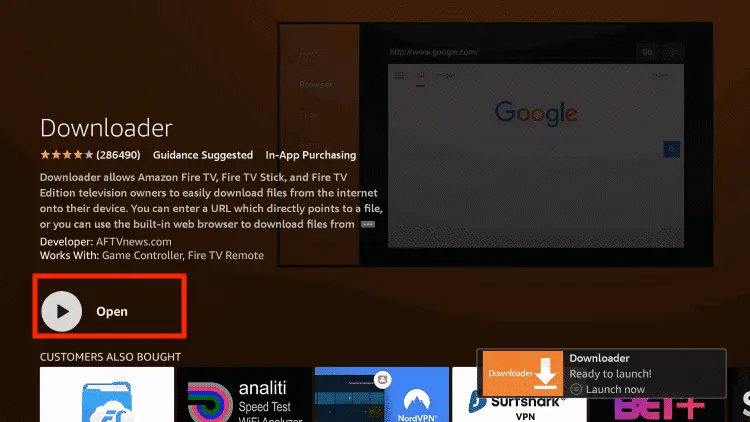
Step 16: Now click Open
Step 17: You will see a popup about Downloader app latest update. Click "OK".

Step 18: Click OK again

Step 19: This is the Downloader App interface, Click the Search Bar on top

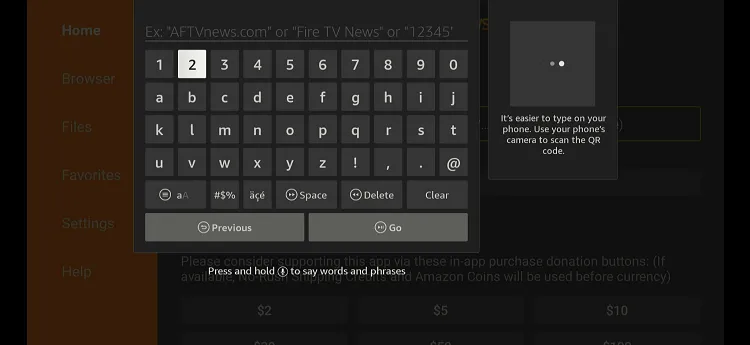
Step 20: Enter Launcher Manager Mini Downloader Code 730116 in the search box OR enter this URL bit.ly/fsh-downloads and click Go.
Note: The referenced link is the official URL of this app/website. FIRESTICKHACKS does not own, operate, or re-sell any app, streaming site, or service and has no affiliation with its developers.
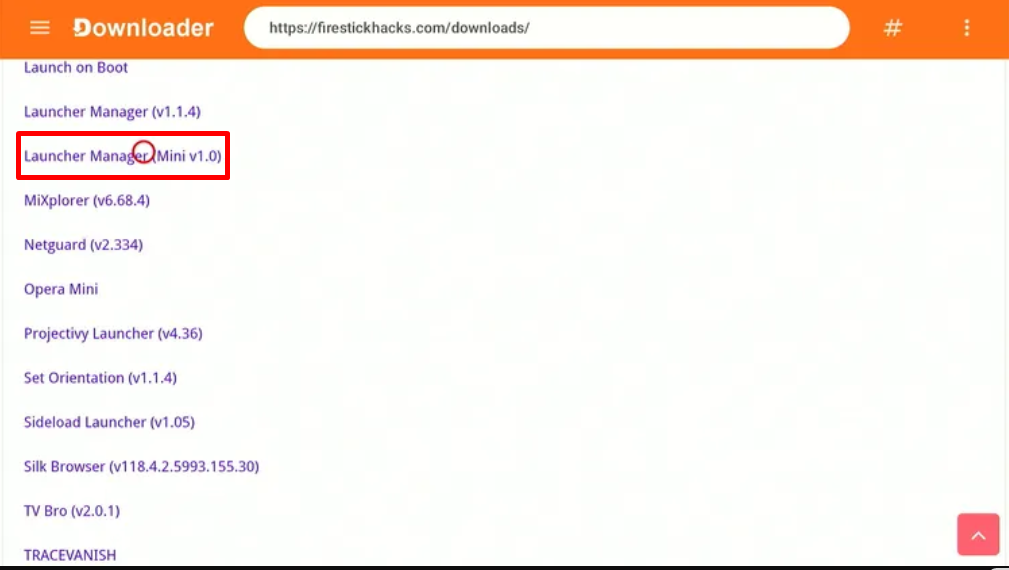
Step 21: Scroll down and click “Launcher Manager Mini” from the “Utility Apps” category.
Note: If the app does not start downloading, then clear the Downloader App cache using this article.
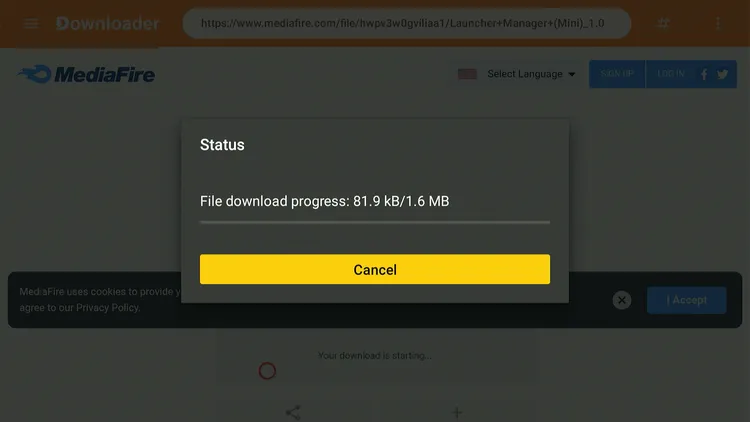
Step 23: Once the downloading ends, click “Install”.
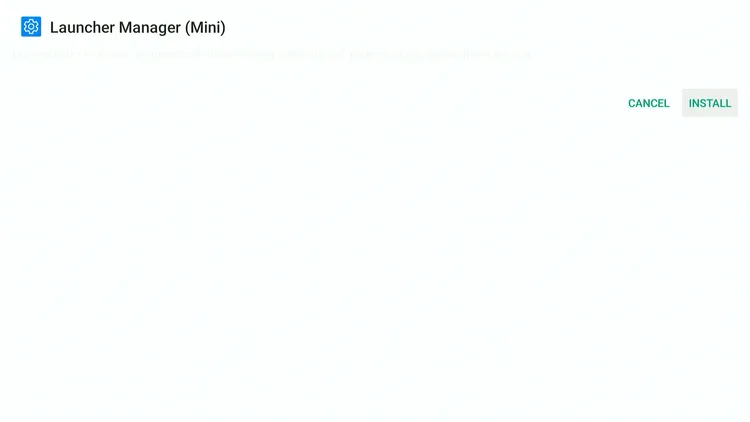
Step 23: Once the downloading ends, click “Install”.
Step 24: Tap the “Done” icon.
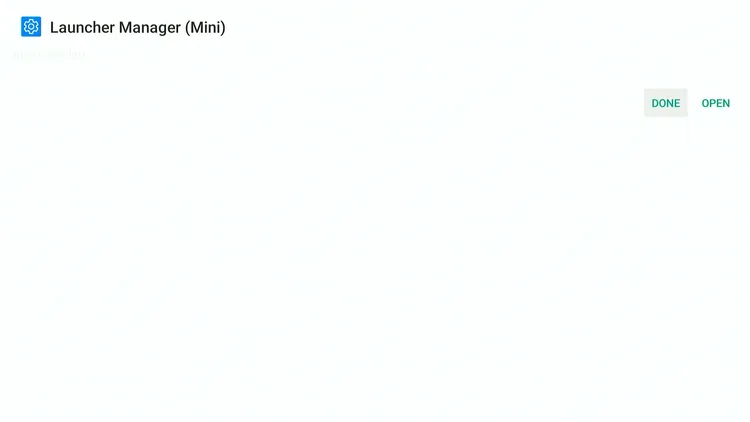
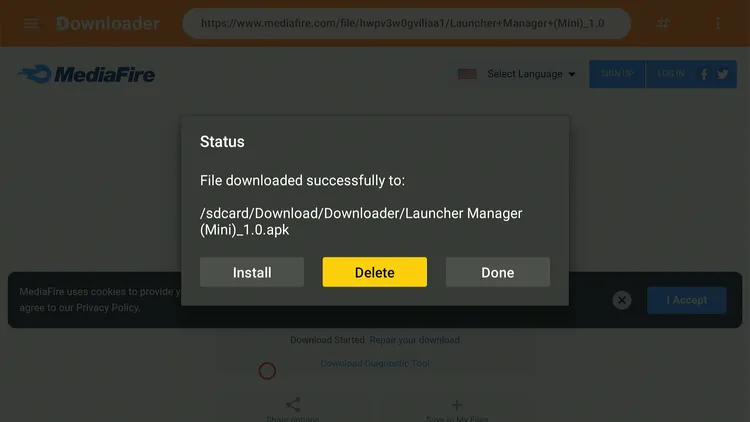
Step 25: Click “Delete” to remove the Launcher Manager Mini APK file from FireStick.
Note: Deleting APK files will free up space on FireStick.
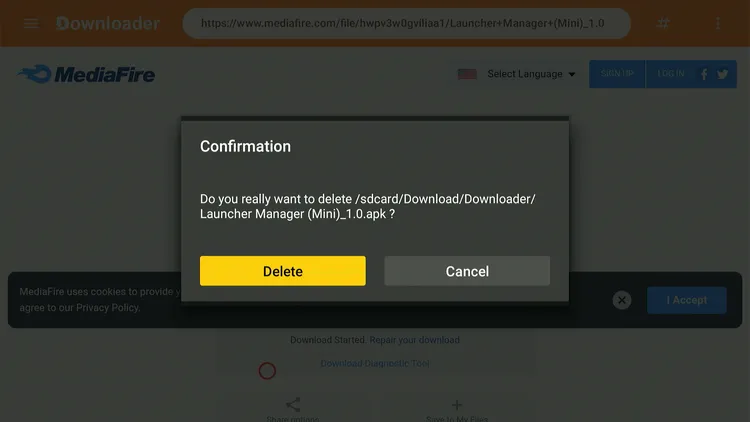
Step 26: Tap “Delete” again to complete the process.
How to Set Up Launcher Manager Mini on FireStick
Now, when you launch Launcher Manager Mini, it will be inactive by default 👇
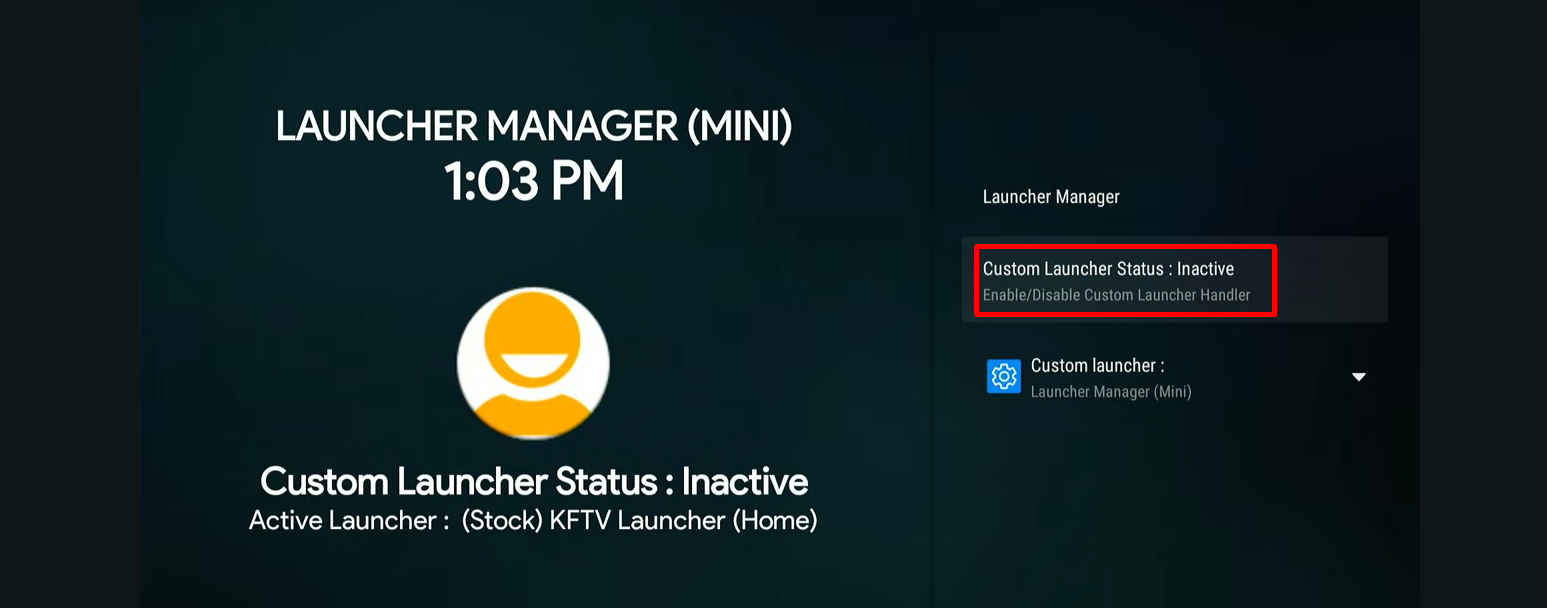
You will have to activate it by entering the following shell command using the atvTools app.
adb shell pm grant com.wolf.minilm android.permission.READ_LOGS adb shell dumpsys deviceidle whitelist +com.wolf.minilm
Here’s how you can set up Launcher Manager Mini on FireStick.
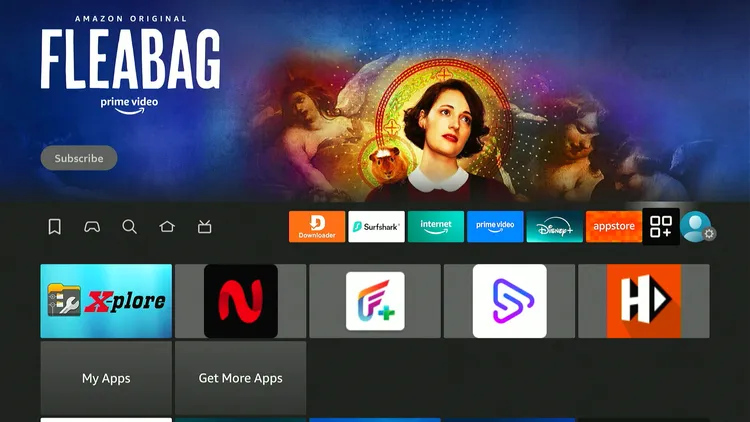
Step 1: Head to your FireStick home screen and click “Settings”.
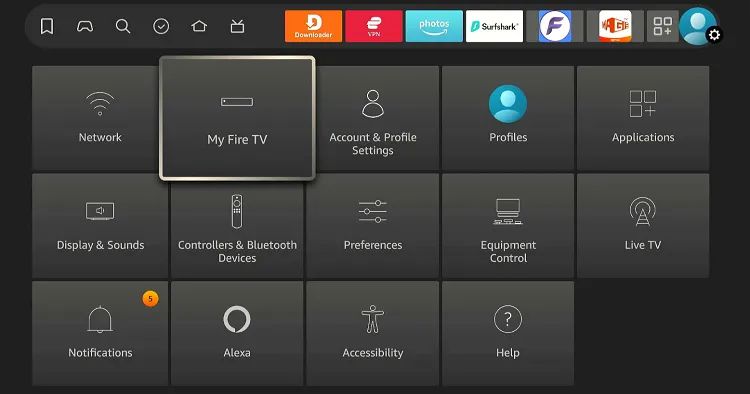
Step 2: Choose “My Fire TV”.
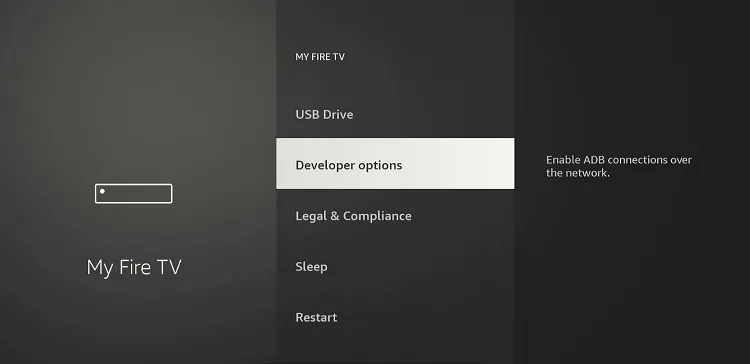
Step 3: Click “Developer Options”.
P.S. If you don’t see “Developer Options”, click Fire TV Stick 7 times quickly. Now you will see the popup “No need, you are already a developer.”
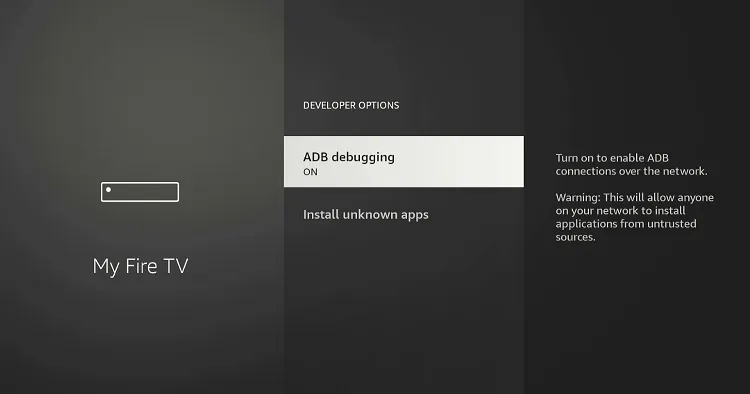
Step 4: Turn “ON” ADB Debugging.
Step 4: Now, open the App Store or Google Play Store on your mobile. Type “atvTools” and select it from the results.
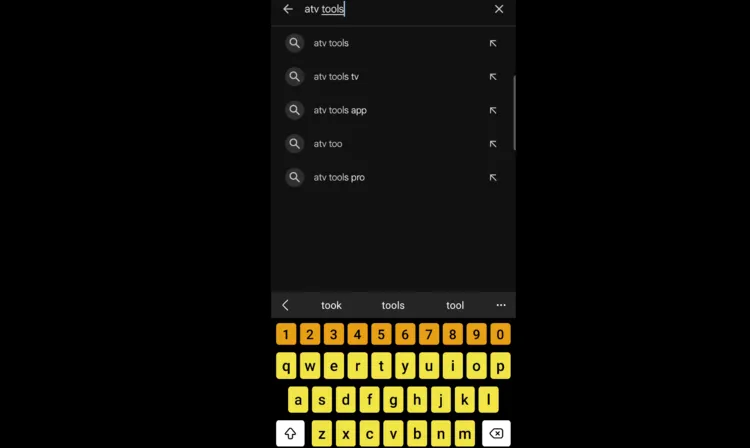
Step 5: Tap “Install”.
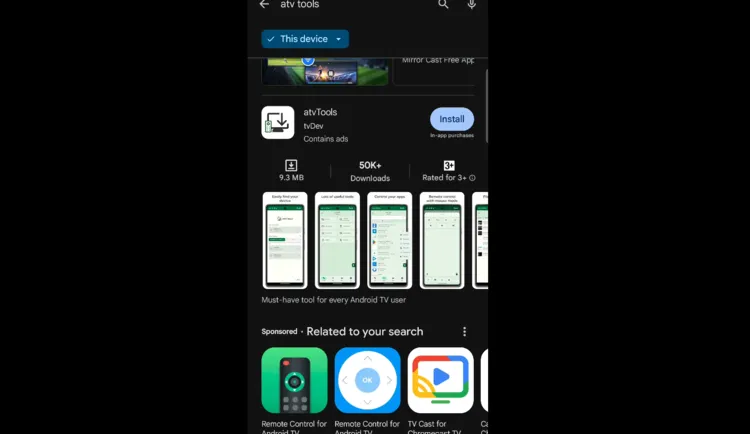
Step 6: Click “Open”.
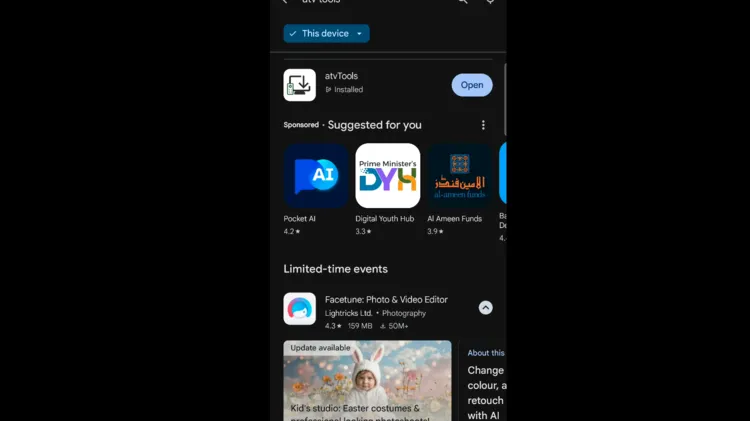
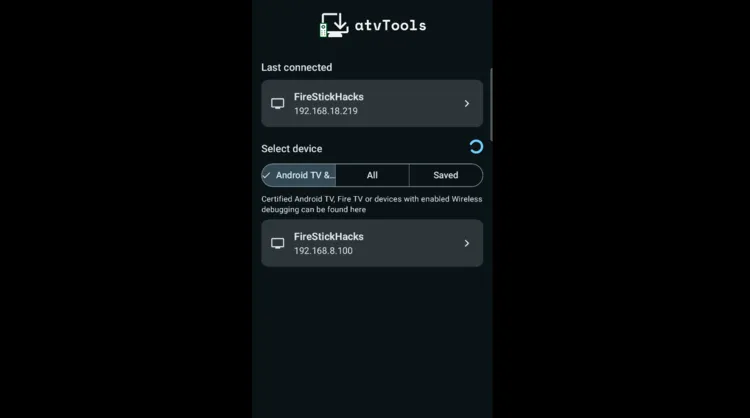
Step 7: Launch atvTools on your app. You will see all the devices compatible with atvTools; select your FireStick
P.S. Make sure both atvTools app and the FireStick are connected to the same wi-fi.
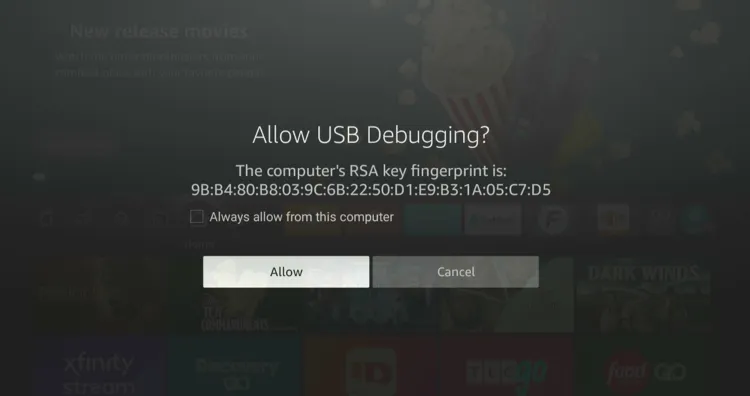
Step 8: Now you will see this pop up on your FireStick. Click “Allow”.
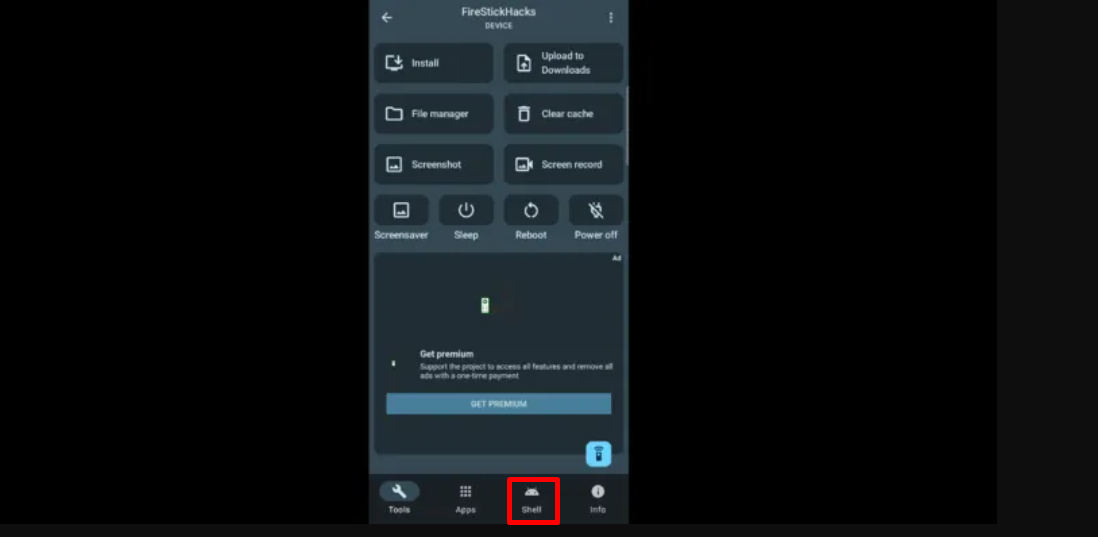
Step 9: The atvTools has been successfully connected to FireStick. Click “Shell” from the bottom menu.
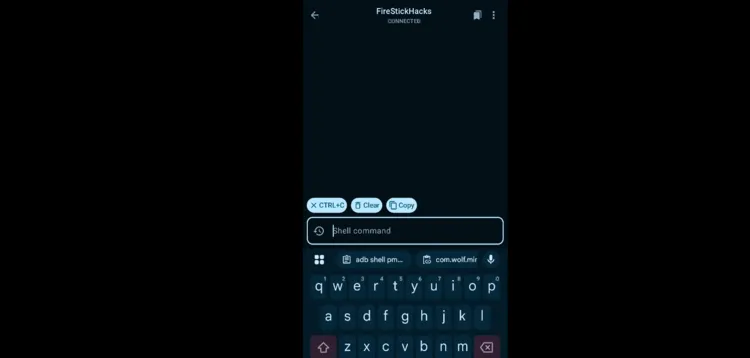
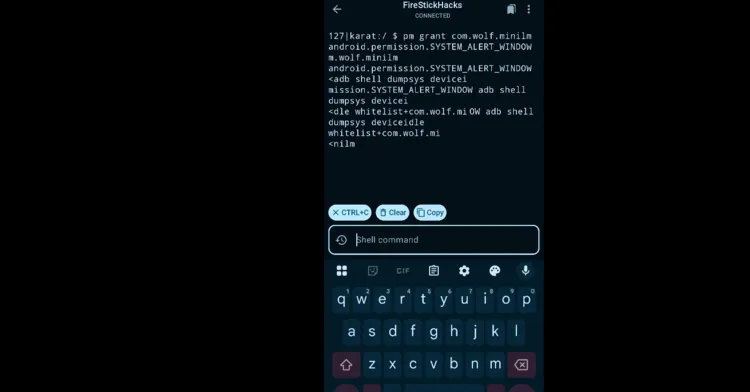
Step 10: Type/copy this command 👇
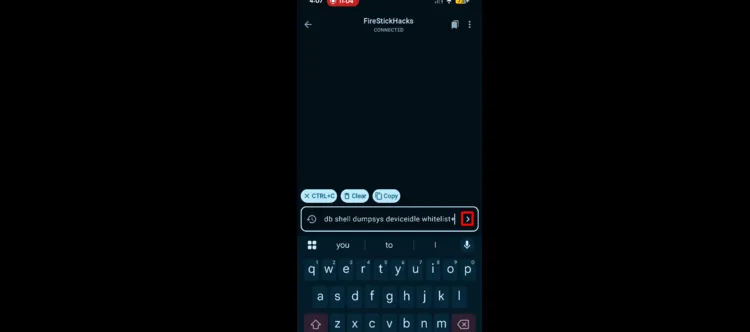
adb shell pm grant com.wolf.minilm android.permission.READ_LOGS adb shell dumpsys deviceidle whitelist +com.wolf.minilm
Step 11: After entering the command, click icon in the red box.
Step 12: Once you enter the command in atvTools, launch “Launcher Manager Mini” on FireStick.
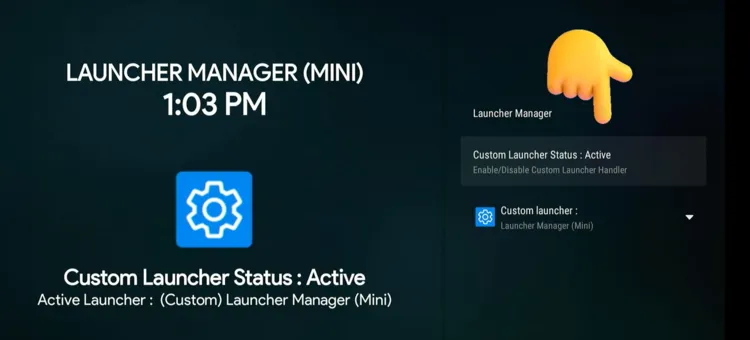
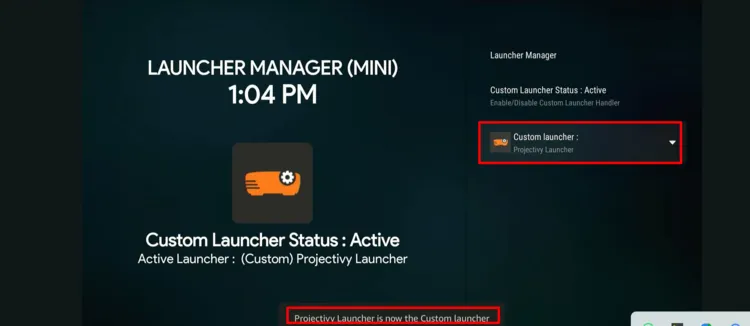
Step 13: As you can see, the Launcher Manager Mini has become “Active” now.
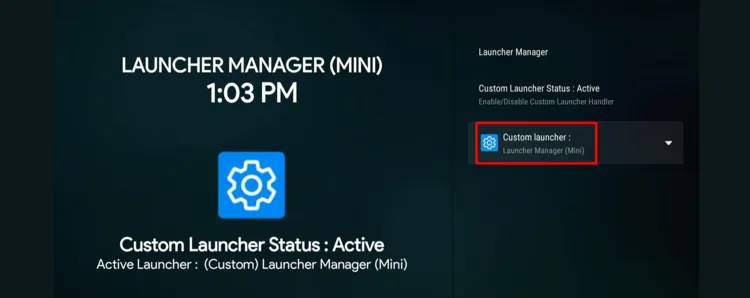
Step 14: Click “Custom Launcher”.
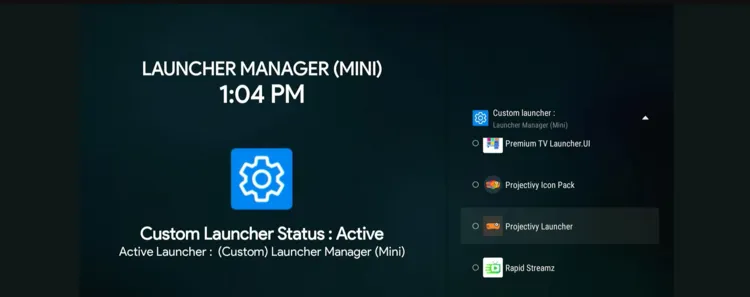
Step 15: Choose any app you want to automatically launch on boot. I’m opting for Projectivy Launcher.
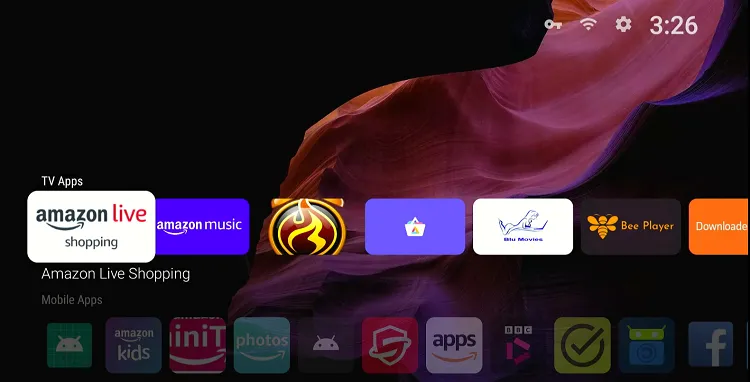
Step 16: Now restart your FireStick.
Step 17: After reboot, wait for a few seconds. Your FireStick will automatically launch selected app.
Is Launcher Manager Mini Safe/Legal to Use on FireStick?

Launcher Manager Mini APK (v1.0) is safe to use on FireStick. We conducted a comprehensive scan on VirusTotal and found no traces of viruses or malware.
That said, Launcher Manager Mini is unavailable on the Amazon Appstore, so you will need to sideload it from a third-party source. That is why it is a good idea to install Surfshark on FireStick.
FAQs – Launcher Manager Mini
What is Launcher Manager Mini?
It’s a free utility tool that lets you automatically launch a selected app when your FireStick boots.
Why is Launcher Manager Mini inactive after installation?
It requires manual activation using an ADB shell command via the atvTools app.
Does Launcher Manager Mini work with all FireSticks?
It works with most Fire TV devices (exclusing 4K Select) with Fire OS 6 or more.
Final Thoughts
If you want to bypass FireStick’s content & ads-heavy homescreen, Launcher Manager Mini is an ideal app for you.
With this tool, you can setup a custom launcher like Projectivy Launcher or Wolf Launcher and get an ad-free and customized homescreen.
Moreover, you’re not limited to custom launchers- you can also boot straight into a streaming app like Disney+, Paramount+, and Netflix or third-party apps like SportzX, NetMirror, and Netfly.