Disclosure: Our experts test apps for security before recommending them. If you buy through our links, we may earn a commission. See how it works.

Nothing kills the vibe faster than a Playback Error mid-stream.
Let’s say you’re watching a live football match, a movie, or a reality show, and out of nowhere, the stream breaks with a popup: “Playback Failed,” “Check Your Connection,” or “Try Again Later.”
These errors are more common in third-party streaming apps like Rapid Streamz, Flix Vision, HD Streamz, and unofficial IPTV players like IPTV Smarters Pro, TiviMate, or XCIPTV.
In this guide, I’ll show you exactly how to fix playback errors on FireStick so you can get back to watching without glitches or black screens.
7 Ways to Fix Playback Errors on FireStick
If you’re seeing playback errors while streaming your favorite content on FireStick, these quick fixes usually do the trick:
1. Restart Your FireStick

It’s one of the simplest and most effective fixes for playback errors. Restarting clears temporary glitches and reboots your FireStick’s memory.
How to fix: Go to Settings > My Fire TV > Restart
P.S. You may also press and hold Select + Play/Pause on your remote for 5 seconds to restart FireStick.
Read More: How to Restart FireStick
2. Clear App Cache & Data

Corrupt cache files often block video playback. Clearing them gives the app a clean slate. Some apps offer a built-in option to clear the cache. If not, here’s how to do it manually:
How to fix: Settings > Applications > Manage Installed Applications > Choose App > Clear Cache
Read More: How to Clear App Cache on FireStick
3. Close Background Apps

Having too many apps running in the background slows down FireStick and affects playback quality.
How to fix: Settings > Applications > Manage Installed Applications > Choose App > Force Stop.
Read More: Close Background Apps on FireStick
4. Change VPN Server Location
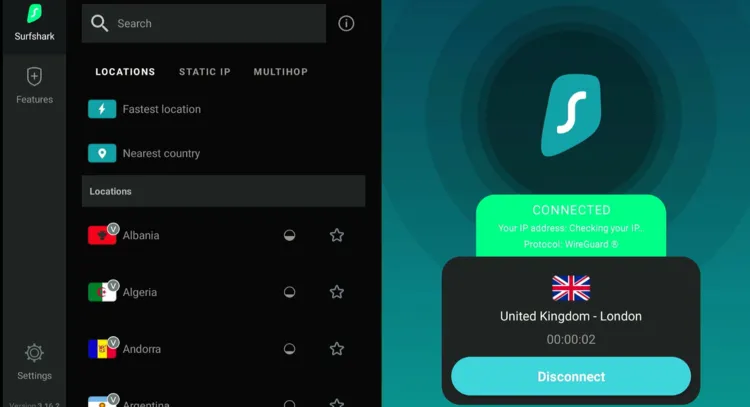
Third-party apps require a quality VPN like Surfshark to ensure secure streaming. So if you’re using a VPN, the server may be blocked or overloaded, leading to playback errors.
How to fix: Open your VPN app > Disconnect > Choose a different server (e.g., US – Hong Kong or London) > Reconnect.
P.S. Before launching the streaming app again after changing the server, make sure to clear the cache first.
5. Switch the Video Player

Some third-party apps like Rapid Streamz or TVMob let you integrate external players. If the built-in player fails to load the stream, switching to MX Player or VLC Player often solves the issue.
How to fix: Open the app > Go to app settings > Look for “Default Player/Media Player/External Players > Select MX Player or VLC Player.
6. Update the App

Sometimes apps just bug out beyond fixing, or just come up with an updated version. Therefore, it’s recommended to delete the app and reinstall the latest version for a smoother streaming experience.
How to fix: Open Downloader App > Enter Downloader Code 730116 > Click on the app you want to install
7. Check Internet Speed

Slow or unstable internet is a common reason behind playback errors. Test internet speed and make sure it is at least 10 Mbps for SD streaming and 20–25 Mbps for HD/Live TV.
How to fix: If speeds are low, restart your router, switch to 5GHz Wi-Fi, or set up an Ethernet adapter on FireStick.
FAQs – Fix Playback Errors
Why does my FireStick keep showing “Playback Failed”?
This usually happens due to app cache issues, poor internet, or blocked VPN servers.
Will clearing cache delete my app data?
No, clearing cache only removes temporary files – not your login or app settings.
Should I use MX Player or VLC for better performance?
Well, external players like MX Player or VLC Player are more reliable than built-in ones in many third-party apps.
Will factory resetting my FireStick fix playback issues?
It can. Since it erases everything, you should consider backing up apps before resetting firestick.
Conclusion
Playback errors on FireStick can be incredibly annoying. As frustrating as they are, most of these issues are tied to things like overloaded cache, unstable connections, or blocked VPN servers.
The good news? They’re usually easy to fix.
Whether you’re streaming through third-party apps like Rapid Streamz and Flix Vision, or using IPTV players like TiviMate or IPTV Smarters Pro, the methods we’ve shared above cover all the common causes.