Disclosure: Our experts test apps for security before recommending them. If you buy through our links, we may earn a commission. See how it works.

Stranger Things Season 5 premiered on November 26, 2025. Guess what? Netflix briefly crashed as millions rushed to stream the new season. It speaks about the frenzy people have for the show.
The final season is being released in 3 parts: Volume 1 (episodes 1-4) on November 26, 2025, Volume 2 (episodes 5-7) on December 25, 2025, and the grand finale (episode 8) on December 31, 2025.
With FireStick, you can watch Stranger Things Season 5 and the previous 4 seasons for free using third-party apps like HDO Box, Cinema HD, Kisskh, and BeeTV.
Please note that third-party/unofficial apps could fetch links from unknown sources, so using a VPN is a must to ensure secure streaming. Surfshark is our #1 choice.
🛡️ VPN RECOMMENDATION
Our Recommended VPN - Surfshark
Your ISP sees every stream. Unverified apps expose your IP. Fix both in under 2 minutes.
🔒 30-day money-back guarantee • $0.06/day

Table of Contents
Toggle2 Ways to Watch Stranger Things on FireStick
The following 2 tried-and-tested methods will let you watch all Stranger Things seasons (including the coming episodes of season 5) on FireStick for free from all over the world:
- Watch Stranger Things on FireStick Using Downloader App
- Watch Stranger Things on FireStick Using a Browser
How to Watch Stranger Things on FireStick Using Downloader App
HDO Box is a free app that lets you watch 1000s of on-demand movies, shows, and documentaries. It features all 5 Seasons of Stranger Things in top-notch streaming quality (up to 1080p).
However, you will have to install Drama Player to be able to stream anything on HDO Box.
However, since HDO Box might be fetching links via unknown/unverified sources, make sure to install and use SurfShark VPN on FireStick to ensure secure streaming.
Follow the steps below:
Step 1: Turn ON your FireStick device and Go to FireStick Home
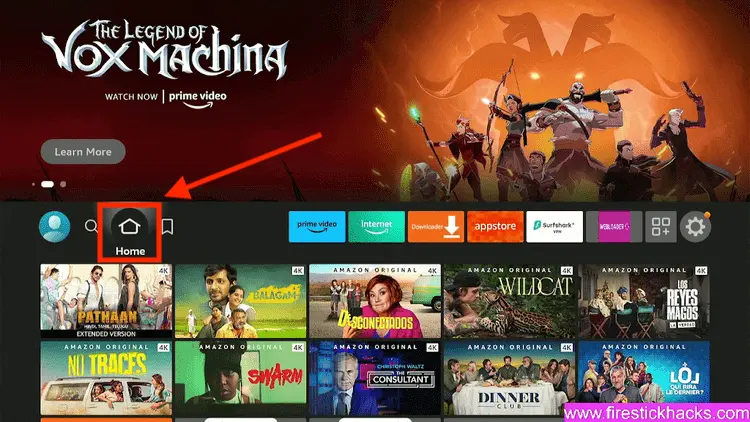
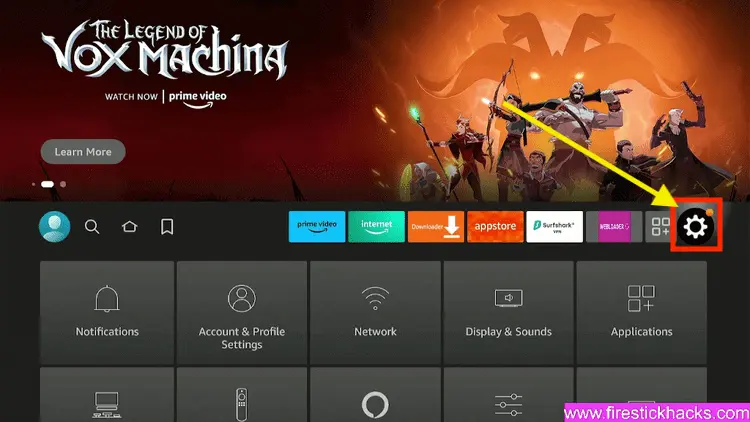
Step 2: Click on the Settings icon
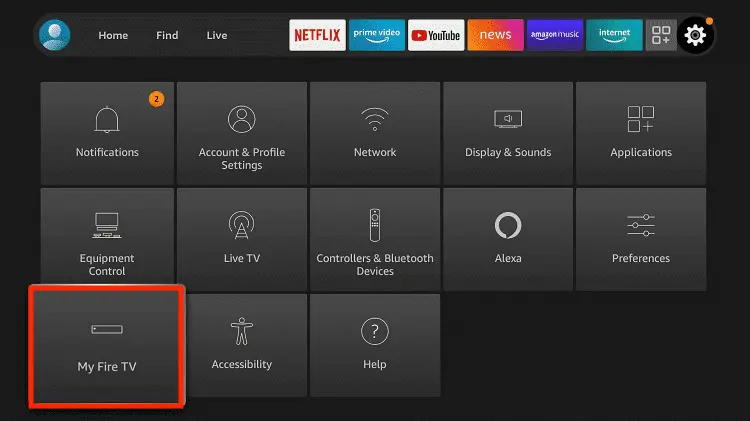
Step 3: Select the My Fire TV option
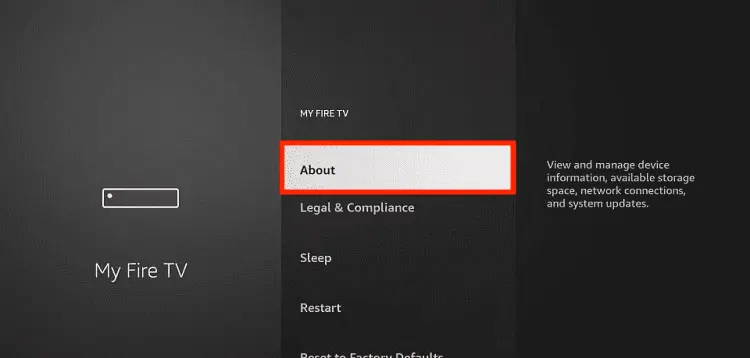
Step 4: To enable the Developer Option, click About.
Note: If you have already enabled the Developer Option, then proceed to Step 10
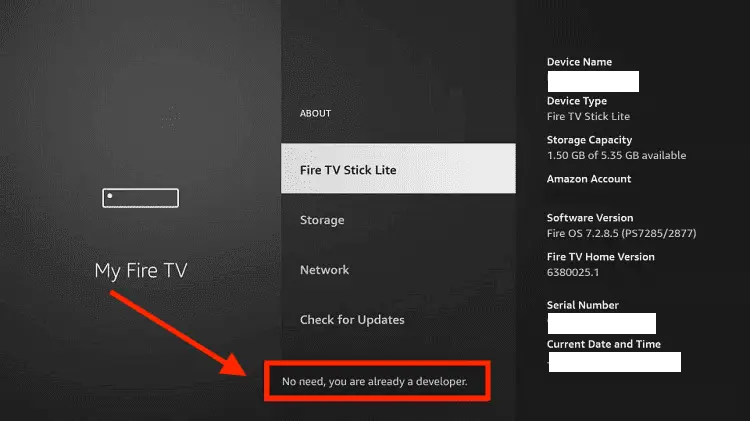
Step 5: Click on the Fire TV Stick option quickly at least 7 times
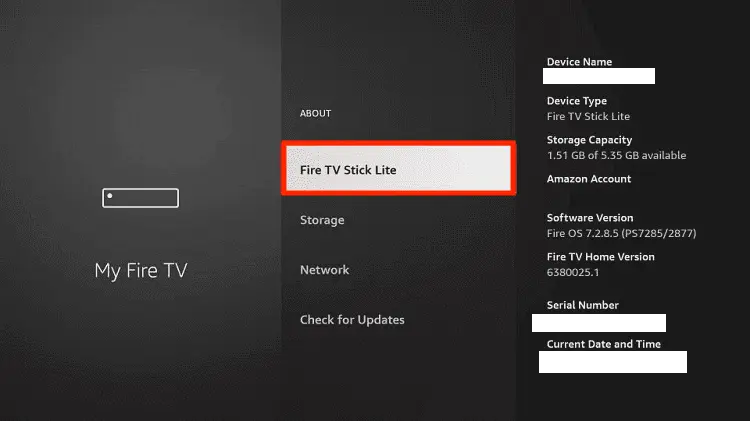
Step 6: Now you will see this message at the bottom saying "No need, you are already a developer". So stop clicking then
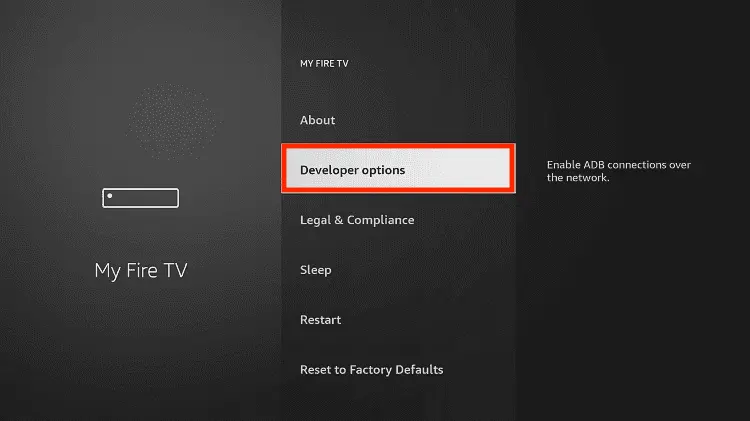
Step 7: Now the Developer Option will appear in the menu so click on it
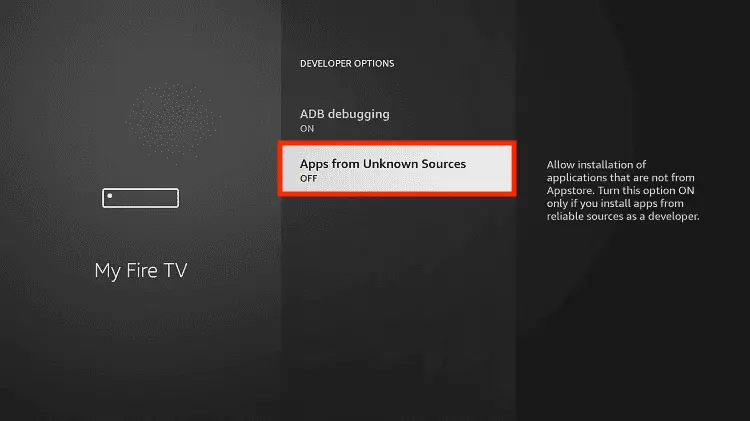
Step 8: Choose Apps from Unknown Sources to turn it ON
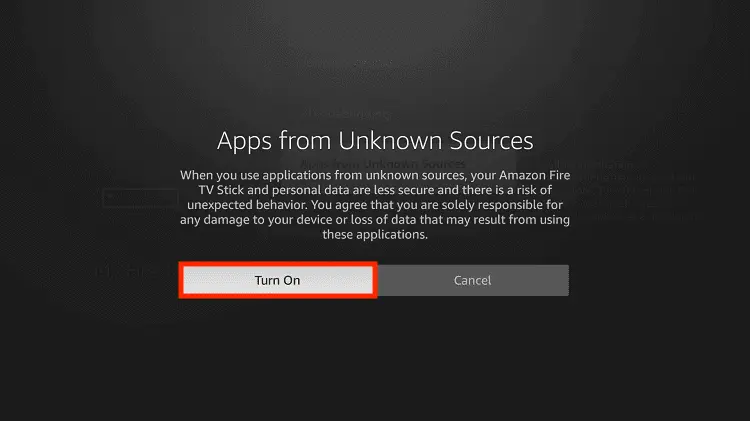
Step 9: Simply click Turn On
Step 10: Now return to the FireStick Home menu by pressing the "Home" icon on the remote and click on Find
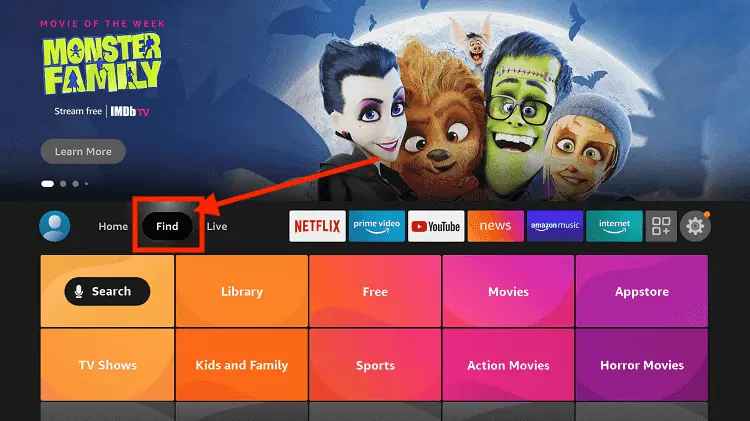
Step 11: Now select the Search icon
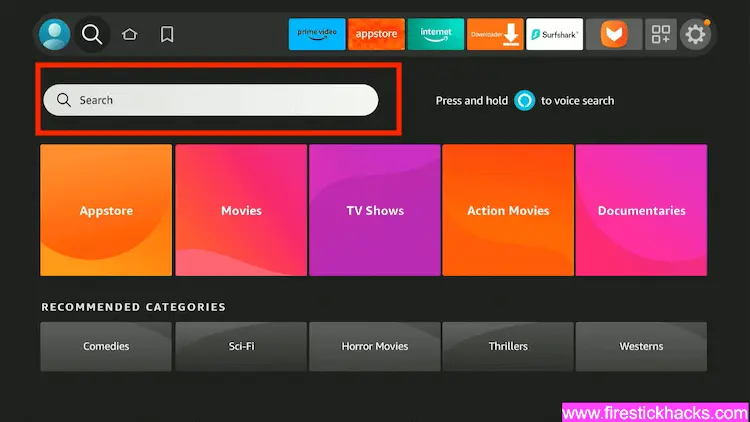
Step 12: Type Downloader and press search
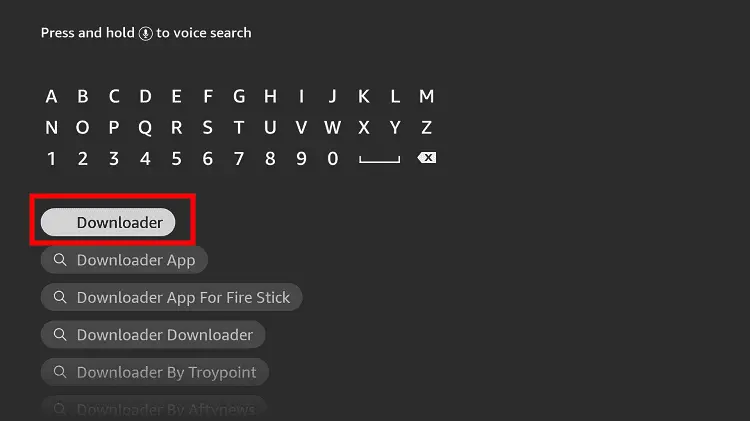
Step 13: Select the Downloader App icon from the list available in the Amazon Store
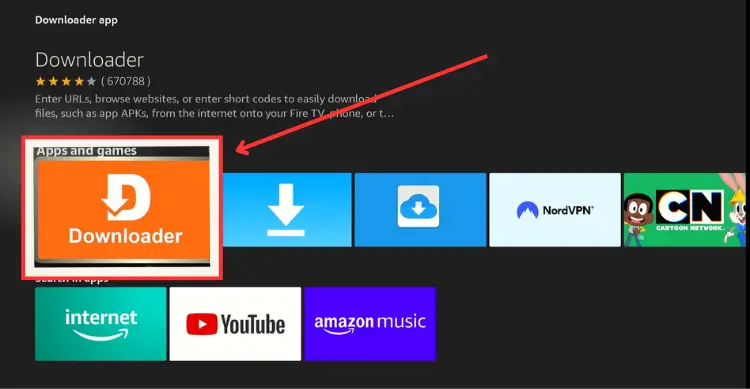
Step 14: Tap Get/Download
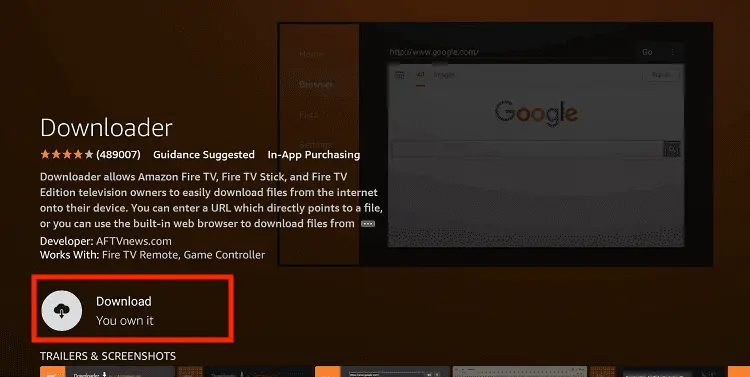
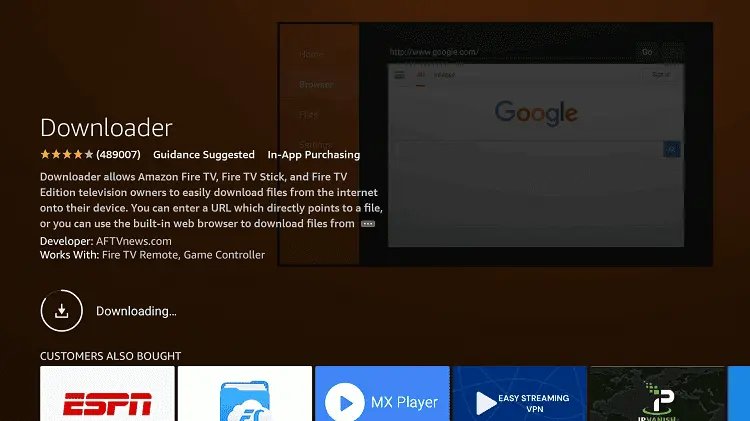
Step 15: Wait for a while until the installation process is completed
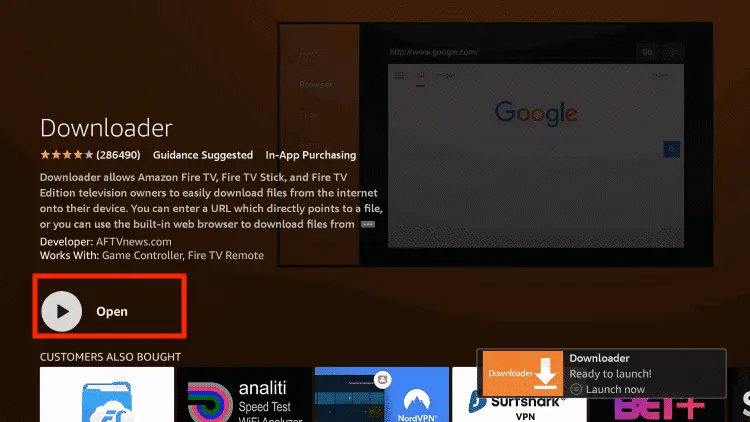
Step 16: Now click Open
Step 17: You will see a popup about Downloader app latest update. Click "OK".

Step 18: Click OK again

Step 19: This is the Downloader App interface, Click the Search Bar on top

Step 20: Now enter the HDO Box Downloader Code 730116 in the search box OR enter this URL bit.ly/fsh-downloads and click Go.
Note: The referenced link is the official URL of this app/website. FIRESTICKHACKS does not own, operate, or re-sell any app, streaming site, or service and has no affiliation with its developers.

Step 21: Click “HDO Box” from the “Movies & TV Shows Apps” category.
Note: If the app doesn’t start downloading, then clear the Downloader App cache using this article.

Step 22: The downloading will start. Wait for it to finish.

Step 23: Once the download ends, click “Install”.

Step 24: Select “Done”.

Step 25: Click “Delete”.
Note: Deleting the HDO Box APK is necessary to free up space in your FireStick device.

Step 26: Select “Delete” again to confirm your action.

Step 27: Open the Surfshark app on your FireStick and connect it to the Hong Kong server.

Step 28: Now, “Long-Press” the home button on FireStick remote and click “Apps”.

Step 29: Select “HDO Box”.

Step 30: You can select the “Stranger Things” show from the home screen and search for it using the “Search” icon.

Step 31: Choose Season 5 and the desired episode.

Step 32: Enjoy streaming.
P.S. You can use other features like “Speed, CC (caption), and Server” to further enhance your streaming experience.

Step 33: As of Nov 26, episodes 5,6,7, and 8 are not released. So they will only stream once they go live officially!

How to Watch Stranger Things on FireStick Using a Browser
You can also watch all Stranger Things seasons on FireStick using free movie websites on any of the top FireStick browsers.
However, make sure to install and use SurfShark VPN on FireStick because free websites do not broadcast officially and require a VPN to hide your online activity.
P.S. Sometimes, streaming via unofficial websites means dealing with annoying pop-ups. In that case, you can install Brave Browser on FireStick to ensure an ad-free experience.
Follow the steps below:
Step 1: Open the Surfshark app and connect to the Hong Kong server.

Step 2: Go to FireStick Home
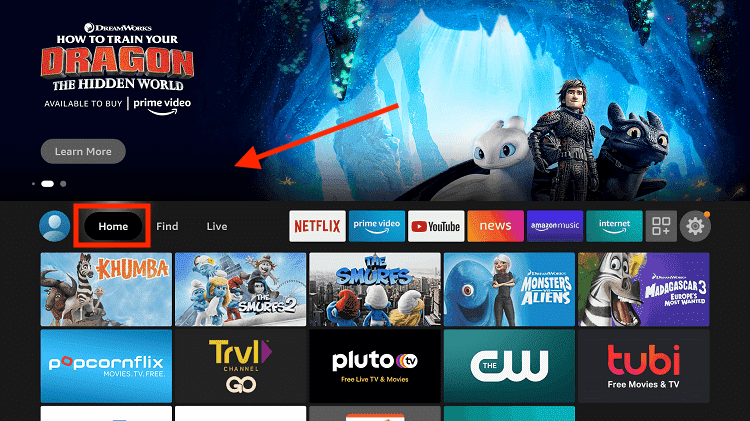
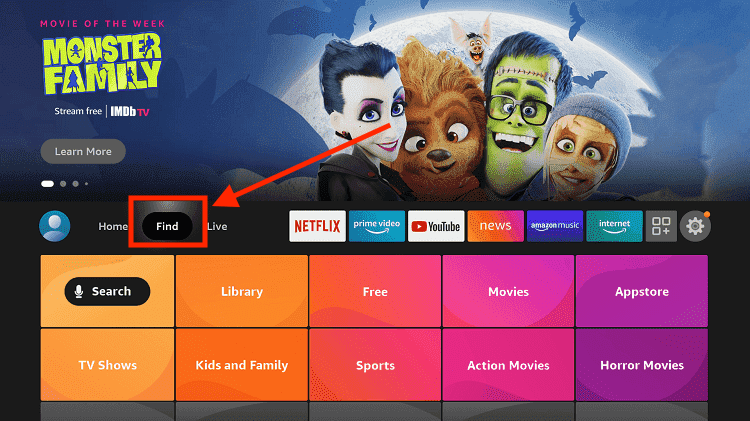
Step 3: Click on the Find tab
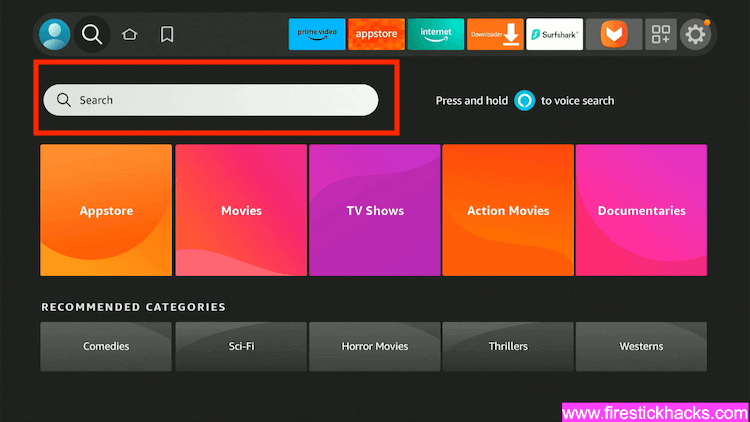
Step 4: Now select the Search option
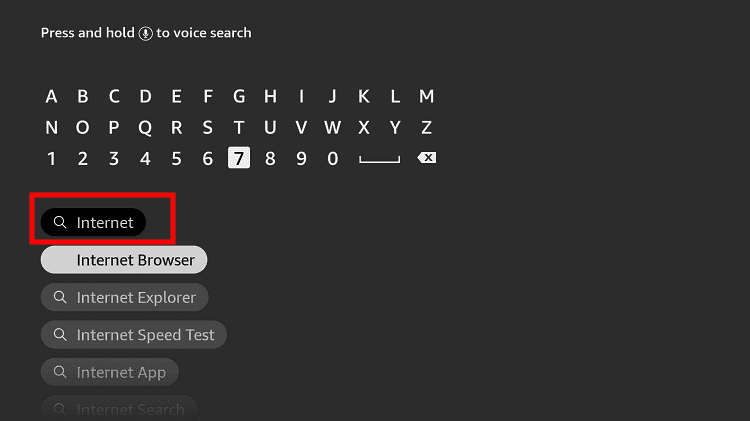
Step 5: Type Internet in the search bar and select from the list
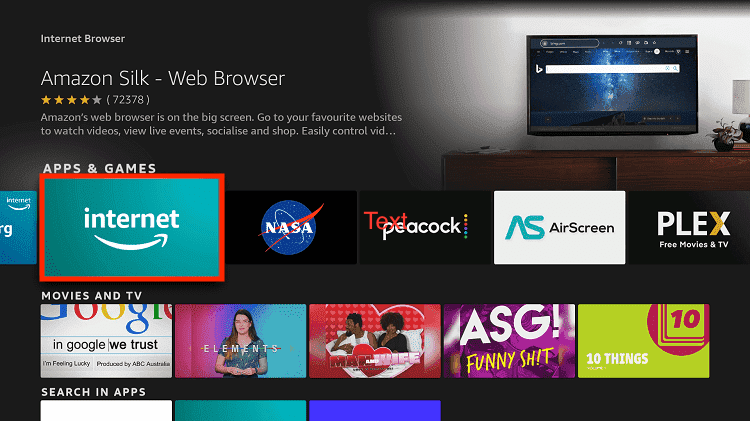
Step 6: Choose the Internet App (Silk Browser) from the given options
Step 7: Tap the Get/Download button
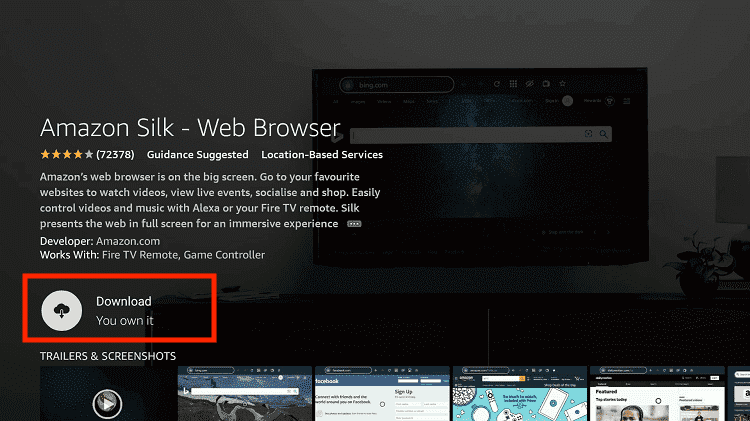
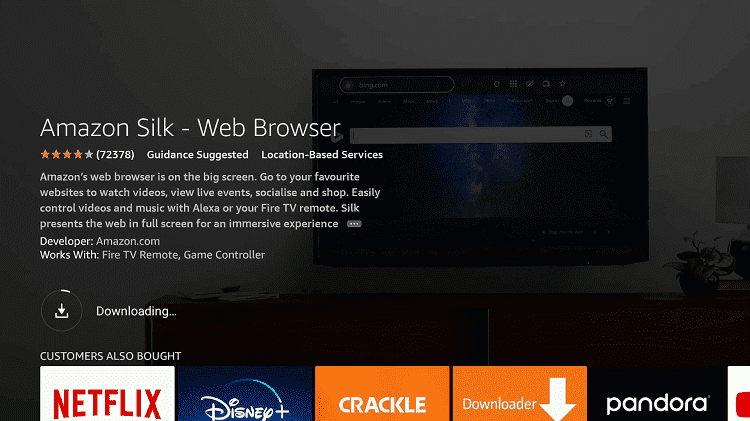
Step 8: Wait until the installation of the browser completes
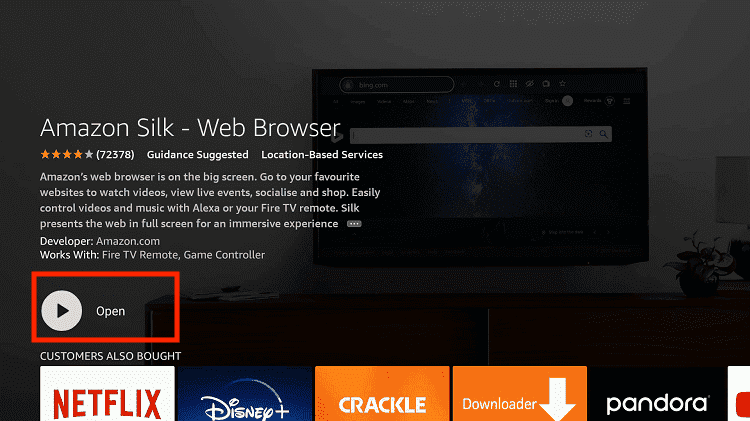
Step 9: Click Open, once the browser is installed.
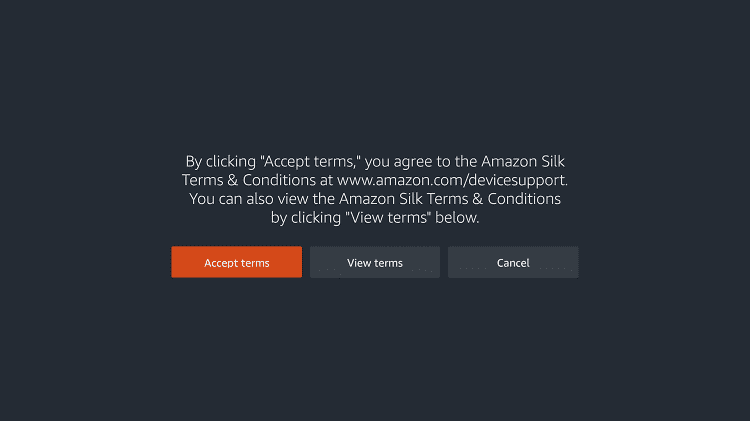
Step 10: Click on Accept Terms to access the browser
Step 11: When the browser launches, the Bing.com tab will open at first.
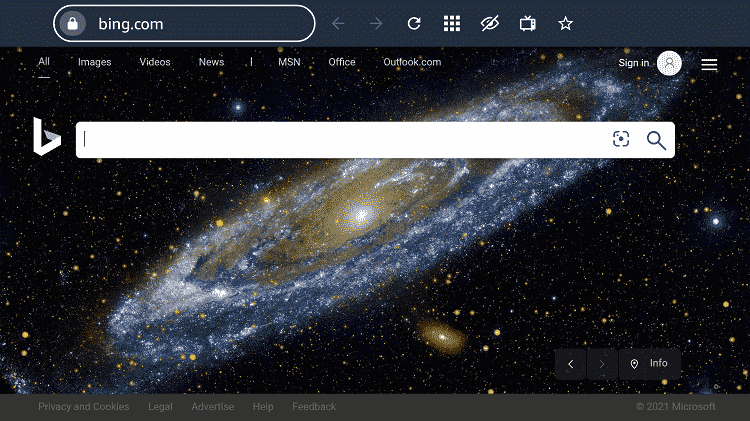
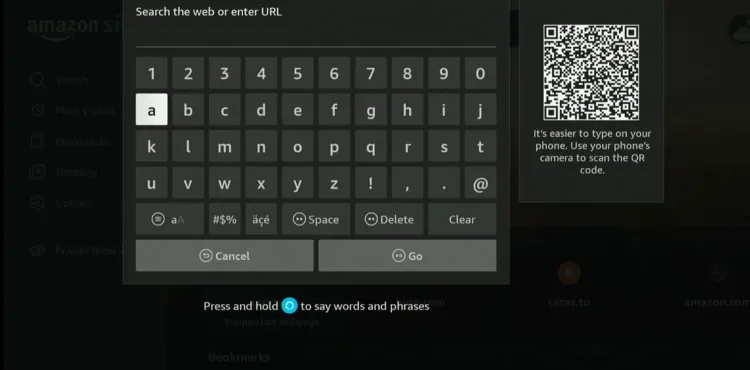
Step 12: Now go back and type Cataz.to OR www.cineby.app in the search box and click “GO“.
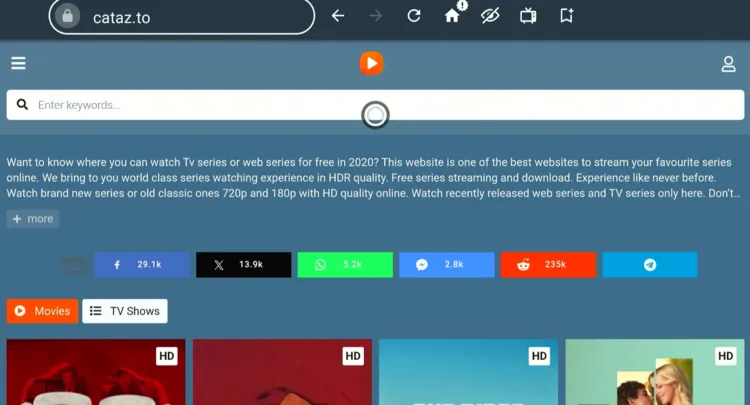
Step 13: This is the interface of Cataz; click on the “Search Bar”.
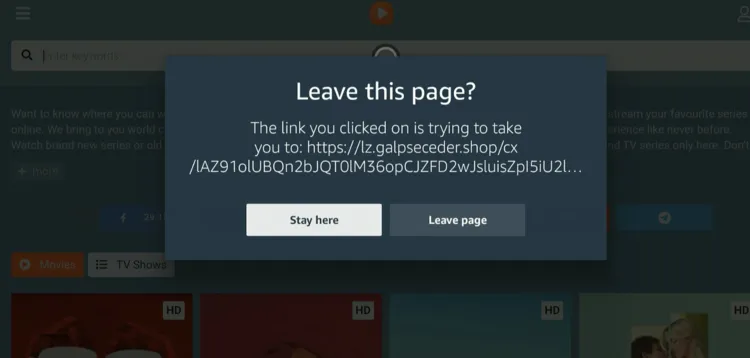
Step 14: When you see this pop-up, click “Stay Here”.
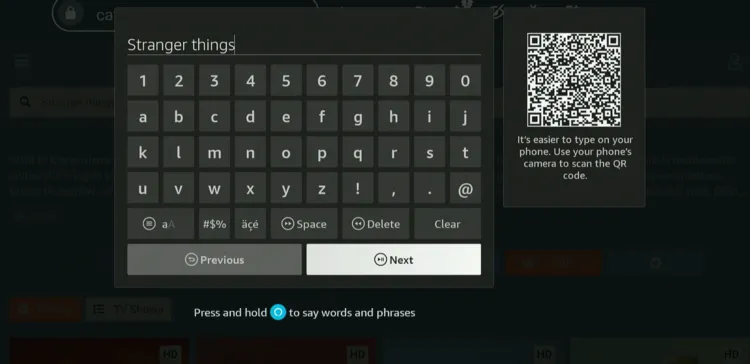
Step 15: Type “Stranger Things” and click “Next”.
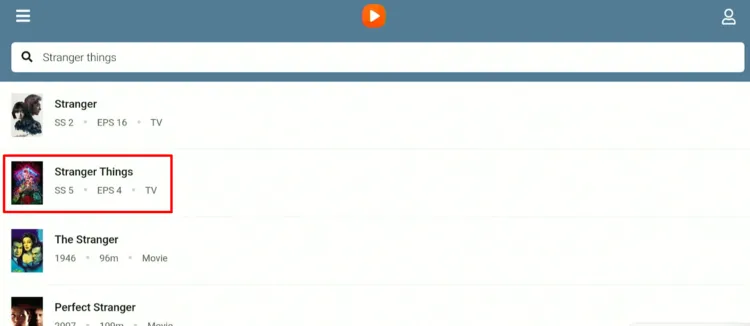
Step 16: Choose Stranger Things.
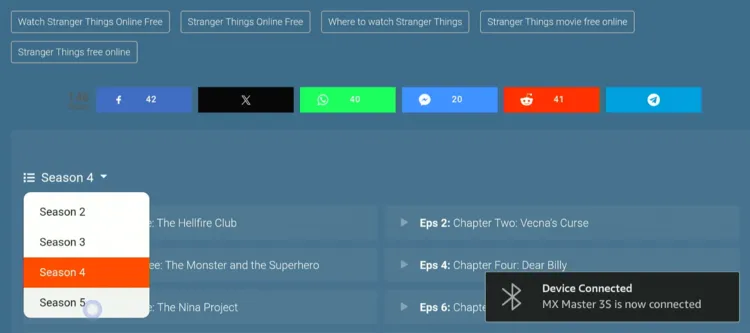
Step 17: Choose the season and desired episode.
P.S. If you are unable to scroll the season column, connect bluetooth mouse on FireStick or use mouse app.
Step 18: Tap “Play”.
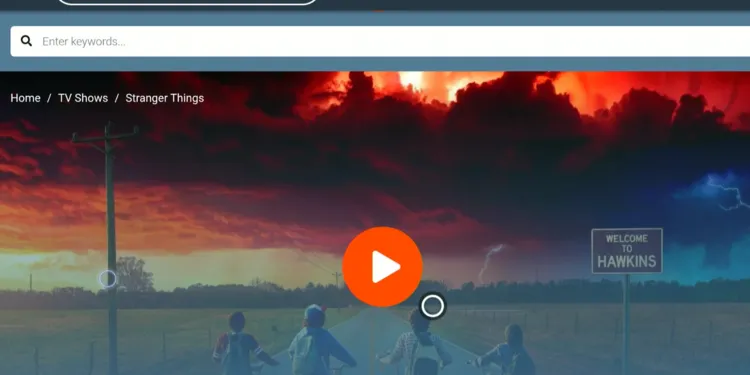
Step 19: Enjoy streaming!

Key Episodes to Watch Before Stranger Things Season 5
Pressed for time but still want the full impact of Season 5? The Duffer Brothers recommended watching episodes listed from past seasons to better understand the storyline:
- Season 2, Episode 4 – “Will the Wise”
- Season 2, Episode 6 – “The Spy”
- Season 4, Episode 7 – “The Massacre at Hawkins Lab”
- Season 4, Episode 9 – “The Piggyback”
Stranger Things Season 5 Release Plan
- Volume 1 (Episodes 1–4): Released on November 26, 2025
- Volume 2 (Episodes 5–7): Releasing on December 25, 2025
- Finale (Episode 8): Releasing on December 31, 2025
Stranger Things Season 5 Global Release Times
Netflix has confirmed that Stranger Things Season 5 episodes will premiere globally at 1:00 a.m. GMT.
For fans around the world, here’s a quick guide to what that translates to in major time zones:
| Region / Major City | Local Release Time |
|---|---|
| New York (EST) | 8:00 p.m. (Previous Day) |
| São Paulo (BRT) | 10:00 p.m. (Previous Day) |
| London (GMT) | 1:00 a.m. |
| Berlin (CET) | 2:00 a.m. |
| Cape Town (SAST) | 3:00 a.m. |
| Dubai (GST) | 5:00 a.m. |
| Mumbai (IST) | 6:30 a.m. |
| Tokyo (JST) | 10:00 a.m. |
| Sydney (AEDT) | 12:00 p.m. |
Trouble Streaming Stranger Things on FireStick? Try These Fixes
If you’re dealing with buffering, app crashes, or other streaming glitches on FireStick, try these quick fixes to smooth things out:
- Clear app cache
- Close background apps
- Connect FireStick via Ethernet
- Set video resolution to 1080p/4K
- Install Brave Browser for fewer ads
- Restart FireStick
P.S. If you are still facing issues, check out our detailed articles to stop buffering on FireStick and fix playback errors.
Other TV Shows to Watch on FireStick
If you want to watch more shows on FireStick, consider the following titles:
FAQs – Stranger Things
Can I watch Stranger Things Season 5 on FireStick for free?
Yes, you can stream all seasons using third-party apps like HDO Box, Cinema HD, Kisskh, and BeeTV.
When will all episodes of Season 5 be available?
Volume 1 is out now, Volume 2 releases on December 25, and the finale airs on December 31, 2025.
What are the key episodes to watch before Season 5?
The Duffer Brothers recommend: Season 2, Episode 4, Season 2, Episode 6, Season 4, Episode 7, Season 4, Episode 9.
Conclusion
Stranger Things Season 5 is finally here, and it’s proving once again why this show has captured the world’s imagination.
With the final season split into 3 parts, you are in for a delightful streaming journey. The clock is ticking, the Upside Down is waiting, and every episode promises a story you won’t want to miss.
However, third-party apps fetch links from unknown sources, so using a VPN like Surfshark is a must.