
Disclosure: Our experts test apps for security before recommending them. If you buy through our links, we may earn a commission. See how it works.
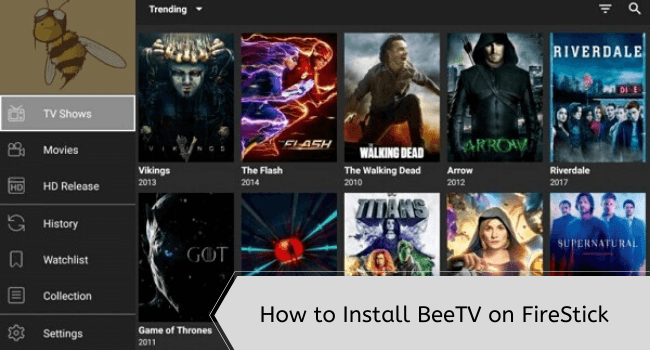
After a temporary glitch, BeeTV is up & running again with the APK v4.6.8. However, you can also use the latest BeeTV APK v4.7.4.
Both APKs are working fine as of June 17, 2026. Like the previous versions, these BeeTV APKs don’t have a built-in player. You will have to use Bear Player.
Important: If/when BeeTV goes down again, please use the best BeeTV alternatives.
Please note that since BeeTV fetches links from unverified sources, be sure to use a VPN for secure streaming. Surfshark is our #1 choice.
Our Recommended VPN - Surfshark
WARNING! Amazon Monitors Your Fire TV Stick!
Yes, It’s True! Without Proper Encryption, your IP Address is Exposed, and Whatever you Stream on FireStick is 'Being Tracked'.
This can lead to:
- Blocking of the FREE Third-Party Apps
- Exposure of your Personal data to hackers, ISPs, and even the authorities
But There’s a Solution - ‘Surfshark VPN’
Save 87% + Get 3 Extra Months FREE with Surfshark VPN [Limited Time Offer]
This Includes:
✅ VPN for just $0.06/day!
✅ Strongest Encryption (i.e.256-Encryption)
✅ 3,200 servers in 100+ server locations
✅ Kill Switch Feature for FireStick users
✅ Data Breach Alerts.
✅ Unlimited Device Connections.
✅ 30-day money-back guarantee.

How to Install BeeTV on FireStick Using the Downloader App
BeeTV is not listed on the Amazon App Store, which means you will have to sideload the latest BeeTV APK on FireStick using the Downloader app.
But before that, be sure you install and use SurfShark VPN on FireStick for an additional layer of online security.
Follow these steps to install BeeTV APK on FireStick:
Follow these steps:
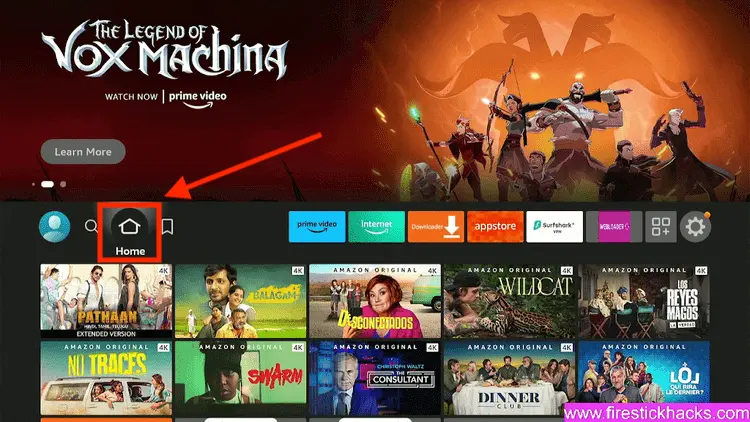
Step 1: Turn ON your FireStick device and Go to FireStick Home
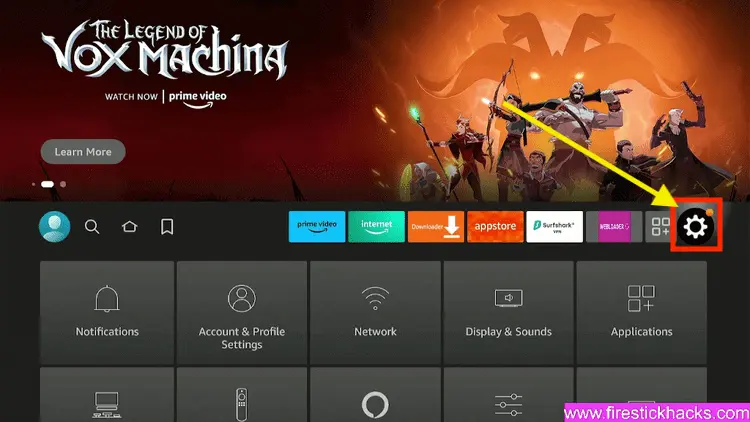
Step 2: Click on the Settings icon
Step 3: Select the My Fire TV option
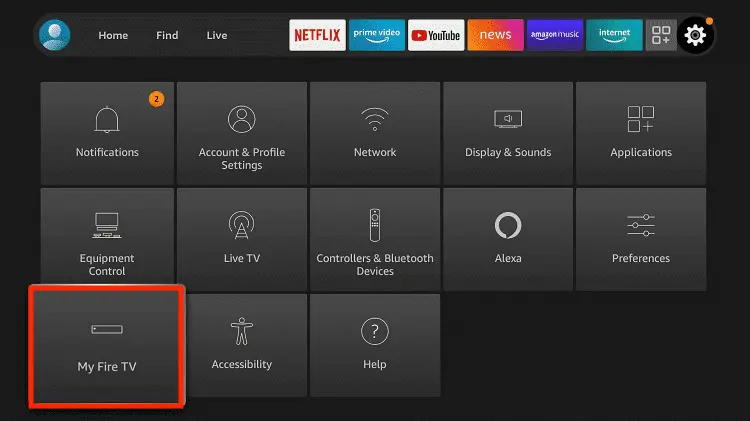
Step 4: To enable the Developer Option, click About.
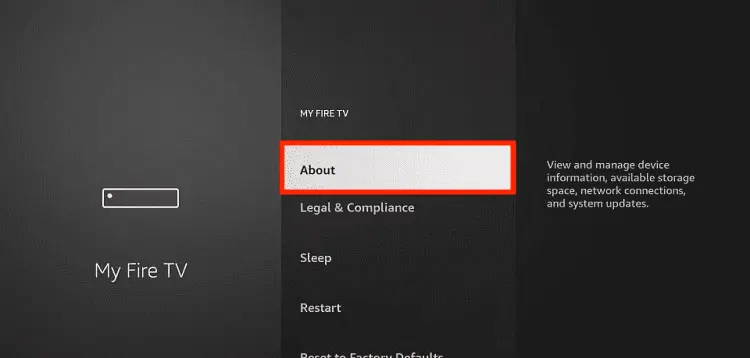
Note: If you have already enabled the Developer Option, then proceed to Step 10
Step 5: Click on the Fire TV Stick option quickly at least 7 times
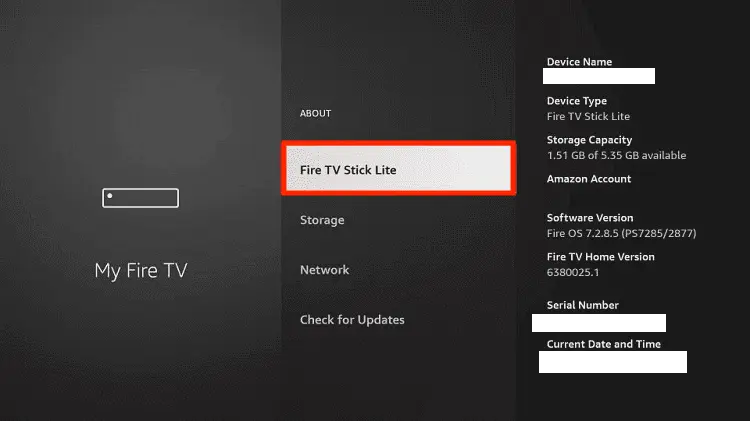
Step 6: Now you will see this message at the bottom saying "No need, you are already a developer". So stop clicking then
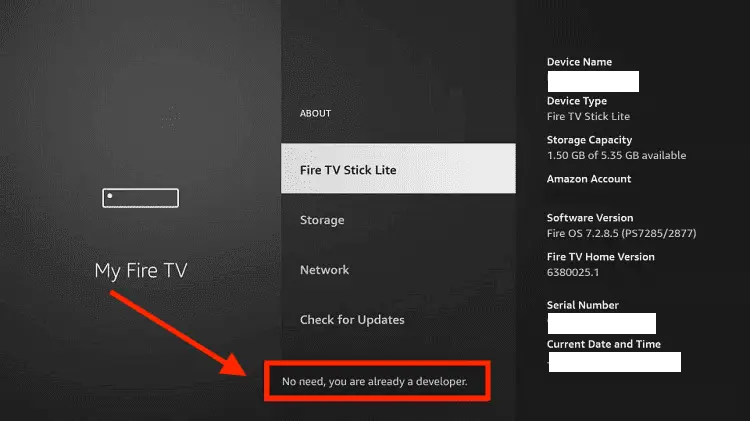
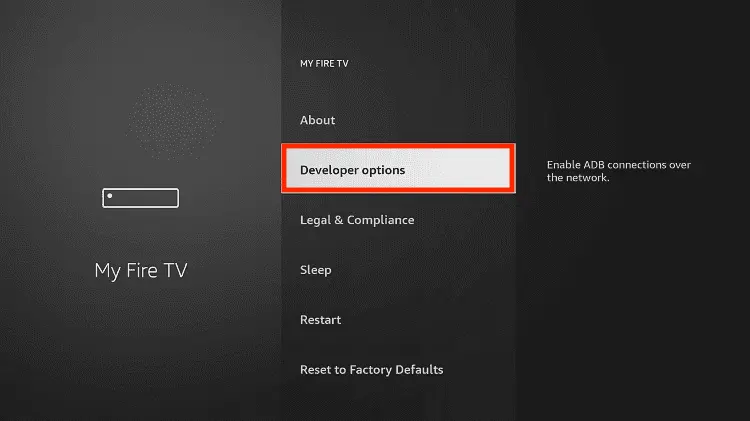
Step 7: Now the Developer Option will appear in the menu so click on it
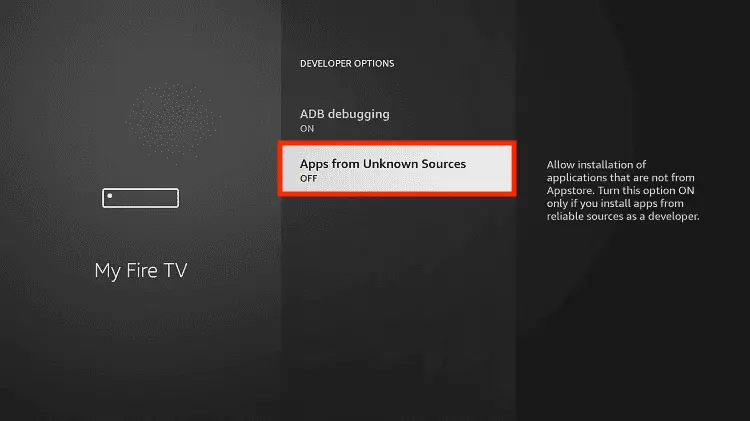
Step 8: Choose Apps from Unknown Sources to turn it ON
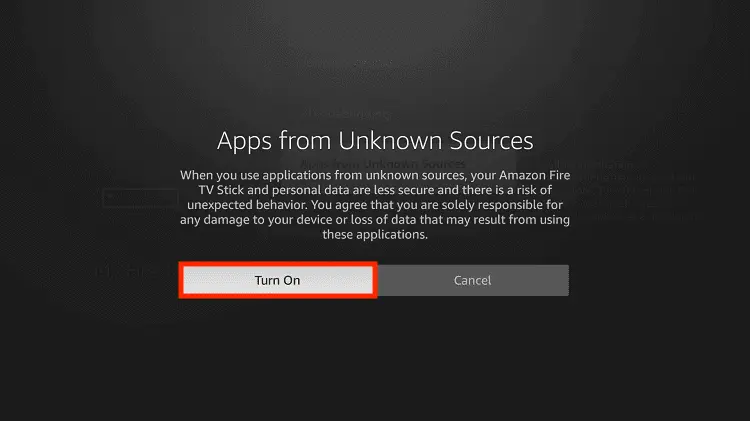
Step 9: Simply click Turn On
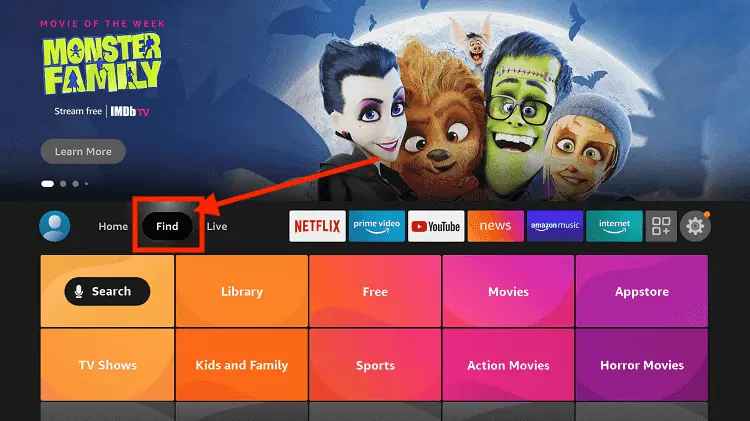
Step 10: Now return to the FireStick Home menu by pressing the "Home" icon on the remote and click on Find
Step 11: Now select the Search icon
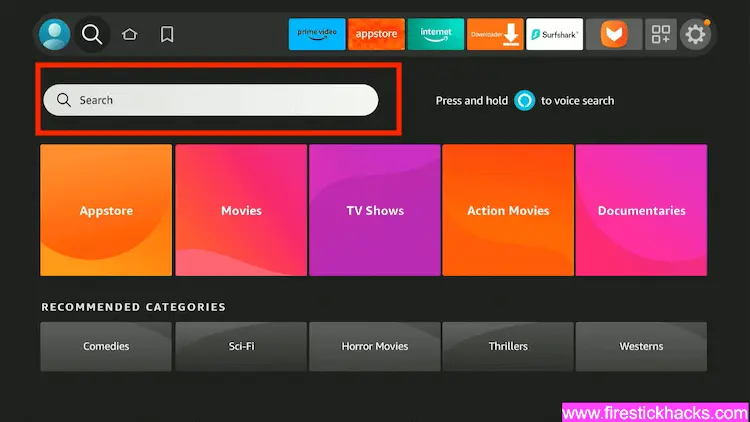
Step 12: Type Downloader and press search
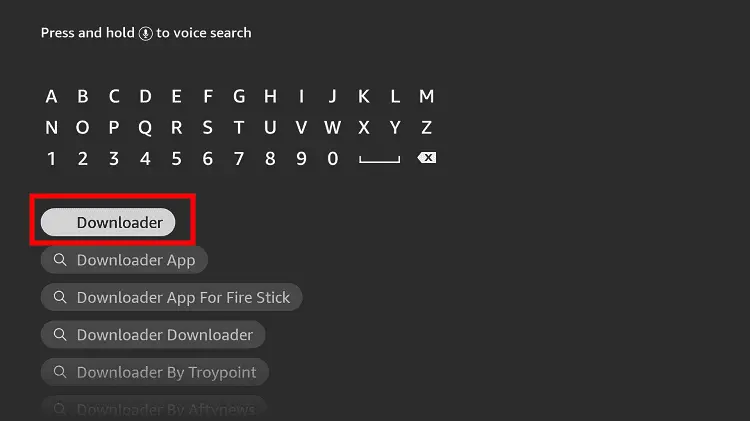
Step 13: Select the Downloader App icon from the list available in the Amazon Store
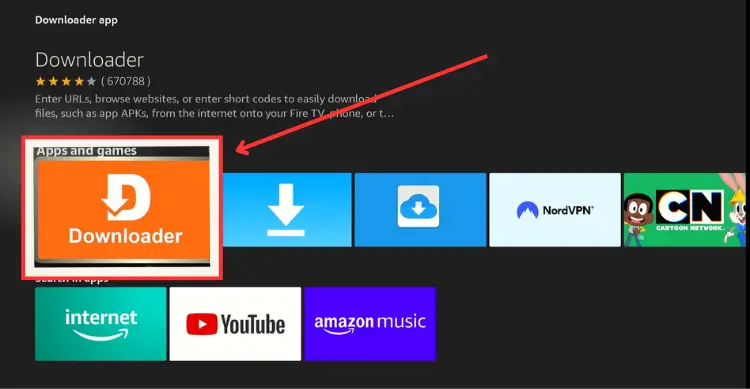
Step 14: Tap Get/Download
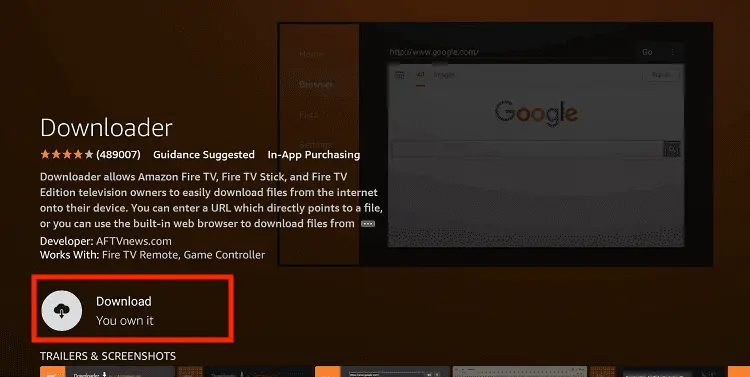
Step 15: Wait for a while until the installation process is completed
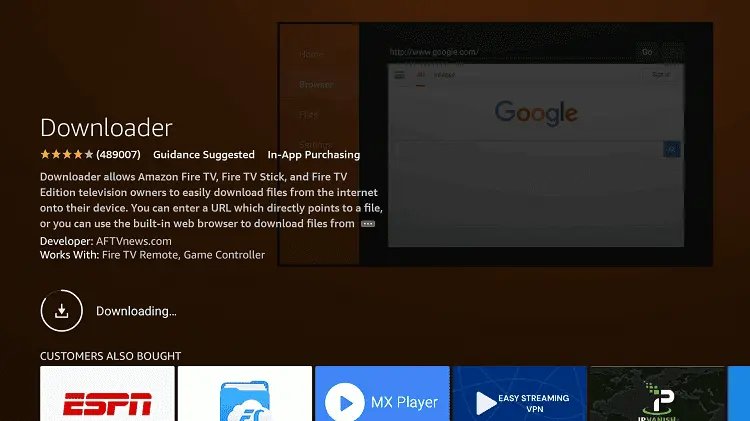
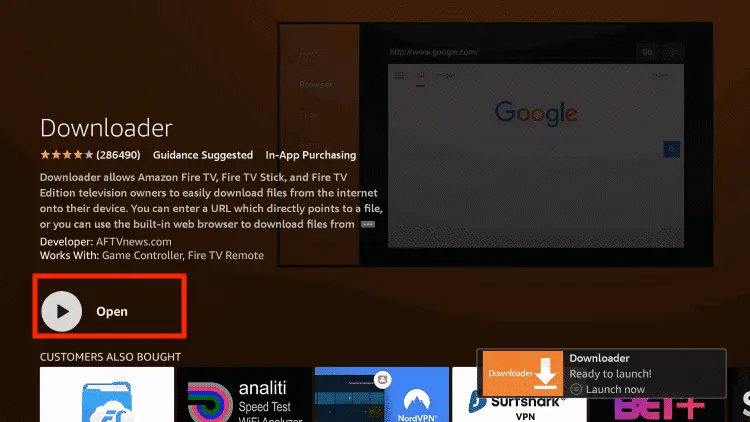
Step 16: Now click Open
Step 17: You will see a popup about Downloader app latest update. Click "OK".

Step 18: Click OK again

Step 19: This is the Downloader App interface, Click the Search Bar on top

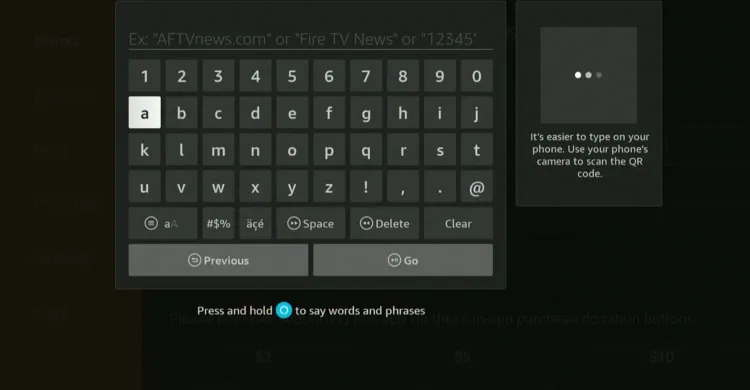
Step 20: Enter BeeTV Downloader Code 730116 in the search box OR enter this URL bit.ly/fsh-downloads and click Go
Note: The referenced link is the official URL of this app/website. FIRESTICKHACKS does not own, operate, or resell any app, streaming site, or service and has no affiliation with its developers.
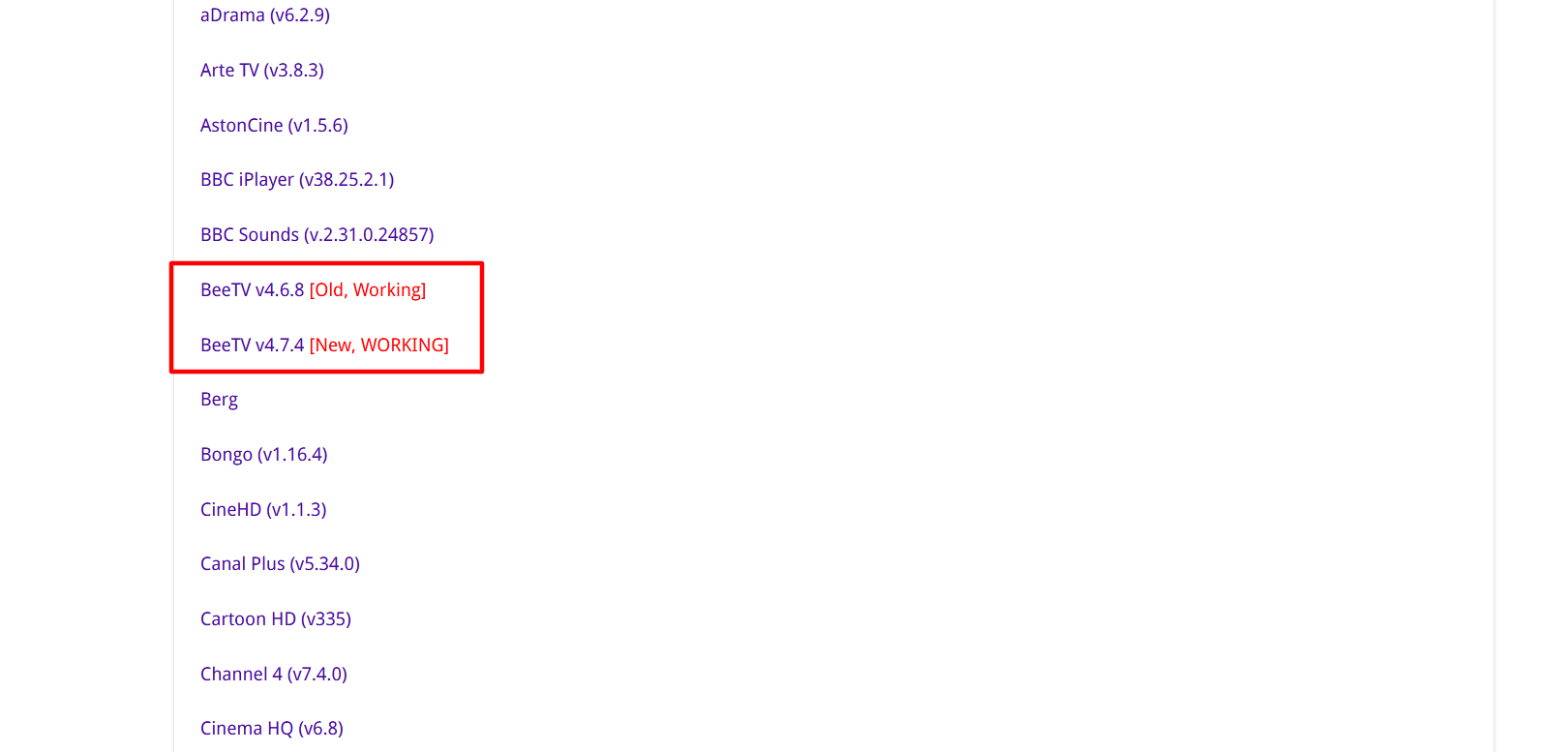
Step 21: Scroll down and click “BeeTV” from the “Movies/TV Shows Apps” section. You can choose any BeeTV APK from the list. Both are working fine as of June 17, 2026.
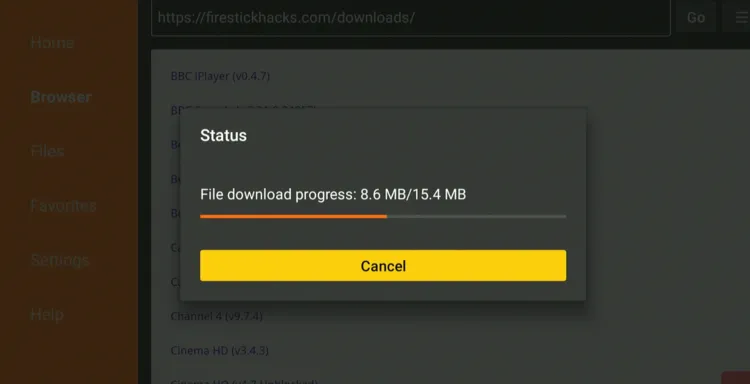
Step 22: The download will start automatically. Wait for it to finish.
Step 23: Once the download ends, choose “Install.”
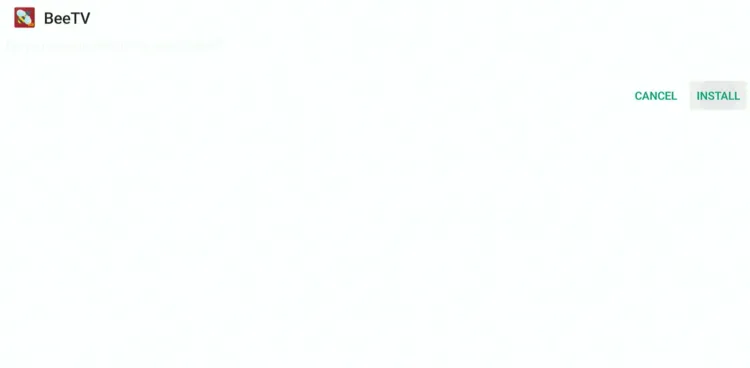
Step 24: After the installation completes, click “Done.”

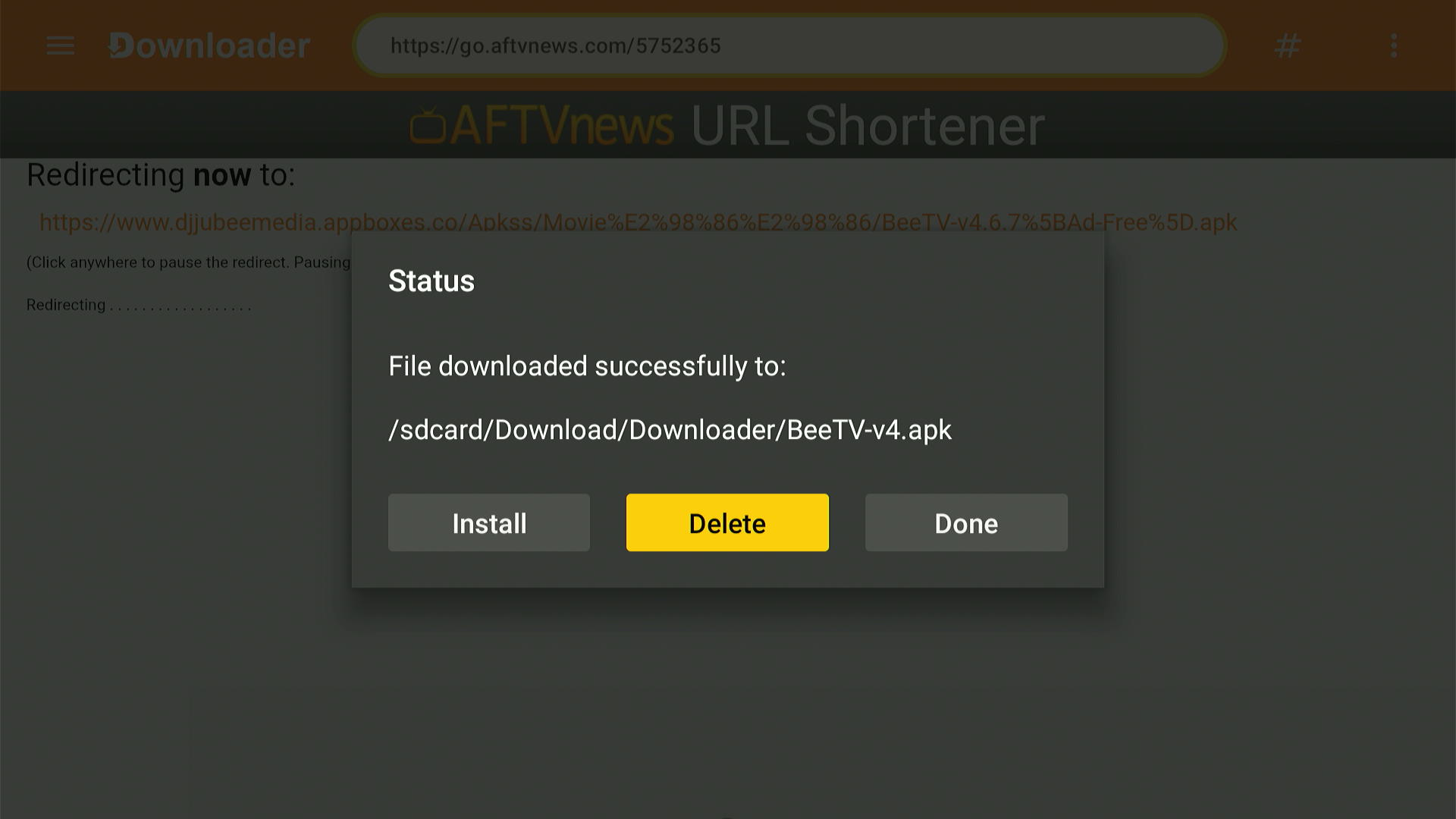
Step 25: Select Delete.
Note: Deleting the BeeTV APK is necessary to free up space on your device.
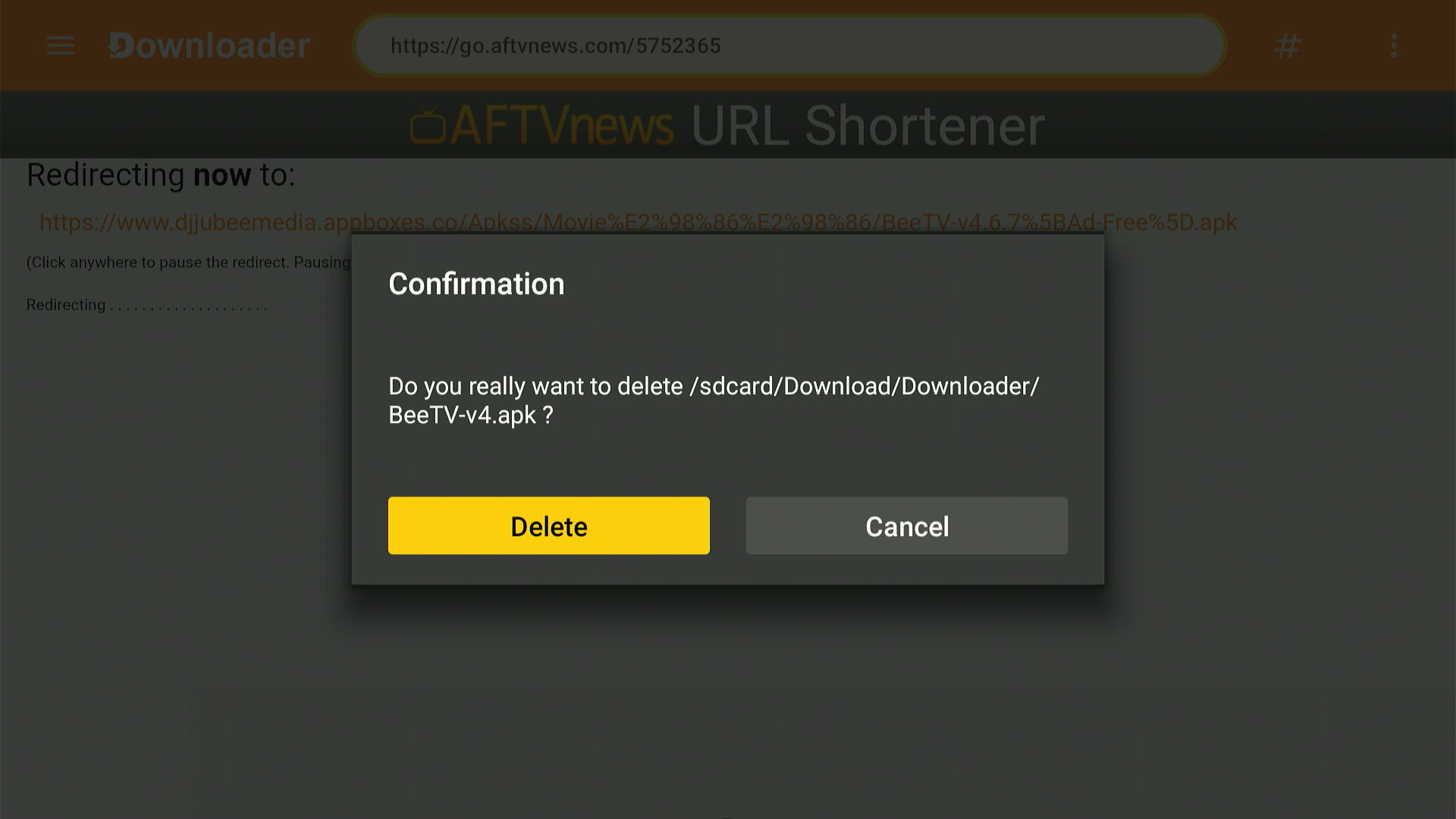
Step 26: Confirm by clicking “Delete” again to complete the process.
How to Use BeeTV on FireStick
Once you have got the BeeTV app on FireStick, you must install Bear Player. After that, install and use SurfShark VPN on FireStick to ensure secure streaming on BeeTV.
Follow the steps below:
Step 1: Open the Surfshark app and connect to the Hong Kong server.

Step 2: Click the “Settings” icon from the top right corner on FireStick home screen.
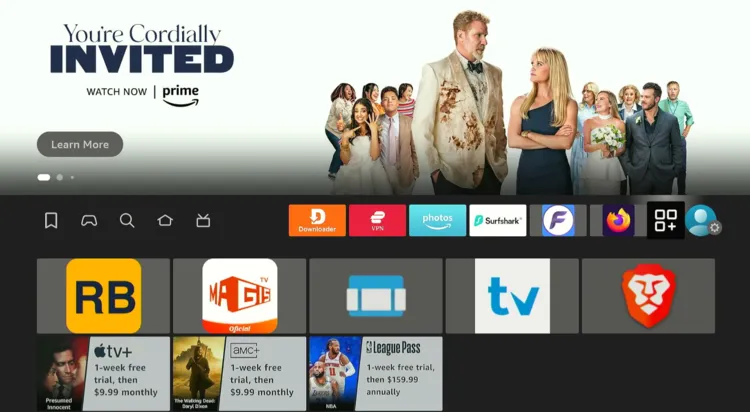
Step 3: Choose “BeeTV.”
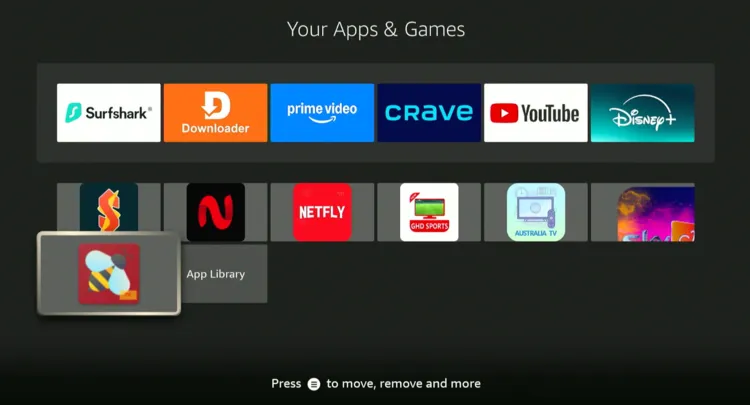
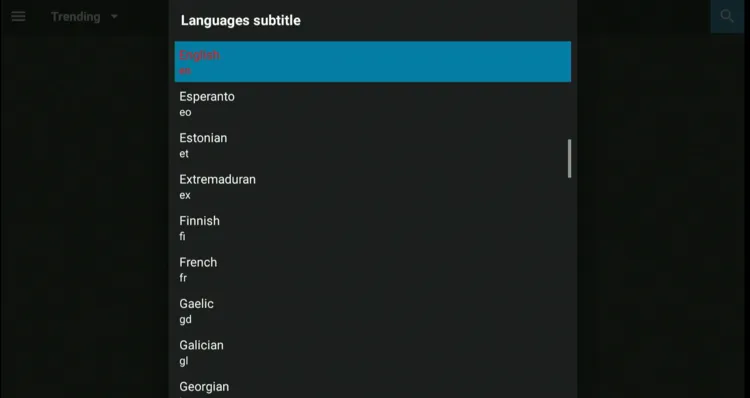
Step 4: Select the desired language.
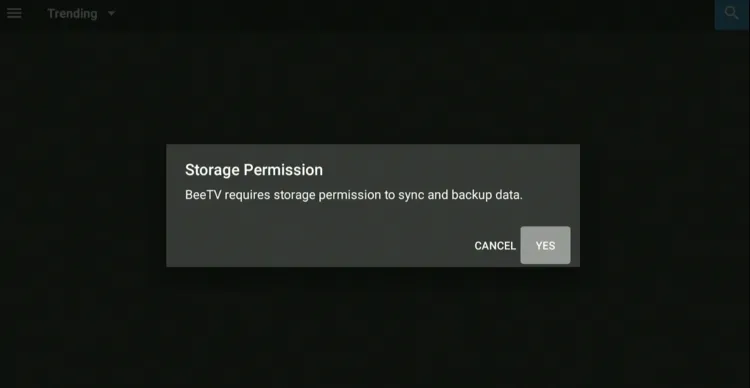
Step 5: BeeTV will ask for storage permission. I would suggest you click “Cancel” to avoid the permission.
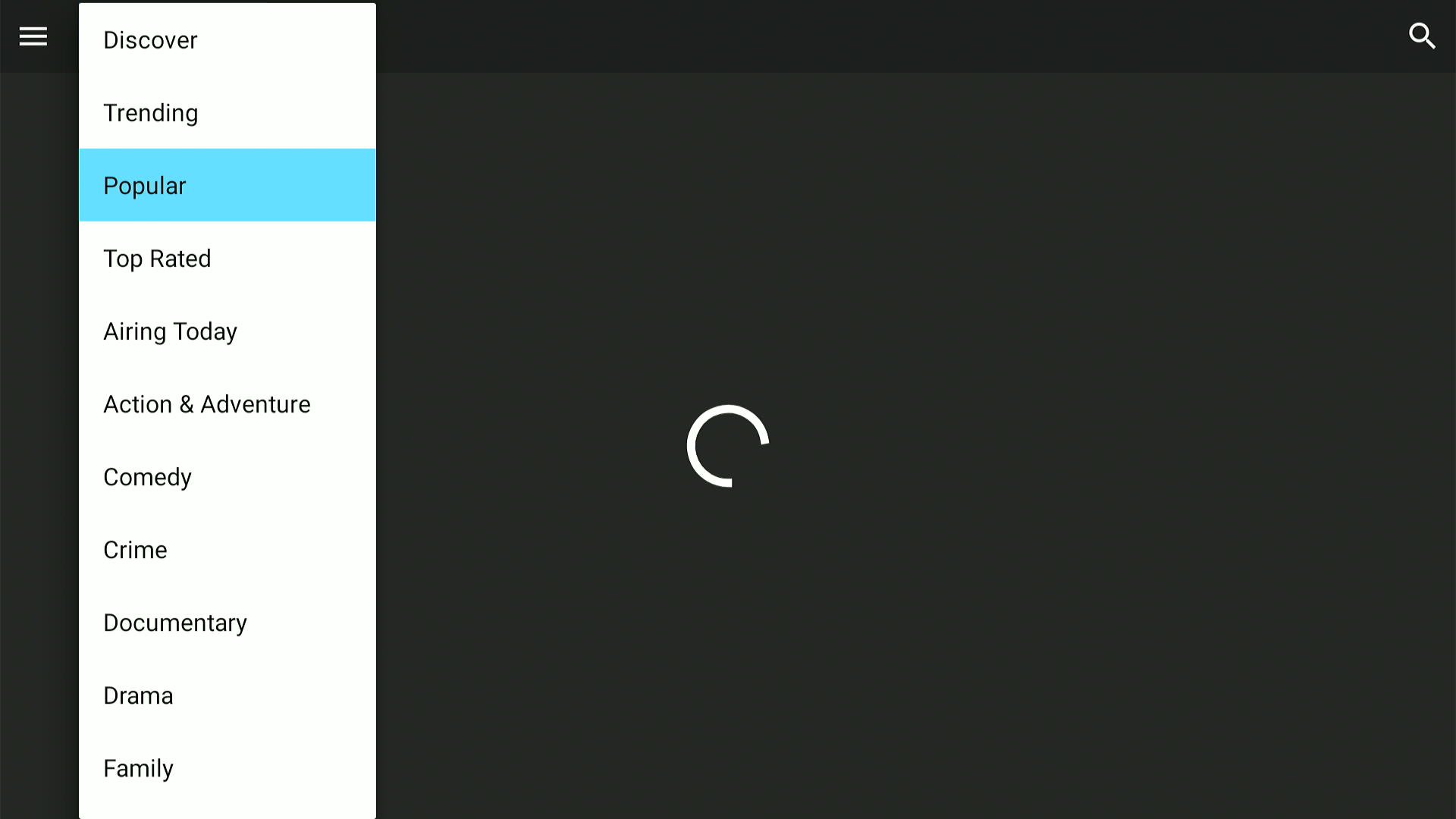
Step 6: The app may not load movies/shows when you first launch the app. You must select the “Popular” category from the top or “type” the desired title in the search box.
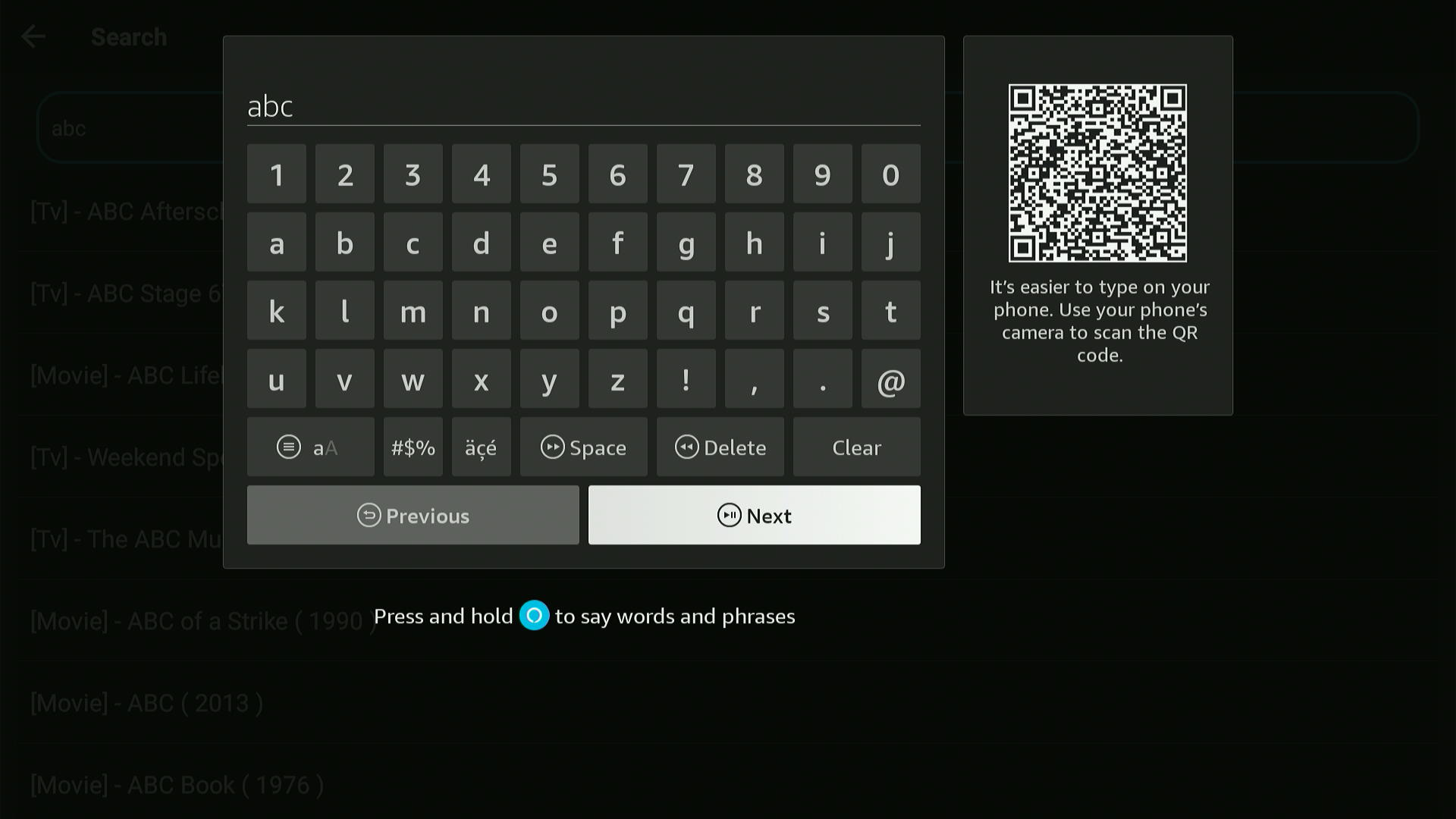
Step 7: I typed “ABC” in the search box.
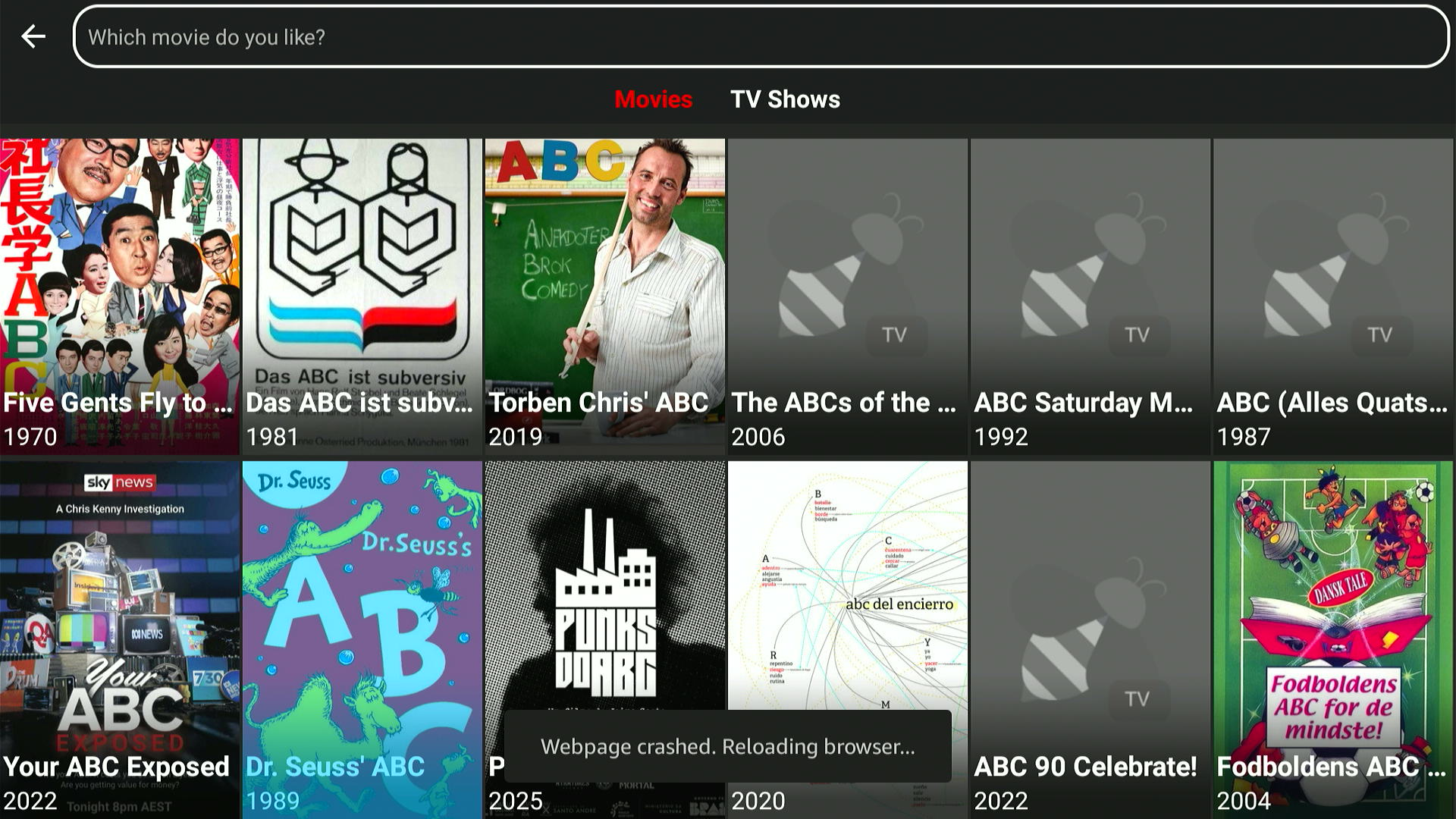
Step 8: The titles will load. Choose a title.
Step 9: Tap “Play.”
Step 10: Select the streaming link.
P.S. Not all links may work. So keep trying until you find one that streams.
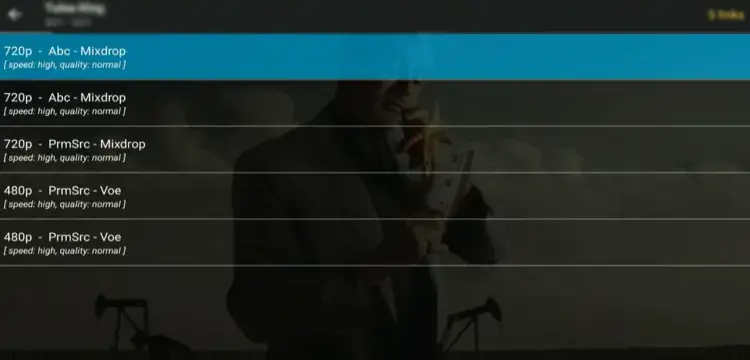
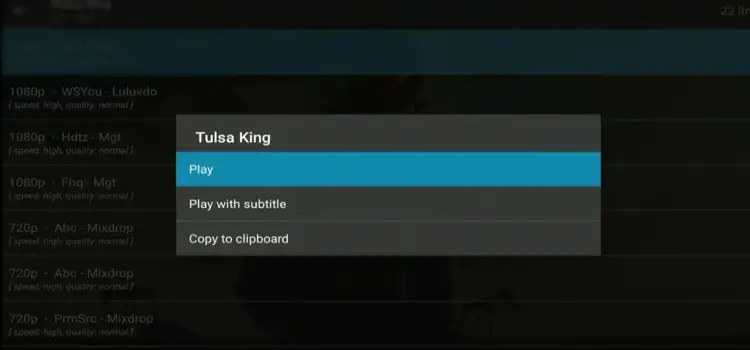
Step 11: You can select “Play” or “Play with Subtitle” to watch subtitles.
Step 12: Enjoy streaming!
How to Remove Ads on BeeTV
The latest BeeTV show ads. I’m sharing 2 workarounds that will provide an ad-free experience on BeeTV.
1st Method:
Step 1: Install MX Player or VLC Player.
Step 2: After downloading the player, select “Settings” from the left-side menu bar of the BeeTV app.
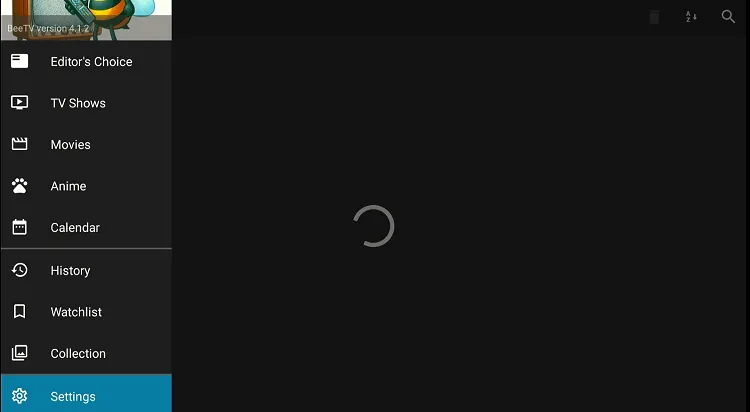
Step 3: Tap “Choose Default Play Action.”
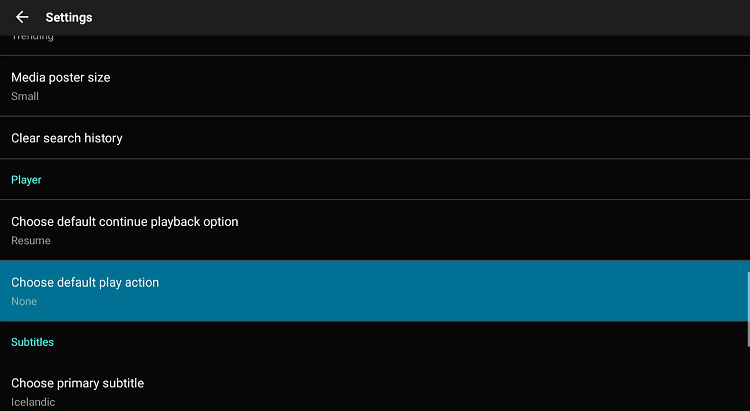
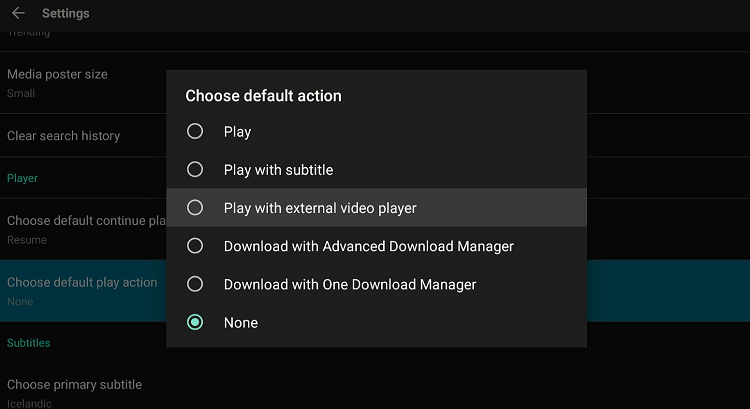
Step 4: Select “Play with external video player.”
Step 5: Now select any streaming link and then choose the installed external player; we chose MX Player.
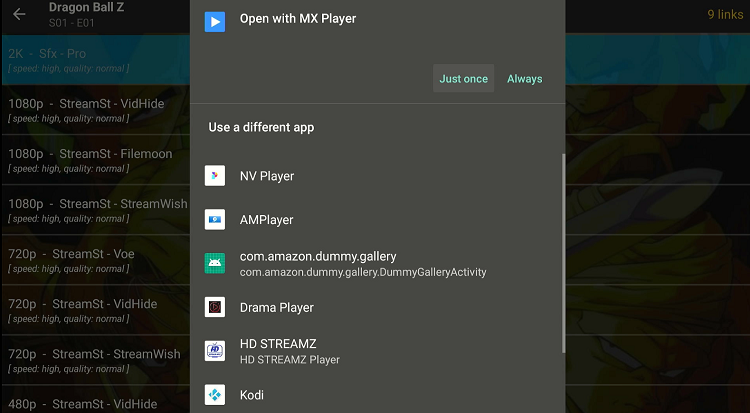
Step 6: The video will play without any ads.
2nd Method:
Step 1: Simply press the “Home” button on your remote when you see an ad.
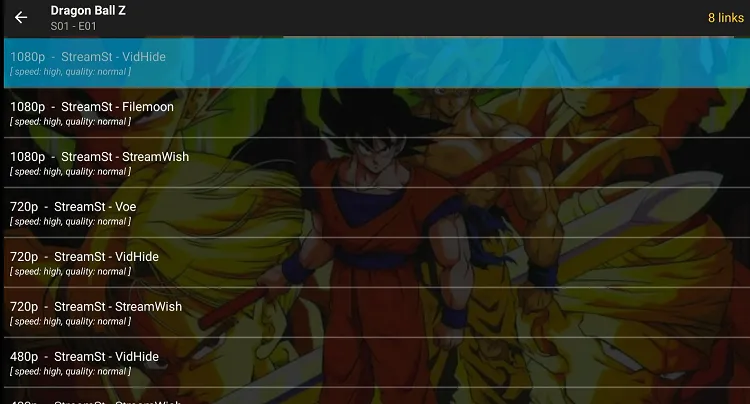
Step 2: Now reopen the app, and you’ll land right back on the links page where you selected your movie.
How to Use Real Debrid on BeeTV
Real-Debrid integration takes your BeeTV streaming to the next level, providing premium, high-resolution links while cutting down on buffering issues.
Follow these simple steps to set up Real Debrid on BeeTV:
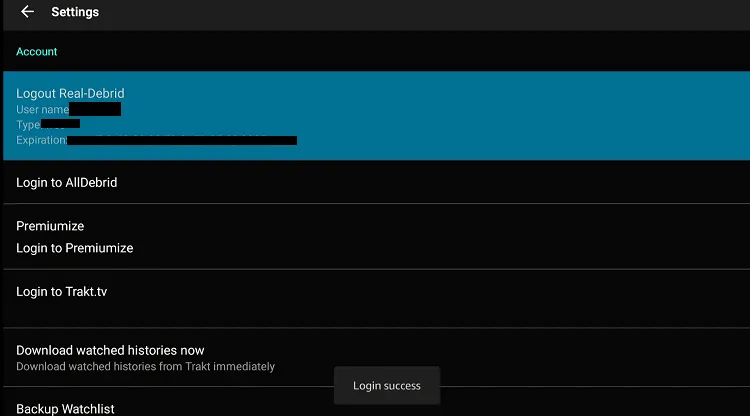
Step 1: Go to “Settings”.
Step 2: Choose “Login to Real-Debrid”.
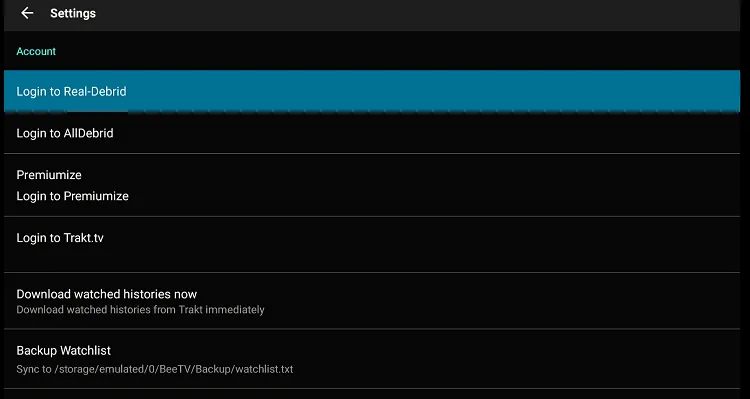
Step 3: Note down the code showing on your screen.
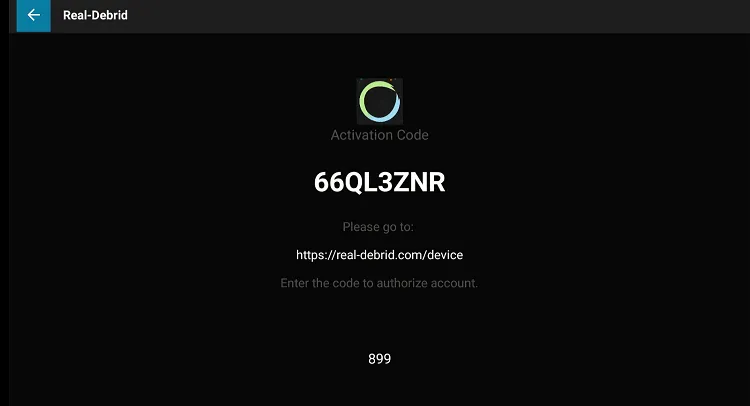
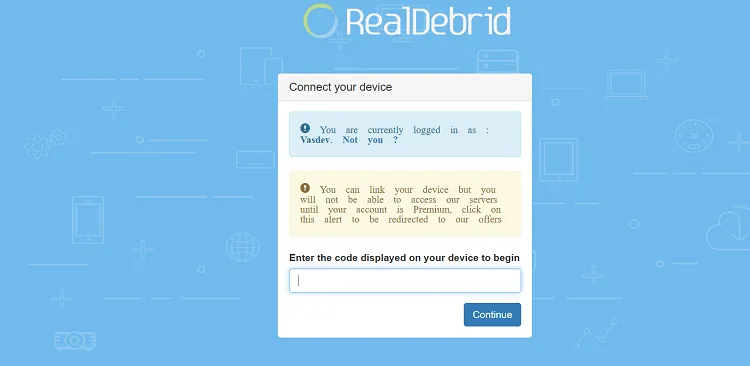
Step 4: Go to your mobile, laptop, or PC and type www.real-debrid.com/device in the browser. Then, enter the code you noted earlier.
Step 5: Enter the code that has been sent to your email (which is linked to your Real-Debrid account) and click “Login“.
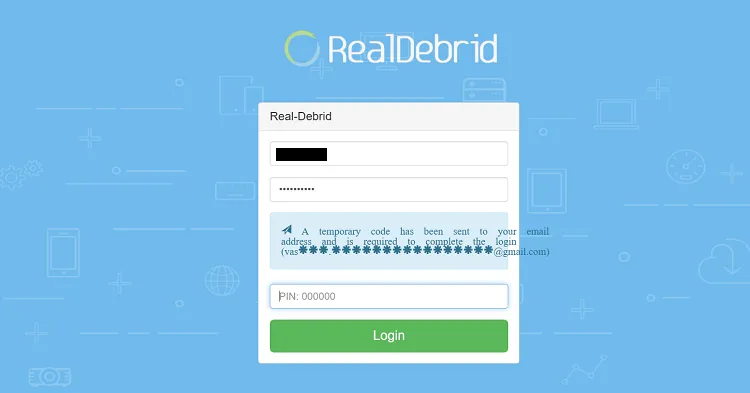
Step 7: Now you will be logged in to Real-Debrid on BeeTV.
How to Set Up Trakt TV on BeeTV
Trakt TV keeps track of your watch history across multiple streaming apps and even recommends new content based on your preferences.
Follow the steps below to set up and use Trakt TV on BeeTV:
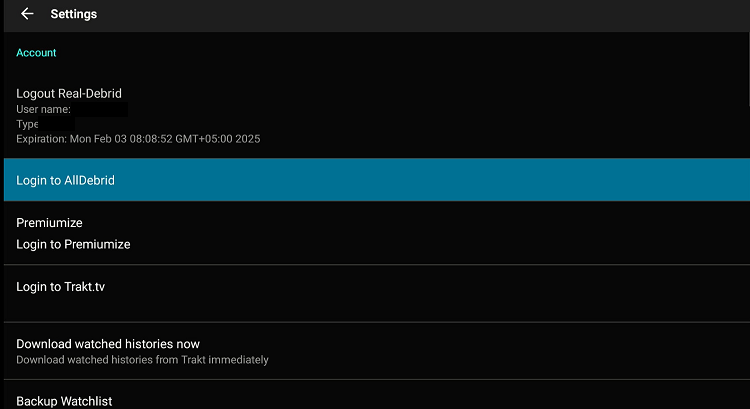
Step 1: Select “Settings”.
Step 3: Tap “Login to Trakt TV”.
Step 3: Note down the code showing up on your screen.
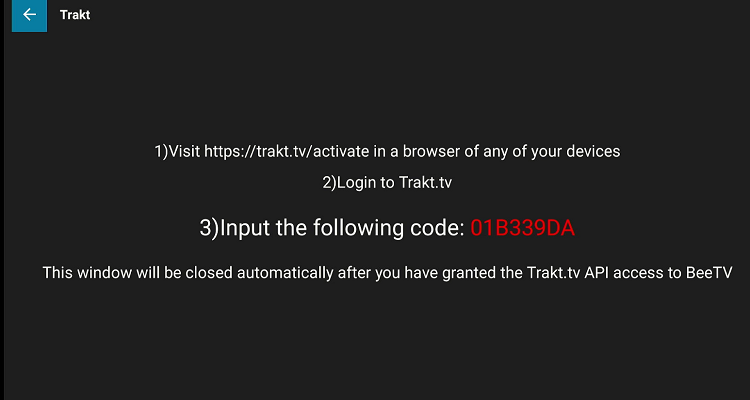
Step 4: Go to your mobile, laptop, or PC and type www.trakt.tv/device in the search bar. Then, enter the code you noted earlier.
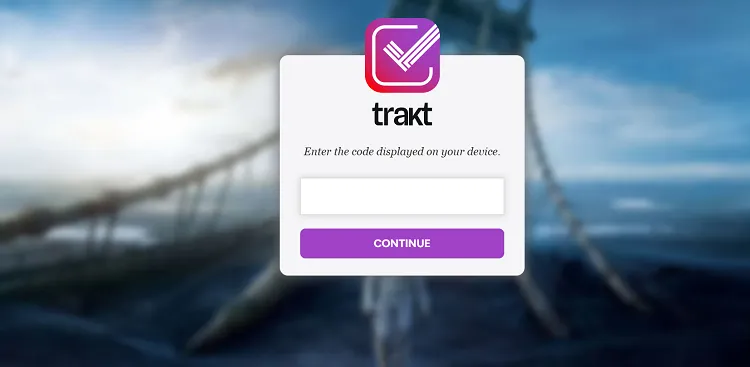
Step 5: Select “Yes”.
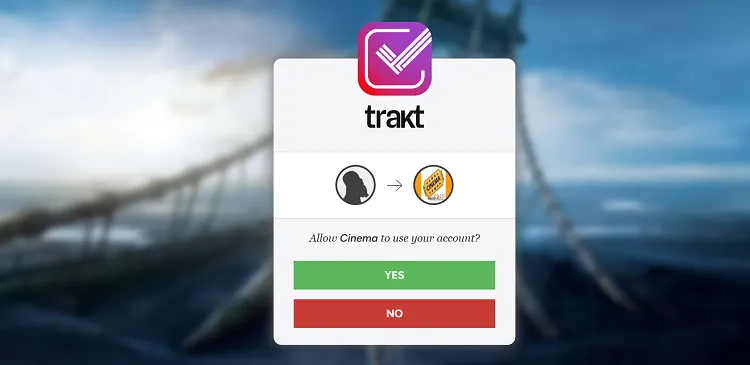
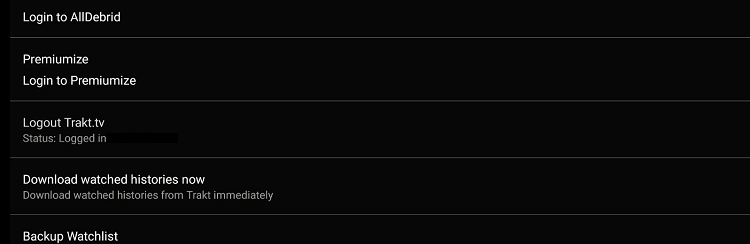
Step 6: The Trakt TV is now linked to your BeeTV app on FireStick.
Is the BeeTV App Safe/Legal to Use?
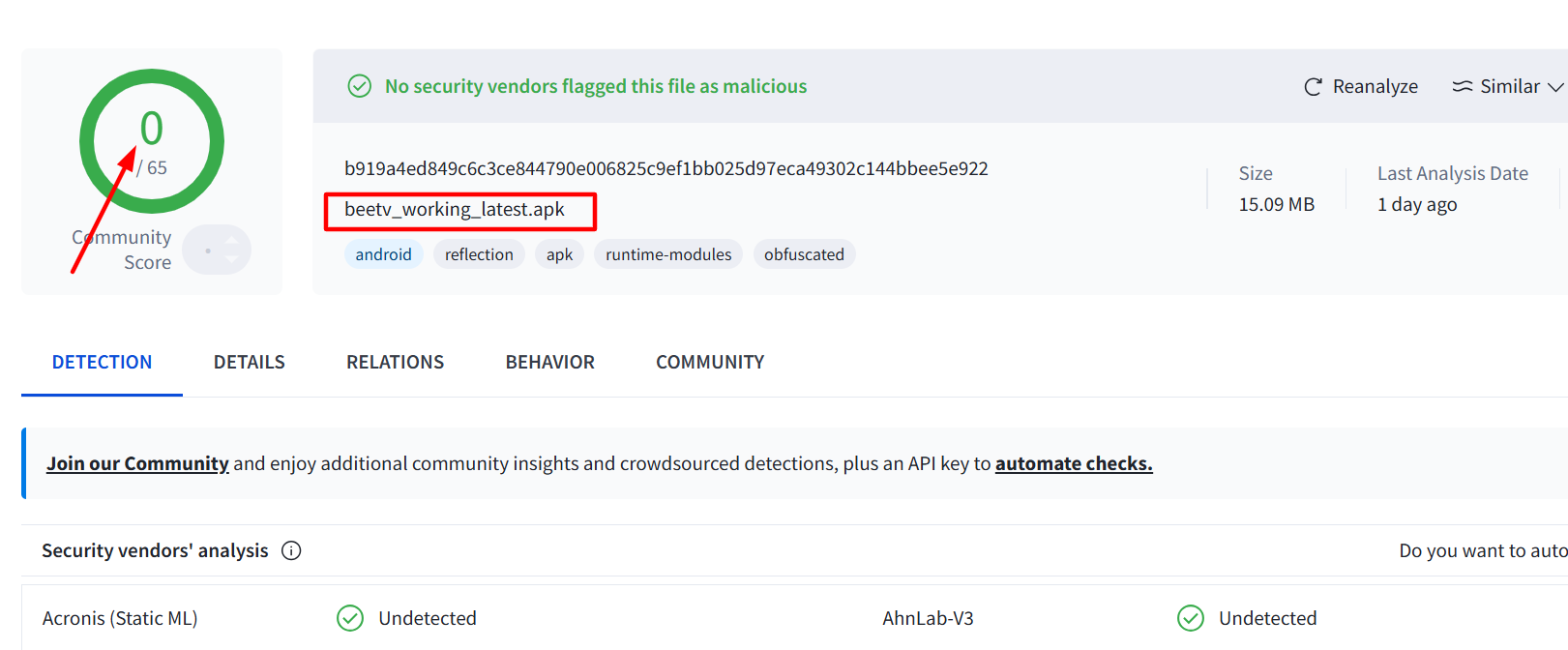
The BeeTV latest APK (v4.6.8) is completely safe to use. We scanned its APK file using VirusTotal and found no malware or viruses.
However, we can’t access streaming sources of BeeTV, so we recommend you install and use SurfShark VPN on FireStick for secure streaming.
About BeeTV APK
If you want a quick overview of the BeeTV app, refer to the following table:
| Content-Type | On-Demand Movies & TV Shows |
| App Size | 15.4 MB |
| Price | Free |
| Version | v4.6.8 & 4.7.4 |
| Is It Safe to Use? | Yes, but you must use a VPN |
| Developer | BeeTV |
Best Movies and Shows to Watch on BeeTV in 2026
Here’s the list of top movies and shows you should watch on BeeTV in 2026:
Movies
- The Bee Movie
- Avatar
- Inception
- The Dark Knight
- Interstellar
- Joker
- Parasite
- 1917
- The Irishman
- Once Upon a Time in Hollywood
TV Shows
- Breaking Bad
- Stranger Things
- Game of Thrones
- Yellowstone
- The Mandalorian
- The Witcher
- Survivor
- The Boys
- Money Heist
- The Queen’s Gambit
- Ozark
Top BeeTV Features
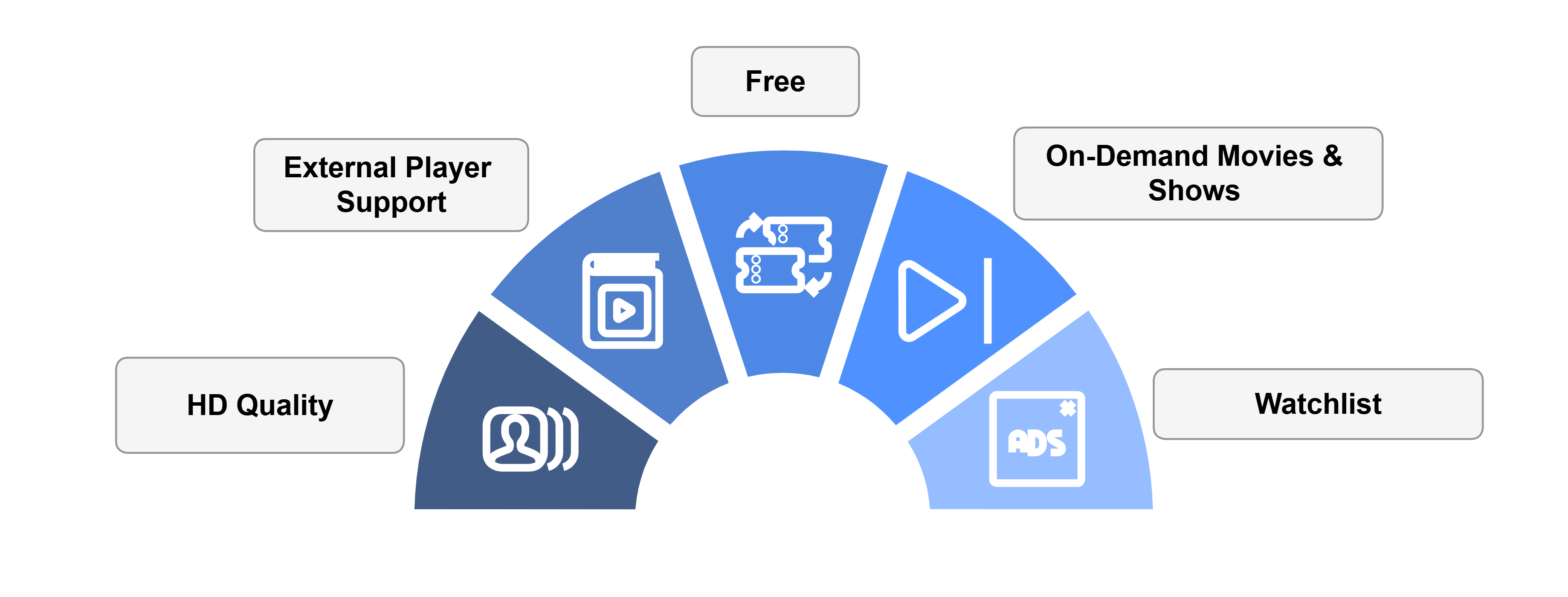
Check out some of the top BeeTV features:
✅ Free
✅ On-demand movies, shows, documentaries, etc.
✅ External player support
✅ Trakt TV and Real Debrid integration
✅ Multiple streams
✅ HD quality
✅ Subtitles in multiple languages
✅ Little to no buffering
BeeTV Not Working on FireStick? Try These Fixes
If you’re dealing with buffering, app crashes, or other streaming glitches on FireStick, try these quick fixes to smooth things out:
- Clear app cache
- Close background apps
- Connect FireStick via Ethernet
- Set video resolution to 1080p/4K
- Restart FireStick
P.S. If you are still facing issues, check out our detailed articles to stop buffering on FireStick and fix playback errors.
Bee TV Alternatives on FireStick
If or when BeeTV undergoes temporary glitches, you can opt for the following alternatives:
- Cinema HD on FireStick
- NetMirror on FireStick
- HDO Box on FireStick
- OnStream on FireStick
- FilmPlus on FireStick
FAQs – BeeTV
Is BeeTV working on FireStick?
Yes, currently 2 BeeTV APKs (v4.6.8 & v4.7.4) are working on FireStick (as of 10 June, 2026). You can get them via Downloader Code 740116.
Is BeeTV free to use on FireStick?
Yes, BeeTV is completely free to use.
Does BeeTV show ads on FireStick?
Yes, BeeTV shows ads, but you can remove them using the 2 workarounds discussed in this article.
What can I watch on BeeTV?
BeeTV lets you watch premium on-demand movies and shows like Game of Thrones, Inception, and Breaking Bad.
Can I install BeeTV from Amazon Appstore?
No, you will have to sideload the BeeTV APK using the Downloader app.
Conclusion
BeeTV is one of the best movie apps for FireStick, offering a vast library of movies, documentaries, and TV shows.
With its user-friendly interface and Real-Debrid integration, it provides an amazing streaming experience.
Knowing that BeeTV might be sourcing content via unverified sources, don’t forget to use Surfshark for better online security.




Once I open the BeeTV app on Firestick , it wants me to log in. Log in with what?
It doesn’t ask to login. Just re-download the app may be? Let us know if it works.
how to watch adult movies
You can watch adult actions movies on cinmea hd and also on beetv
if its free why does it need my credit card ?
Its free, No need of credit card
URL is not working
It is working. It will not work if you’re from US or Uk because this link is geo -restricted . You have to install vpn and connect to any asian server eg: hongkong,malasia
Beetv has so many ads now, it is unusable. Sad because it used to be the best player out there. Totally unusable. Ad when you search, ad when you click a show, ad when you click the episode, ad 10 seconds into watching.
Hi Jason, we updated the BeeTV apk in the blog on 2/3/2025. This latest BeeTV APK v4.1.2 has minimal ads. In fact, you only see ads when switching from one movie/show to another.
Do you always have to use Asian location for BeeTv with SurfShark?
Hi Lisa, no, you don’t always have to use an Asian location for BeeTV with Surfshark. However, Asian servers (like Singapore or Hong Kong) often work best with third-party APKs. Costa Rica server also works good!
Not able to switch player to mx player, only has the 2 default options, is this something new?
Hello Paul, you can easily use the MX Player on BeeTV by following the steps in the section “How to Remove Ads on BeeTV” in the blog.
Hi thank you for all your useful info great job
I am looking for All Australian live tv please
Cheers
Hey, you can find australian channels on cinema HQ, TFlix, BitTV, Streamfire, and Orbi TV. All these apps are available on 730116. Let me if you need more help!