Disclosure: Our experts test apps for security before recommending them. If you buy through our links, we may earn a commission. See how it works.
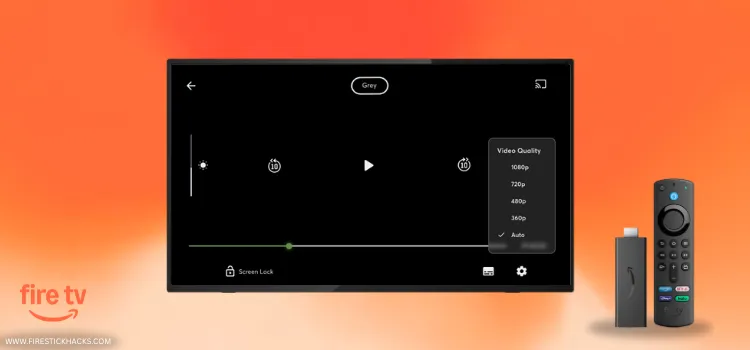
If you are tired of dealing with choppy playback on your FireStick, it might be time to switch to ExoPlayer. It is completely free.
ExoPlayer is highly optimized for Android-based systems like Fire OS. It supports both M3U URLs and videos downloaded on your FireStick.
Moreover, it has built-in support for advanced video protocols like DASH and HLS, which automatically adjust the video quality if your internet connection dips.
When using ExoPlayer with third-party movie apps or IPTV services, be sure to use a VPN to hide your identity & enjoy secure streaming. Surfshark is our #1 choice.
🛡️ VPN RECOMMENDATION
Our Recommended VPN - Surfshark
Your ISP sees every stream. Unverified apps expose your IP. Fix both in under 2 minutes.
🔒 30-day money-back guarantee • $0.06/day

How to Install ExoPlayer on FireStick Using Downloader App
The ExoPlayer app is not officially available in the Amazon App Store. You will have to sideload its latest APK v3.2.1 from an unofficial source using the Downloader app.
But before getting started with the sideloading or jailbreaking process, be sure to install and use SurfShark VPN on FireStick to add an extra layer of security.
Here are the steps to follow:
Step 1: Turn ON your FireStick device and Go to FireStick Home
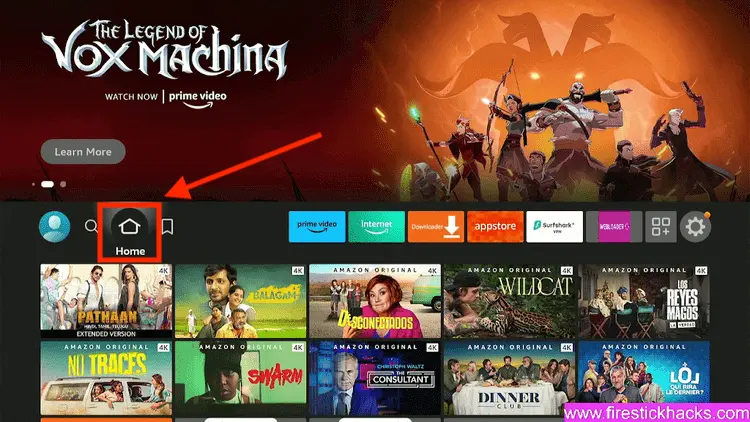
Step 2: Click on the Settings icon
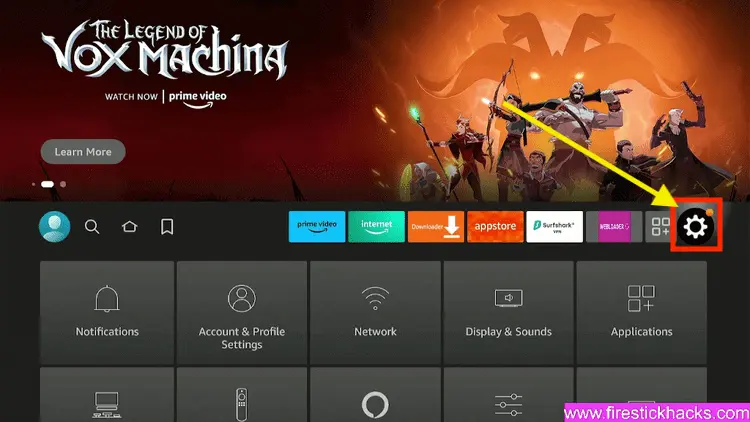
Step 3: Select the My Fire TV option
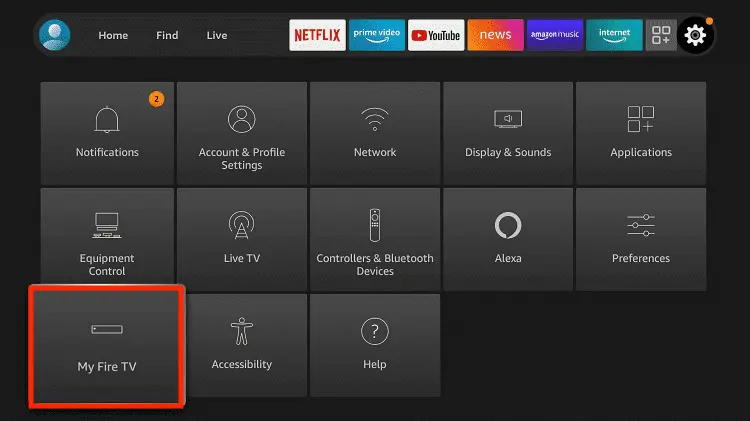
Step 4: To enable the Developer Option, click About.
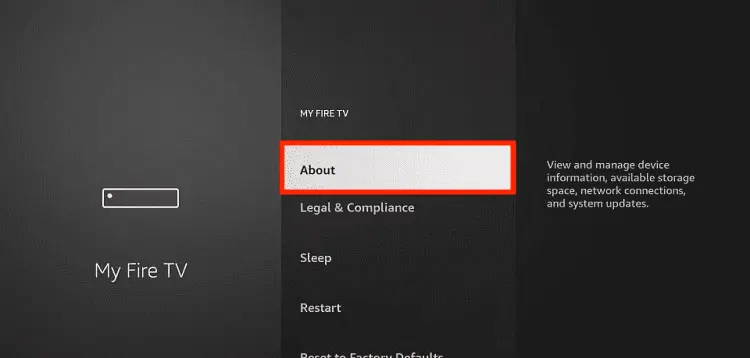
Note: If you have already enabled the Developer Option, then proceed to Step 10
Step 5: Click on the Fire TV Stick option quickly at least 7 times
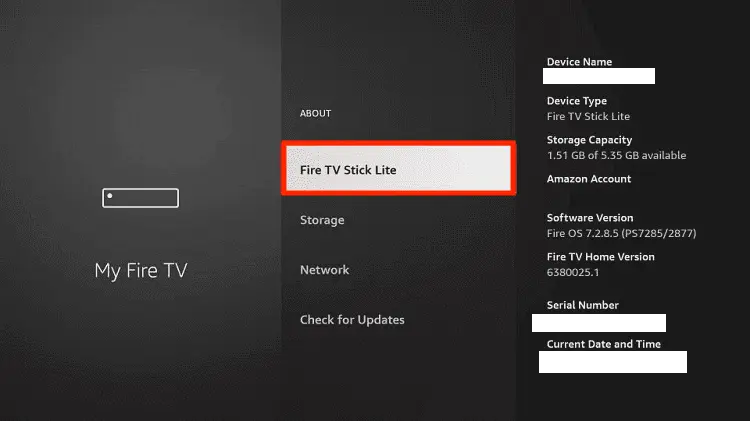
Step 6: Now you will see this message at the bottom saying "No need, you are already a developer". So stop clicking then
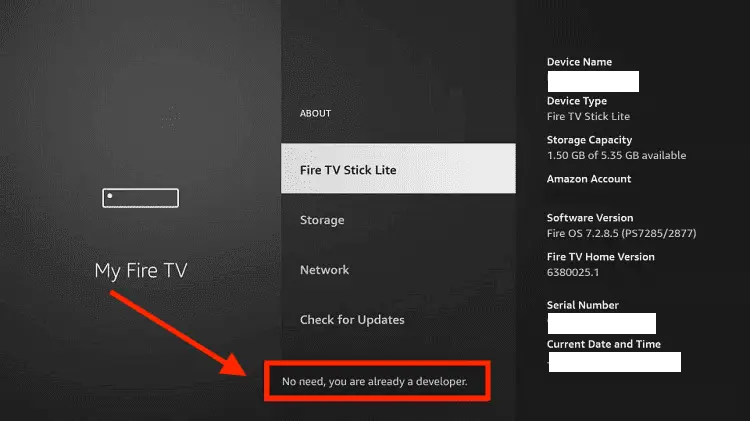
Step 7: Now the Developer Option will appear in the menu so click on it
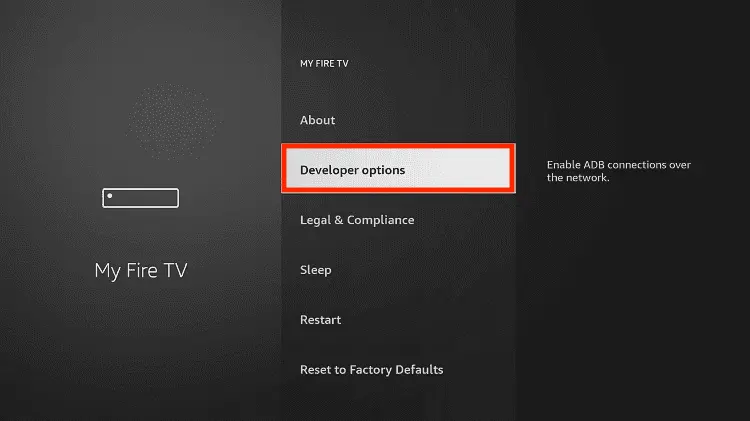
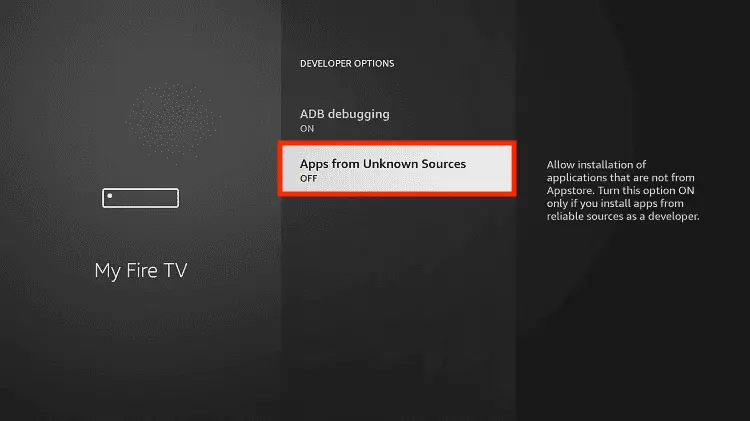
Step 8: Choose Apps from Unknown Sources to turn it ON
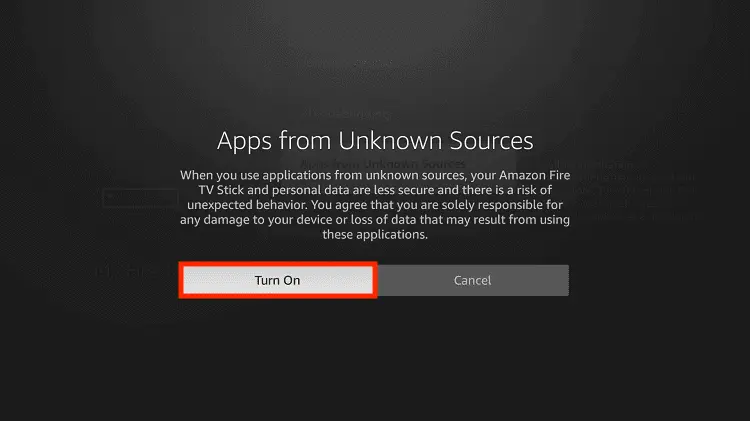
Step 9: Simply click Turn On
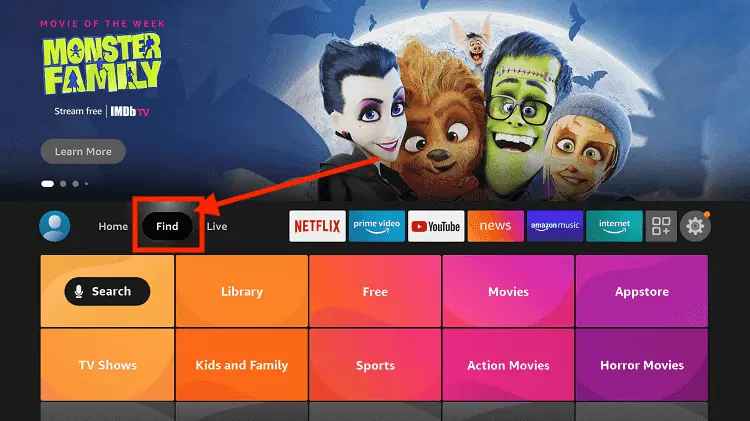
Step 10: Now return to the FireStick Home menu by pressing the "Home" icon on the remote and click on Find
Step 11: Now select the Search icon
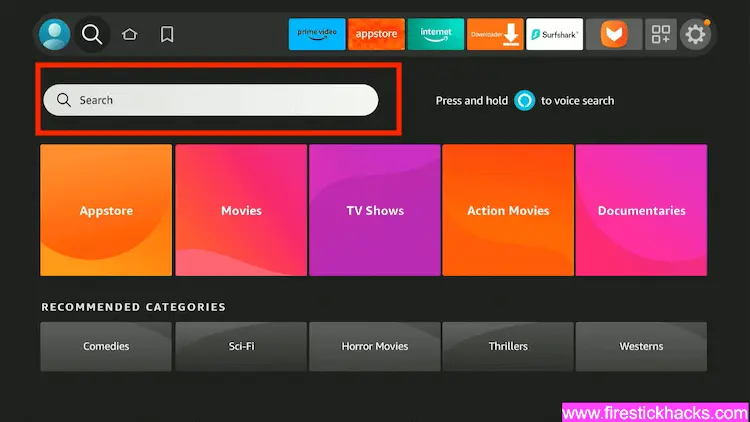
Step 12: Type Downloader and press search
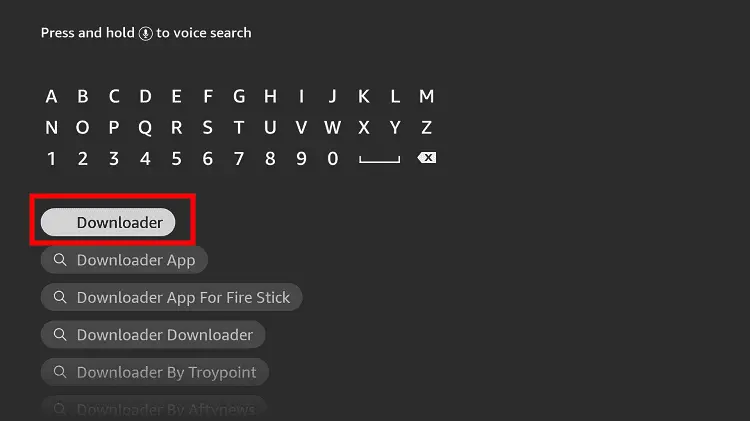
Step 13: Select the Downloader App icon from the list available in the Amazon Store
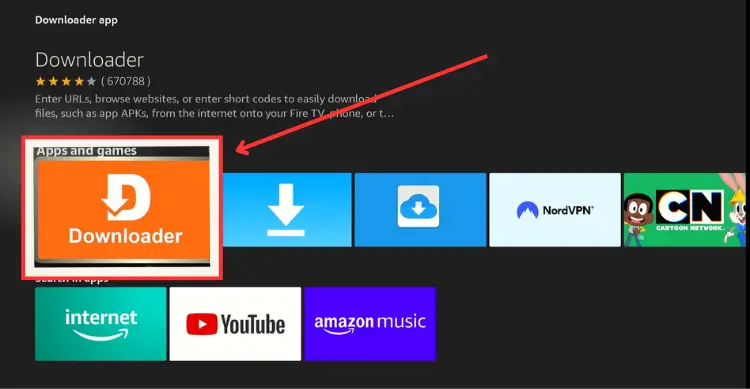
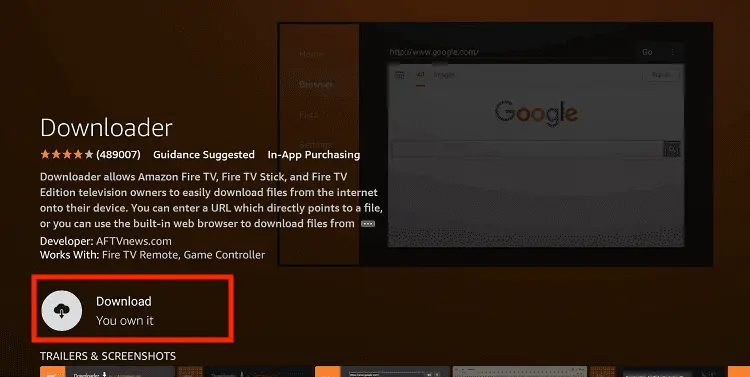
Step 14: Tap Get/Download
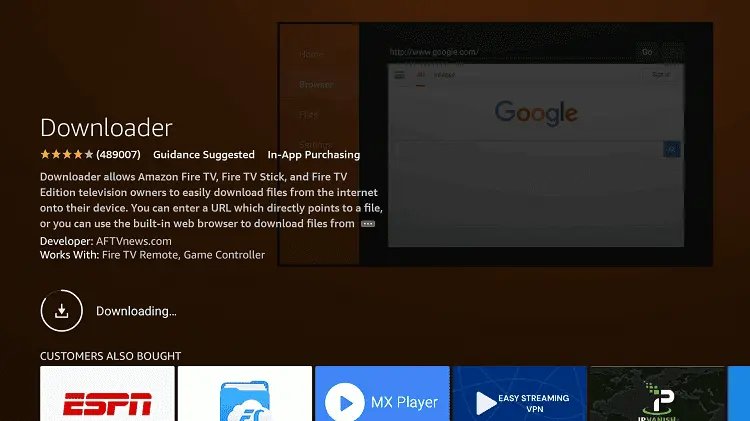
Step 15: Wait for a while until the installation process is completed
Step 16: Now click Open
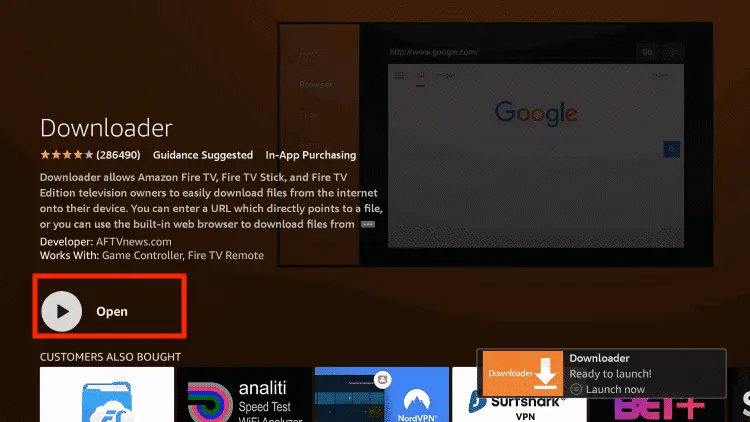
Step 17: You will see a popup about Downloader app latest update. Click "OK".

Step 18: Click OK again

Step 19: This is the Downloader App interface, Click the Search Bar on top

Step 20: Now enter the ExoPlayer Downloader Code 730116 in the search box OR enter this URL bit.ly/fsh-downloads and click Go.
Note: The referenced link is the official URL of this app/website. FIRESTICKHACKS does not own, operate, or re-sell any app, streaming site, or service and has no affiliation with its developers.
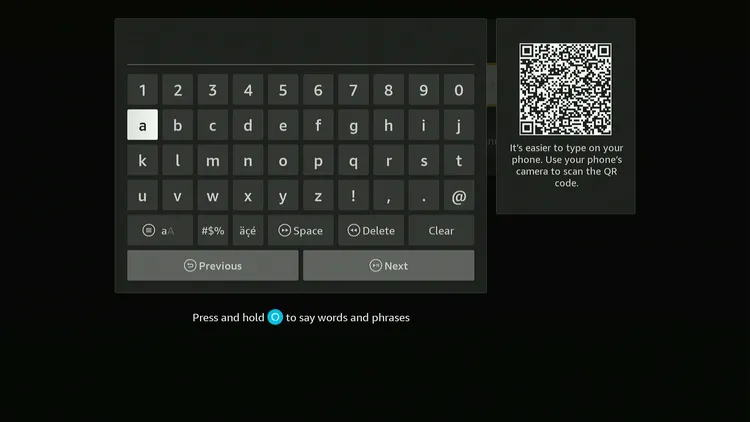
Step 21: Scroll down and click “ExoPlayer” from the “IPTV & Media Player” category.
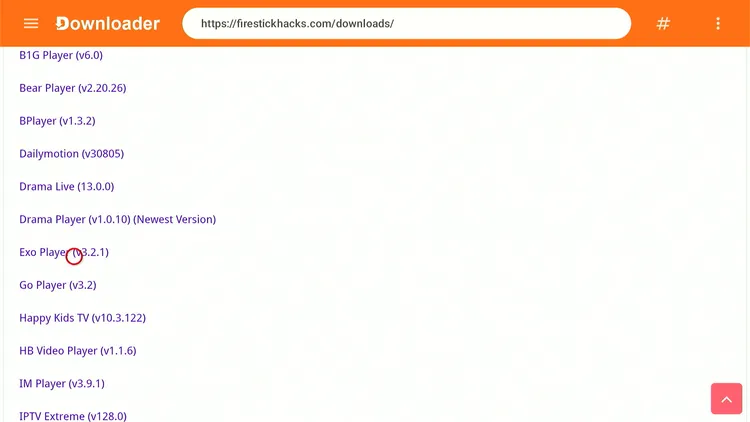
Step 22: The downloading will start. Wait for it to finish.
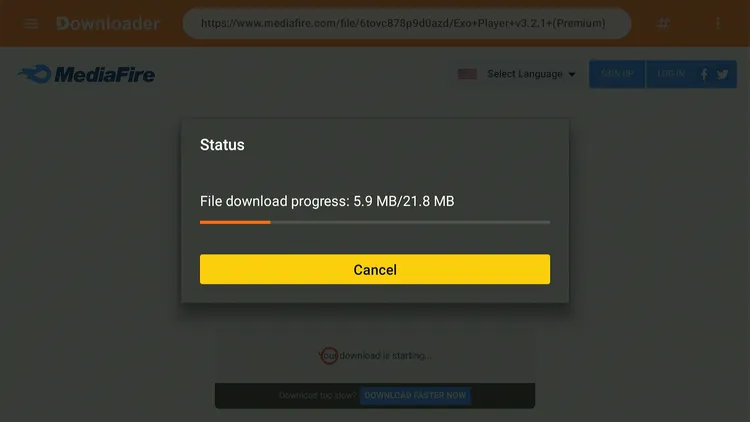
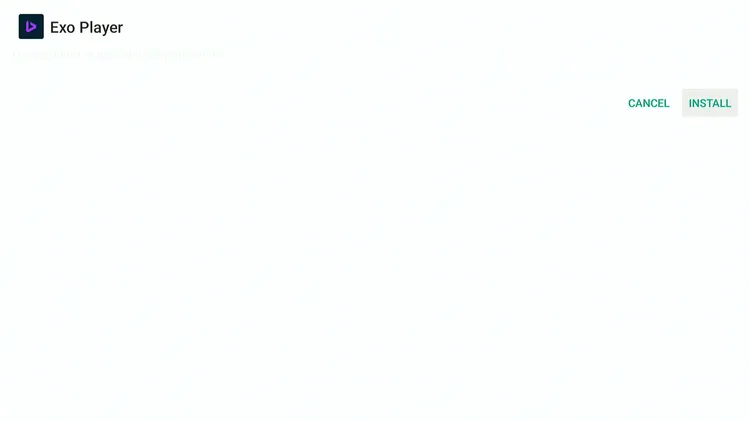
Step 23: Once the downloading ends, click “Install.”
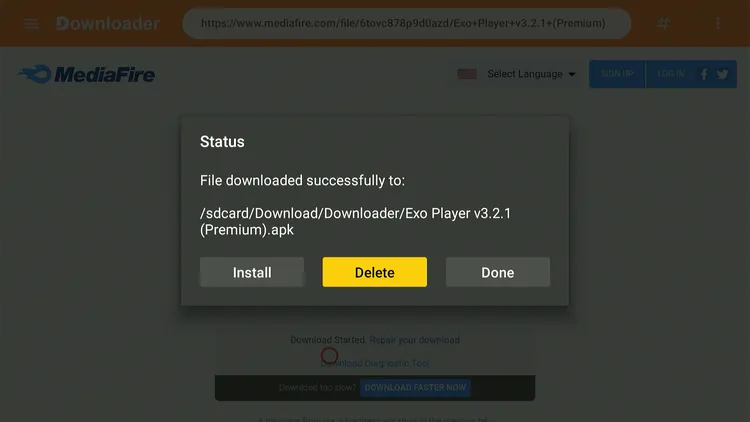
Step 24: Tap the “Done” icon.

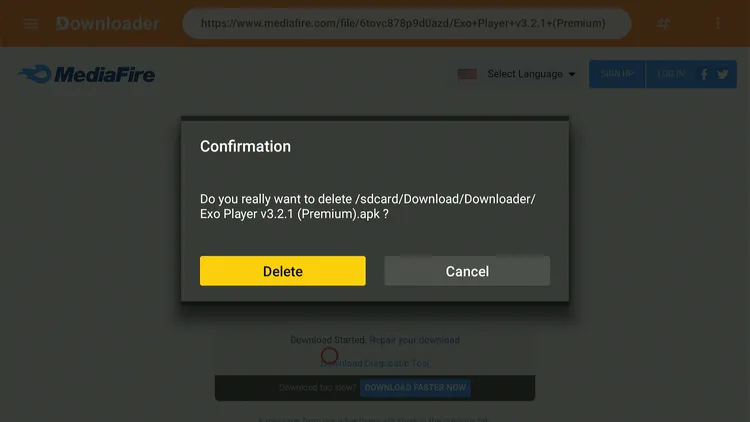
Step 25: Click “Delete” to remove the Exo Player APK file from FireStick.
Note: Deleting APK files will free up space on FireStick.
Step 26: Tap “Delete” again to complete the process.
How to Use ExoPlayer on FireStick
Once the Exo Player app is installed, you can start using it right away to stream M3U URLs and downloaded videos on FireStick.
Follow the steps below:
Step 1: Select the “ExoPlayer” app from the list.
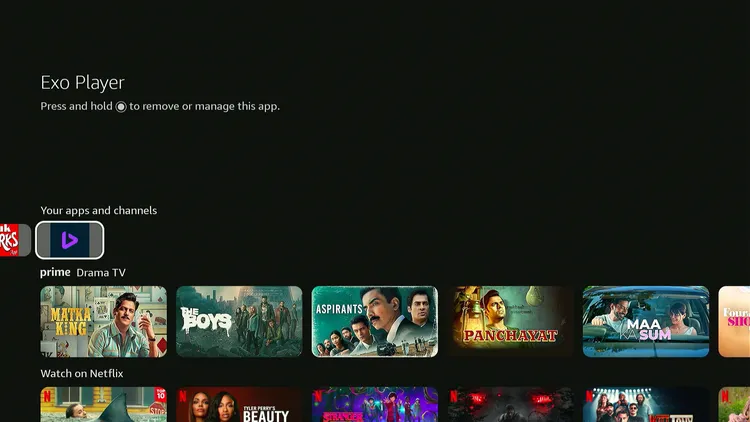
Step 2: Tap “Close.”
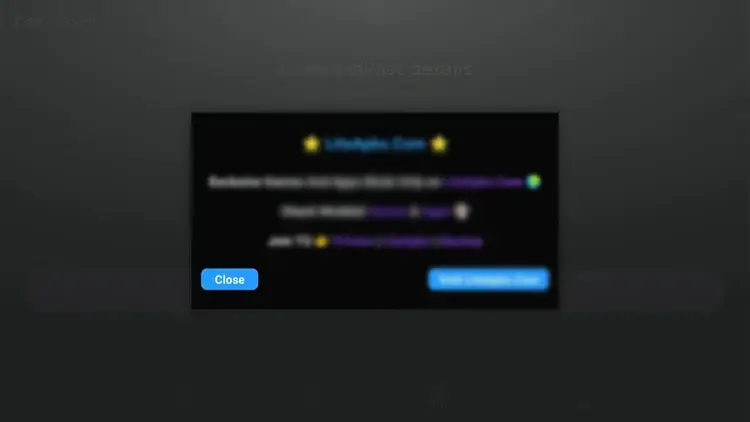
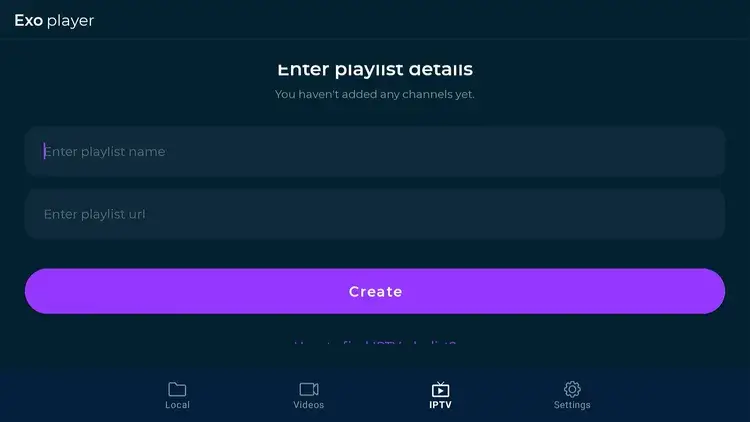
Step 3: Now, enter the “IPTV playlist name” and add the “IPTV M3U URL.”
Important: Connect Surfshark VPN before streaming any IPTV playlist.
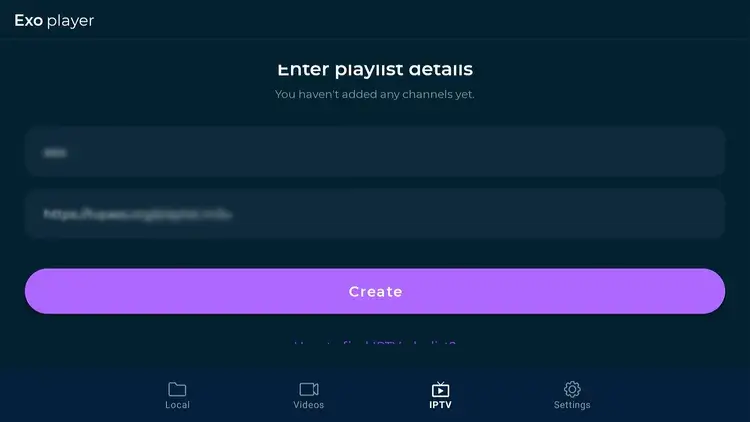
Step 4: Click “Create.”
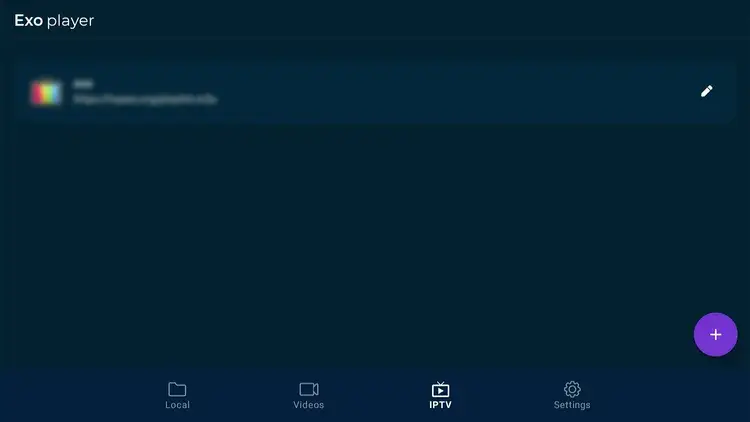
Step 5: The playlist will load. You can click on it to enjoy streaming channels.
P.S. To add more M3U playlists, click the “Plus” icon in the bottom right corner.
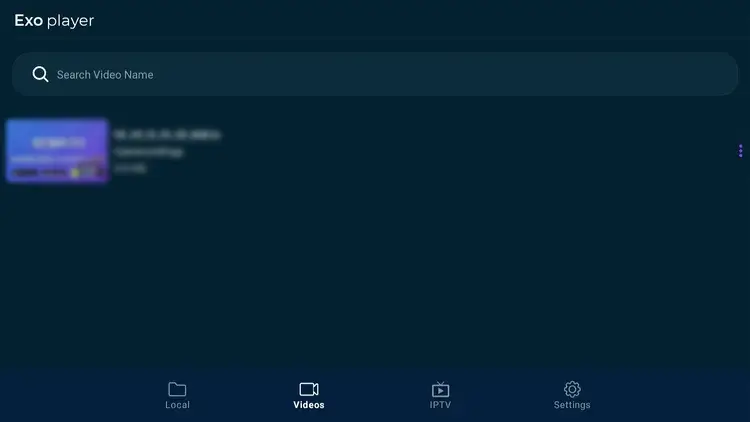
Step 6: To watch the downloaded videos via ExoPlayer, click the “Videos” icon at the bottom.
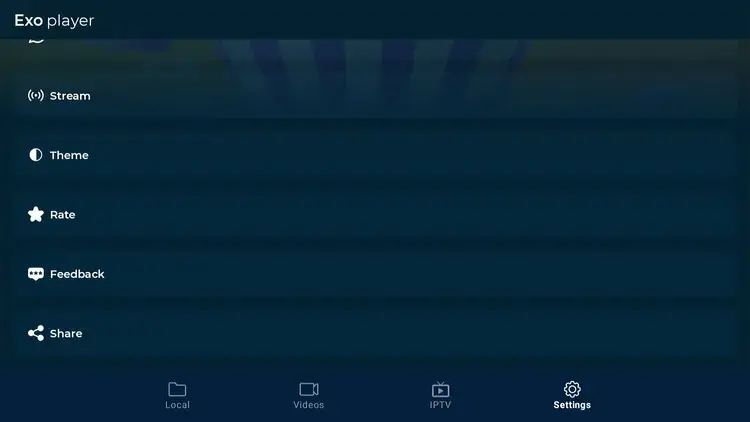
Step 7: To change the “Theme”, click on “Settings.”
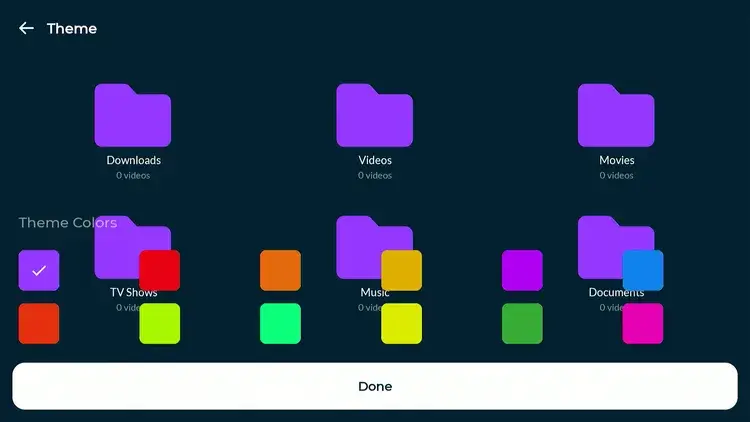
Step 8: Choose the desired theme to customize the ExoPlayer interface.
Is ExoPlayer APK Safe/Legal to Use on FireStick?
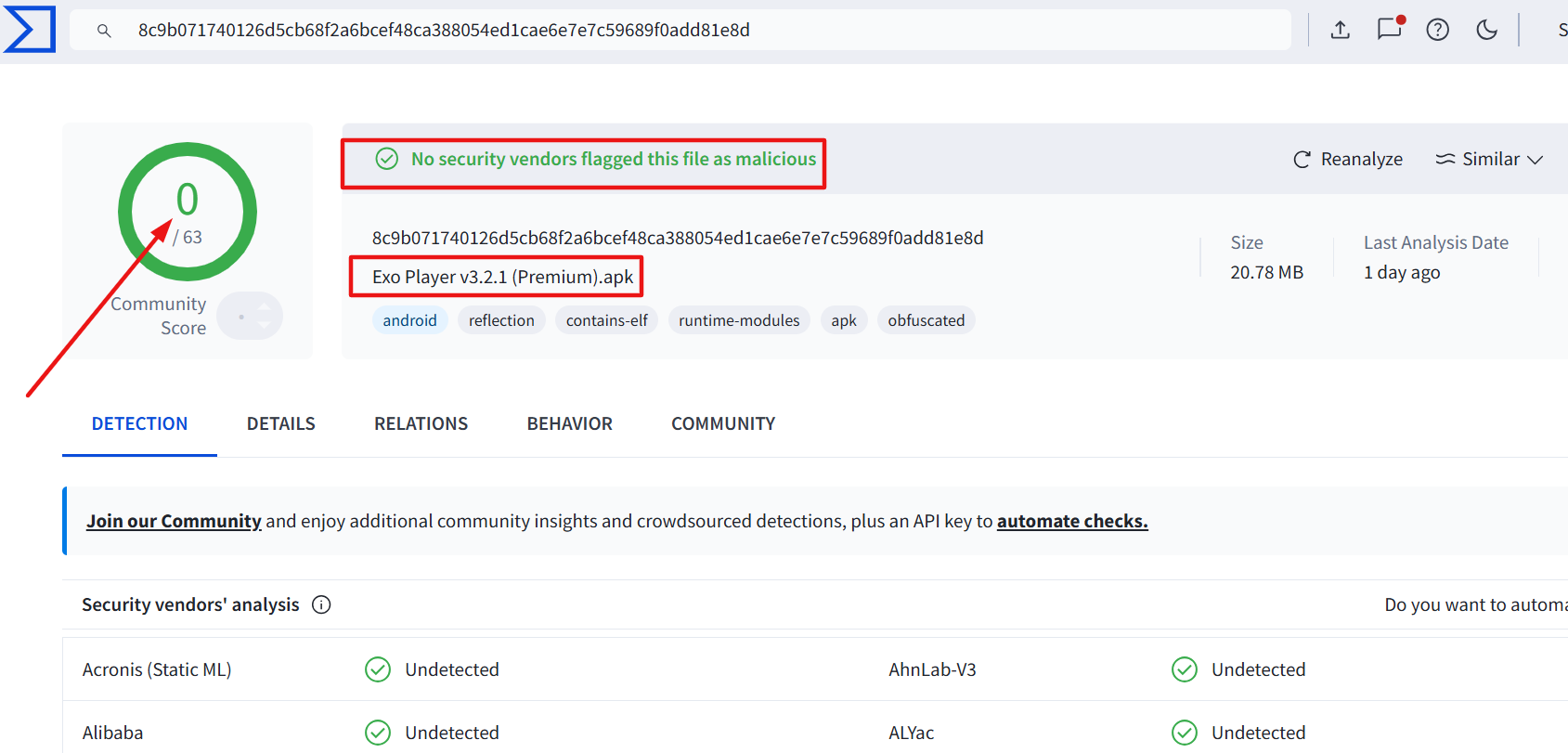
The ExoPlayer latest APK (v3.2.1) is completely safe to use. When I scanned the ExoPlayer APK on Virustotal, no vendors flagged this file as malicious.
However, since ExoPlayer is a third-party app, using Surfshark is important to protect your identity.
All You Need to Know About ExoPlayer Latest APK
Here’s a sneak peek at the latest ExoPlayer APK:
| App Type | Media Player & IPTV Player |
| Price | Free |
| File Size | 21.8 MB |
| Version | v3.2.1 |
| Is It Safe to Use? | Yes, but use a VPN when playing with a third-party app |
| Developers | ExoPlayer |
Top ExoPlayer Features
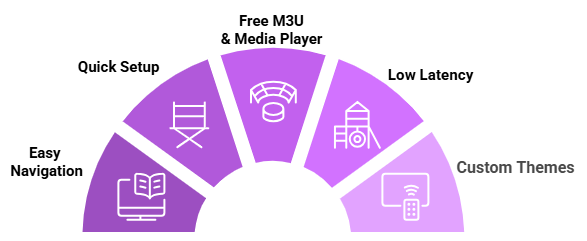
Check out some of the best ExoPlayer features:
✅ Free player
✅ Supports IPTV and local/downloaded videos
✅ Custom themes
✅ Adaptive streaming
✅ Audio track switching
✅ Subtitle support
✅ Low latency
✅ HLS streaming
✅ DASH format support
✅ Clean Interface