Disclosure: Our experts test apps for security before recommending them. If you buy through our links, we may earn a commission. See how it works.
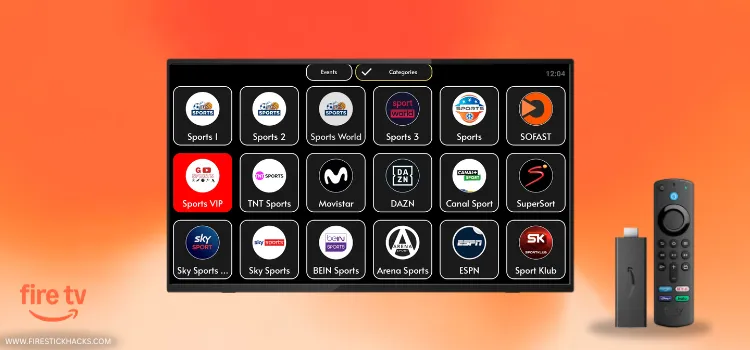
GeeSports is a very underrated sports app. However, I consistently use it to stream various sports live like football, PPV, cricket, darts, & tennis for free.
The app is completely ad-free. It offers support for M3U playlists and Xtream Codes, which means you can easily watch your FireStick IPTV services within GeeSports.
The app includes a “floating player” for watching multiple streams, but it didn’t work as expected. Other than that, performance on FireStick is smooth.
Please note that the GeeSports clearly states it sources links from third-party providers👇
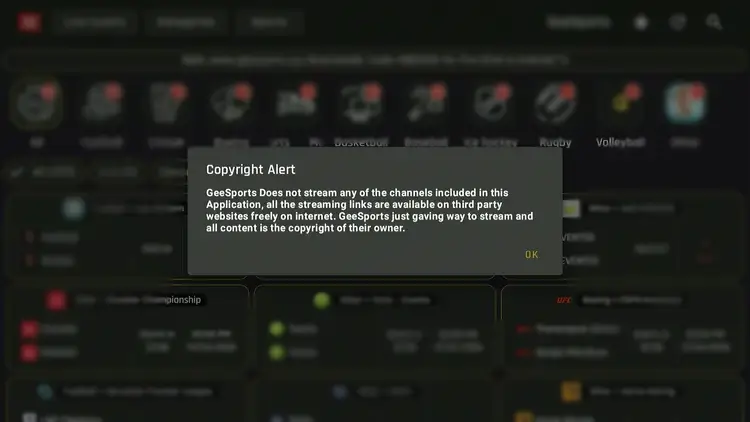
Therefore, you must use a VPN to prioritize your security and enjoy secure streaming. Surfshark is our #1 choice.
Our Recommended VPN - Surfshark
WARNING! Amazon Monitors Your Fire TV Stick!
Yes, It’s True! Without Proper Encryption, your IP Address is Exposed, and Whatever you Stream on FireStick is 'Being Tracked'.
This can lead to:
- Blocking of the FREE Third-Party Apps
- Exposure of your Personal data to hackers, ISPs, and even the authorities
But There’s a Solution - ‘Surfshark VPN’
Save 87% + Get 3 Extra Months FREE with Surfshark VPN [Limited Time Offer]
This Includes:
✅ VPN for just $0.06/day!
✅ Strongest Encryption (i.e.256-Encryption)
✅ 3,200 servers in 100+ server locations
✅ Kill Switch Feature for FireStick users
✅ Data Breach Alerts.
✅ Unlimited Device Connections.
✅ 30-day money-back guarantee.

How to Install GeeSports on FireStick Using Downloader App
GeeSports is an unofficial app, which means it’s unavailable on the official Amazon Appstore. You will have to sideload it from a third-party source using the Downloader app.
Before starting the jailbreaking/sideloading process, don’t forget to install and use SurfShark VPN on FireStick to strengthen your online security.
Follow the steps below:
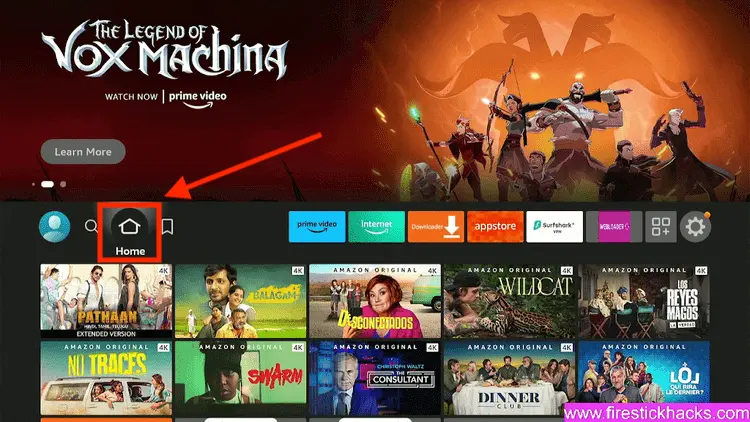
Step 1: Turn ON your FireStick device and Go to FireStick Home
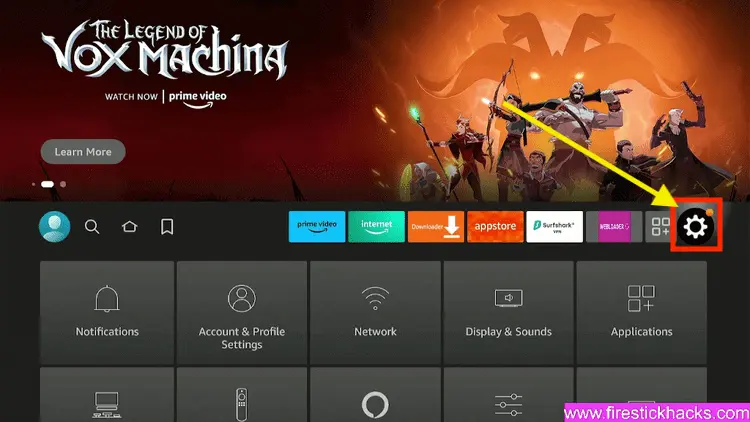
Step 2: Click on the Settings icon
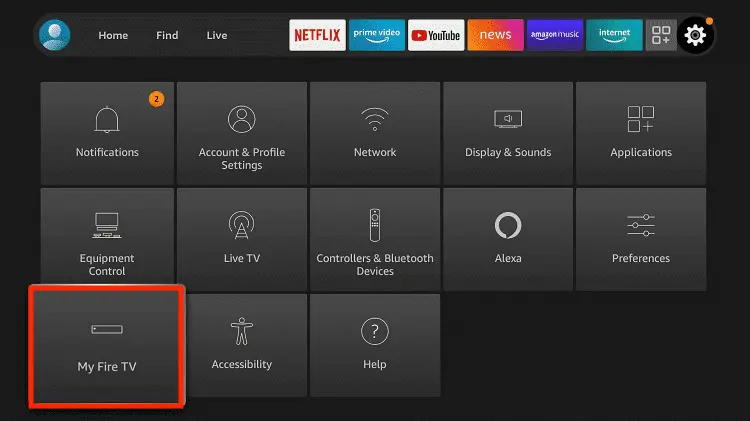
Step 3: Select the My Fire TV option
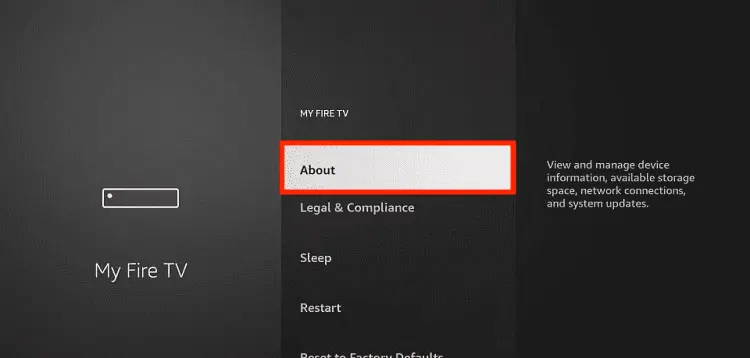
Step 4: To enable the Developer Option, click About.
Note: If you have already enabled the Developer Option, then proceed to Step 10
Step 5: Click on the Fire TV Stick option quickly at least 7 times
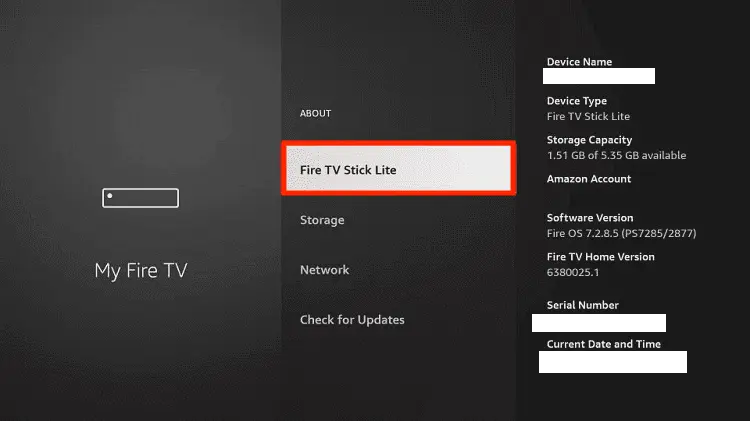
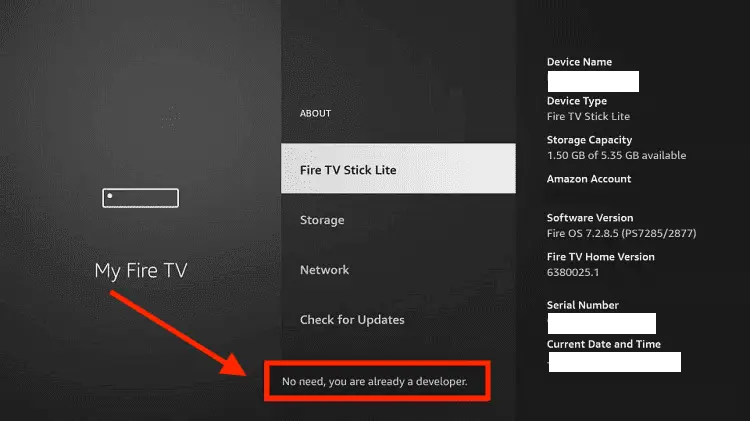
Step 6: Now you will see this message at the bottom saying "No need, you are already a developer". So stop clicking then
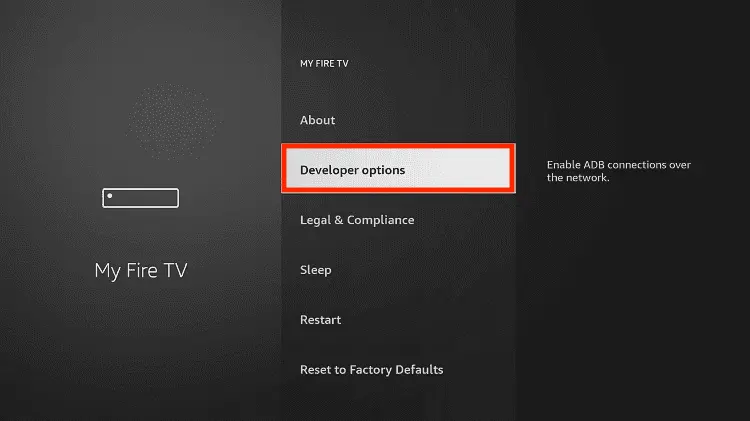
Step 7: Now the Developer Option will appear in the menu so click on it
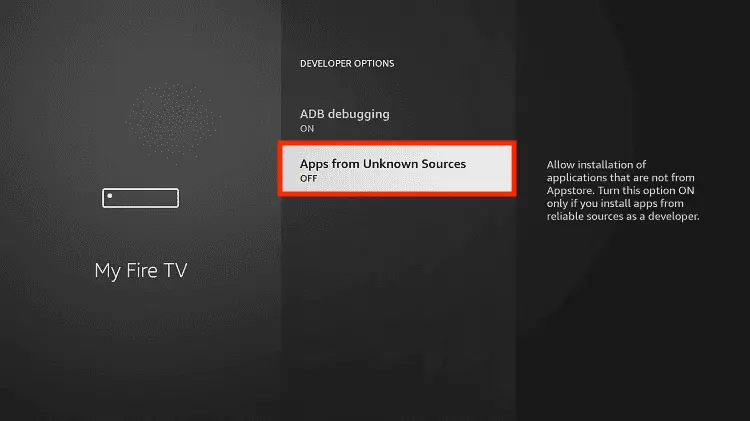
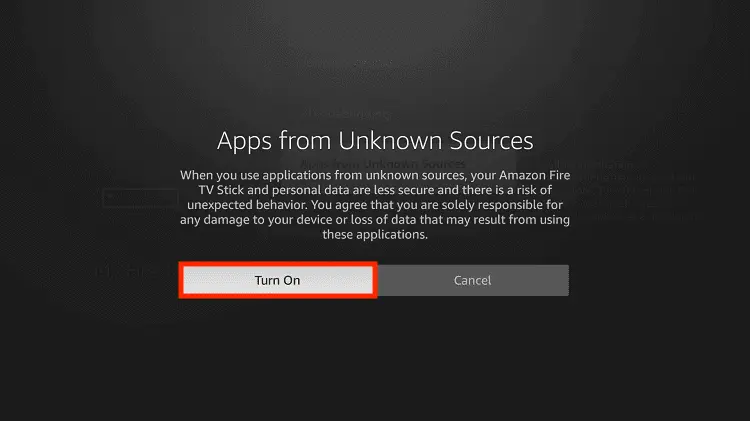
Step 8: Choose Apps from Unknown Sources to turn it ON
Step 9: Simply click Turn On
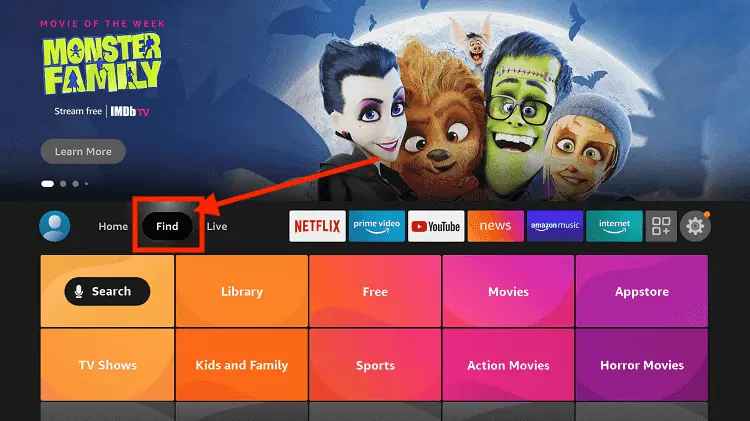
Step 10: Now return to the FireStick Home menu by pressing the "Home" icon on the remote and click on Find
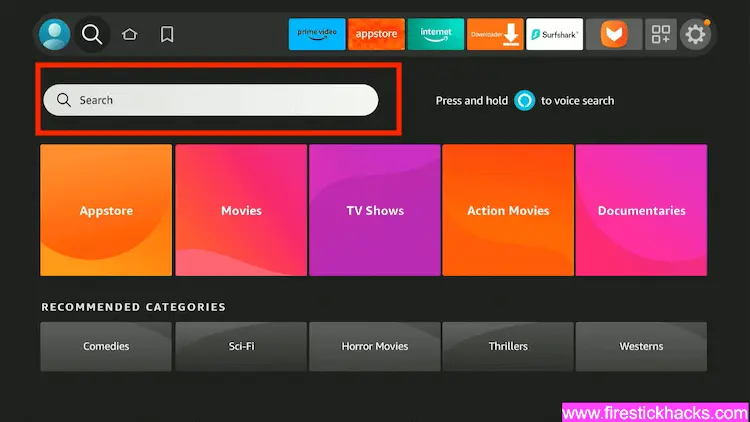
Step 11: Now select the Search icon
Step 12: Type Downloader and press search
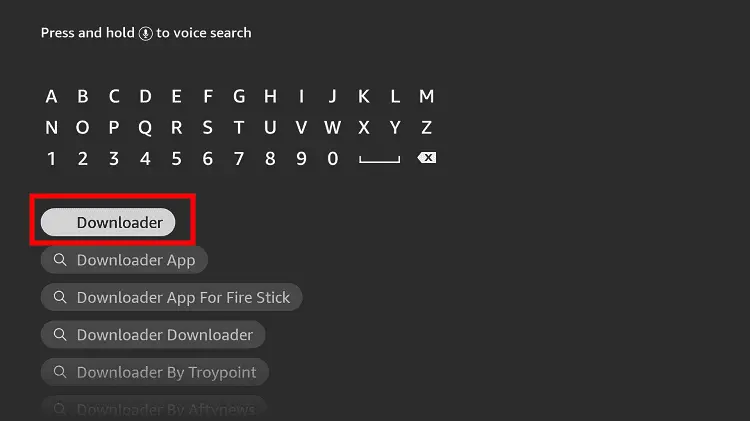
Step 13: Select the Downloader App icon from the list available in the Amazon Store
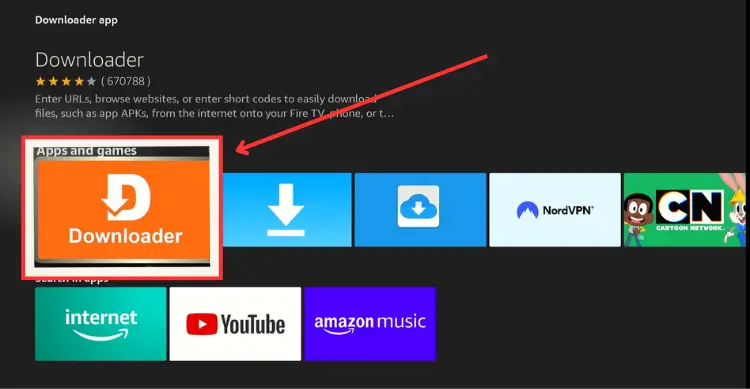
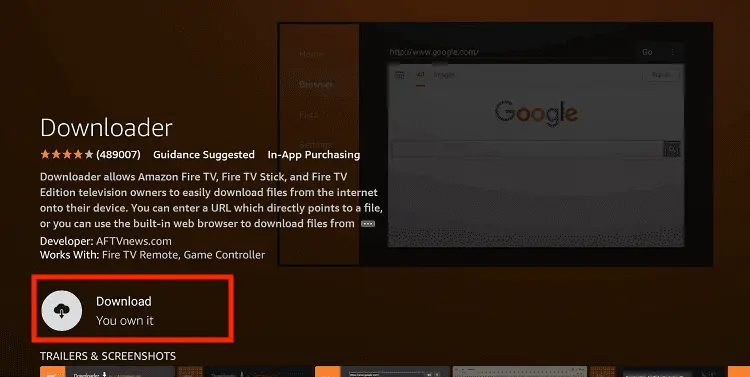
Step 14: Tap Get/Download
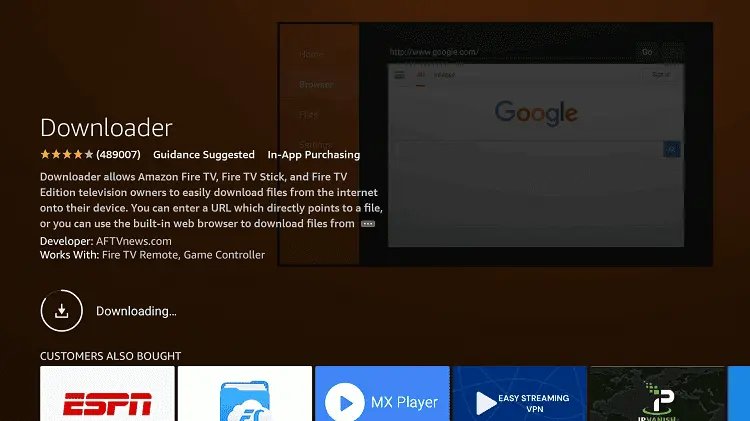
Step 15: Wait for a while until the installation process is completed
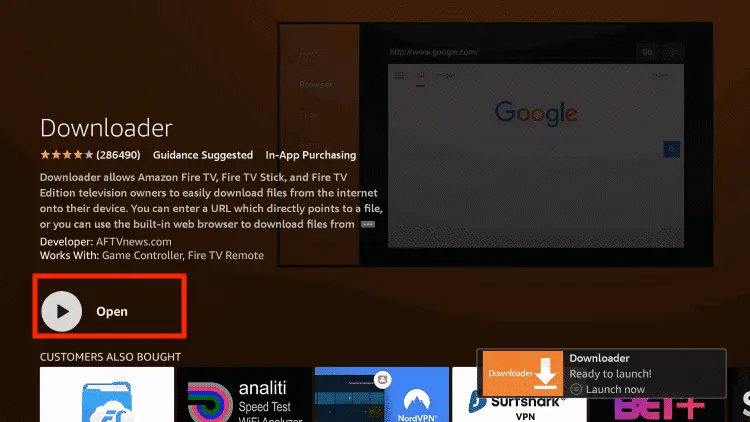
Step 16: Now click Open
Step 17: You will see a popup about Downloader app latest update. Click "OK".

Step 18: Click OK again

Step 19: This is the Downloader App interface, Click the Search Bar on top

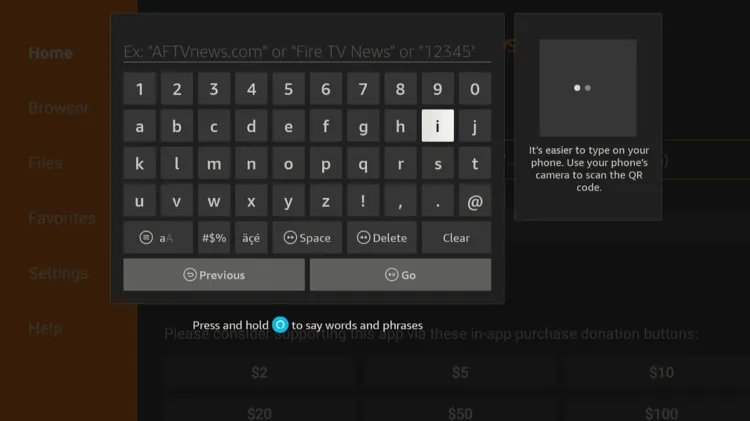
Step 20: Enter GeeSports Downloader Code 730116 in the search box OR enter this URL bit.ly/fsh-downloads and click Go.
Note: The referenced link is the official URL of this app/website. FIRESTICKHACKS does not own, operate, or re-sell any app, streaming site, or service and has no affiliation with its developers.
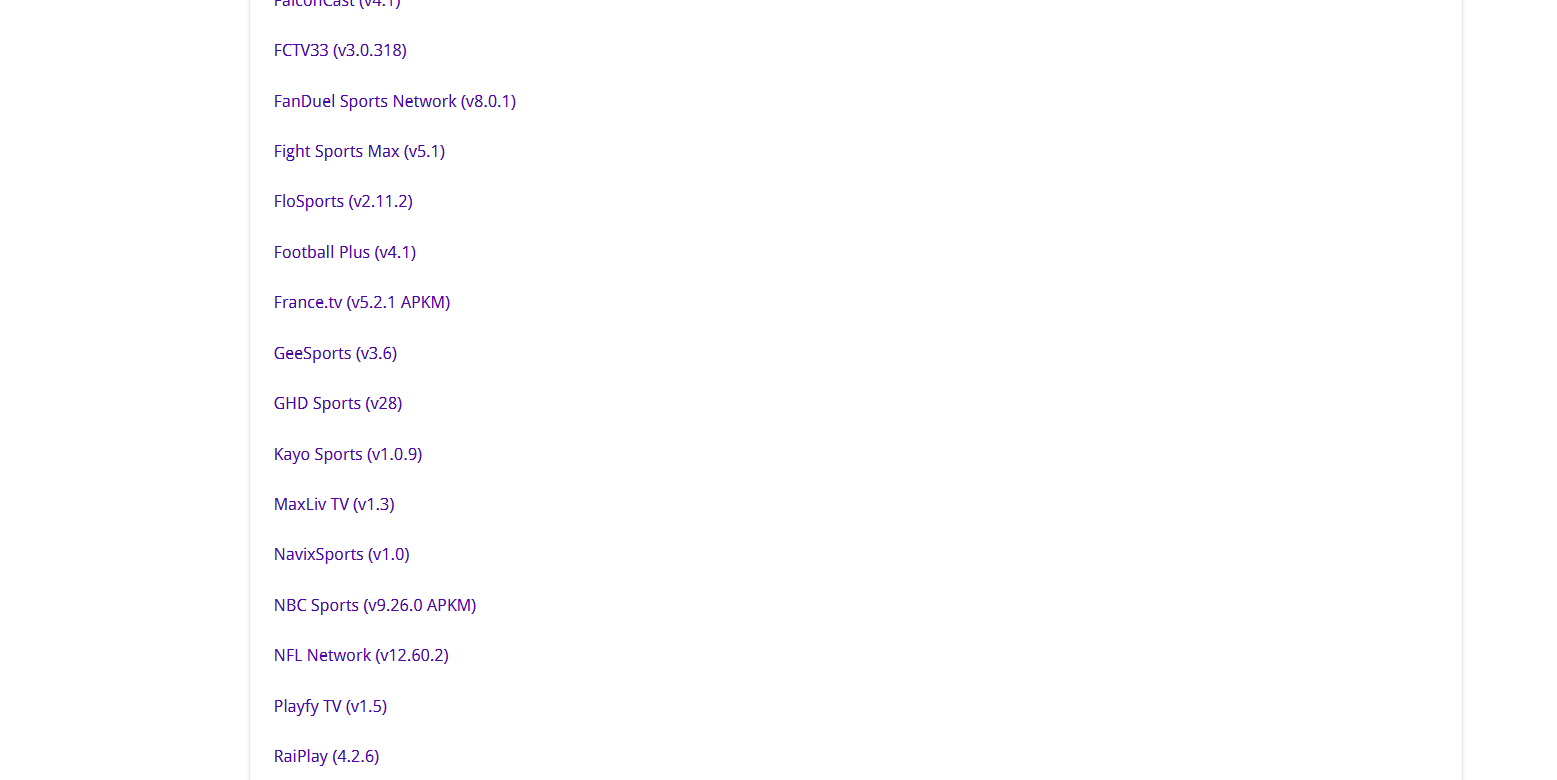
Step 21: Scroll down and click “GeeSports” from the “Sports Apps” category.
Note: If the app does not start downloading, then clear the Downloader App cache using this article.
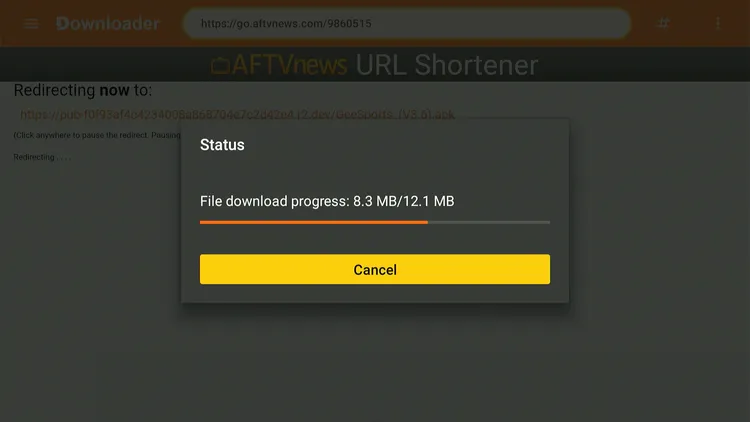
Step 22: The downloading will start. Wait for it to finish.
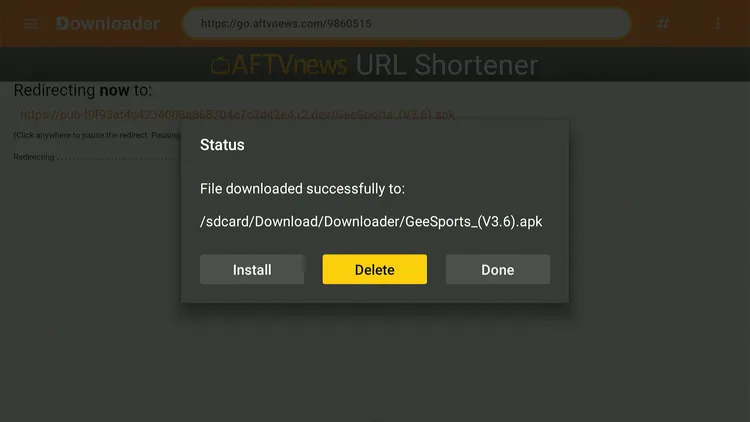
Step 23: Once the downloading ends, click “Install”.

Step 24: Tap the “Done” icon.

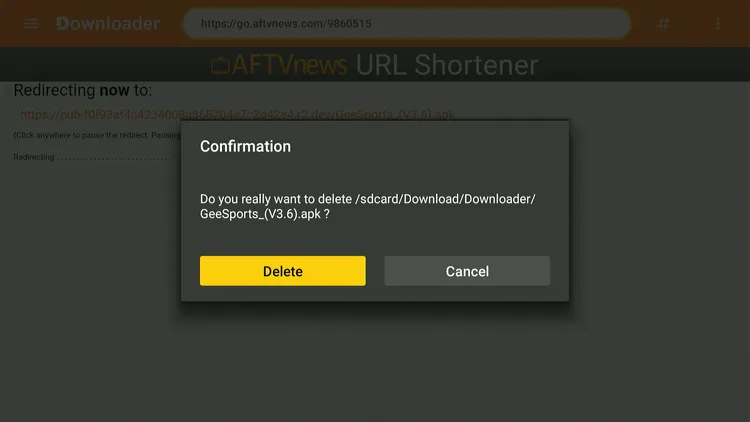
Step 25: Click “Delete” to remove the GeeSports APK file from FireStick.
Note: Deleting APK files will free up space on FireStick.
Step 26: Tap “Delete” again to complete the process.
How to Use GeeSports on FireStick
GeeSports is fully compatible with FireStick’s remote and includes a built-in media player, so no extra apps are required. The best part is that the app is ad-free.
Don’t forget to install and use SurfShark VPN on FireStick to hide your IP address, as we have no way to verify the streaming sources of GeeSports.
Follow the steps below:
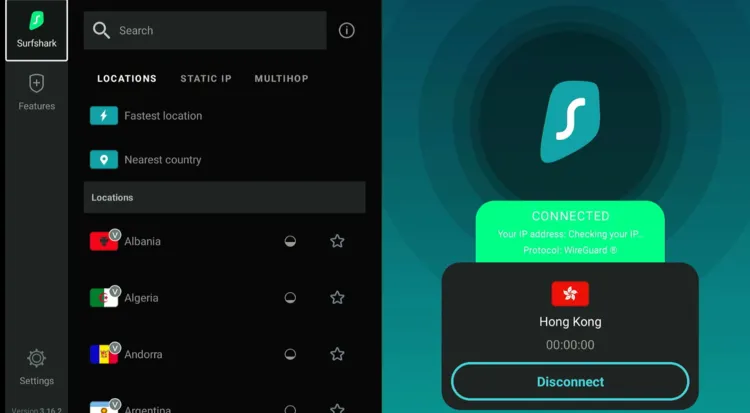
Step 1: Open Surfshark and connect it to the Hong Kong server.
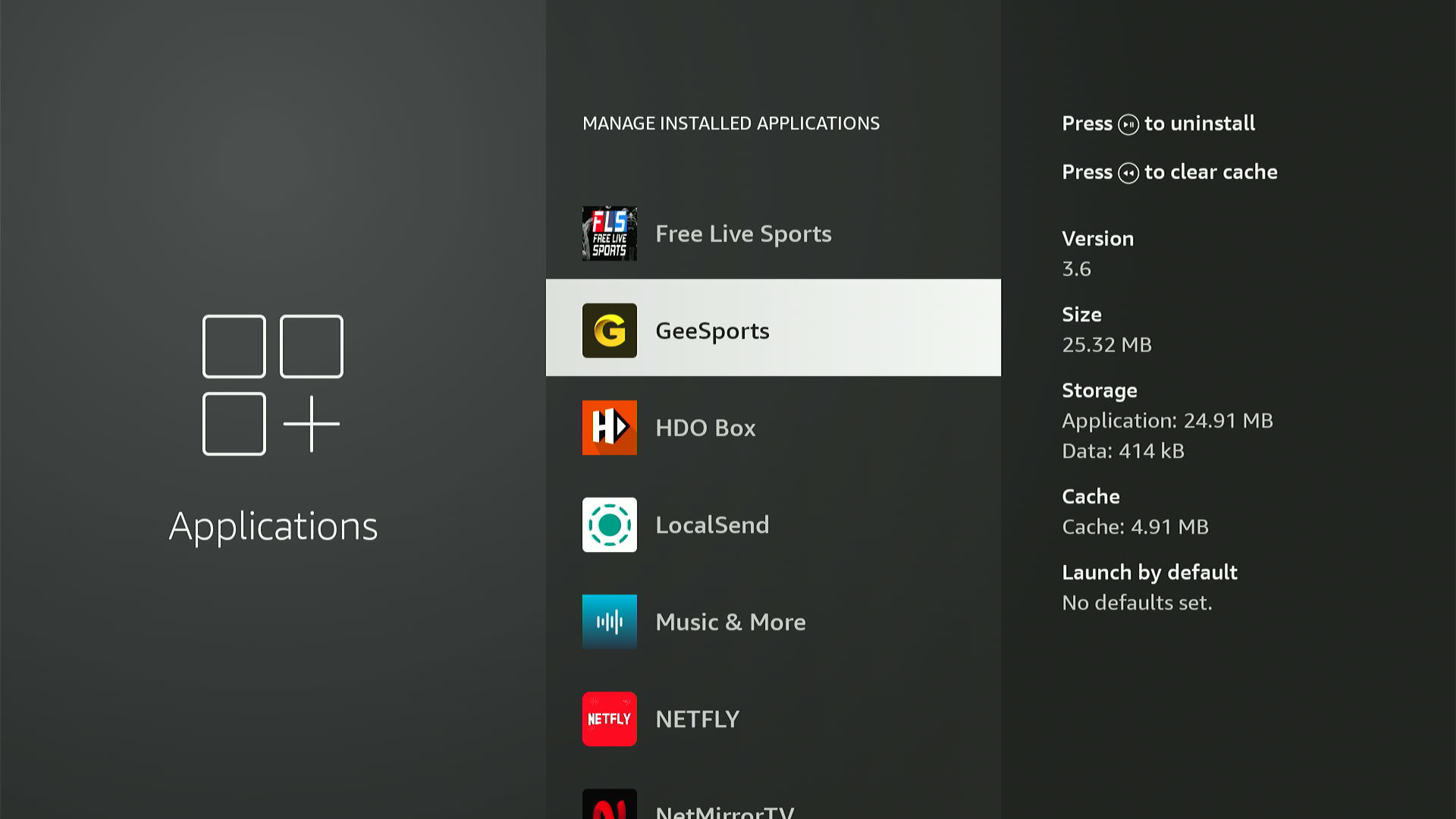
Step 2: Launch GeeSports on FireStick.
Step 3: This is the interface of GeeSports. Choose any sports event from the list.
Step 4: Enjoy streaming!
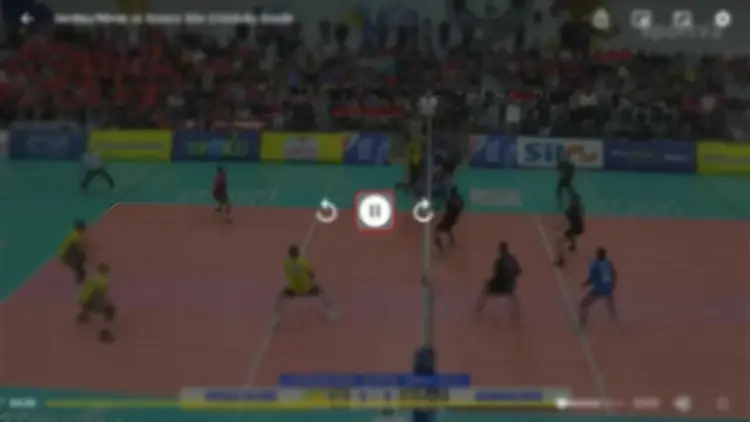
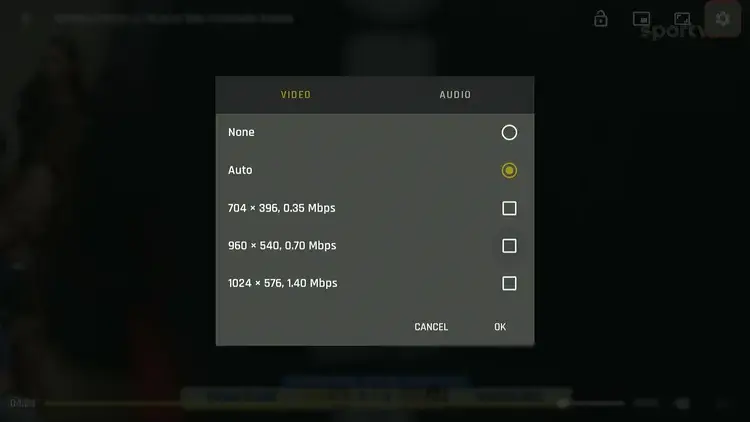
Step 5: You can also adjust streaming quality.
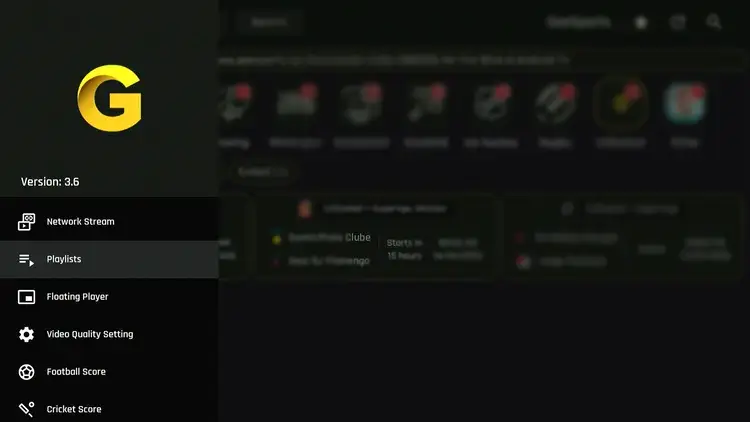
Step 6: From the left side menu, you can click “Playlists” to add Xtream Codes or m3u URLs.
Is GeeSports APK Safe/Legal to Use on FireStick?
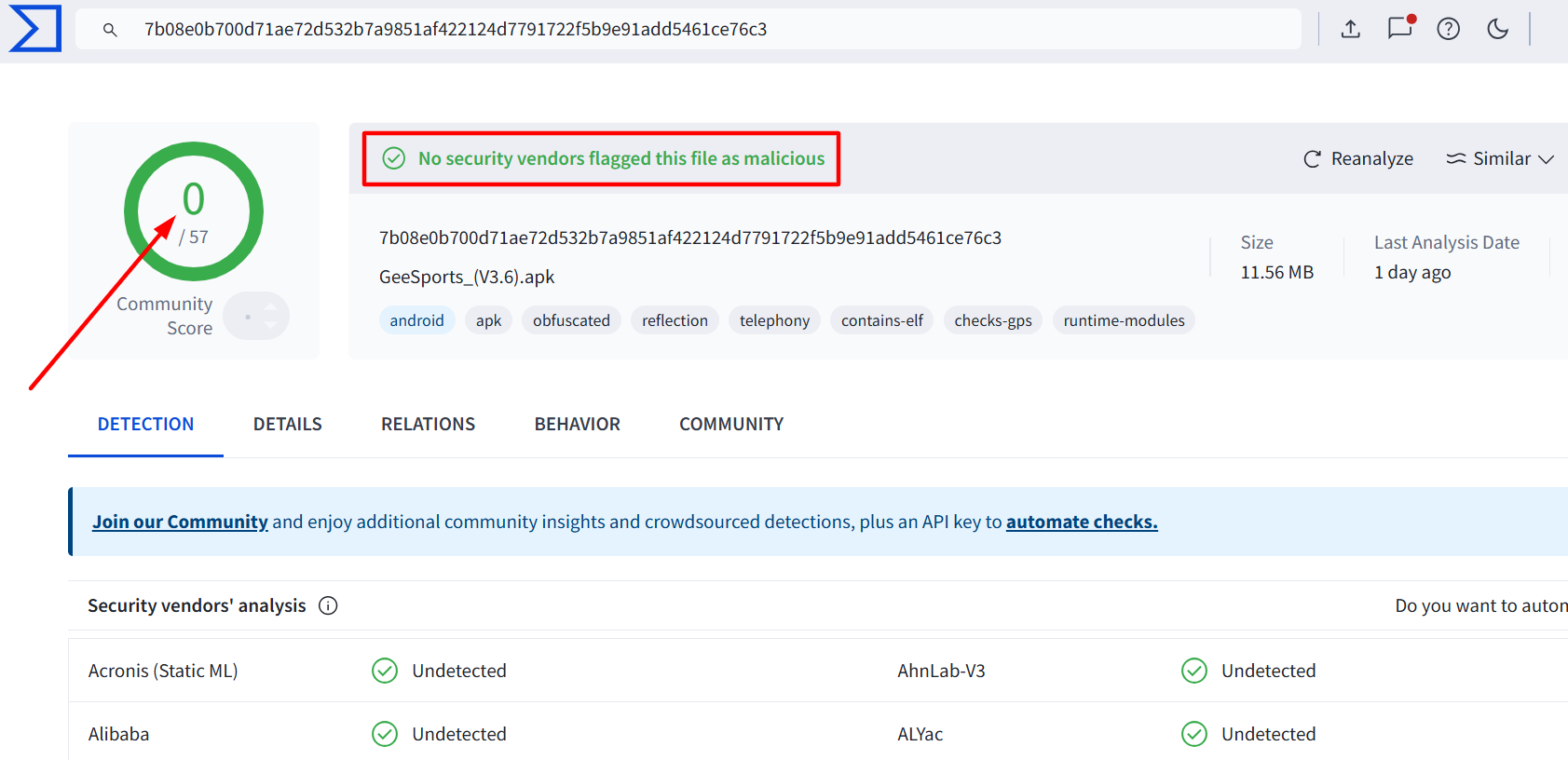
When I scanned the GeeSports APK (v3.6) on Virustotal, it was free from any malicious viruses (see the image above).
However, since the GeeSports APK is a third-party/unofficial app, we recommend you use Surfshark VPN to be on the safe side. It enhances your online security.
GeeSports APK at a Glance
Check out the key information about the GeeSports APK in the table below:
| Content-Type | Live Sports |
| Price | Free |
| File Size | 21.1 MB |
| Is It Safe to Use? | Yes, but with a VPN |
| Version | 3.6 |
| Developer | GeeSports |
| External Player | No |
Top GeeSports Features
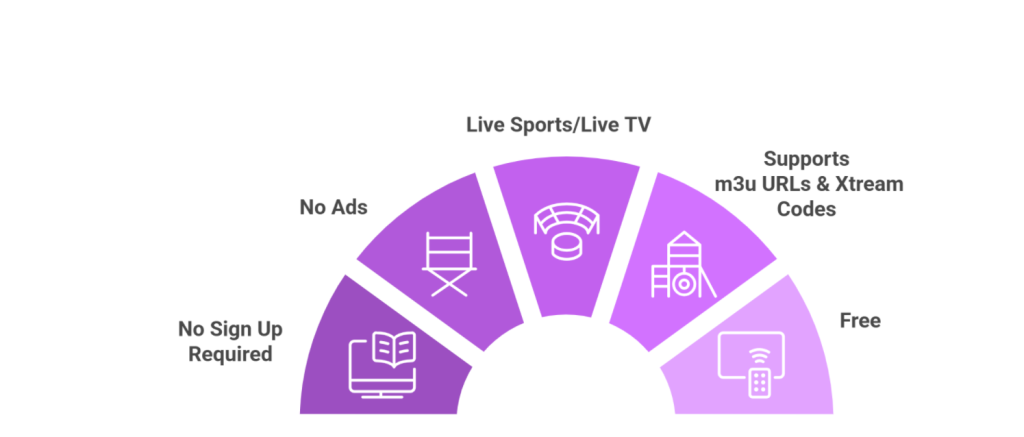
✅ Free
✅ Live sports (football, cricket, WWE & MotoGP)
✅ Live TV channels
✅ Ad-free
✅ Live Score (Football and Cricket)
✅ Adjustable streaming quality
✅ Little to no buffering
✅ No registration process
Trouble Streaming GeeSports on FireStick? Try These Fixes
If you’re dealing with buffering, app crashes, or other streaming glitches on GeeSports, try these quick fixes to smooth things out:
- Restart Your Internet Router
- Clear app cache
- Close background apps
- Restart FireStick
- Connect FireStick via Ethernet
- Set video resolution to 1080p/4K
P.S. If you are still facing issues, check out our detailed articles to stop buffering on FireStick and fix playback errors.
GeeSports Alternatives on FireStick
If you are on the lookout for more apps like GeeSports, consider trying out the following alternatives:
- AK47 Sports on FireStick
- FalconCast on FireStick
- MaxLiv on FireStick
- CricFy TV on FireStick
- SportzX on FireStick
FAQs – GeeSports
Is GeeSports free to use?
Yes, GeeSports is completely free to use.
What sports can I watch on GeeSports?
You can stream almost all the major sports, including cricket, PPV, tennis, football, & field hockey on GeeSports.
Does GeeSports show ads on FireStick?
No, GeeSports does not show any ads.
Is GeeSports available on the Amazon App Store?
No, GeeSports isn’t listed on the Amazon Appstore; you must sideload it via a third-party source.