
Disclosure: Our experts test apps for security before recommending them. If you buy through our links, we may earn a commission. See how it works.
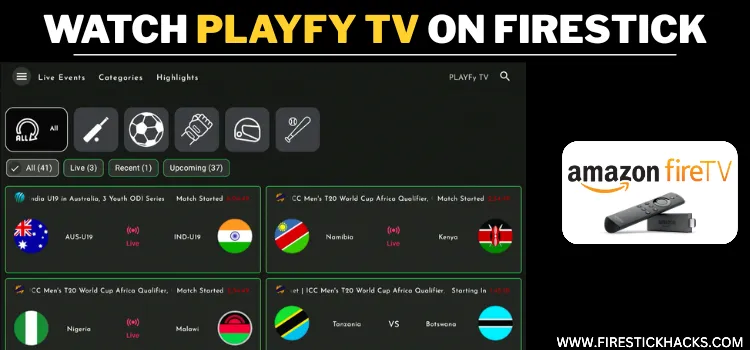
PLAYFy TV is a new free app that streams live sports, including football, cricket, WWE, and MotoGP. Apart from live streaming, it also provides sports highlights for many matches.
The app also features top live TV channels from many countries, like the US, UK, Germany, and India. PLAYFy TV is completely ad-free.
Depending on your internet speed or streaming needs, you can also adjust the streaming quality between 1080p, 720p, or even 480p.
Please note that since the app’s streaming sources are not verified, it’s strongly recommended to use a VPN to guard your online security. Surfshark is our #1 choice.
Our Recommended VPN - Surfshark
WARNING! Amazon Monitors Your Fire TV Stick!
Yes, It’s True! Without Proper Encryption, your IP Address is Exposed, and Whatever you Stream on FireStick is 'Being Tracked'.
This can lead to:
- Blocking of the FREE Third-Party Apps
- Exposure of your Personal data to hackers, ISPs, and even the authorities
But There’s a Solution - ‘Surfshark VPN’
Save 87% + Get 3 Extra Months FREE with Surfshark VPN [Limited Time Offer]
This Includes:
✅ VPN for just $0.06/day!
✅ Strongest Encryption (i.e.256-Encryption)
✅ 3,200 servers in 100+ server locations
✅ Kill Switch Feature for FireStick users
✅ Data Breach Alerts.
✅ Unlimited Device Connections.
✅ 30-day money-back guarantee.

How to Install PLAYFy TV on FireStick Using Downloader App
The PLAYFy TV app is not available on the official Amazon Appstore; you will have to sideload it from a third-party source using the Downloader app.
Before starting the jailbreaking/sideloading process, don’t forget to install and use SurfShark VPN on FireStick to strengthen your online security.
Follow the steps below:
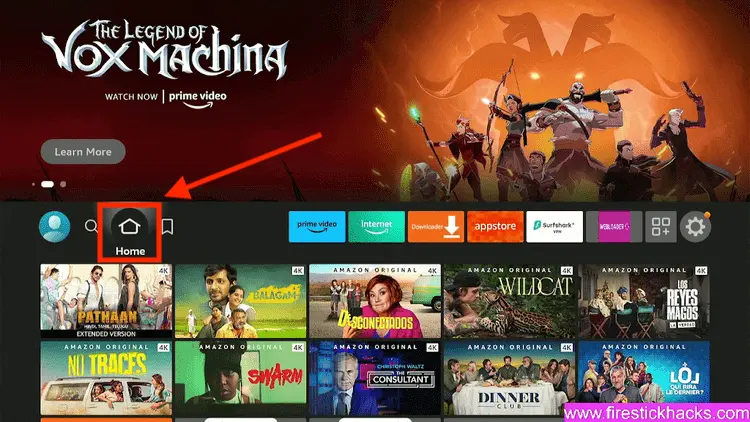
Step 1: Turn ON your FireStick device and Go to FireStick Home
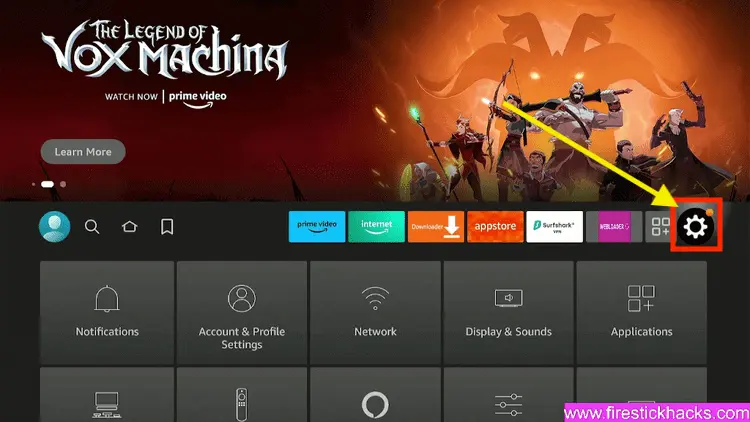
Step 2: Click on the Settings icon
Step 3: Select the My Fire TV option
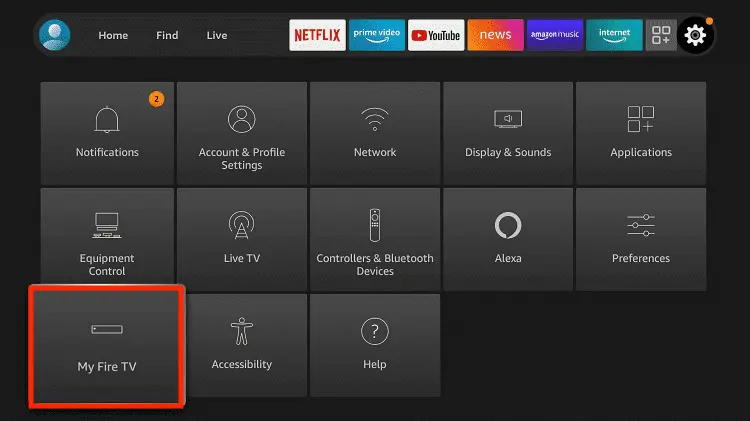
Step 4: To enable the Developer Option, click About.
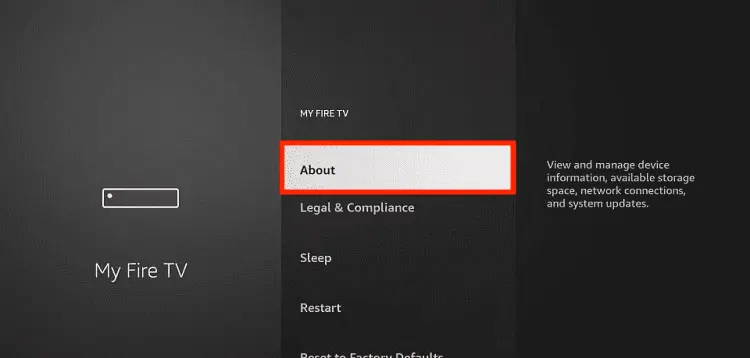
Note: If you have already enabled the Developer Option, then proceed to Step 10
Step 5: Click on the Fire TV Stick option quickly at least 7 times
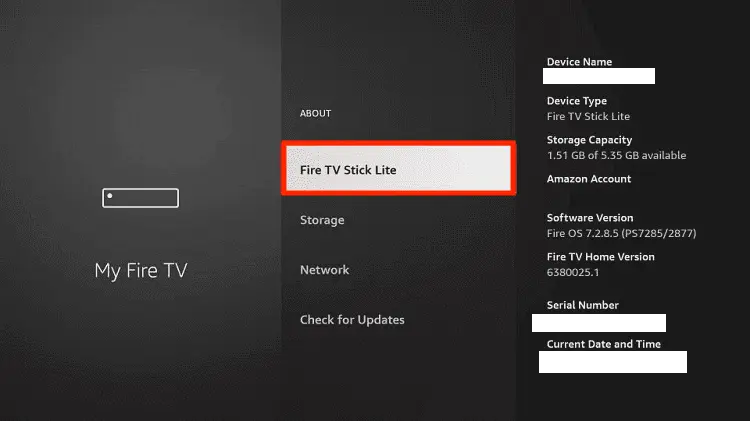
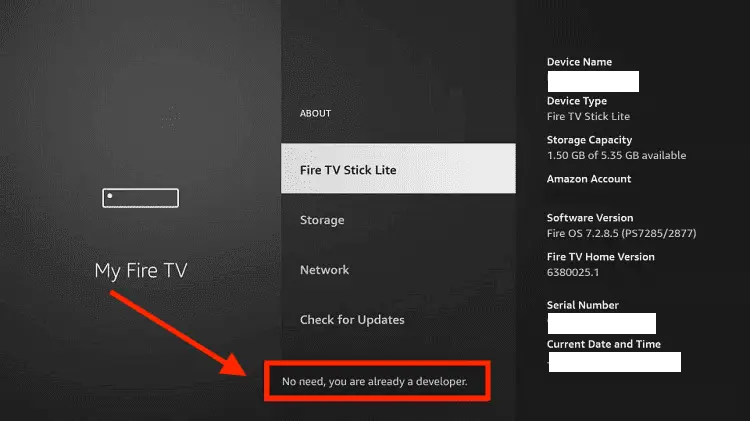
Step 6: Now you will see this message at the bottom saying "No need, you are already a developer". So stop clicking then
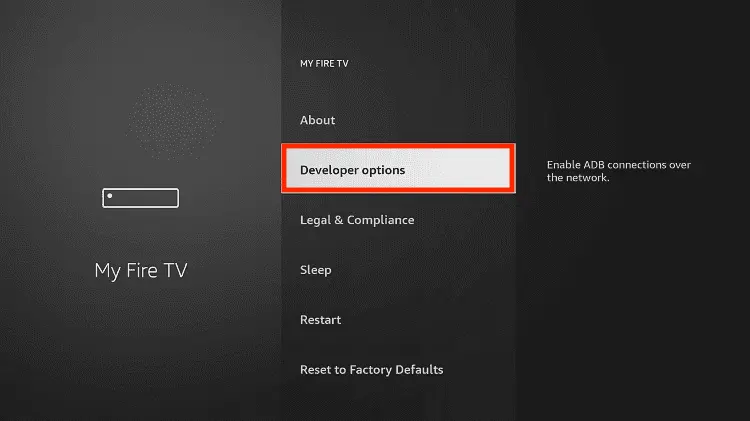
Step 7: Now the Developer Option will appear in the menu so click on it
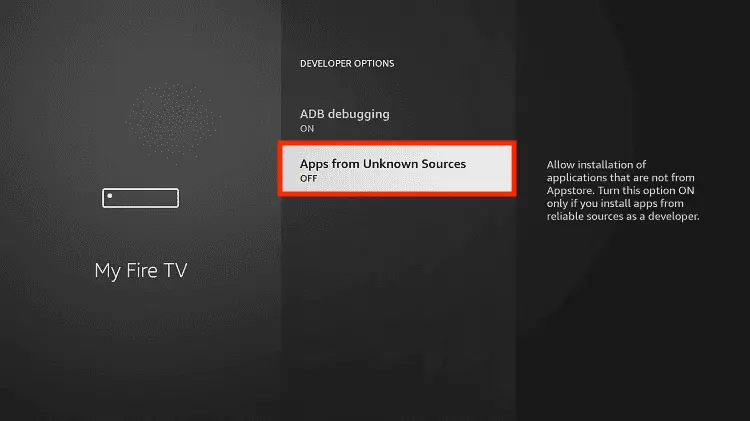
Step 8: Choose Apps from Unknown Sources to turn it ON
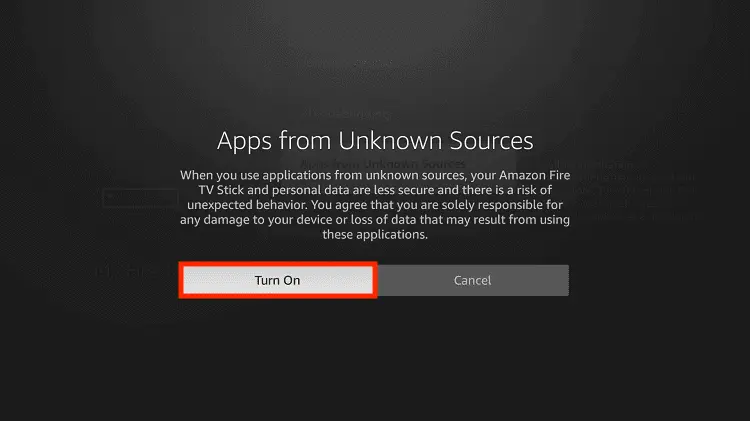
Step 9: Simply click Turn On
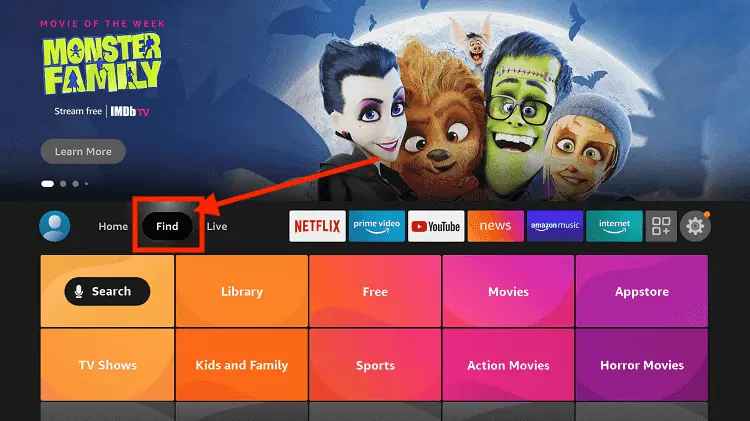
Step 10: Now return to the FireStick Home menu by pressing the "Home" icon on the remote and click on Find
Step 11: Now select the Search icon
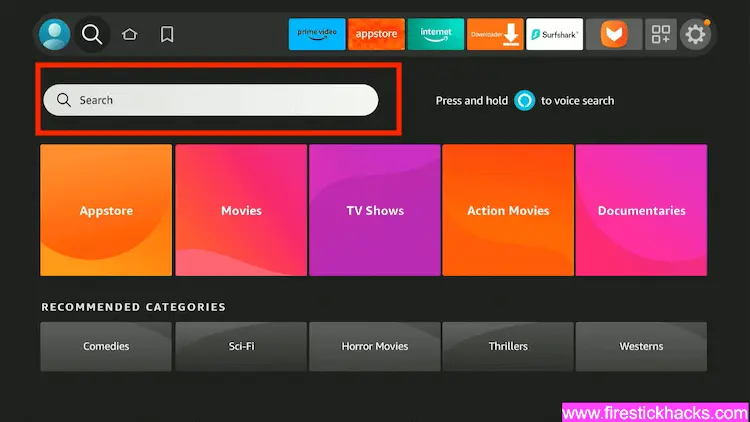
Step 12: Type Downloader and press search
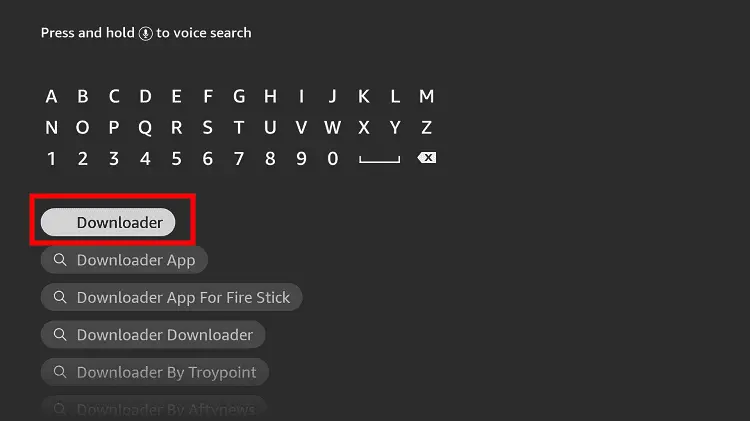
Step 13: Select the Downloader App icon from the list available in the Amazon Store
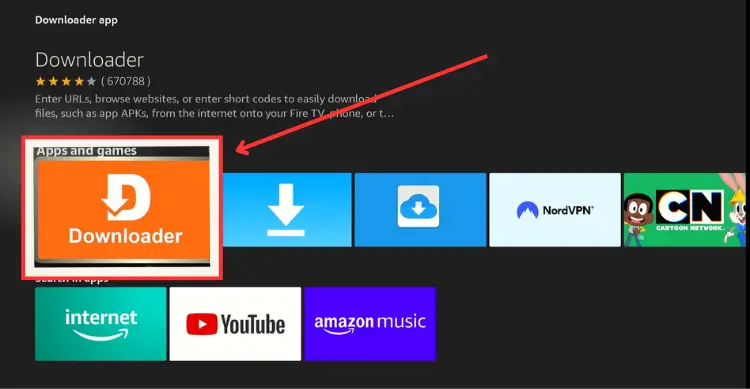
Step 14: Tap Get/Download
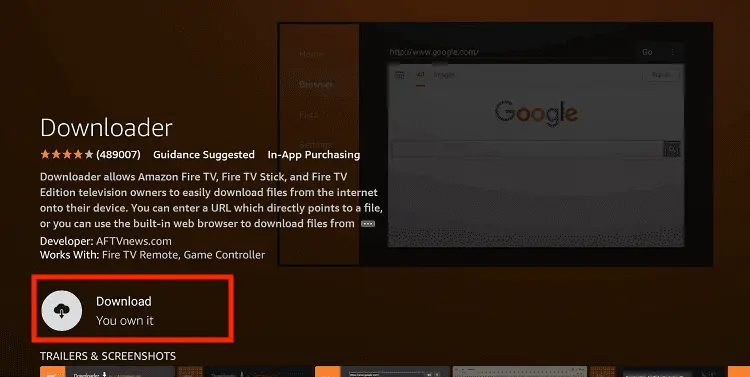
Step 15: Wait for a while until the installation process is completed
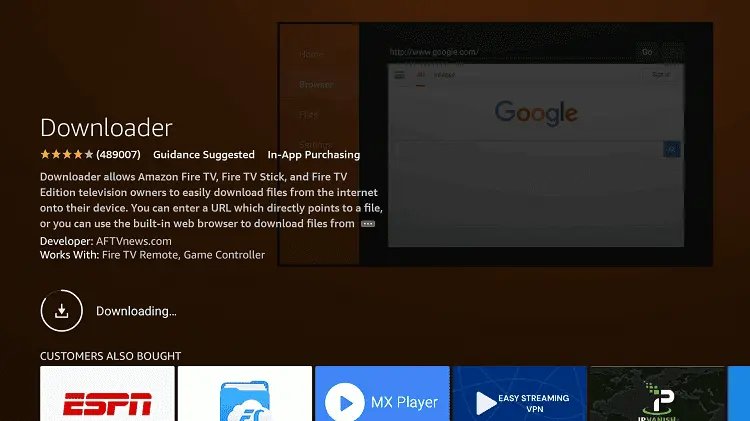
Step 16: Now click Open
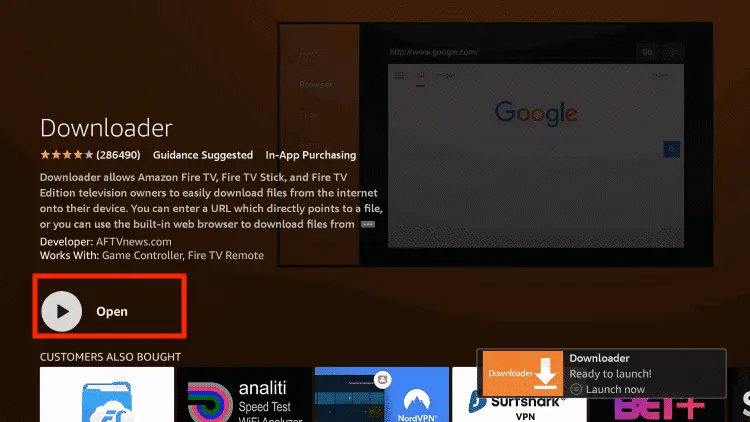
Step 17: You will see a popup about Downloader app latest update. Click "OK".

Step 18: Click OK again

Step 19: This is the Downloader App interface, Click the Search Bar on top

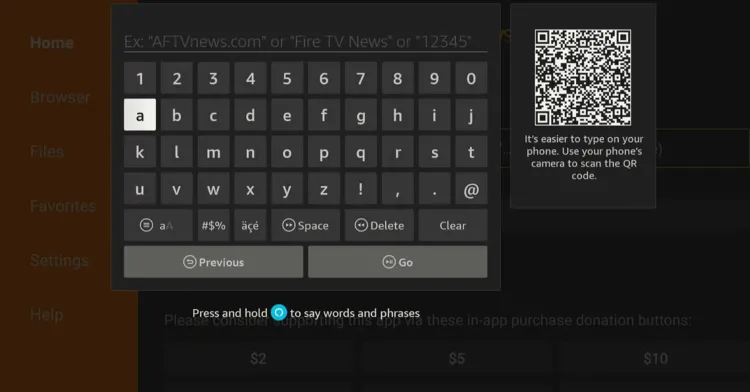
Step 20: Enter PLAYFy TV Downloader Code 730116 in the search box OR enter this URL bit.ly/fsh-downloads and click Go.
Note: The referenced link is the official URL of this app/website. FIRESTICKHACKS does not own, operate, or re-sell any app, streaming site, or service and has no affiliation with its developers.
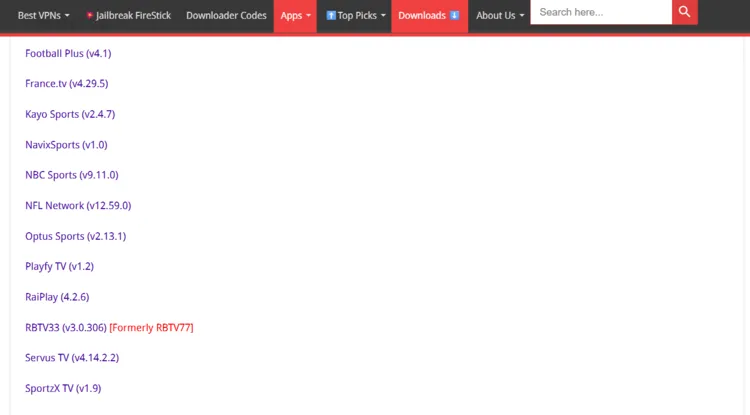
Step 21: Scroll down and click “PLAYFy TV” from the “Sports Apps” category.
Note: If the app does not start downloading, then clear the Downloader App cache using this article.
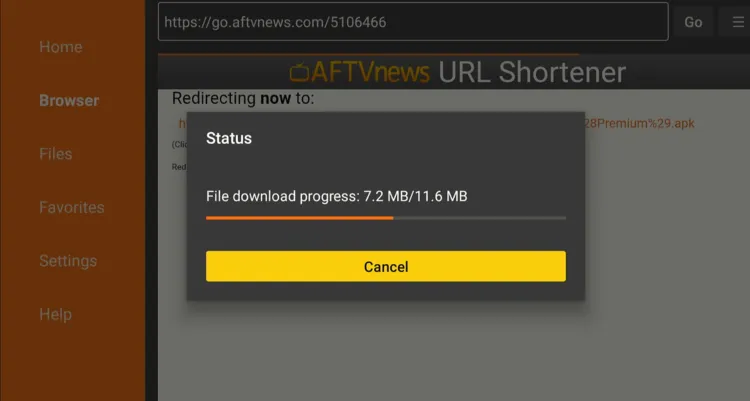
Step 22: The downloading will start. Wait for it to finish.
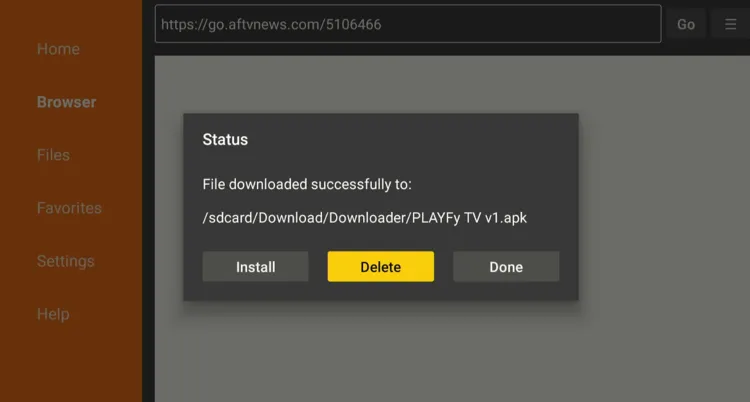
Step 23: Once the downloading ends, click “Install”.

Step 24: Tap the “Done” icon.

Step 25: Click “Delete” to remove the PLAYFy TV APK file from FireStick.
Note: Deleting APK files will free up space on FireStick.
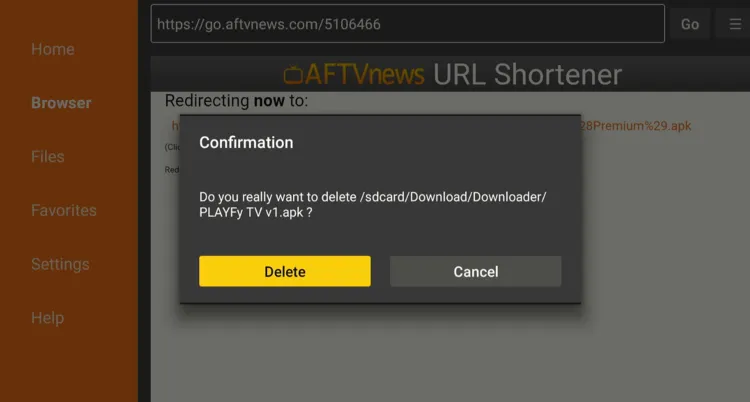
Step 26: Tap “Delete” again to complete the process.
How to Use PLAYFy TV on FireStick
PLAYFy TV is fully compatible with FireStick’s remote and includes a built-in media player, so no extra apps are required.
Don’t forget to install and use SurfShark VPN on FireStick to hide your IP address, as we have no way to verify the streaming sources of PLAYFy TV.
Follow the steps below:
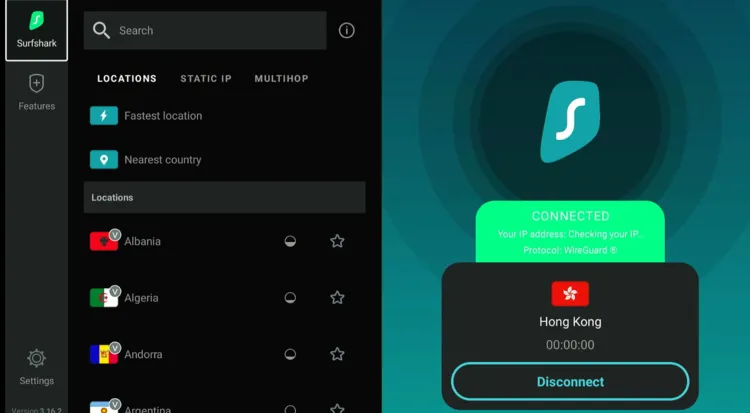
Step 1: Open Surfshark and connect it to the Hong Kong server.
Step 2: Go to the FireStick home and click the “Apps Library” icon from the top right corner.
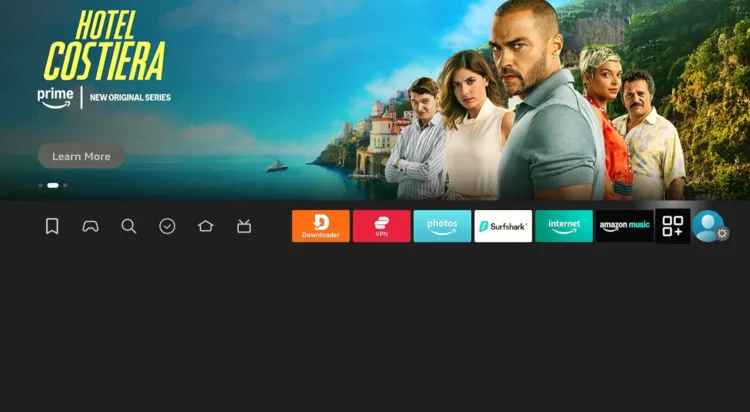
Step 3: Choose “PLAYFy TV” from the list.
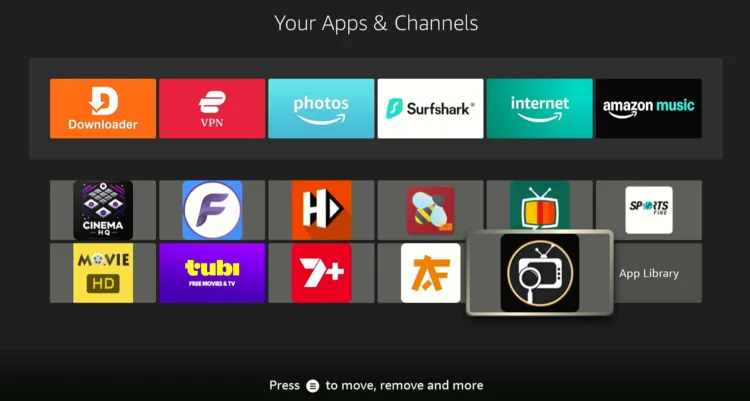
Step 4: Tap “Close”.

Step 5: You will see live matches on the home screen; choose the match you want to watch.
Step 6: Enjoy streaming!

Step 7: You can watch “Highlights” by selecting it from the top of the app’s home screen.
Step 8: Choose the match you want to watch; enjoy highlights.
Step 9: You can also watch live TV channels by clicking “Categories” from the app’s home screen and choose the channel.
Step 10: Enjoy streaming!
Is PLAYFy TV Safe/Legal to Use on FireStick?
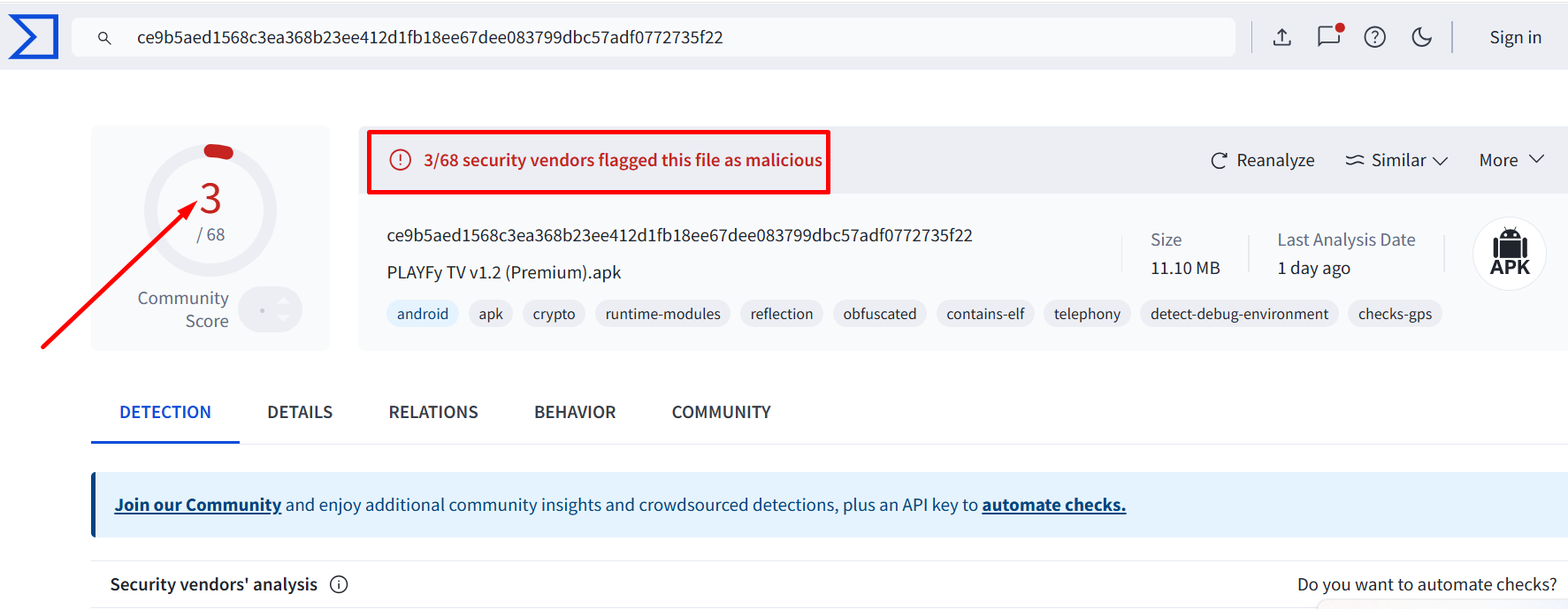
When I scanned PLAYFy TV APK (v1.2) on Virustotal, some vendors flagged this file as malicious. However, since we delete the APK file after installing the app, there won’t be any issues.
However, since PLAYFy TV is a third-party/unofficial app, we recommend you use Surfshark VPN to be on the safe side. It will add to your online security.
All You Need to Know About PLAYFy TV APK
Check out the key information about the PLAYFy TV APK in the table below:
| Content-Type | Live Sports/Highlights/Live TV |
| Price | Free |
| File Size | 11.6 MB |
| Is It Safe to Use? | Yes, but with a VPN |
| Version | 1.2 |
| Developer | PLAYFy TV |
| External Player | No |
Top PLAYFy TV Features
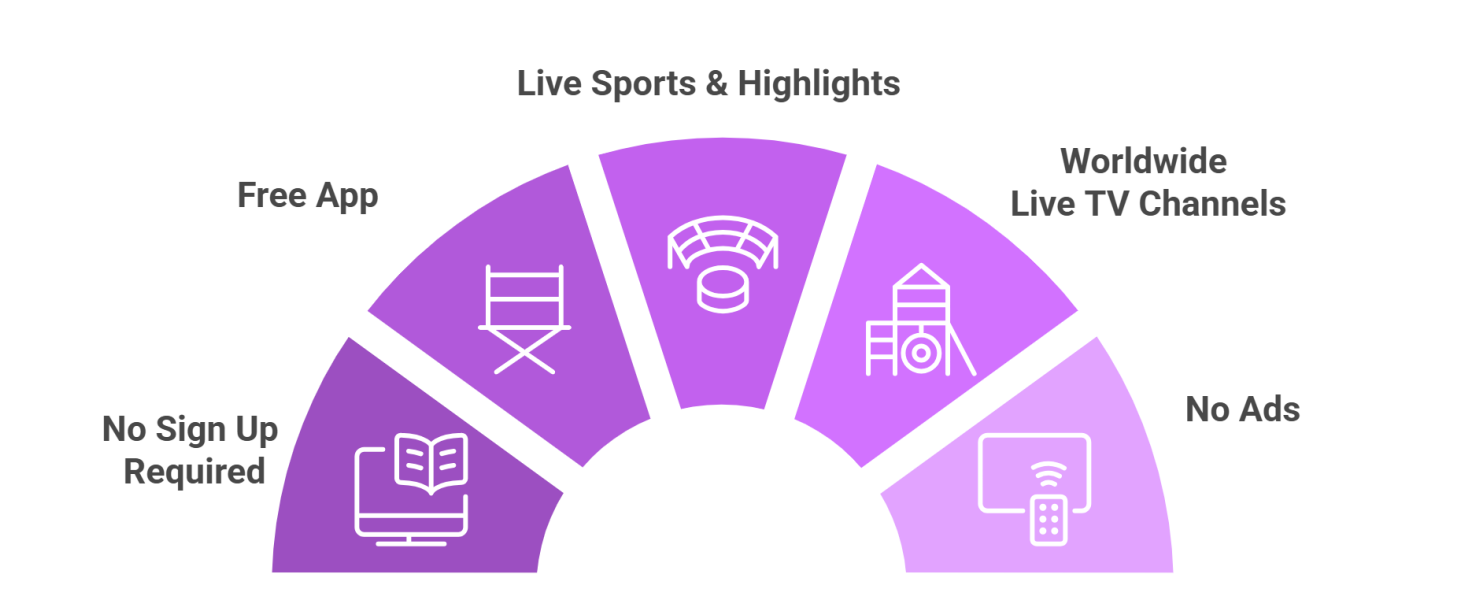
Check out some of the best PLAYFy TV features:
✅ Live sports (football, cricket, WWE & MotoGP)
✅ Sports highlights available
✅ Live TV channels from US, UK, Germany & India
✅ Ad-free
✅ Adjustable streaming quality (1080p/720p/480p)
✅ No sign-up required
PLAYFy TV Alternatives on FireStick
If you are on the lookout for more apps like PLAYFy TV, consider trying out the following alternatives:
- CricFy TV on FireStick
- 1Pix Media on FireStick
- SportzX on FireStick
- StreamFire on FireStick
- SportsFire on FireStick
FAQs – PLAYFy TV
What is PLAYFy TV?
A free app for FireStick that streams live sports, highlights, and international live TV channels.
Does PLAYFy TV show ads?
No, PLAYFy TV is completely ad-free.
Do I need to sign up to use PLAYFy TV?
No, the app PLAYFy TV does not require any sign-up.
Can I adjust the streaming quality on PLAYFy TV?
Yes, you can switch between 1080p, 720p, or 480p depending on your internet speed.
Is PLAYFy TV available on the Amazon Appstore?
No, PLAYFy TV is not available on Amazon Appstore; it must be sideloaded using the Downloader app.
Conclusion
The PLAYFy TV app has been around for roughly 2 months now, and it’s doing pretty well. The app lets you watch cricket, tennis, football, and other live sports for free!
The app also provides live TV channels from many countries, like Germany, UK, US, and India. PLAYFy TV offers an ad-free streaming experience.
Just make sure to use Surfshark on FireStick while using this app; it will hide your streaming activities from government authorities and ISPs.




https://firestickhacks.com/wp-content/uploads/2025/09/Watch-playfy-tv-on-firestick-4.webp
wont close
Hey, just tap the “close” button to remove the popup. I’ve tried this and its working.
It will not highlight to close
Hey, the close does highlight. But you will have to look closely to notice that.