Disclosure: Our experts test apps for security before recommending them. If you buy through our links, we may earn a commission. See how it works.

Buffering happens when the video you’re trying to stream doesn’t load fast enough, causing it to pause and interrupt playback. I’ll walk you through the tried-and-tested solutions to stop buffering on FireStick and enjoy your streaming without any interruption.
| # | Fix | How |
|---|---|---|
| 1 | Restart FireStick | Settings → My Fire TV → Restart |
| 2 | Lower video quality | Settings → Display & Sound → Video Resolution |
| 3 | Close background apps | Find → Background Apps → Force Stop |
| 4 | Clear app cache | Settings → Applications → Clear All Caches |
| 5 | Update/scan apps | Downloader code 730116, scan via VirusTotal |
| 6 | Reduce network congestion | Disconnect unused devices, reset Wi-Fi password |
| 7 | Boost Wi-Fi signal | Move router closer, use HDMI extender |
| 8 | Use Ethernet | Connect via Ethernet adapter for stable speed |
| 9 | Use a VPN | Prevents ISP throttling — try Surfshark |
| 10 | Free up storage | Delete/offload apps, remove unused APKs |
| 11 | Disable privacy settings | Settings → Preferences → Privacy → Turn off tracking |
| 12 | Prevent overheating | Unplug when idle, use HDMI extender for airflow |
| 13 | Update FireStick OS | Settings → My Fire TV → About → Check for Updates |
| 14 | Factory reset | Settings → My Fire TV → Reset to Factory Defaults |
| 15 | Upgrade internet plan | 10 Mbps for HD, 25+ Mbps for 4K |
15 Ways to Stop Buffering on FireStick
I’ve broken down 15 practical solutions into 4 categories so you can work through them with ease.
Quick & Easy Fixes to Stop FireStick Buffering
First up, here are a few quick and easy fixes you can try for smoother streaming on FireStick:
1. Restart FireStick
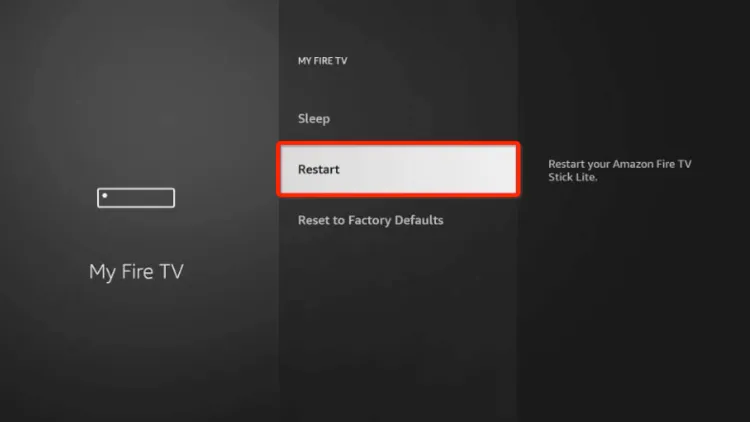
Sometimes, the easiest fix works best. If your FireStick has been running for a while, a simple reboot can help free up memory and smooth out playback.
Steps: Go to Settings > My Fire TV > Restart (Or long-press the “Home” & “Play/Pause” buttons on the remote).
Read More: How to Restart Your FireStick Device
2. Reduce Video Quality

Sometimes buffering happens because your FireStick is trying to stream at a resolution higher than what your internet can handle.
You can lower the video quality using the following two methods:
- From FireStick Settings: Go to Settings > Display & Sound> Display> Video Resolution and select a lower resolution (like 720p 50Hz). This reduces the bandwidth needed for streaming.
2. From Within the App: FireStick resolution settings may not work with all third-party apps. In that case, adjust it within the app or use an external player like MX Player or VLC Player.
3. Close Background Apps & Processes
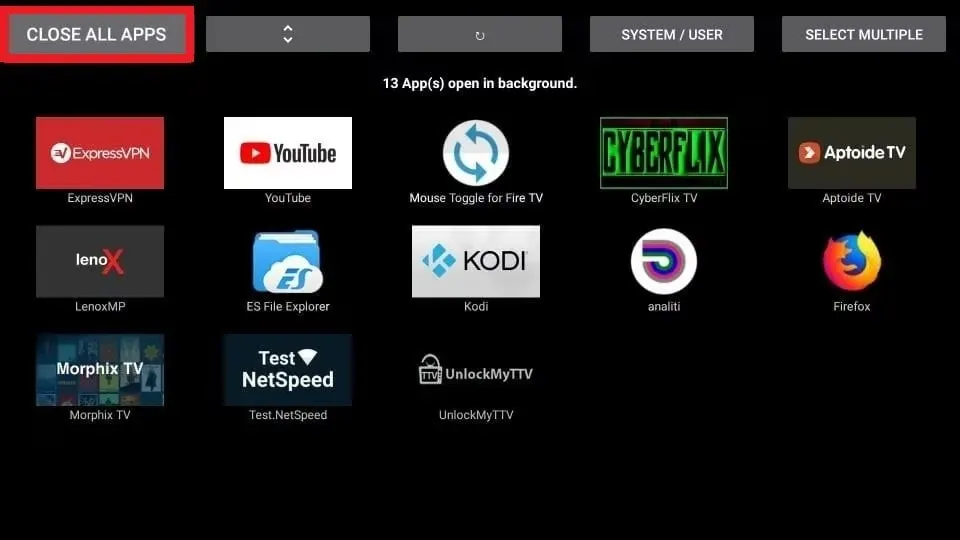
Even after you exit an app on FireStick, it keeps running in the background. These background apps use up RAM and internet bandwidth, which can lead to buffering issues.
Steps: Go to Find > Search > Background Apps & Process List > Download App> Open > Close All> Force Stop.
Read More: How to Close Background Apps on FireStick
4. Clear App Caches
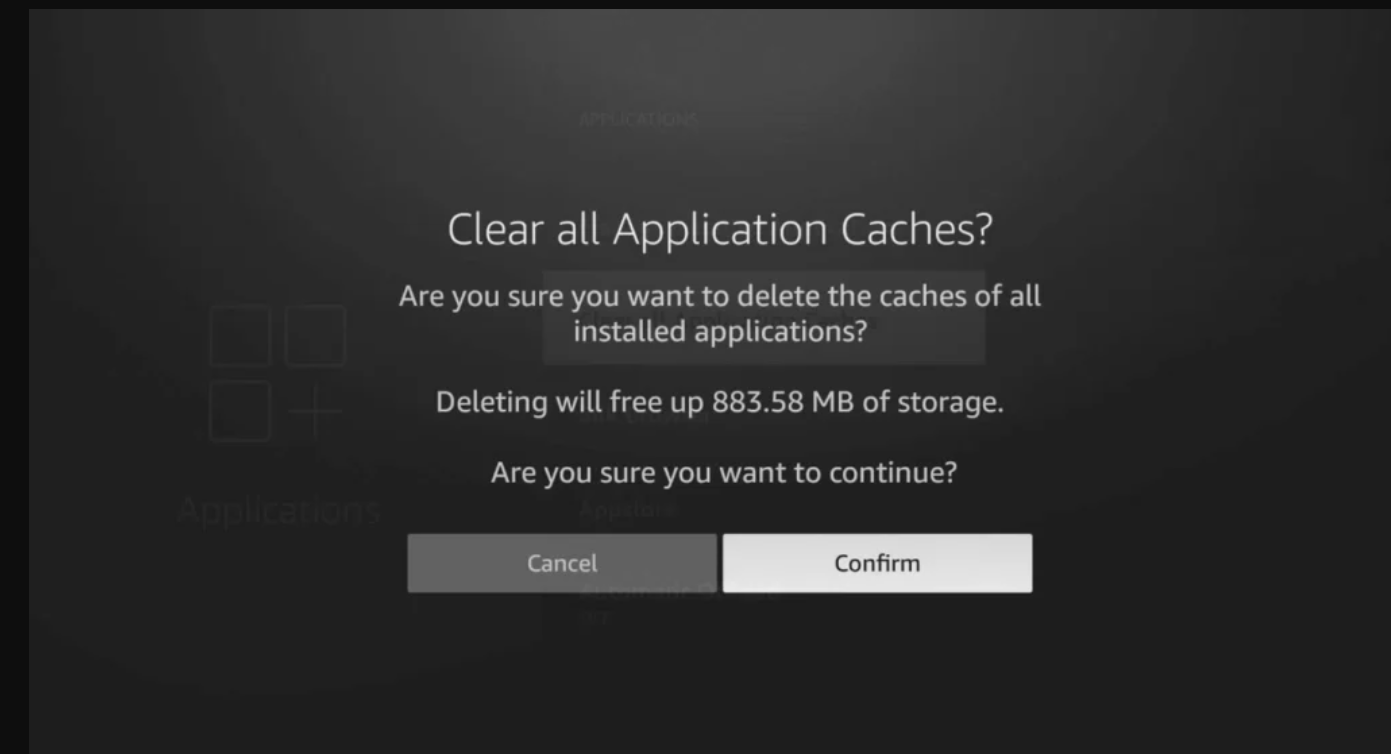
As you install more apps on FireStick, temporary cache files start piling up. This takes away a lot of space and causes buffering along the way.
That’s why you should clear the cache every once in a while. With the FireStick’s latest update, you can now clear cache for all apps in one click.
Steps: Go to Settings > Applications > Clear All Application Caches
Read More: How to Clear App Cache on FireStick
5. App-Related Issues
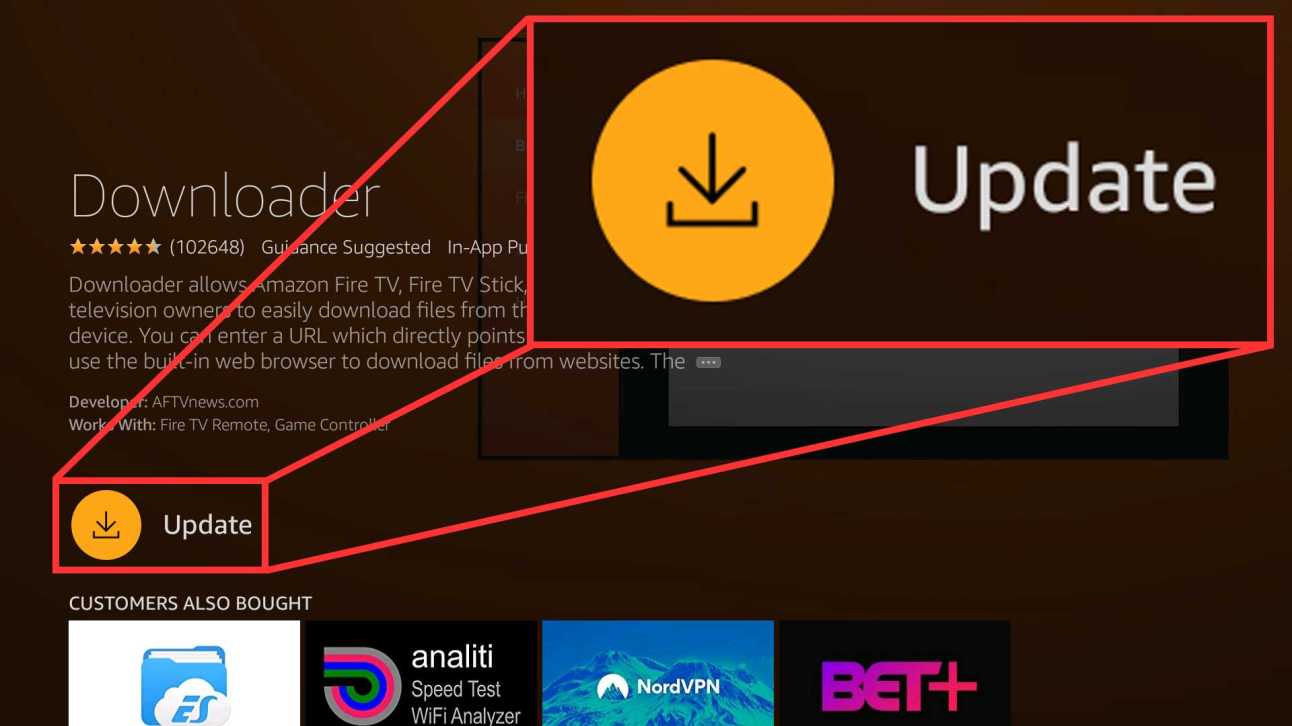
Sometimes the culprit behind buffering is the app itself. Outdated apps/APKs can be buggy, unstable, and cause streams to lag or crash. In some cases, apps may even misuse your FireStick’s resources.
For example, FireStick users recently reported that FlixVision runs hidden background processes without permission. This is one of the reasons Amazon has blacklisted some third-party apps.
Solutions:
- Update the official apps from Amazon Appstore. For the latest versions of APKs, use Downloader code 730116.
- Before installing an APK, scan the APKs on VirusTotal to make sure they’re free of malware.
Network & Internet Fixes to Stop FireStick Buffering
Sometimes, buffering issues on FireStick are linked to slow or unstable internet. Optimizing your network can instantly improve streaming quality. Here’s how you can do it:
6. Reduce Network Congestion

When too many devices (FireSticks, phones, laptops, TVs, etc.) are connected to the same Wi-Fi, they all compete for bandwidth. This leaves FireStick struggling for enough speed, which results in buffering.
Solutions:
- Disconnect devices you’re not using. If the internet is still slow, some unknown devices might still be connected to Wi-Fi. Reset your Wi-Fi password to disconnect all devices.
- Pause large downloads or cloud backups while streaming.
- Stream in off-peak hours when fewer users are on your network.
7. Improve Your Wi-Fi Signals
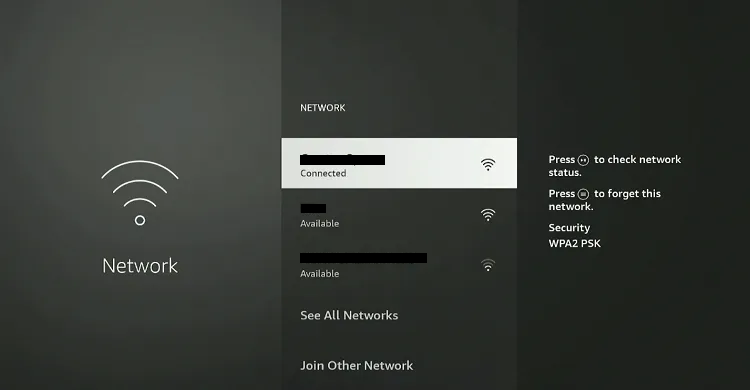
You can check your FireStick’s Wi-Fi strength by going to Settings > Network > and selecting your connected Wi-Fi. If you see less than 3–4 bars, your device isn’t getting strong enough signals.
You may also check the signal strength by going to Settings > Network > Your Wi-Fi Network > Play/Button > Advanced.
Solutions:
- Move your Wi-Fi router closer to the FireStick or vice versa.
- Connect your FireStick using the provided HDMI extender to reduce interference from the TV.
8. Connect Ethernet Cable
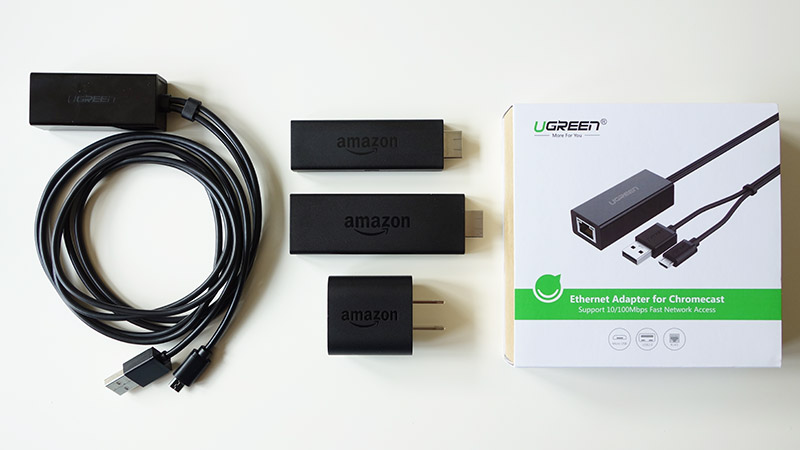
If you can’t get strong Wi-Fi signals despite trying all the fixes, consider switching to a wired setup. With an Ethernet adapter, your FireStick connects to the router for smoother, uninterrupted streaming.
What you’ll need:
- An Ethernet adapter
- An Ethernet cable (Choose desired length)
👉 For the full setup process, check out our step-by-step guide on How to Connect Ethernet Adapter to FireStick.
9. Use a VPN
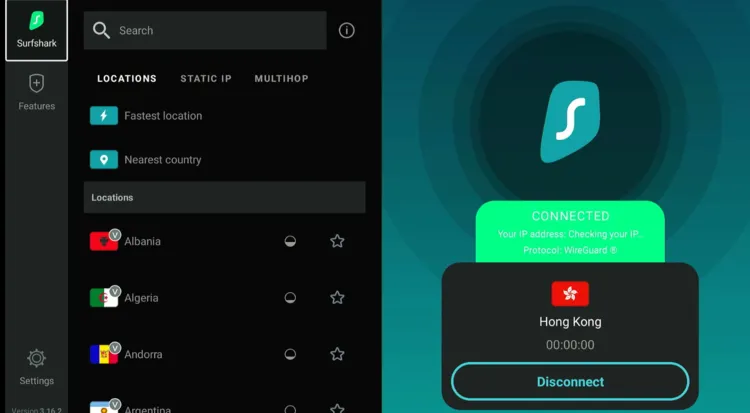
A common but overlooked cause of buffering is ISP throttling. Your internet provider may deliberately slow down your speed due to various reasons, such as:
- High data usage
- Streaming from unofficial/third-party apps
- Peak-time congestion
You can avoid ISP throttling by using a VPN. It hides your online activity and encrypts your connection, so your ISP can’t tell what you’re watching, which means no targeted slowdowns. Surfshark is our #1 choice.
🛡️ VPN RECOMMENDATION
Our Recommended VPN - Surfshark
Your ISP sees every stream. Unverified apps expose your IP. Fix both in under 2 minutes.
🔒 30-day money-back guarantee • $0.06/day

Device Optimization Fixes to Stop FireStick Buffering
Device performance plays a big role in streaming quality. Try these optimization tweaks to stop buffering on FireStick:
10. Clear FireStick Storage
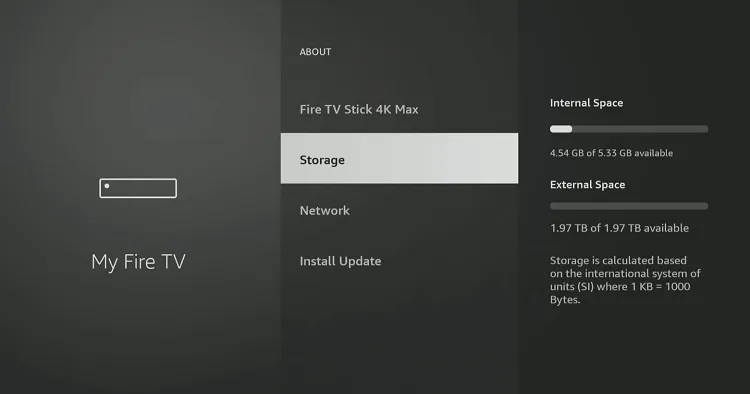
If your FireStick is low on storage, buffering is almost guaranteed. While clearing app cache helps, you can take the following measures to clear more storage on FireStick:
- Delete apps
- Offload apps
- Move apps to external storage
- Remove APK files from the Downloader app
- Delete media & documents using a file manager
Read More: How to Free Up Storage on FireStick
11. Change Privacy Settings
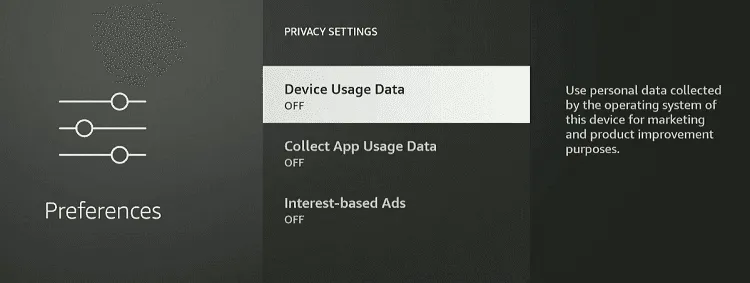
Your FireStick comes with certain privacy settings enabled by default. While they helps Amazon improve its services, they also eat up system resources and can contribute to buffering.
Fortunately, you can disable these options and make your FireStick run more smoothly by using the following 2 methods:
1. Go to Settings > Preferences > Privacy Settings
- Turn off Device Usage Data
- Turn off Collect App Usage Data
- Turn off Interest-Based Ads
2. Go to Settings > Preferences > Data Monitoring
-
-
Turn it Off
-
12. Prevent FireStick from Overheating
Just like any other device, your FireStick can overheat. Overheating isn’t just risky for the device itself; it can also slow down streaming.
Solutions:
- Unplug FireStick when not in use.
- Use the HDMI extender to improve airflow.
- Change the HDMI port.
- Use the original adapter and cable.
Read More: How to Fix FireStick Overheating Problems
13. Update FireStick OS
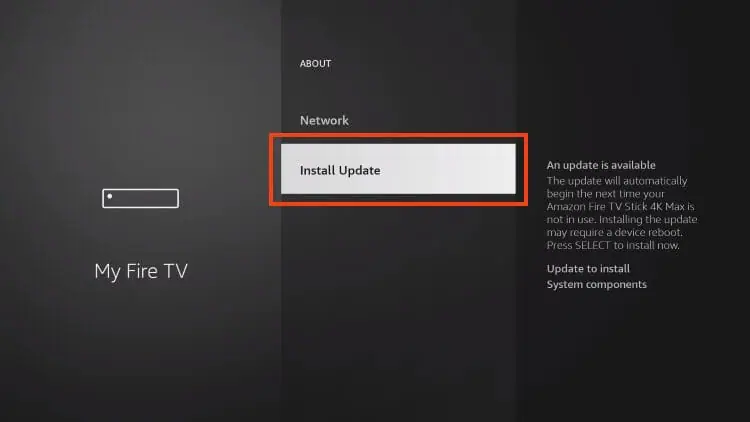
Just like other electronic gadgets, FireStick receives regular updates to stay smooth and bug-free. Updates not only fix performance issues that may cause buffering but also improve security and add new features.
Steps: Go to Settings > My Fire TV > About > Check for Updates > Install Update
Read More: How to Update FireStick to the Latest Version
Last Resorts to Stop FireStick Buffering
If you’ve tried everything and buffering still won’t go away, it may be time to consider the following last resorts.
14. Factory Reset
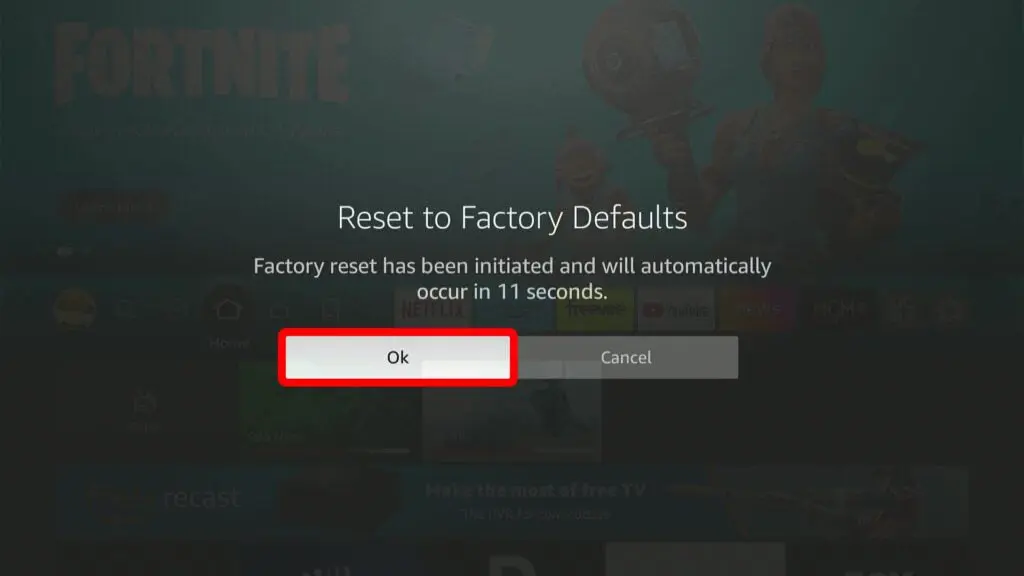
Sometimes, no matter how many tweaks you try, your FireStick won’t stop buffering. In such cases, a factory reset can give it a fresh start.
Please note that resetting FireStick wipes out everything (apps, settings, personal data, etc). It basically restores the device to its original state. So proceed with caution!
Steps: Go to Settings > My Fire TV > Reset to Factory Defaults
Read More: How to Reset FireStick Device
15. Upgrade Your Internet Plan
Sometimes, it’s not your FireStick at fault; it’s your internet plan. For smooth HD streaming, ideally, you’ll want at least 10 Mbps, and for 4K, aim for 25 Mbps or more.
If you’re below that, upgrading your plan can make a world of difference in stopping those annoying buffering pauses.
FAQs – Stop Buffering on FireStick
Why does my FireStick buffer so much?
Your FireStick could buffer due to various reasons like low storage, ISP throttling, poor internet,, etc.
Does clearing cache stop buffering on FireStick?
Yes! Clearing cache frees up storage and improves streaming performance on FireStick.
Will a VPN help reduce buffering?
Yes, a good VPN like Surfshark prevents ISP throttling, ensuring smooth streaming.
Is Ethernet better than Wi-Fi for FireStick?
Definitely. A wired Ethernet connection is faster and more stable than Wi-Fi.
Should I reset FireStick to fix buffering?
Only as a last resort, since it erases all apps, data, and settings.
Final Thoughts
Buffering on FireStick is annoying. Fortunately, you don’t have to live with it. With a few simple fixes, like clearing cache, restarting your device, or switching to Ethernet, you can enjoy smooth, uninterrupted streaming.
And if the problem is more about your ISP than your device, using a reliable VPN like Surfshark can make all the difference.
So try out these solutions one by one, and along the way, you will find out that your FireStick will stop buffering and ensure seamless streaming!