Disclosure: Our experts test apps for security before recommending them. If you buy through our links, we may earn a commission. See how it works.
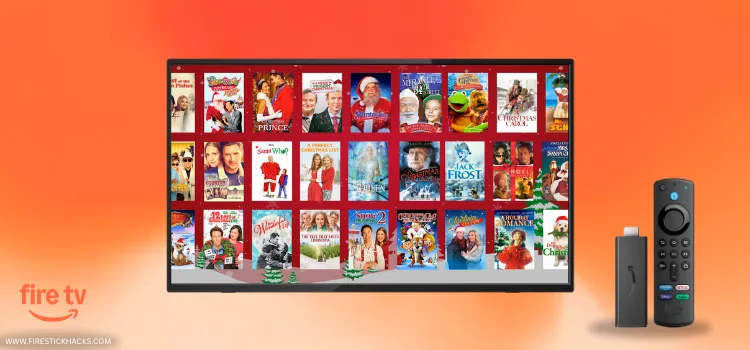
Christmas Plus is a free, official app for holiday lovers. It features 1000+ Christmas-themed movies, shows, and seasonal specials.
You will also find a “Live TV” section with 24/7 feeds of festive content like Yule logs, classic movies, and holiday music.
Despite being the world’s largest Christmas streaming service, it doesn’t require a sign-up. However, you will see ads along the way.
Christmas Plus is available worldwide. However, since some of the content might be restricted to specific regions, consider using a VPN to access the maximum titles on the app. Surfshark is our #1 choice.
🛡️ VPN RECOMMENDATION
Our Recommended VPN - Surfshark
Your ISP sees every stream. Unverified apps expose your IP. Fix both in under 2 minutes.
🔒 30-day money-back guarantee • $0.06/day

Table of Contents
Toggle2 Ways to Install & Watch Christmas Plus on FireStick
The following 2 methods will let you install and watch Christmas Plus on FireStick from anywhere in the world:
- Install Christmas Plus on FireStick Using Amazon Appstore
- Watch Christmas Plus on FireStick Using a Browser
How to Install Christmas Plus on FireStick Using Amazon Appstore
Currently, there are no working APK/XAPK/APK files for Christmas Plus. Luckily, the app is available on the Amazon Appstore in most countries.
If the app doesn’t show up on your Amazon Appstore, change your Amazon account to a USA address. Once you have changed the address, restart the Fire TV Stick.
Don’t forget to install SurfShark VPN on FireStick to access its entire library from all over the world.
Follow the steps below:
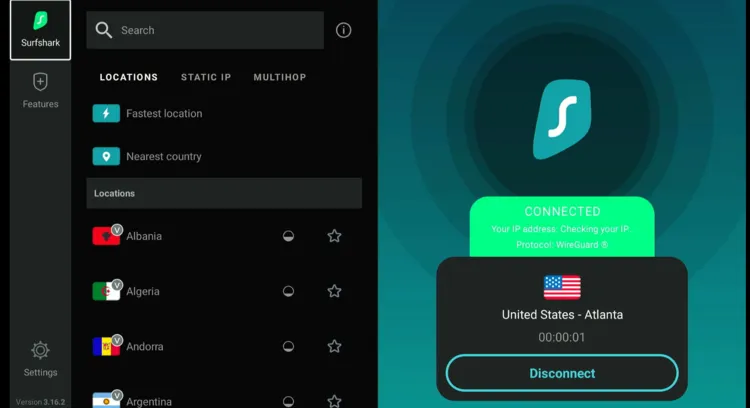
Step 1: Open Surfshark and connect it to the US server.
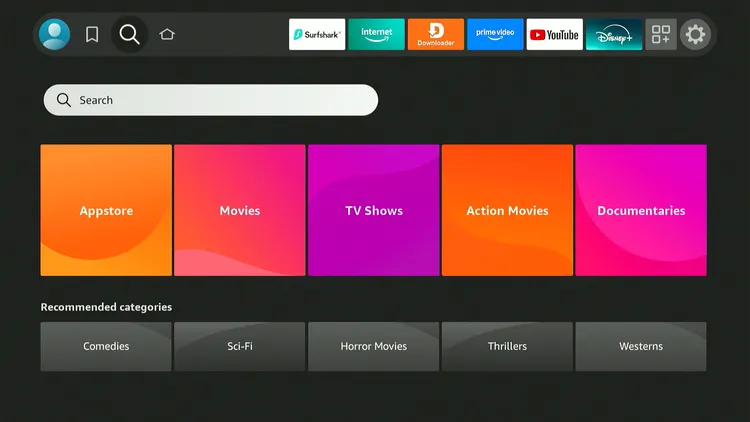
Step 2: Click on the “Find” icon and then tap “Search” on FireStick home screen.
Step 3: Type “Christmas Plus” and select it from the results.

Step 4: Choose the “Christmas Plus” app.

Step 5: Click “Get/Download”.
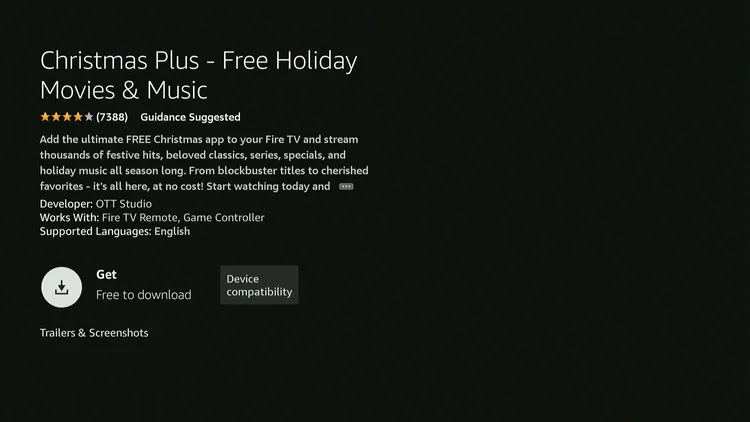
Step 6: Once the app is installed, click “Open”.

Step 7: Choose a title.

Step 8: Tap “Play”.
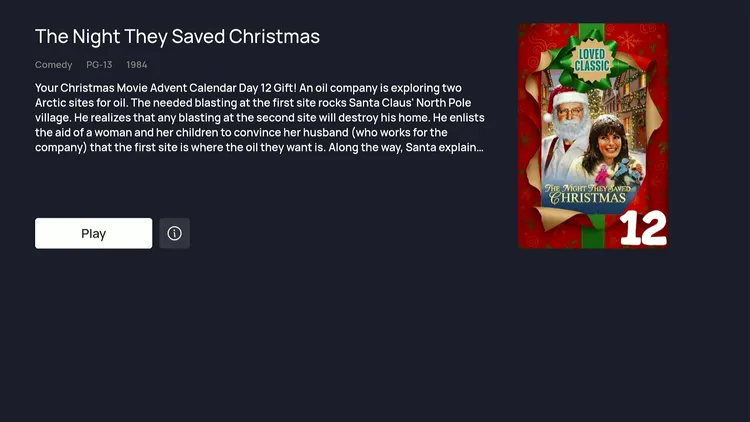
Step 9: Enjoy streaming!

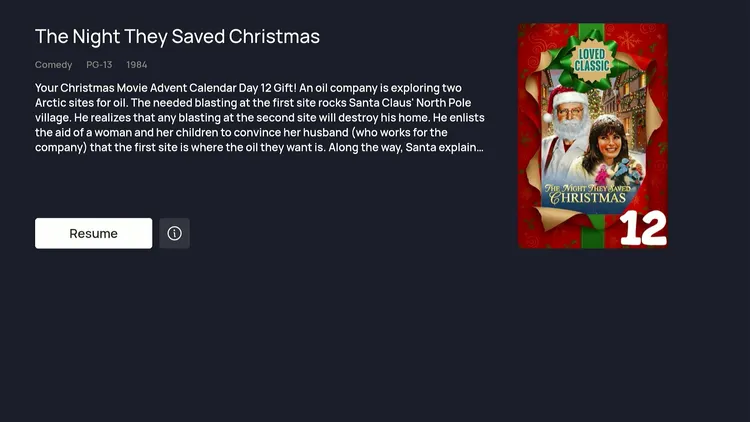
Step 10: You can “Resume” the movie/show from where you had left.
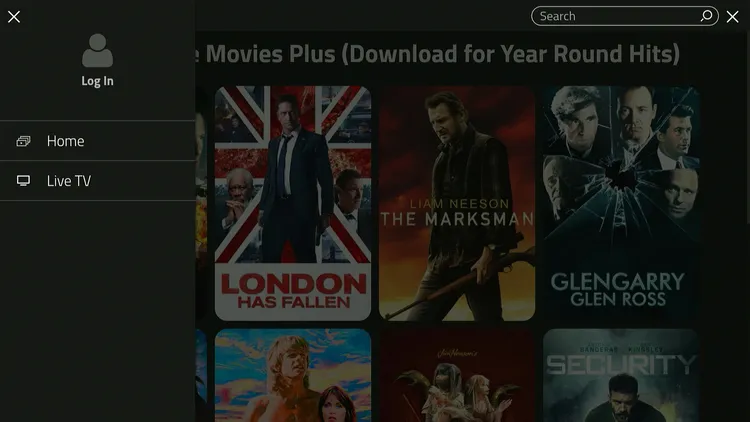
Step 11: You can access the “Live TV” from the left-side menu bar.
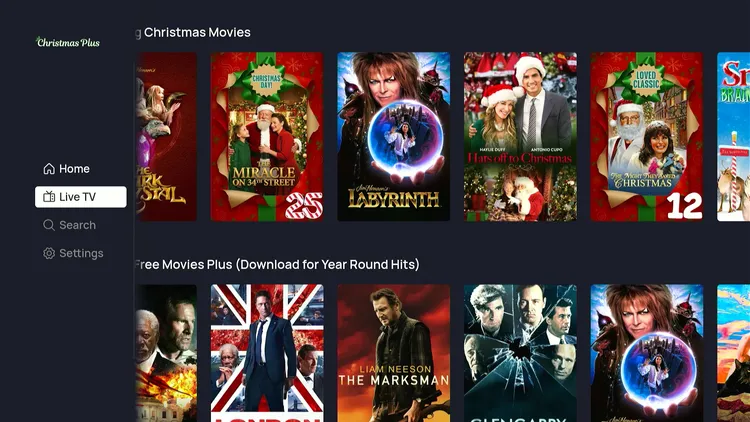
Step 12: Select the channel and enjoy streaming!

How to Watch Christmas Plus on FireStick Using a Browser
If you don’t want to install the Christmas Plus app, you have the option to watch it via any of the top FireStick browsers. I’m using Amazon Silk Browser.
However, don’t forget to install SurfShark VPN on FireStick to access its entire library from all over the world.
Follow the steps below:
Step 1: Open Surfshark and connect it to the US server.
Step 2: Go to FireStick Home
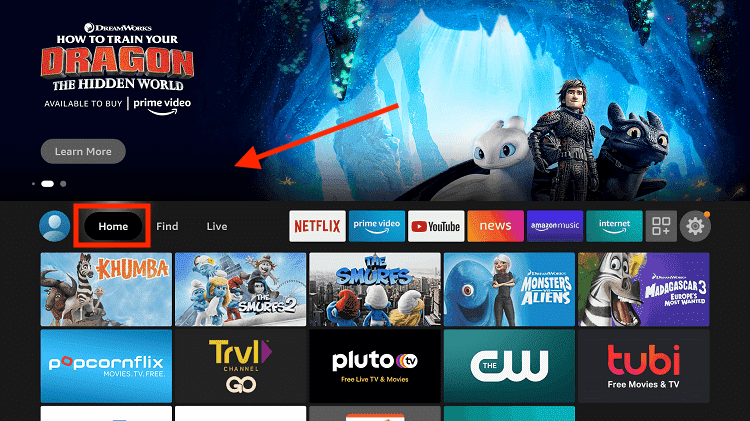
Step 3: Click on the Find tab
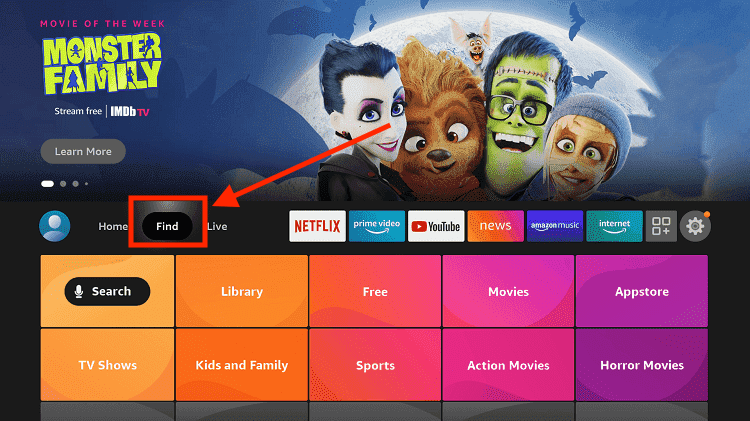
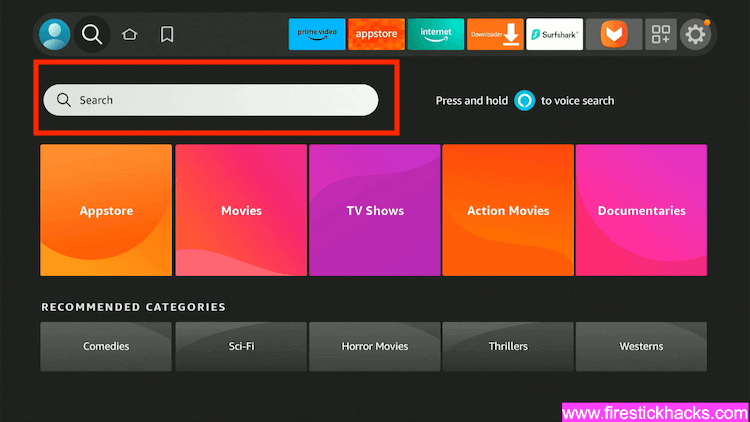
Step 4: Now select the Search option
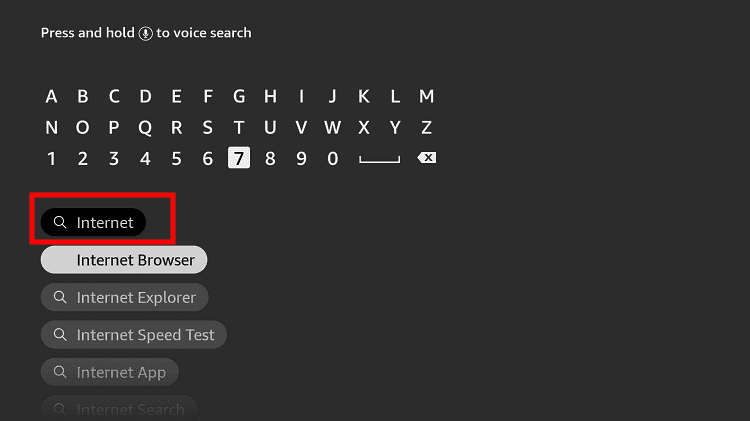
Step 5: Type Internet in the search bar and select from the list
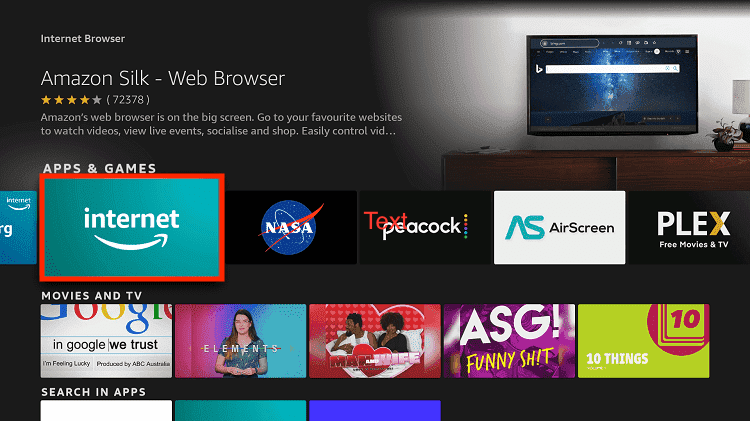
Step 6: Choose the Internet App (Silk Browser) from the given options
Step 7: Tap the Get/Download button
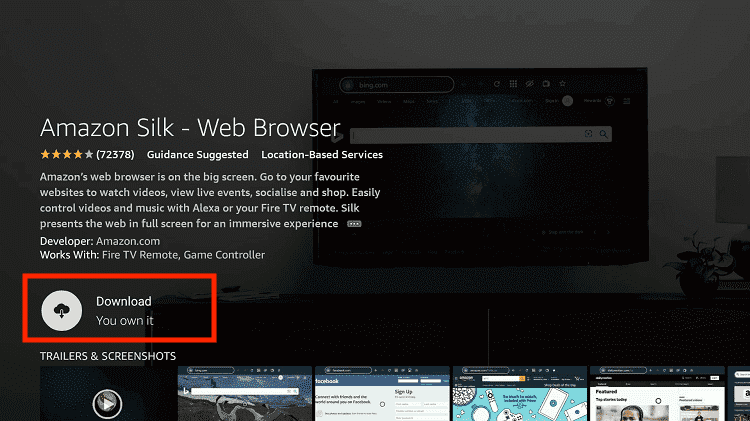
Step 8: Wait until the installation of the browser completes
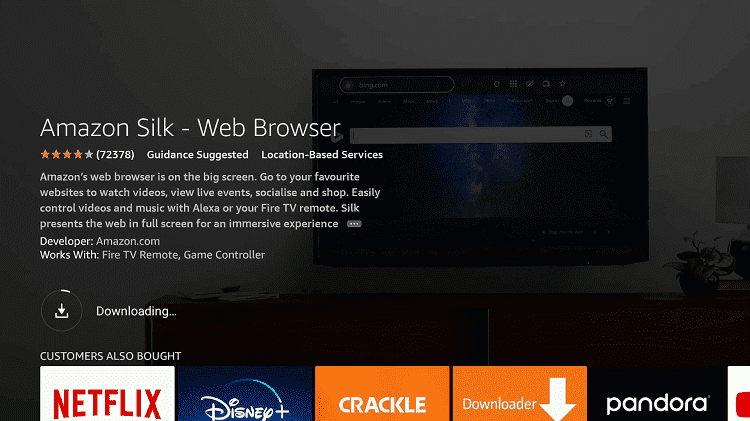
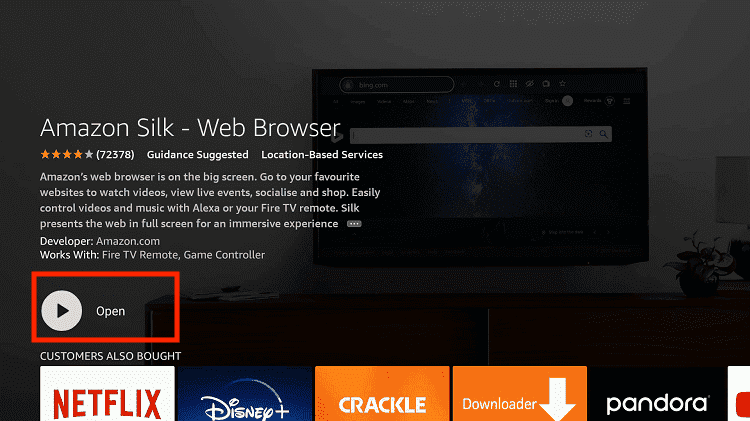
Step 9: Click Open, once the browser is installed.
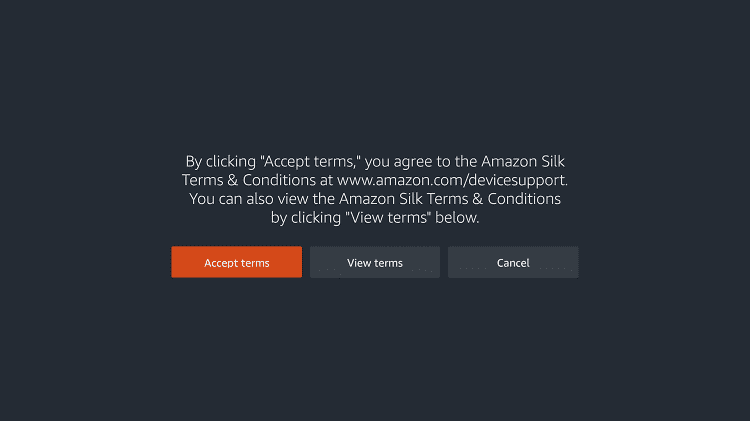
Step 10: Click on Accept Terms to access the browser
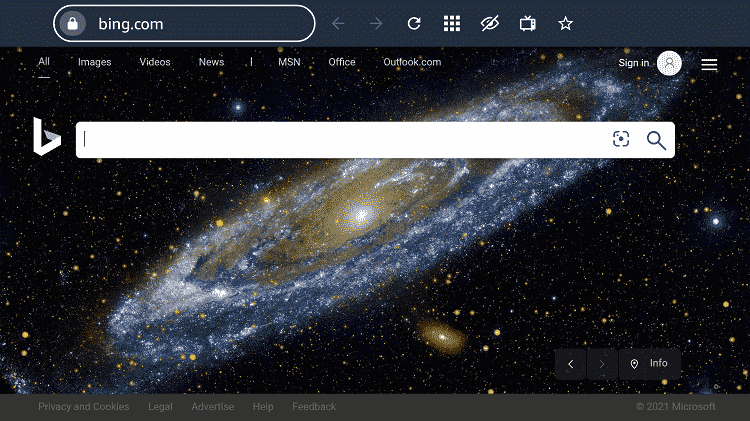
Step 11: When the browser launches, the Bing.com tab will open at first.
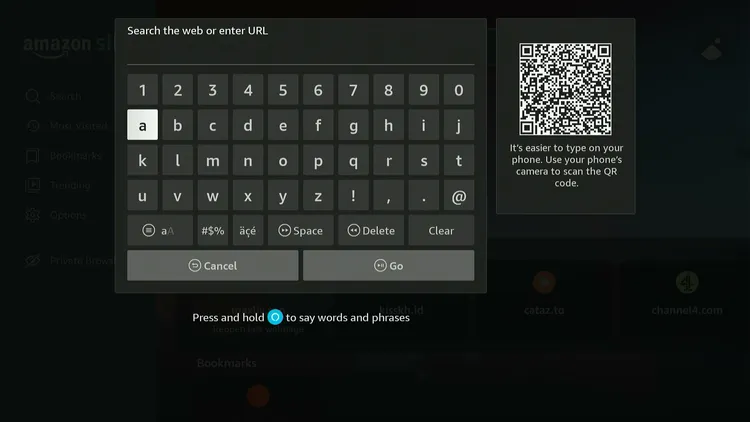
Step 12: Type www.christmasplus.tv in the search box and click “GO”.
Step 13: Choose a movie/show.

Step 14: Click “Play”.

Step 15: The video will play; you can expand the screen by clicking the “Square” in the bottom right corner.
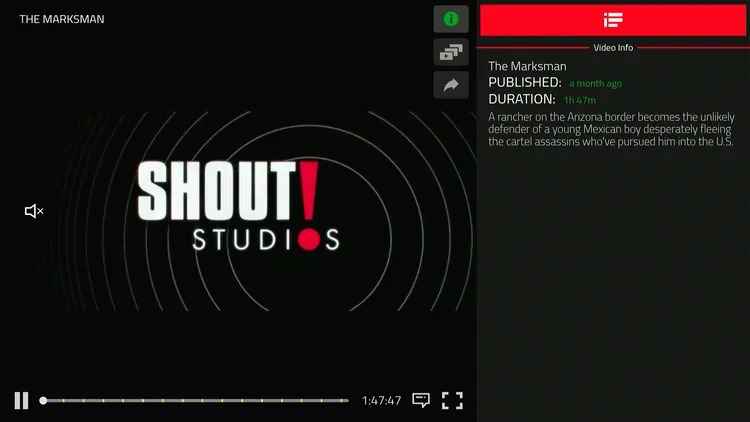
Step 16: Enjoy streaming!
Movies & Shows You Can Watch on Christmas Plus on FireStick
Here’s the list of some of the trending movies and shows on Christmas Plus:
Movies
- Hats Off to Christmas!
- Jack Frost
- Snow 2: Brain Freeze
- Labyrinth
- The Night They Saved Christmas
- A Christmas Carol: The Musical
- The Dark Crystal
- The Miracle on 34th Street
- It’s a Wonderful Life
- Emmet Otter’s Jug-Band Christmas
- Christmas is Here Again
- The Tree That Saved Christmas
Shows
- Scare Tactics
- 21 Jump Street
- Farscape
- The Bold and the Beautiful
- Farscape: The Peacekeeper Wars
- Farscape: The Peacekeeper Wars
- The Bold and the Beautiful
- Scare Tactics
- The Hunger
- Speed Racer
- Pup Academy
- ALF: Alf’s Christmas Special
- 21 Jump Street: Christmas in Saigon
- Farscape: Terra Firma
Christmas Plus Features
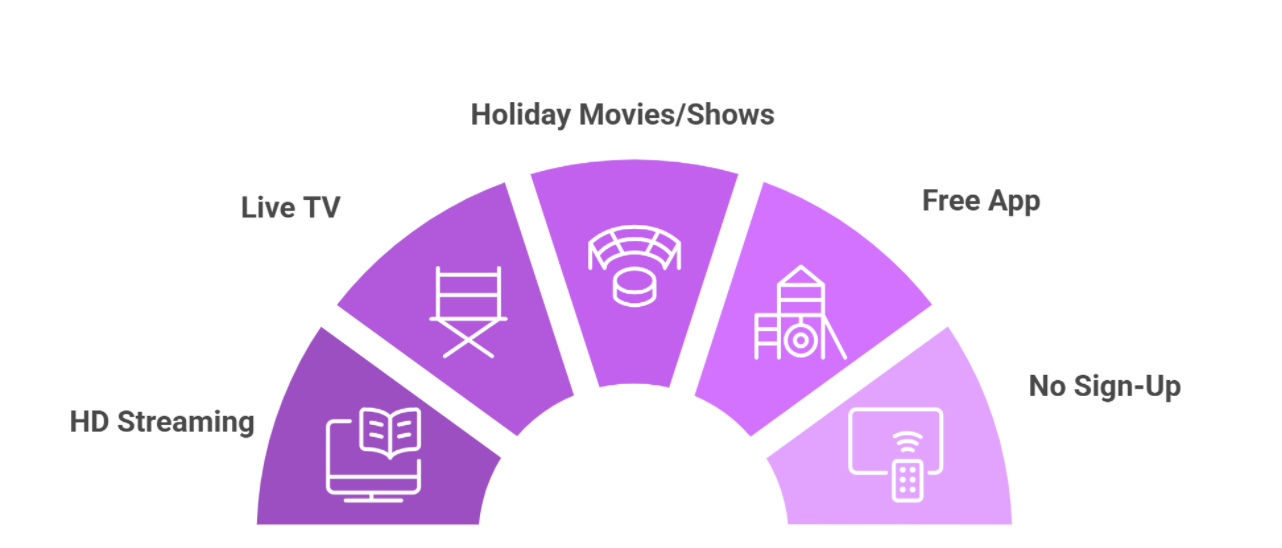
Check out the top Christmas Plus features for FireStick:
✅ Free Christmas movies & shows
✅ 24/7 live Christmas channels
✅ Family programming
✅ No account sign-up needed
✅ Simple interface
✅ Works smoothly on FireStick
✅ No external media player required
Trouble Streaming Christmas Plus on FireStick? Try These Fixes
If you’re dealing with buffering, app crashes, or other streaming glitches on Christmas Plus, try these quick fixes to smooth things out:
- Clear app cache
- Close background apps
- Connect FireStick via Ethernet
- Set video resolution to 1080p/4K
- Restart FireStick
P.S. If you are still facing issues, check out our detailed articles to stop buffering on FireStick and fix playback errors.
Christmas Plus Alternatives
If you like Christmas Plus, you would want to try some of its following alternatives:
- Pluto TV on FireStick
- BBC iPlayer on FireStick
- ITVX on FireStick
- France TV on FireStick
- 9Now on FireStick
FAQs – Christmas Plus
Is Christmas Plus free on FireStick?
Yes, Christmas Plus is completely free to use, but it is ad-supported.
Is Christmas Plus an official app?
Yes, Christmas Plus is an official streaming app available on the Amazon Appstore in many regions.
Do I need to sign up to use Christmas Plus?
No, Christmas Plus does not require any account registration or sign-up.
What can I watch on Christmas Plus?
It offers on-demand Christmas movies, holiday specials, family shows, and live TV channels.
Is Christmas Plus available worldwide?
Yes, the app is available globally, though some content may be region-restricted.
Does Christmas Plus support resume playback?
Yes, you can resume movies or shows from where you left off.
Final Thoughts
Christmas Plus started with a simple idea: to bring all things Christmas under one roof for free.
Over the years, the service has expanded its library to include thousands of Christmas-themed movies, TV shows, animated specials, and festive programming.
While the service is available globally, some titles/channels might be geo-restricted. In that case, you have the option to use a VPN like Surfshark and make the most out of this amazing platform!