Disclosure: Our experts test apps for security before recommending them. If you buy through our links, we may earn a commission. See how it works.
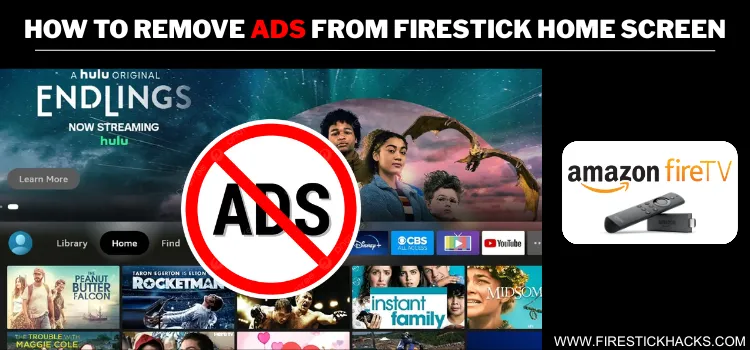
FireStick users are sick and tired of those home screen ads. They don’t just make the interface messy, but a single accidental click can take you to apps or content you never intended to open.
Even after tweaking the built-in FireStick privacy settings, the ads won’t go completely away. Well, guess what? I’ve discovered a working hack that can help you get a blank FireStick home screen.
Once you apply this hack, your FireStick home screen will look like this 👇
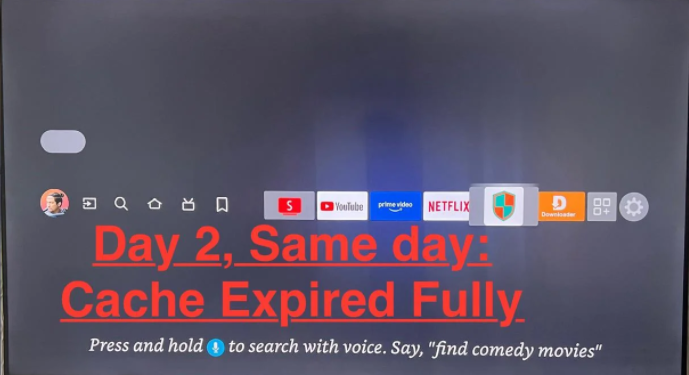
However, please note that once you activate the settings mentioned in this blog, it will take about 1-2 days for ads to be removed from the home screen (until the preloaded cache expires).
How to Get Ad-Free FireStick Home Screen [Video]
Watch this short video tutorial on how to remove ads from FireStick home screen:
How to Get Ad-Free FireStick Home screen [Screenshots]
So after years and years of digging up, now it is finally possible to get FireStick home screen without ads. Mind you, I won’t be asking you to install FireStick launchers like Wolf Launcher or Sideload Launcher.
Instead, we will use the free utility app NetGuard to remove ads.
P.S. If your Fire TV or FireStick isn’t always on standby, it will connect to the internet before NetGuard starts, which means it’ll download ads for one day.
Step 1: Turn ON your FireStick device and Go to FireStick Home
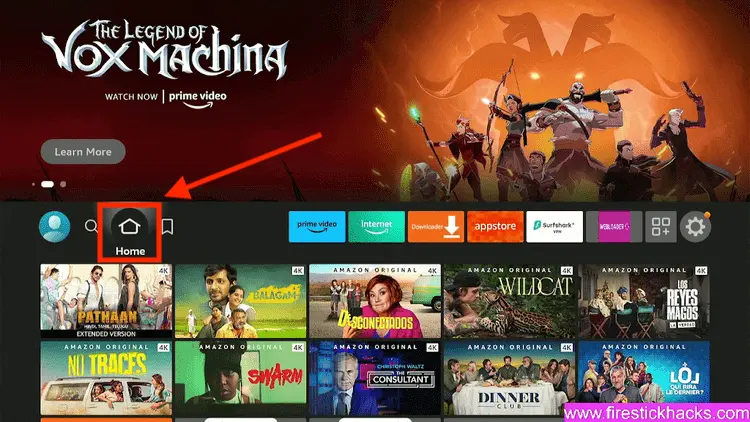
Step 2: Click on the Settings icon
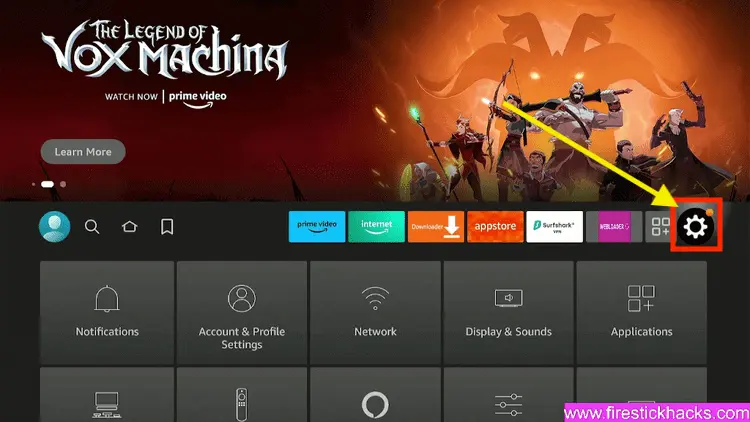
Step 3: Select the My Fire TV option
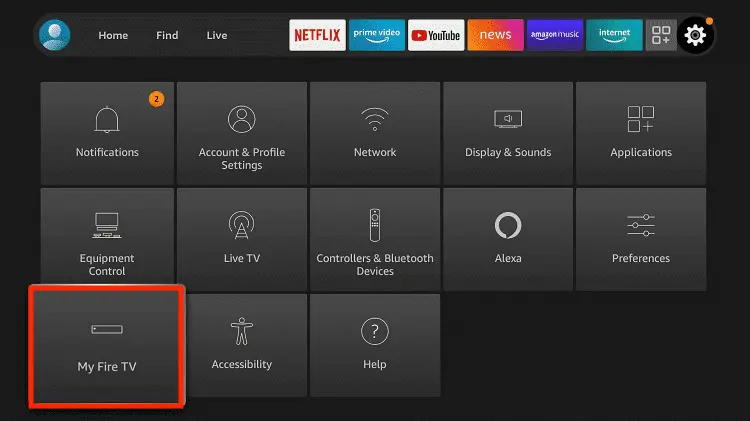
Step 4: To enable the Developer Option, click About.
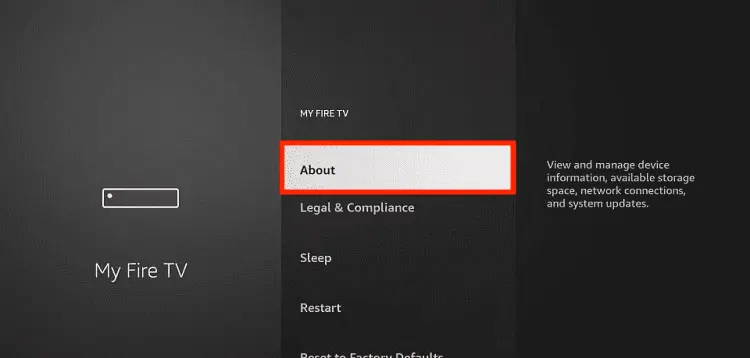
Note: If you have already enabled the Developer Option, then proceed to Step 10
Step 5: Click on the Fire TV Stick option quickly at least 7 times
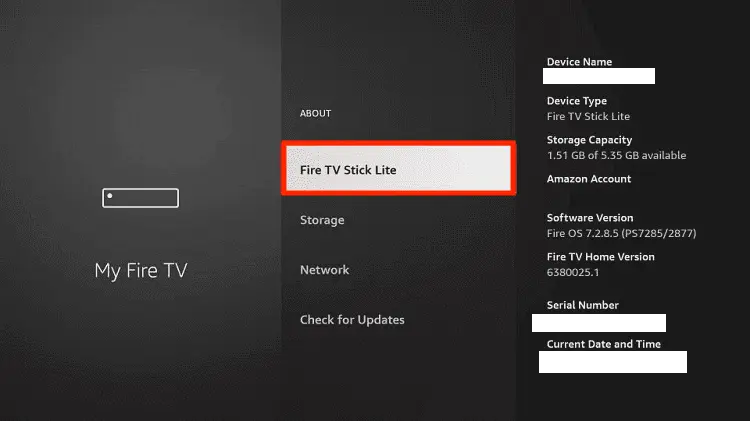
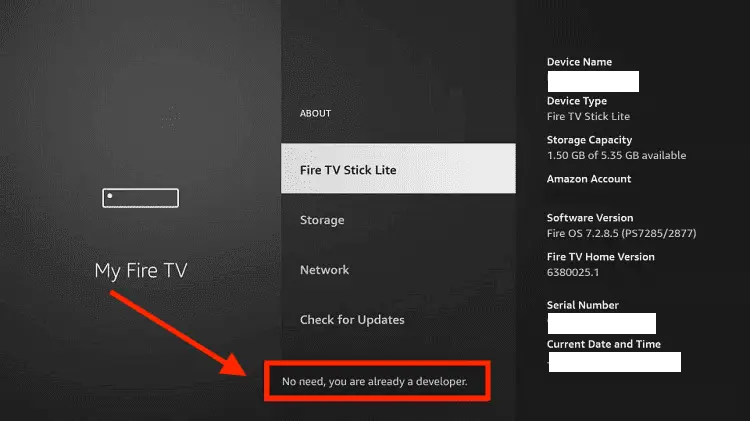
Step 6: Now you will see this message at the bottom saying "No need, you are already a developer". So stop clicking then
Step 7: Now the Developer Option will appear in the menu so click on it
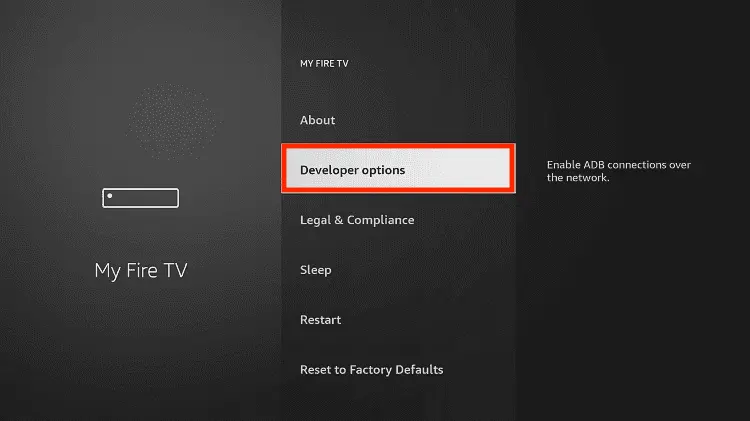
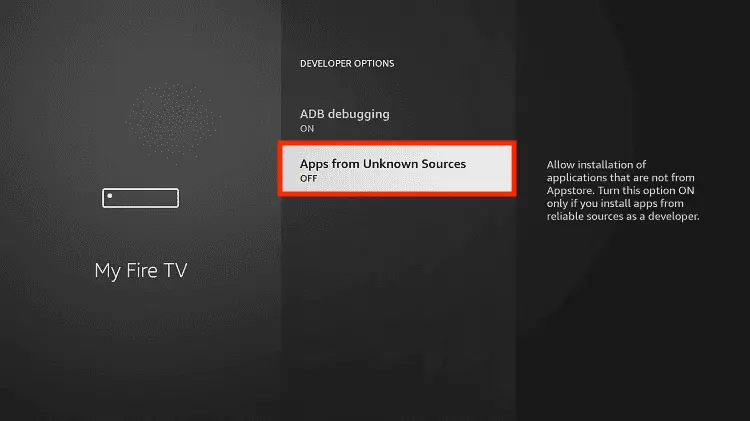
Step 8: Choose Apps from Unknown Sources to turn it ON
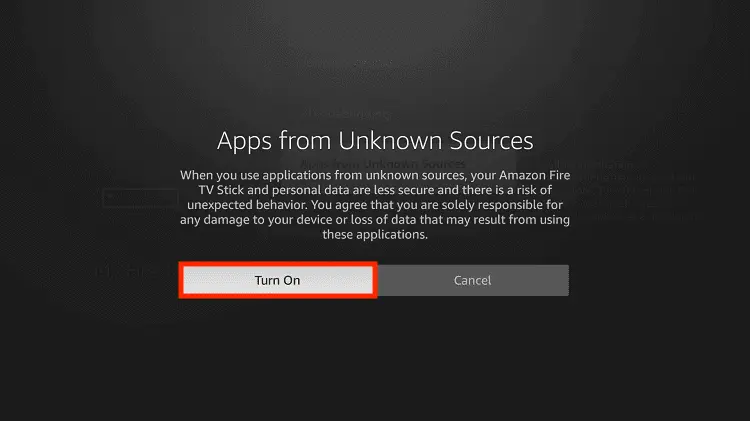
Step 9: Simply click Turn On
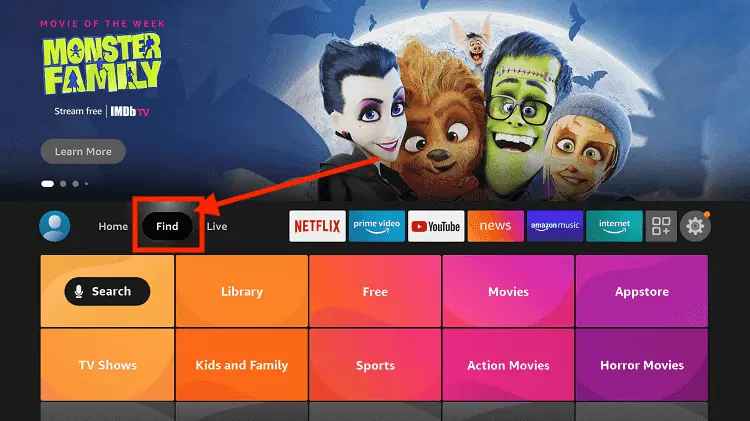
Step 10: Now return to the FireStick Home menu by pressing the "Home" icon on the remote and click on Find
Step 11: Now select the Search icon
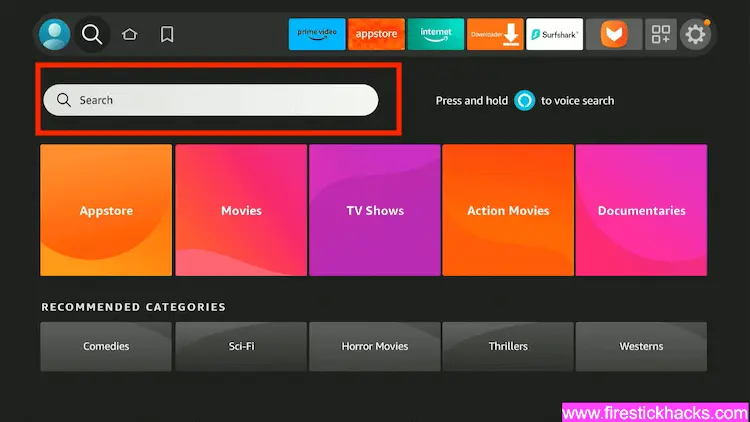
Step 12: Type Downloader and press search
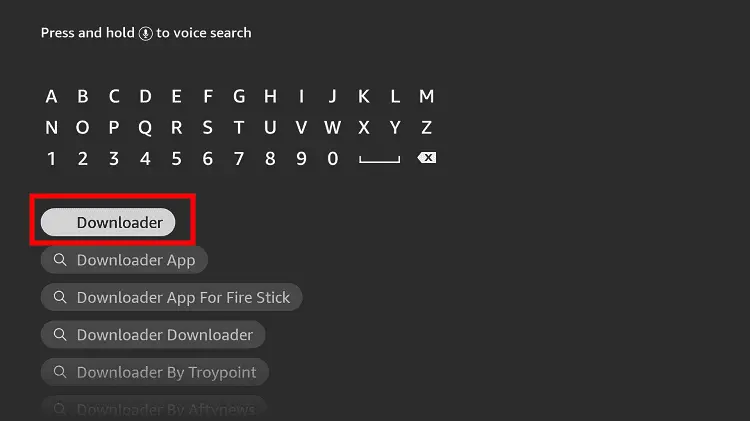
Step 13: Select the Downloader App icon from the list available in the Amazon Store
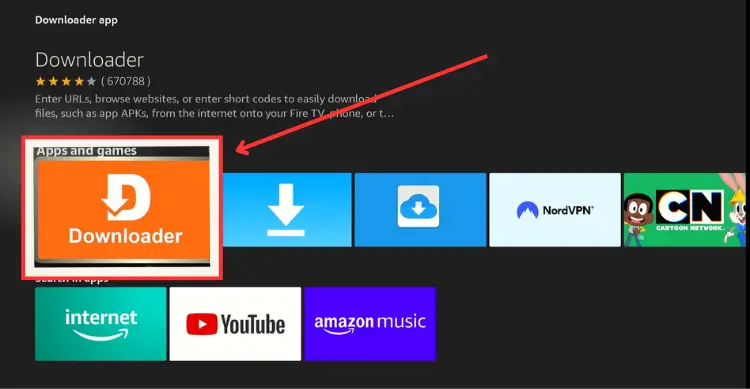
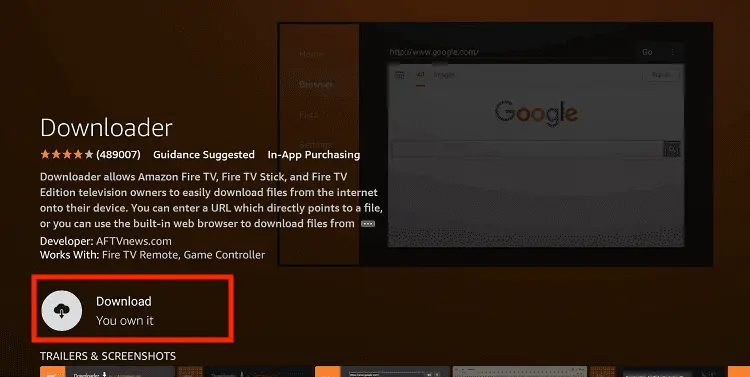
Step 14: Tap Get/Download
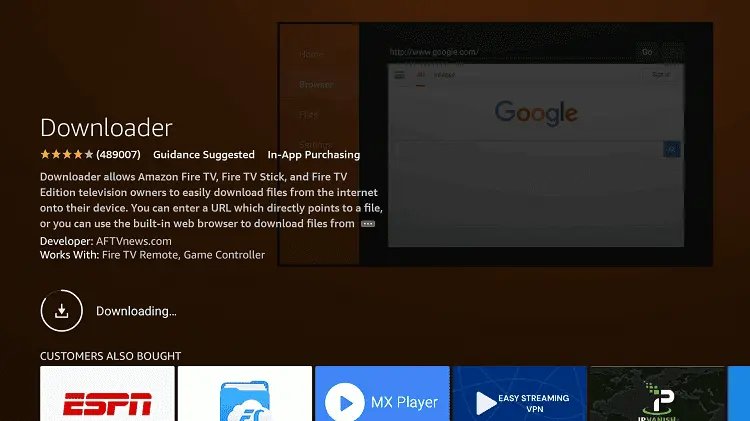
Step 15: Wait for a while until the installation process is completed
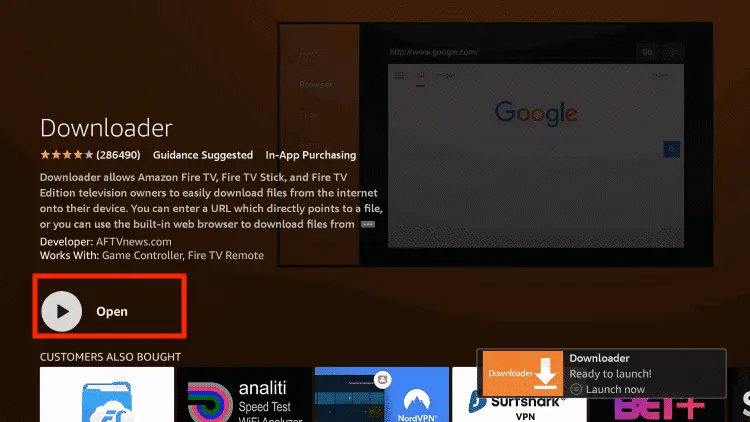
Step 16: Now click Open
Step 17: You will see a popup about Downloader app latest update. Click "OK".

Step 18: Click OK again

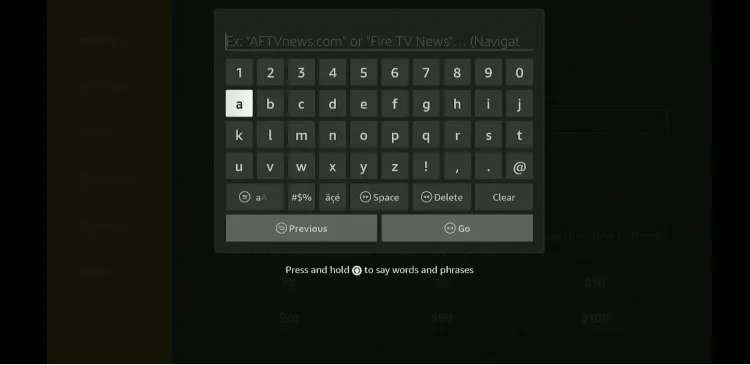
Step 19: This is the Downloader App interface, Click the Search Bar on top

Step 20: Now enter the NetGuard Downloader Code 730116 in the search box OR enter this URL bit.ly/fsh-downloads and click Go.
Note: The referenced link is the official URL of this app/website. FIRESTICKHACKS does not own, operate, or re-sell any app, streaming site, or service and has no affiliation with its developers.
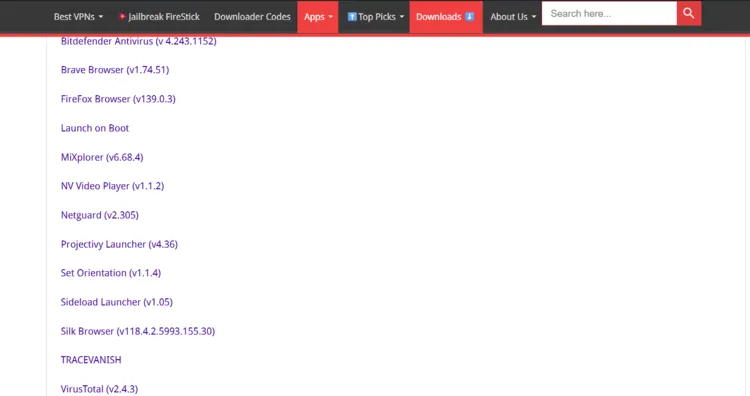
Step 21: Scroll down and tap “NetGuard” from the “Utility Apps” category.
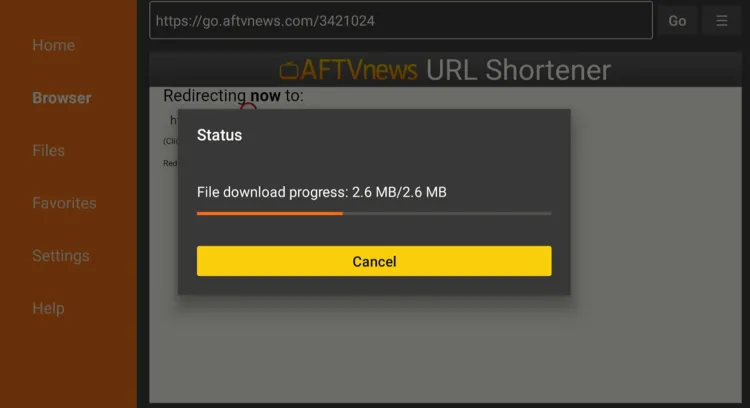
Step 22: The installation will start. Please wait until it is done.
Step 23: Click “Install”.
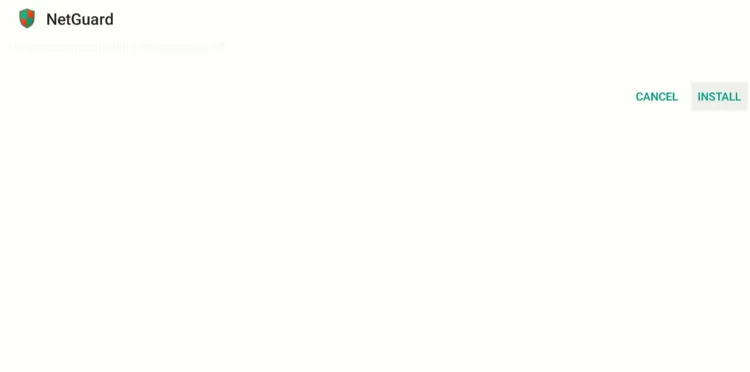
Step 24: Click “Done”.
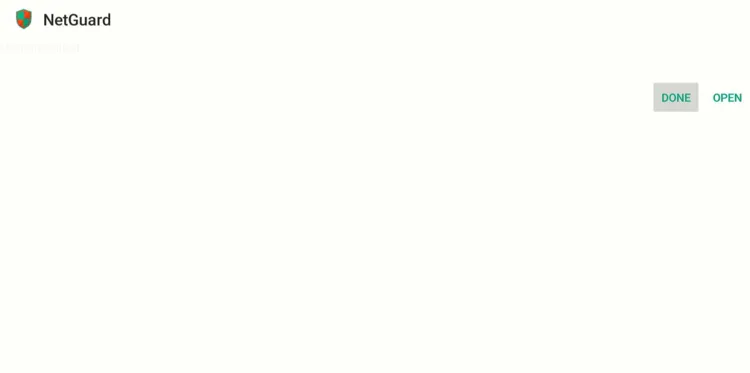
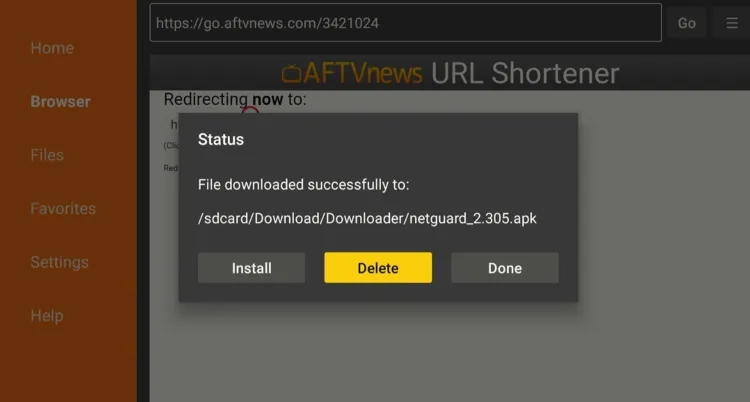
Step 25: Select “Delete”.
Note: Deleting the NetGuard APK will free up space on the FireStick.
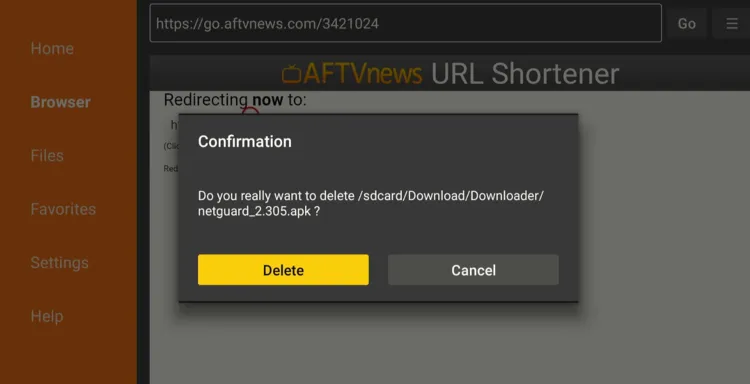
Step 26: Select “Delete” again for confirmation
Step 27: Go to the FireStick home screen and select the “Apps Library” icon next to the settings.
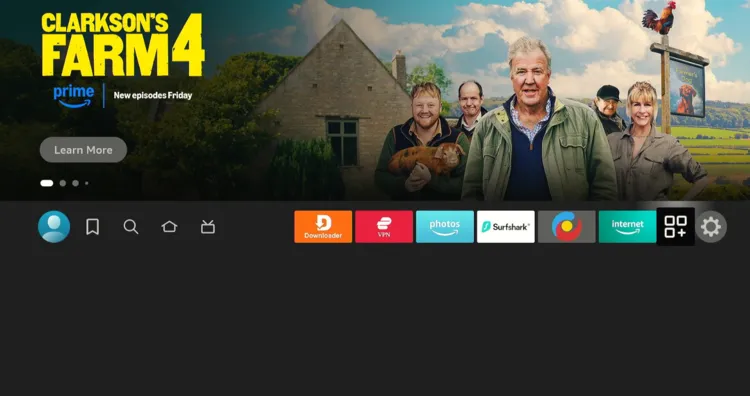
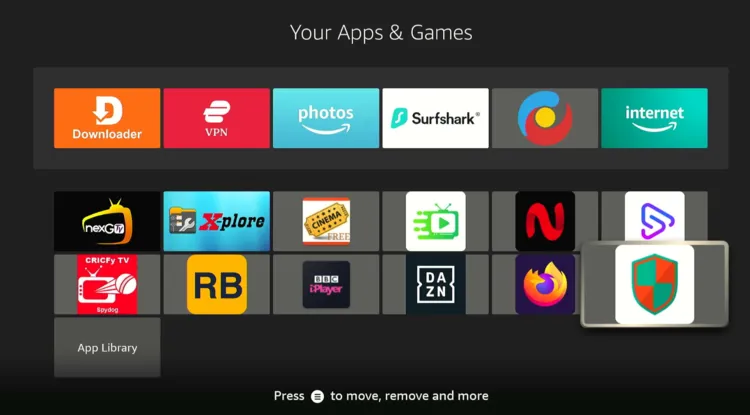
Step 28: Choose “NetGuard”.
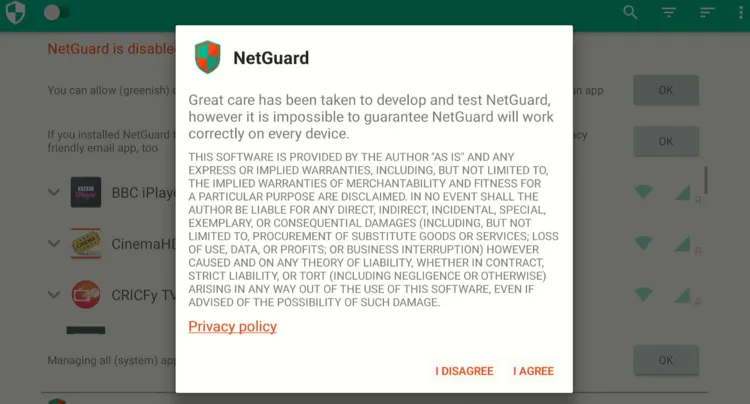
Step 29: Click “Agree”.
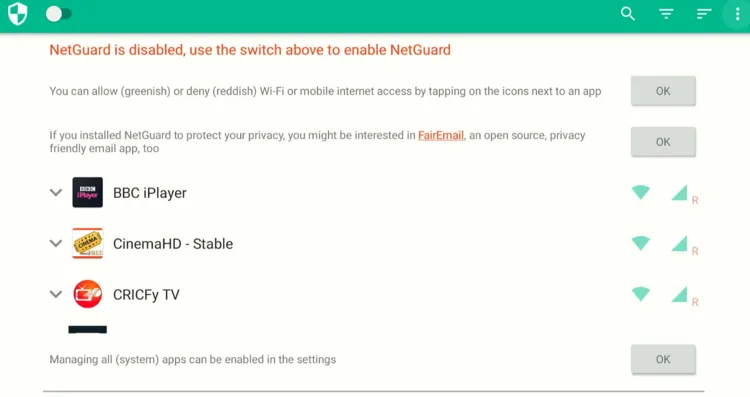
Step 30: Click the “three dots” icon in the top right corner.
Step 31: Choose “Settings”.
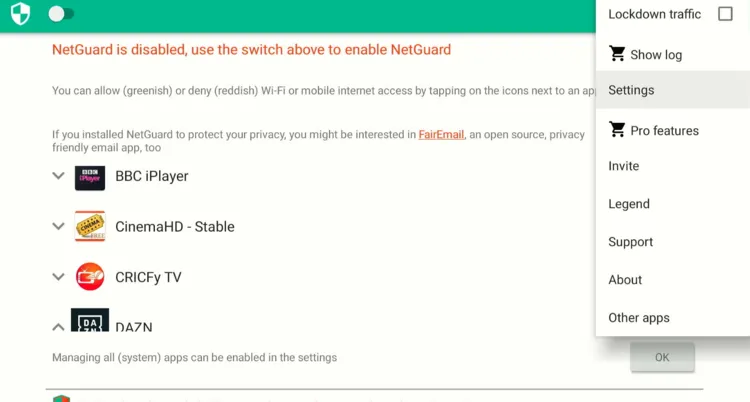
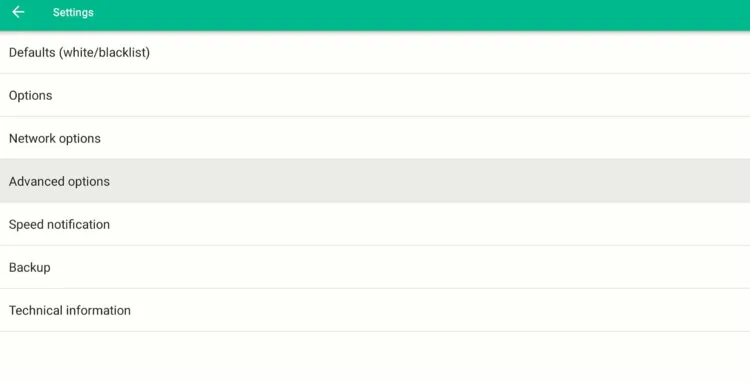
Step 32: Click “Advanced Options”.
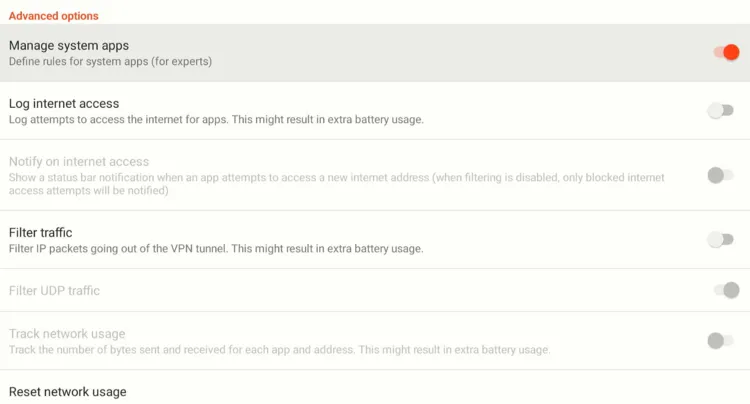
Step 33: Turn on “Manage System Apps”.
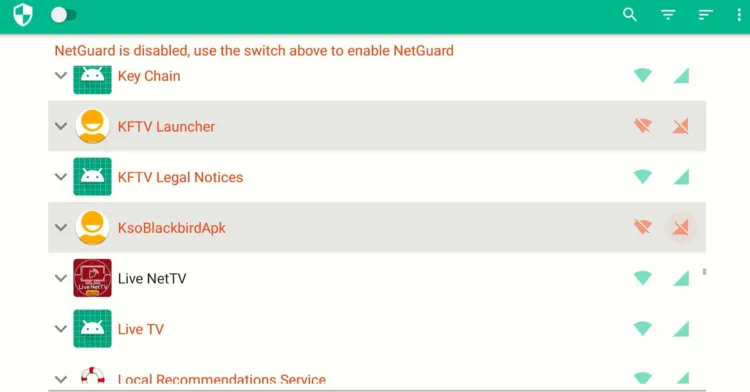
Step 34: Now, come back to the NetGuard home screen. Scroll down and disable the “Wi-Fi” and “Data” icons of “KFTV Launcher” and “KsoBlackbirdApk“.
Step 35: Scroll down further and disable the “Wi-Fi” and “Data” icons of “Screensaver“.
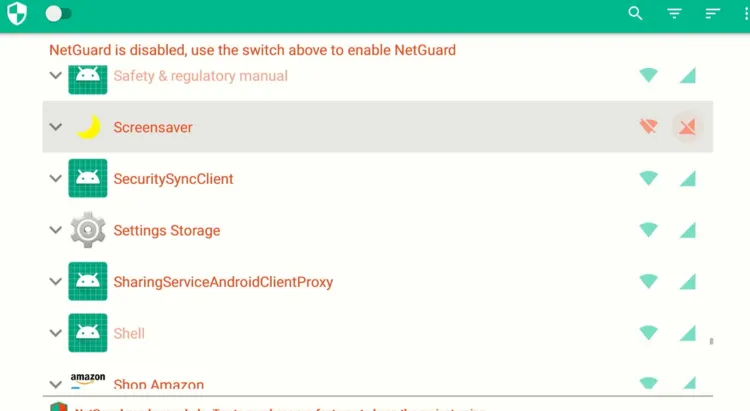
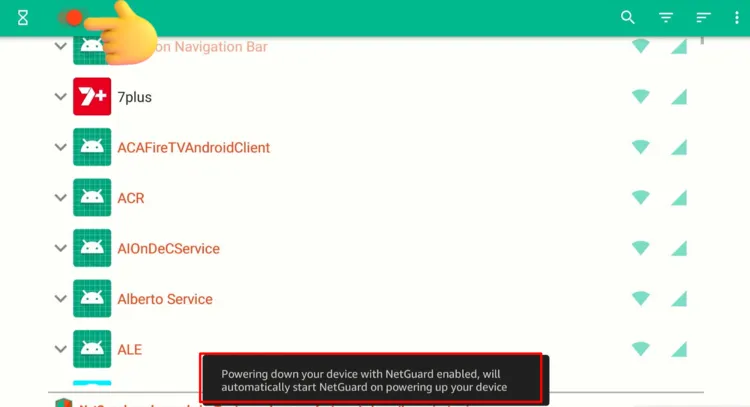
Step 36: Finally, click the “Toggle” button in the top left corner.
Note: If you don’t enable the toggle, Netguard will not block ads after you restart FireStick device.
Step 37: Ads won’t be removed immediately. After you activate these settings, it will take about 1-2 days for ads to be removed. In the first half of day 2, the cache on my device had partially expired.
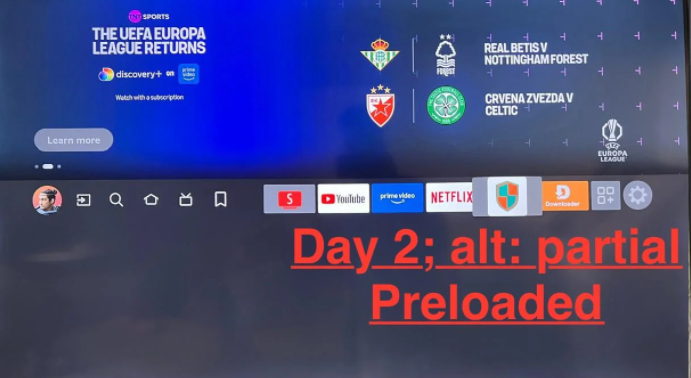
Step 38: There you do, cache fully expired later on the same day, and I got an ad-free FireStick homescreen.
FAQs – Ad-Free FireStick Home Screen
Can I remove ads from the FireStick home screen?
Yes. With NetGuard, you can block system apps responsible for loading ads and get an ad-free home screen.
How long does it take for ads to disappear?
After applying Netguard settings mentioned in this article, it usually takes 1–2 days for the ads to fully disappear.
Is NetGuard safe to use on FireStick?
Yes, NetGuard is a trusted utility app and doesn’t require root access or any risky permissions.
Will this method affect my FireStick’s performance or apps?
No, it only blocks network access for certain system apps — your other apps will work normally.
What happens if my FireStick restarts or isn’t in standby mode?
If your FireStick isn’t on standby, it’ll briefly connect to the internet before NetGuard starts, so ads may reload for a day.
Can I undo the ad-blocking changes later?
Absolutely. Just re-enable Wi-Fi and Data for the blocked apps in NetGuard anytime.
Conclusion
Those endless ads on the FireStick home screen can drive anyone crazy. They clutter up the interface, and one wrong click can send you off into apps or content you never wanted to open.
Well, you don’t have to live with them anymore. With the simple NetGuard trick I shared in this article, you can finally enjoy a clean, distraction-free FireStick experience.
Keep in mind that it might take a day or two for the ads to fully disappear, since FireStick keeps a cached version of your home screen. But once that clears, you’ll have a smooth, blank interface.