Disclosure: Our experts test apps for security before recommending them. If you buy through our links, we may earn a commission. See how it works.
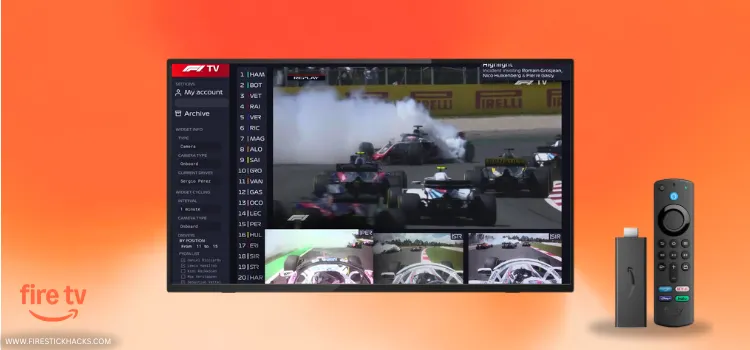
F1 TV is Formula One World Championship Limited’s official streaming service. It covers live Formula 1, including every Grand Prix, qualifying, practice, and sprint session.
Launched in 2018, the service also features on-demand content such as race replays, documentaries, and pre-/post-race analysis.
F1 TV is a paid service with 3 different plans; pricing starts at $2.99/mo. Please note that currently, there’s no working F1 TV APK for FireStick. Users need to install the XAPK/APKM file on FireStick.
While F1 TV is available in many countries, live-streaming features are blocked in some countries due to local broadcast rights. You can use Surfshark VPN to bypass geo-restrictions.
Our Recommended VPN - Surfshark
WARNING! Amazon Monitors Your Fire TV Stick!
Yes, It’s True! Without Proper Encryption, your IP Address is Exposed, and Whatever you Stream on FireStick is 'Being Tracked'.
This can lead to:
- Blocking of the FREE Third-Party Apps
- Exposure of your Personal data to hackers, ISPs, and even the authorities
But There’s a Solution - ‘Surfshark VPN’
Save 87% + Get 3 Extra Months FREE with Surfshark VPN [Limited Time Offer]
This Includes:
✅ VPN for just $0.06/day!
✅ Strongest Encryption (i.e.256-Encryption)
✅ 3,200 servers in 100+ server locations
✅ Kill Switch Feature for FireStick users
✅ Data Breach Alerts.
✅ Unlimited Device Connections.
✅ 30-day money-back guarantee.

2 Ways to Install F1 TV on FireStick
The following 2 tried-and-tested methods will give you access to F1 TV on FireStick worldwide:
- Install F1 TV on FireStick Using Downloader App
- Watch F1 TV on FireStick Using Amazon Silk Browser
- Install F1 TV on FireStick Using Amazon Appstore
How to Install F1 TV on FireStick Using Downloader App
As mentioned, currently, there’s no F1 TV APK available for FireStick. This means that you now need to manually split the APK from the F1 TV APKM file using the Downloader app and X-Plore File Manager.
Please note that the F1 TV live feature might be geo-restricted due to local broadcast deals. Therefore, don’t forget to install and use SurfShark VPN on FireStick to access it worldwide.
Follow the steps below:
Step 1: Turn ON your FireStick device and Go to FireStick Home
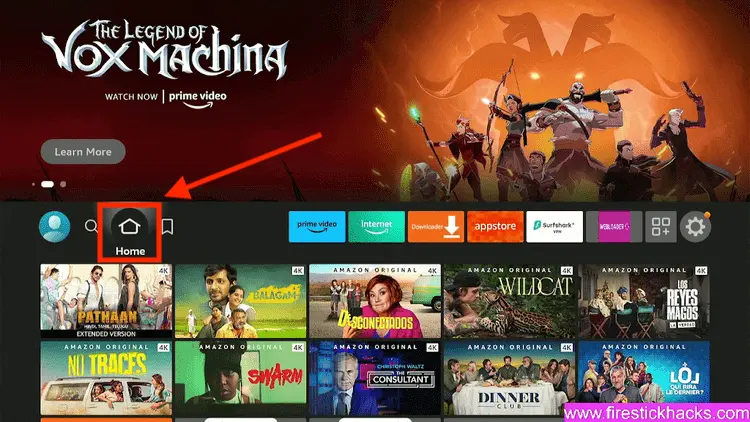
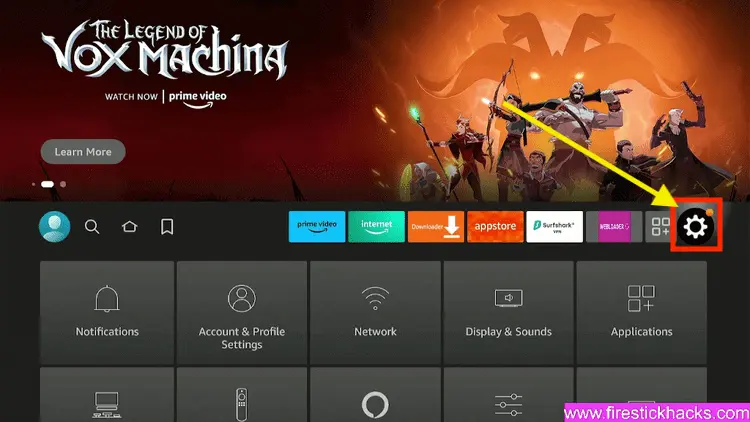
Step 2: Click on the Settings icon
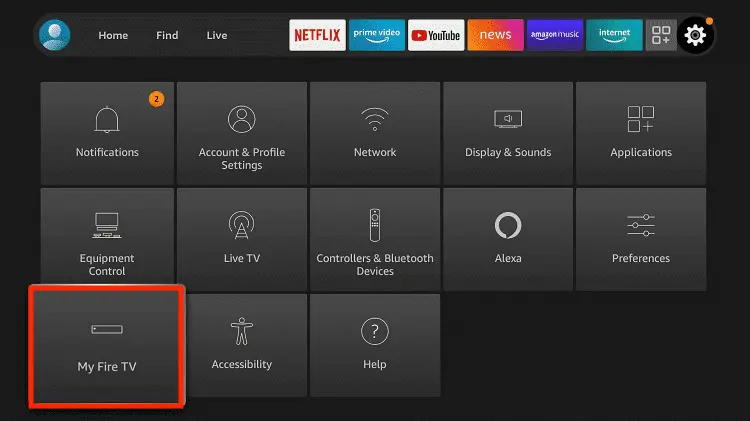
Step 3: Select the My Fire TV option
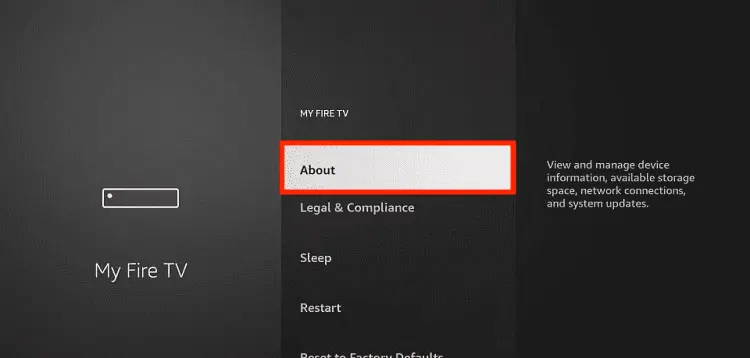
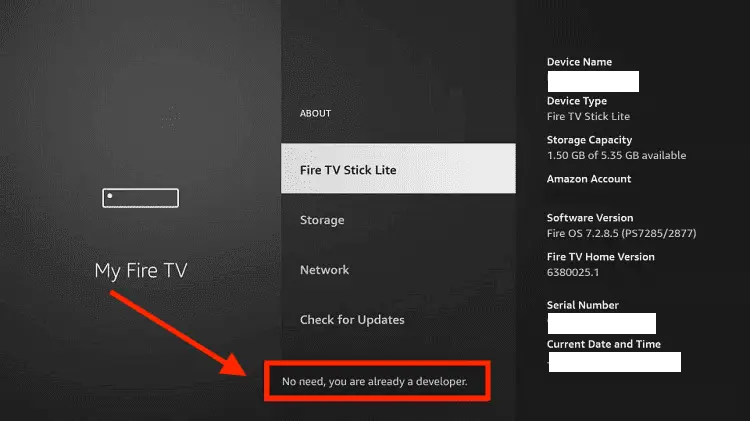
Step 4: To enable the Developer Option, click About.
Note: If you have already enabled the Developer Option, then proceed to Step 10
Step 5: Click on the Fire TV Stick option quickly at least 7 times
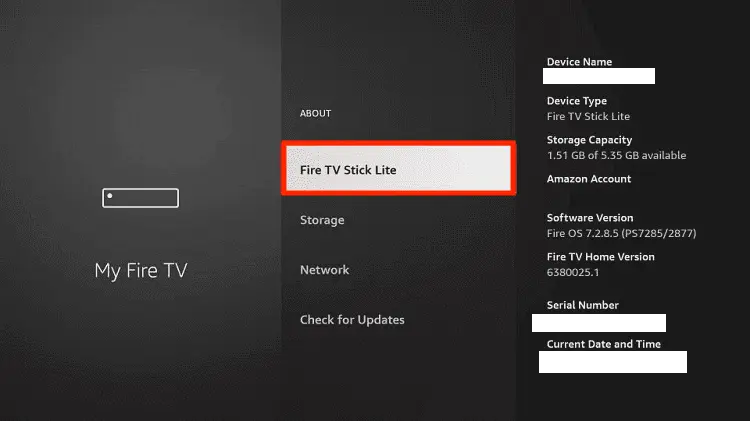
Step 6: Now you will see this message at the bottom saying "No need, you are already a developer". So stop clicking then
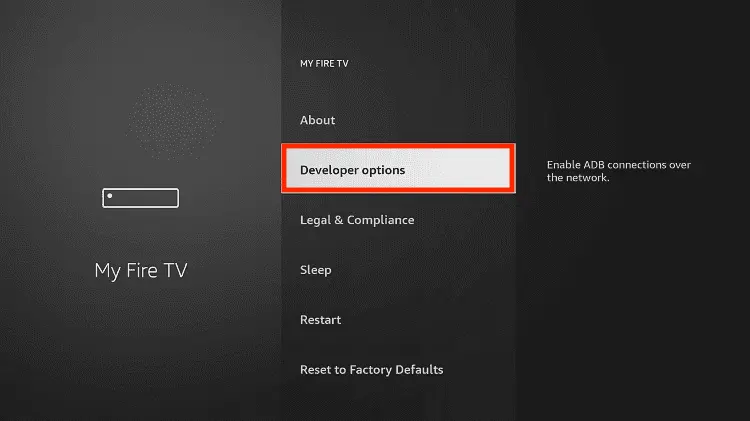
Step 7: Now the Developer Option will appear in the menu so click on it
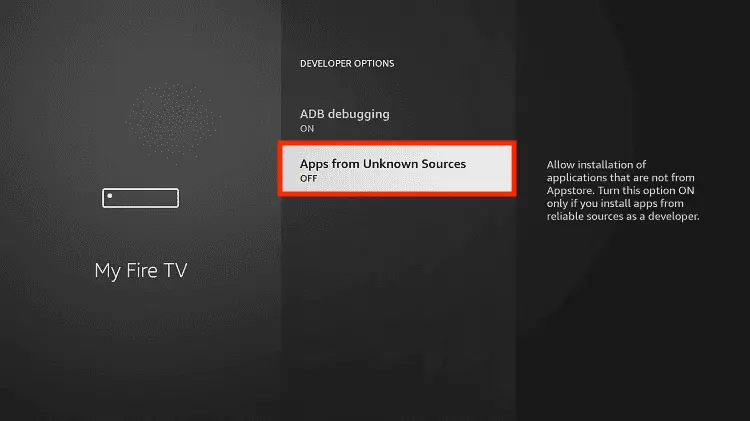
Step 8: Choose Apps from Unknown Sources to turn it ON
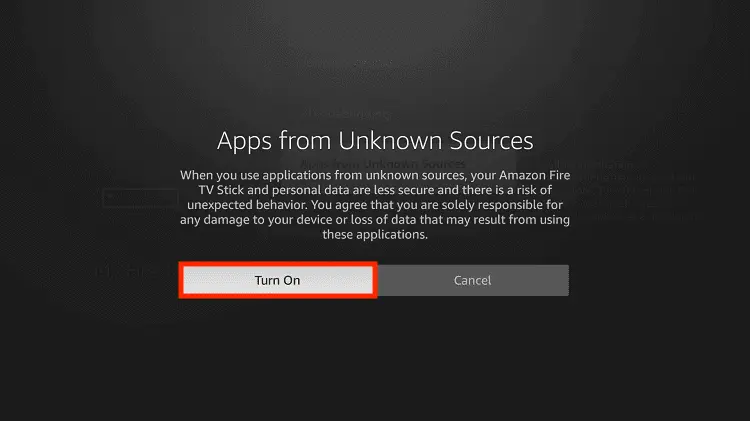
Step 9: Simply click Turn On
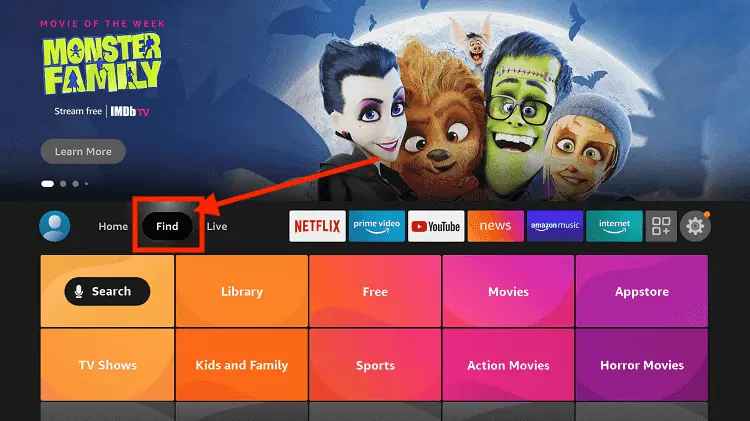
Step 10: Now return to the FireStick Home menu by pressing the "Home" icon on the remote and click on Find
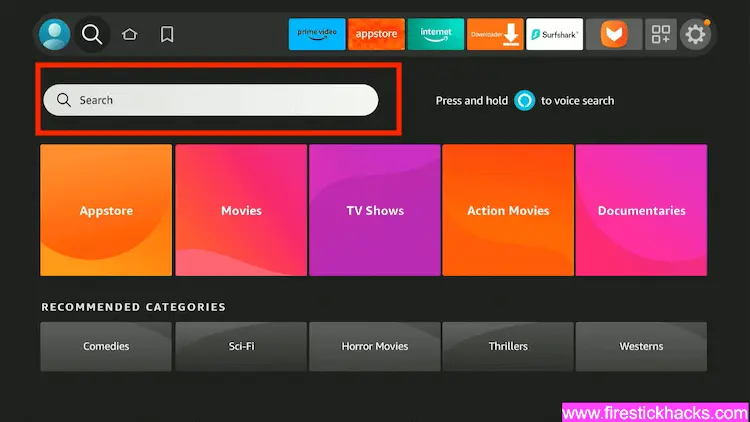
Step 11: Now select the Search icon
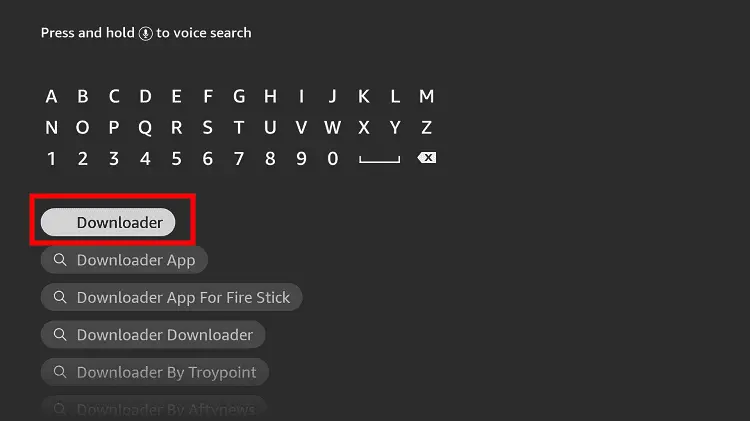
Step 12: Type Downloader and press search
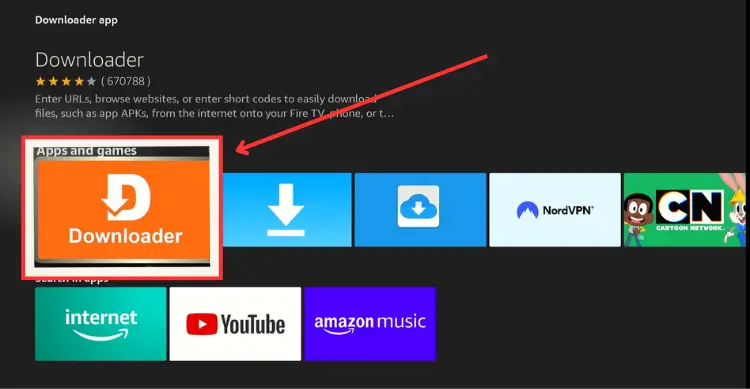
Step 13: Select the Downloader App icon from the list available in the Amazon Store
Step 14: Tap Get/Download
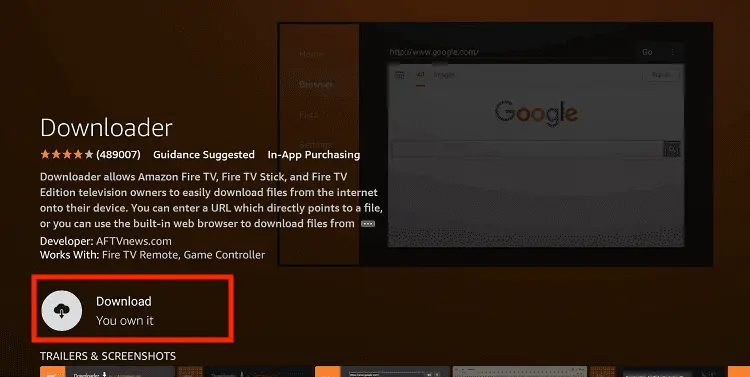
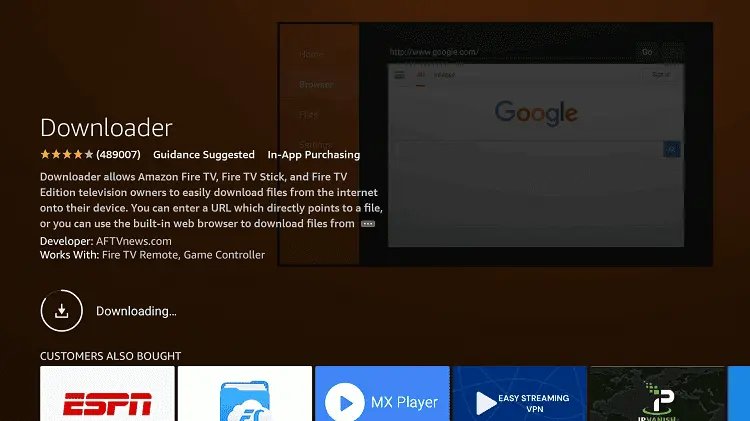
Step 15: Wait for a while until the installation process is completed
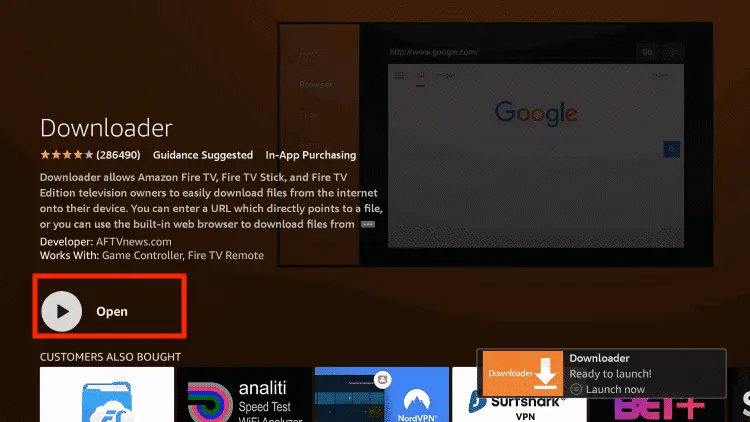
Step 16: Now click Open
Step 17: You will see a popup about Downloader app latest update. Click "OK".

Step 18: Click OK again

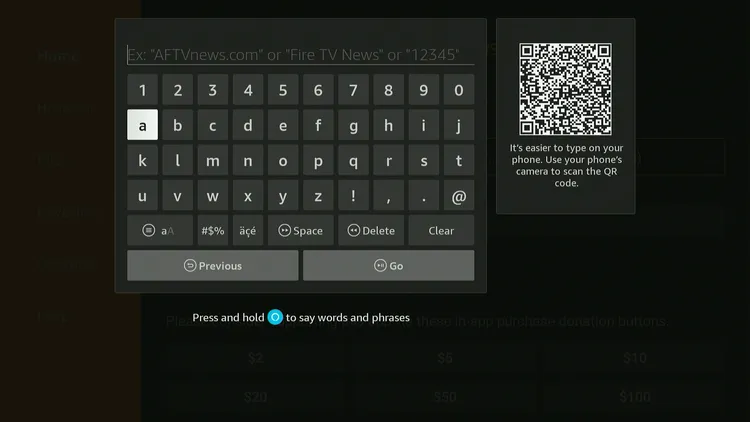
Step 19: This is the Downloader App interface, Click the Search Bar on top

Step 20: Enter F1 TV Downloader Code 730116 in the search box OR enter this URL bit.ly/fsh-downloads and click Go.
Note: The referenced link is the official URL of this app/website. FIRESTICKHACKS does not own, operate, or re-sell any app, streaming site, or service and has no affiliation with its developers.
Step 21: Scroll down and click “F1 TV” from the “Sports Apps” category.
Note: If the app does not start downloading, then clear the Downloader App cache using this article.
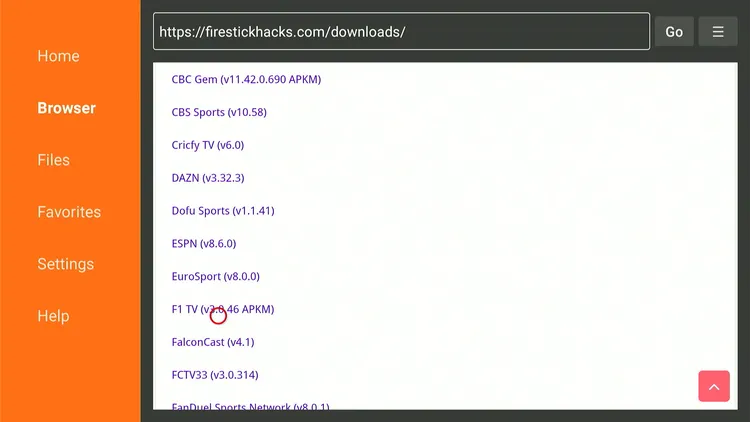
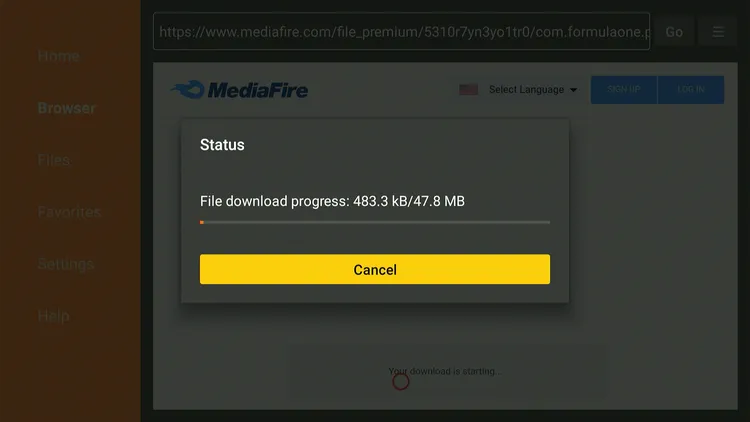
Step 22: The downloading will start. Wait for it to finish.
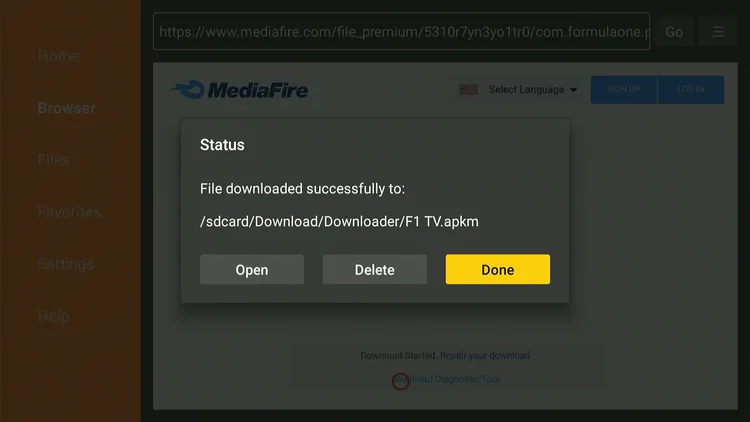
Step 23: Once the downloading ends, click “Done”.
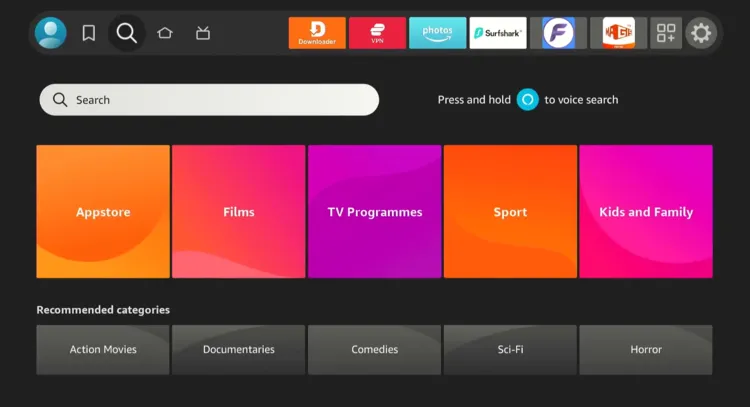
Step 24: Now go to the FireStick home screen and click the “Find” icon and then tap “Search”.
Step 25: Type “Xplore File Manager” and select it from the results.
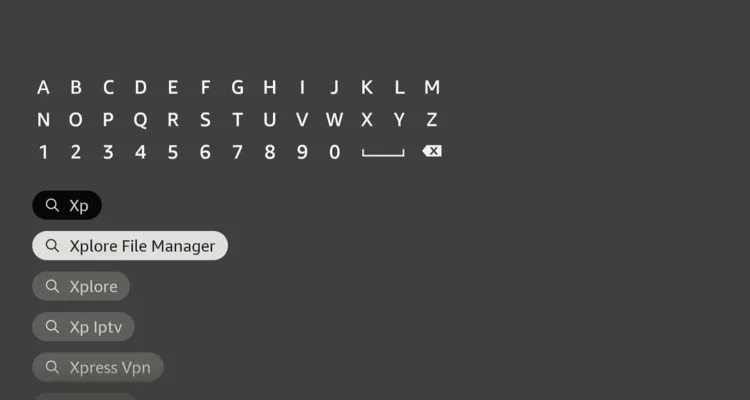
Step 26: Choose the “X-Plore File Manager” app.
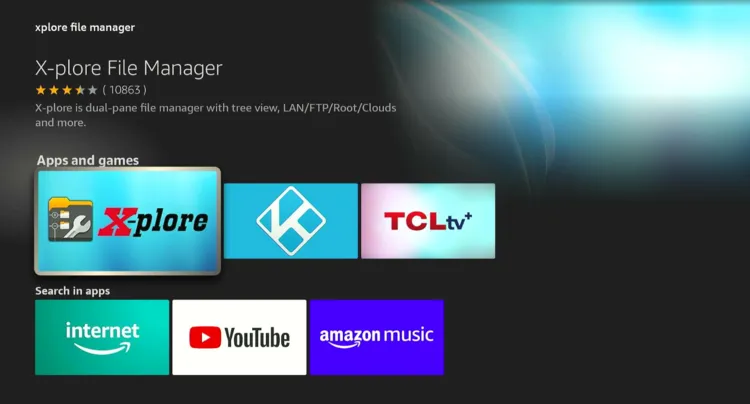
Step 27: Click “Download”.
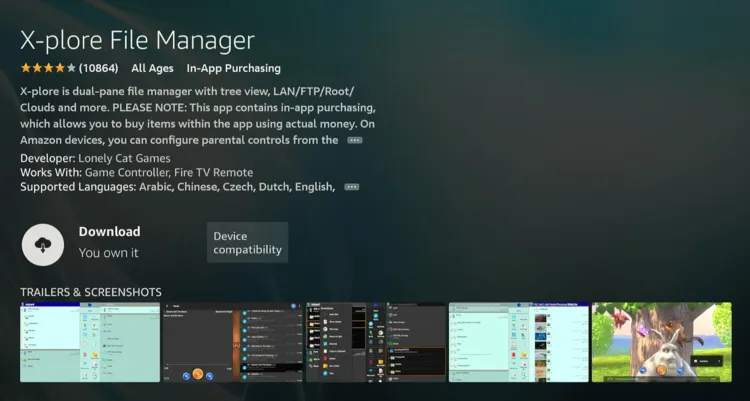
Step 28: Once the downloading ends, you will see the “Open App” icon. But don’t open it for now.
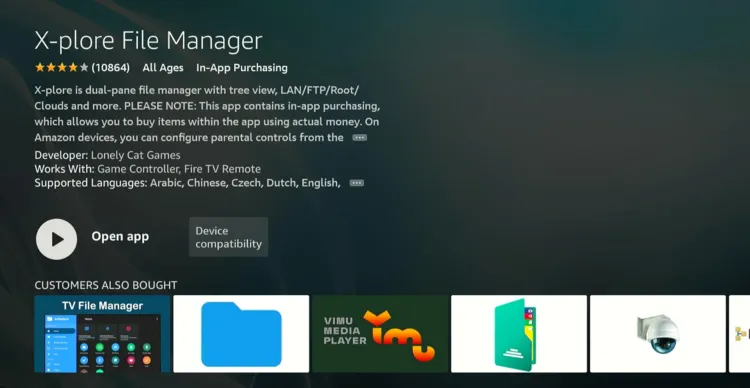
Step 29: Click “Settings”.
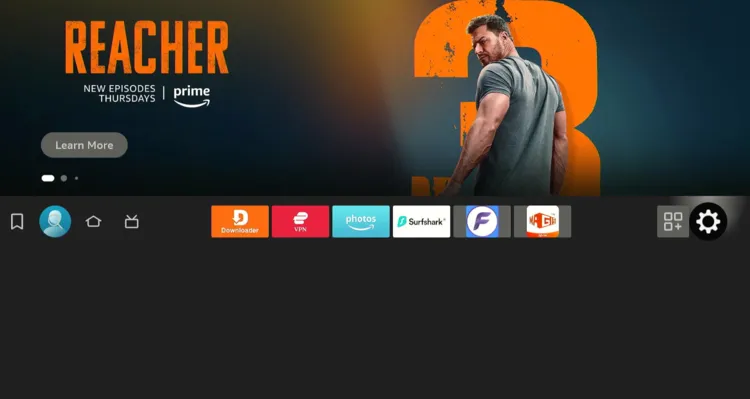
Step 30: Tap “My Fire TV”.
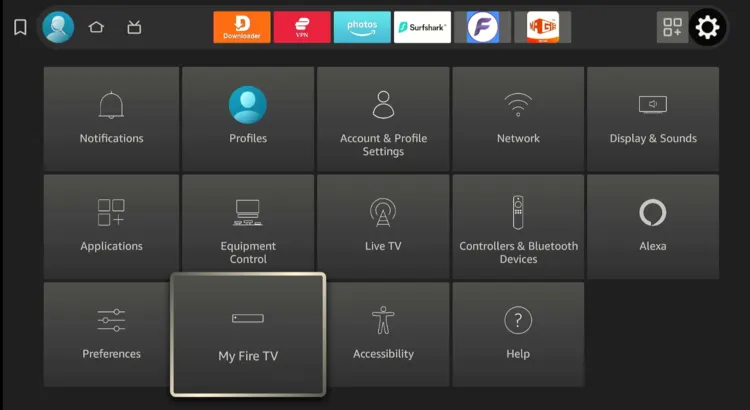
Step 31: Choose “Developer Options”.
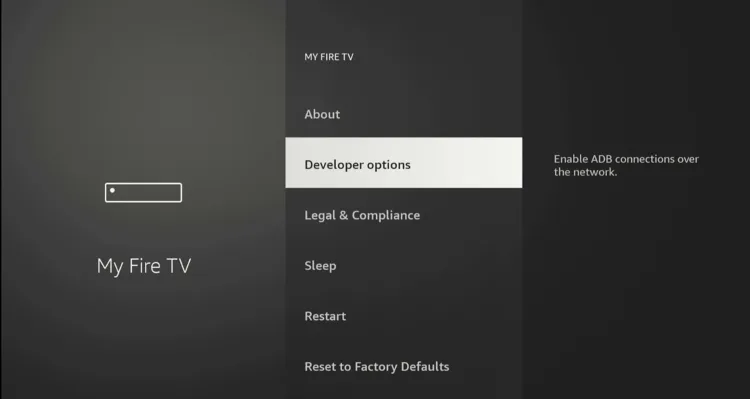
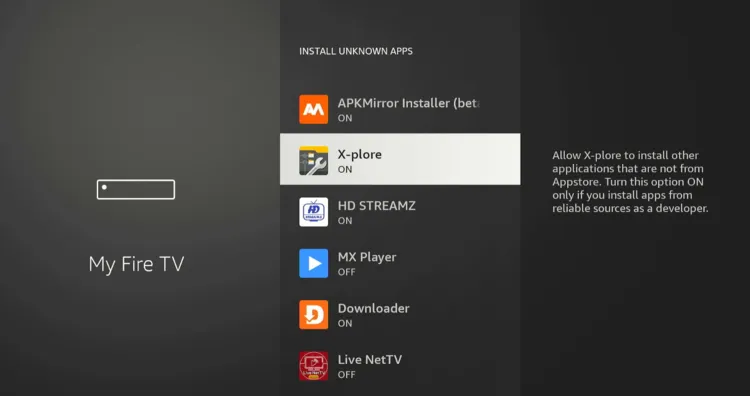
Step 32: Select “Install Unknown Apps”.
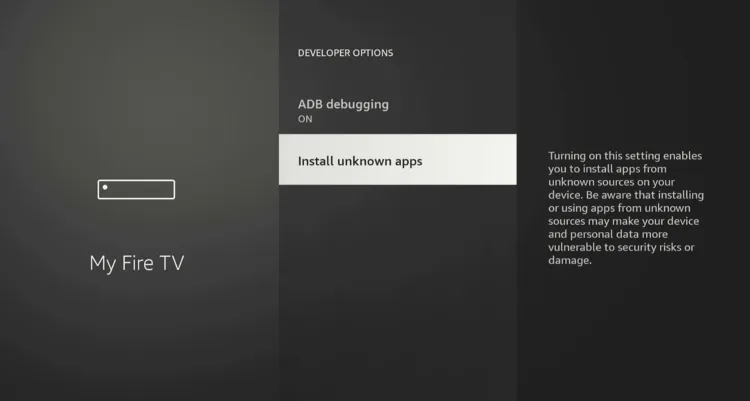
Step 33: Navigate to “X-Plore” and turn “ON” installation from unknown sources.
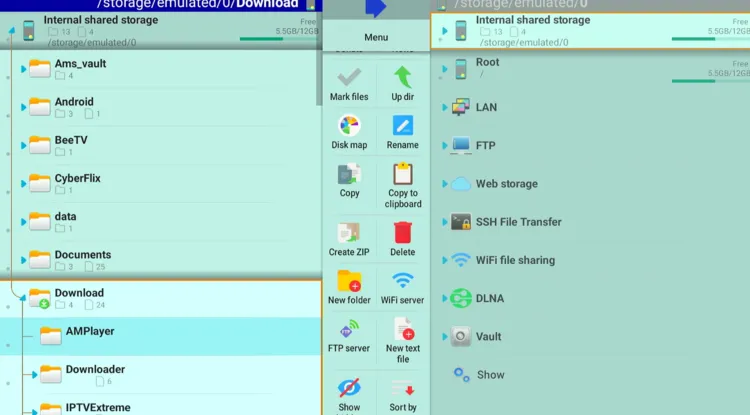
Step 34: Now launch X-Plore File Manager and click “Internal Shared Storage” and then tap “Download”
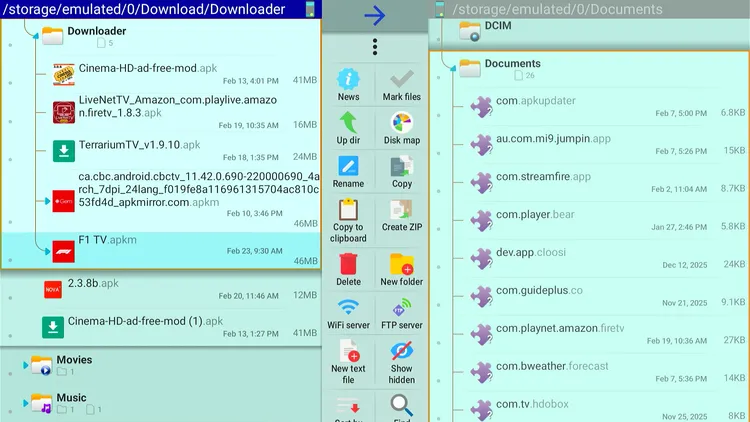
Step 35: Select “Downloader” and tap “F1 TV”.
Step 36: Tap “Install”.
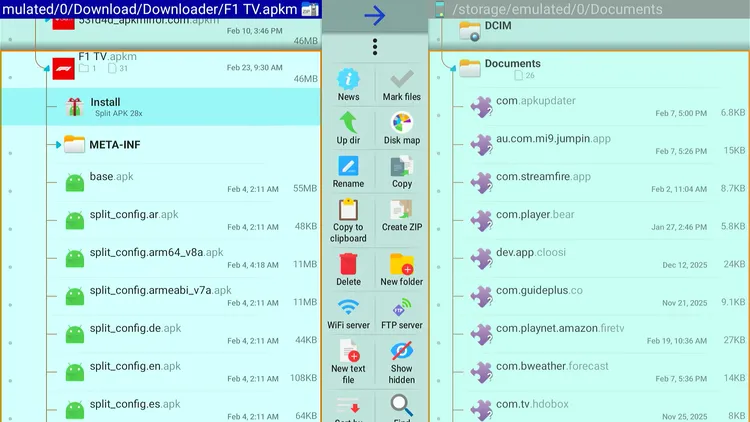
Step 37: Click “Install”.

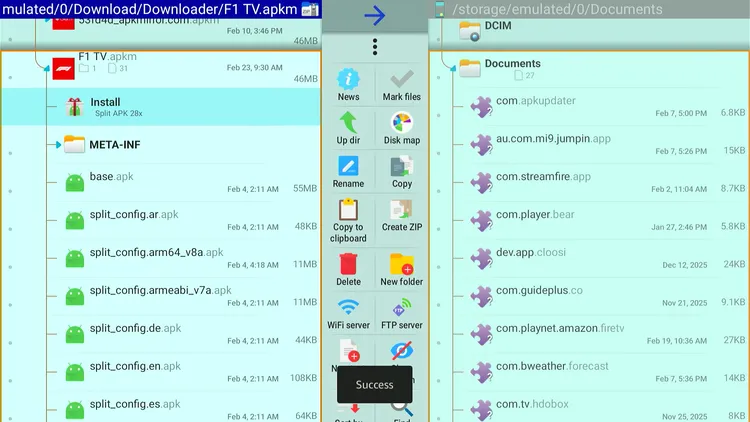
Step 38: Once the “Installation” ends, you will see the “Success” pop-up. This means that the F1 TV app has been installed on FireStick.
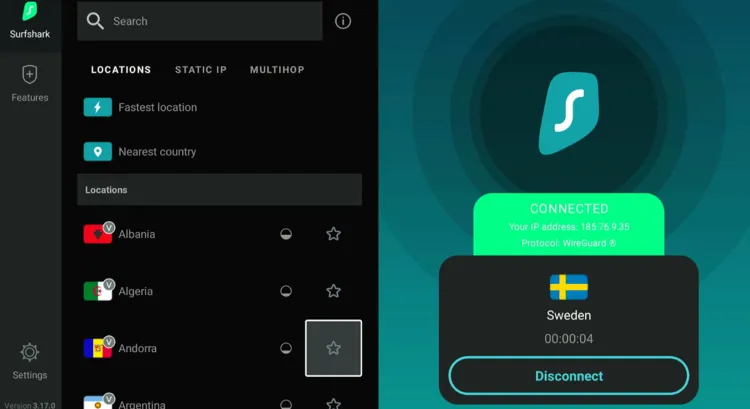
Step 39: Open Surfshark and connect to available countries like Sweden, Belgium, Bulgaria, Croatia, the Czech Republic, Denmark, the Netherlands, Norway, etc.
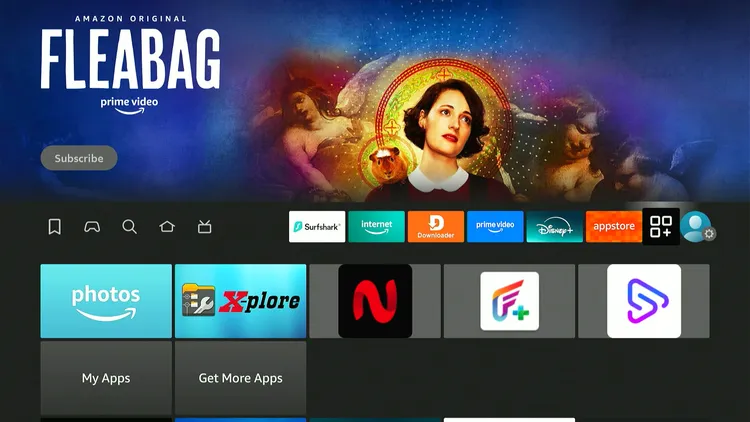
Step 40: Go to the FireStick home and select the “icon next to the settings” from the top right corner.
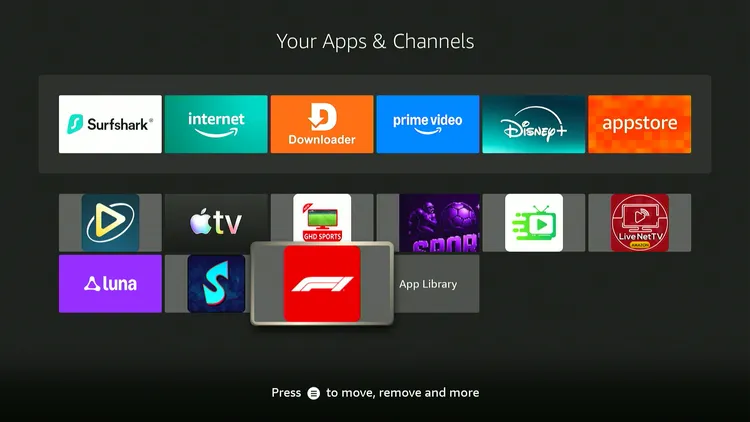
Step 41: Choose “F1 TV” from the list.
Step 42: You can sign in now using the code.
P.S. If you haven’t signed up yet, you must register for F1 TV.
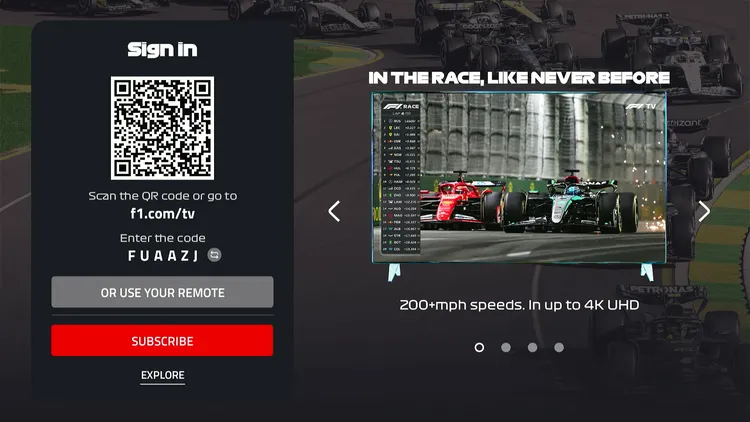
Step 43: Enjoy streaming!
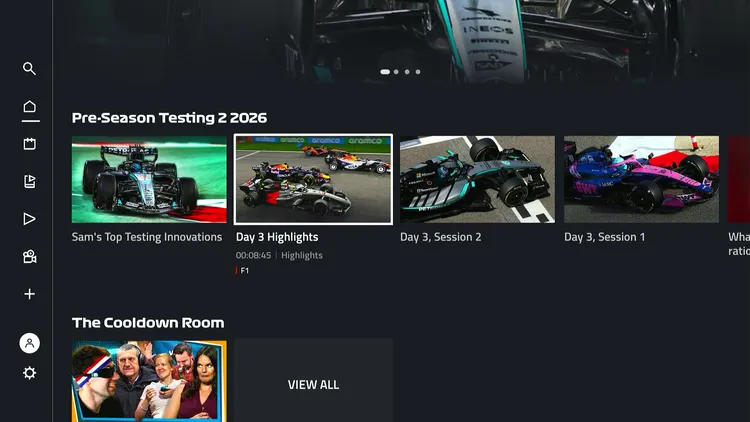
How to Watch F1 TV on FireStick Using Amazon Silk Browser
You can also watch F1 TV on FireStick via the Amazon Silk browser without any issues.
However, if you live outside of the supported regions, you must install and use SurfShark VPN on FireStick to bypass geo-restrictions.
Follow the steps below:
Step 1: Open Surfshark and connect to available countries like Sweden, Belgium, Bulgaria, Croatia, the Czech Republic, Denmark, the Netherlands, Norway, etc.
Step 2: Go to FireStick Home
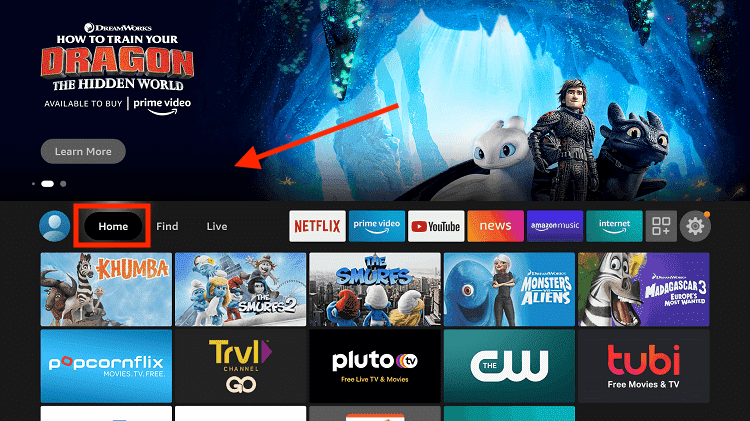
Step 3: Click on the Find tab
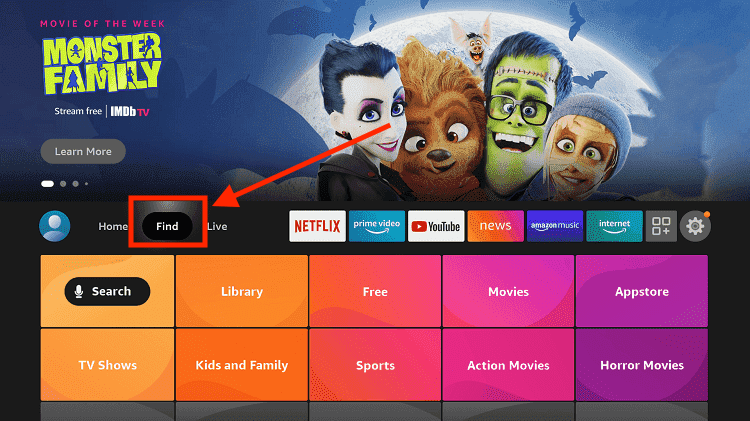
Step 4: Now select the Search option
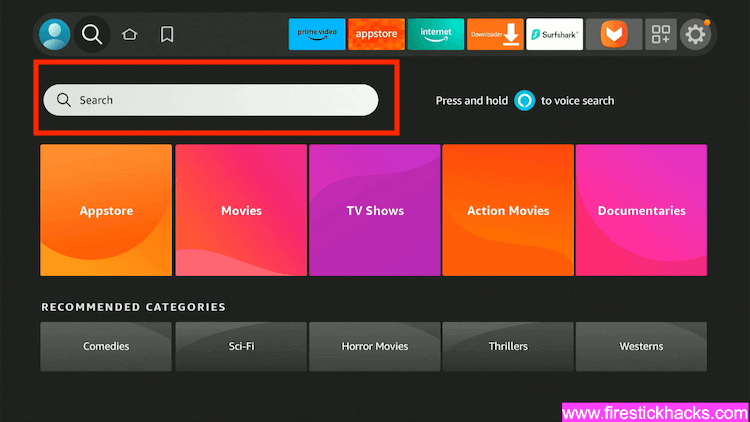
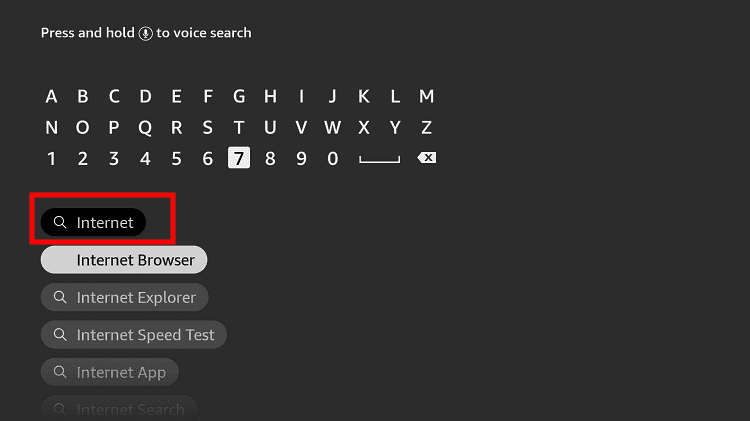
Step 5: Type Internet in the search bar and select from the list
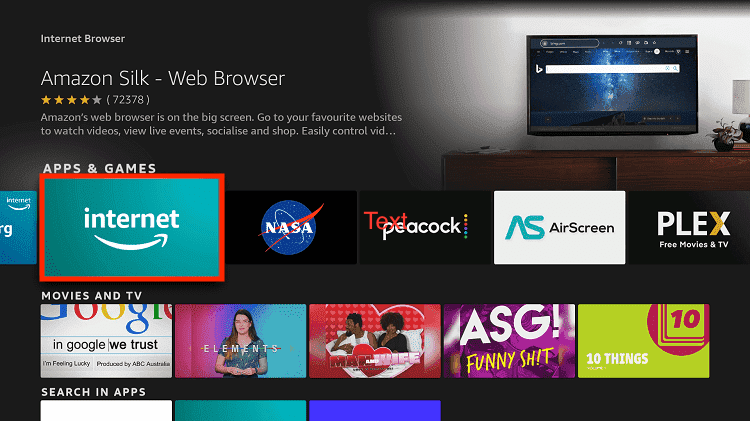
Step 6: Choose the Internet App (Silk Browser) from the given options
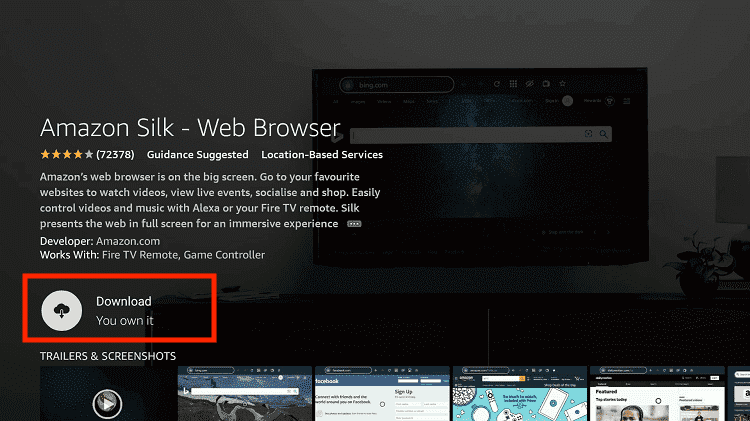
Step 7: Tap the Get/Download button
Step 8: Wait until the installation of the browser completes
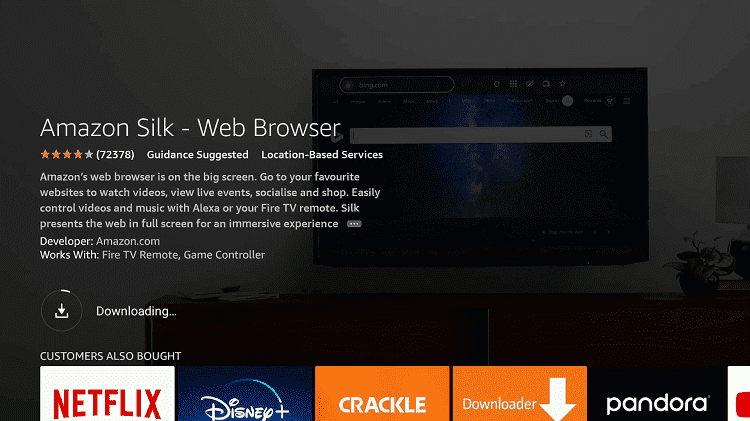
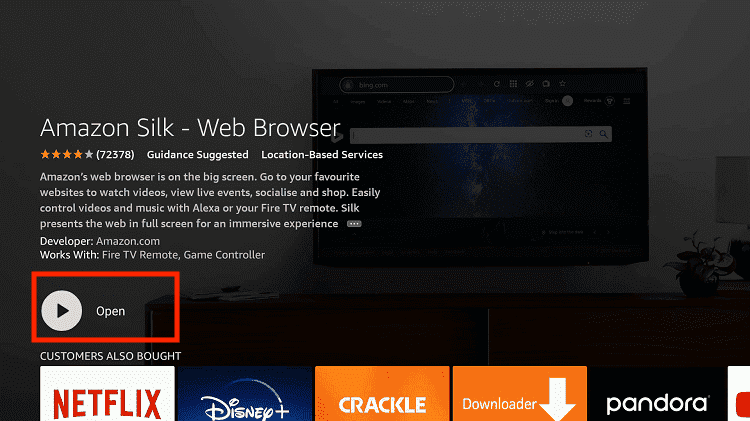
Step 9: Click Open, once the browser is installed.
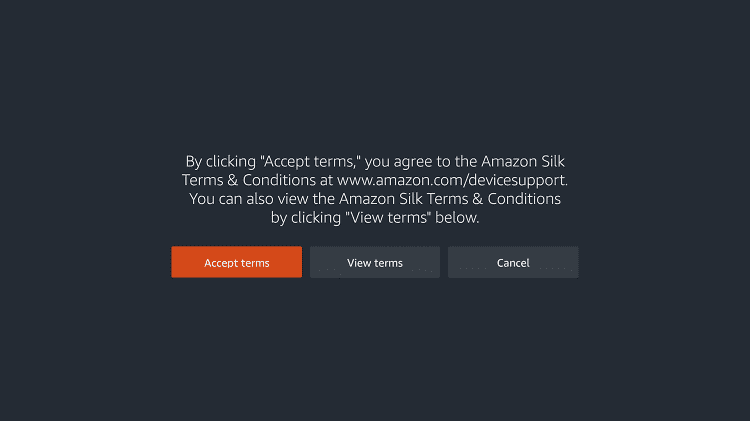
Step 10: Click on Accept Terms to access the browser
Step 11: When the browser launches, the Bing.com tab will open at first.
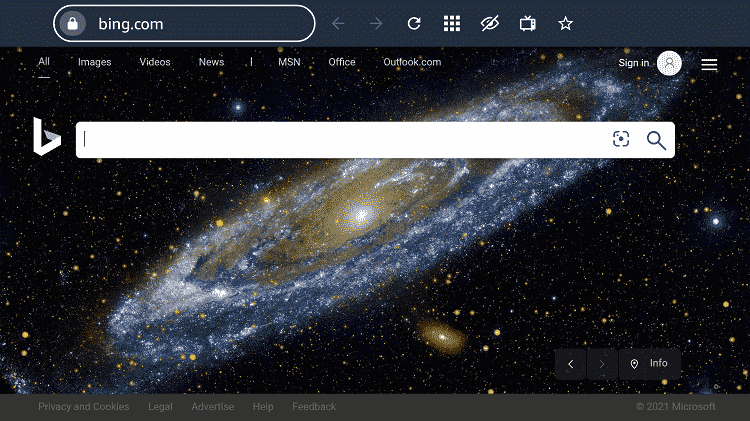
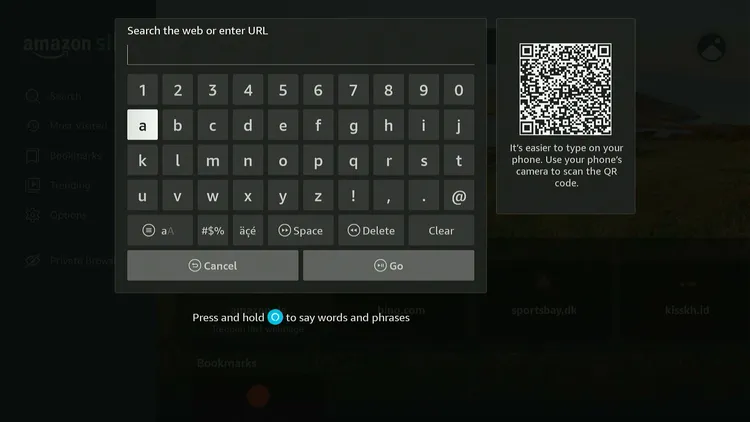
Step 12: Type f1tv.formula1.com in the search box and click “GO”.
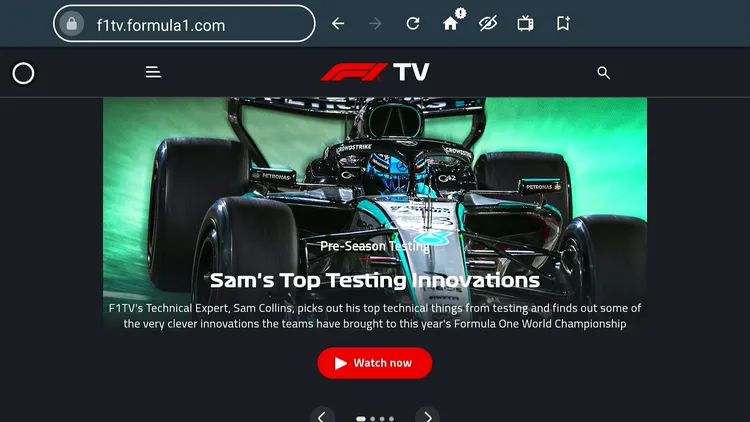
Step 13: Click on the “Hamburger” icon in the top left corner.
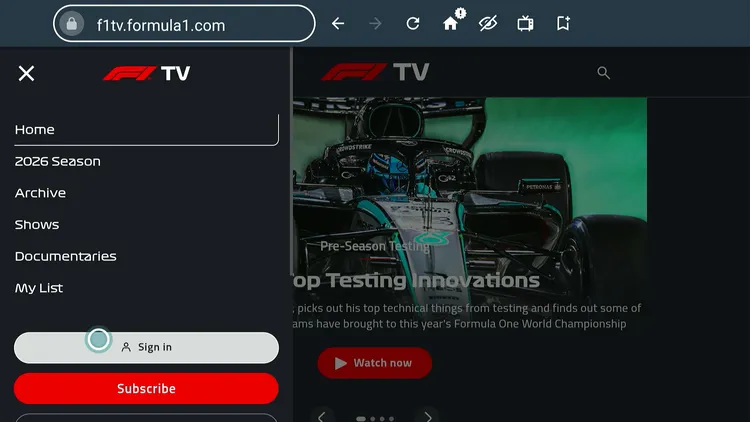
Step 14: Click “Sign In”.
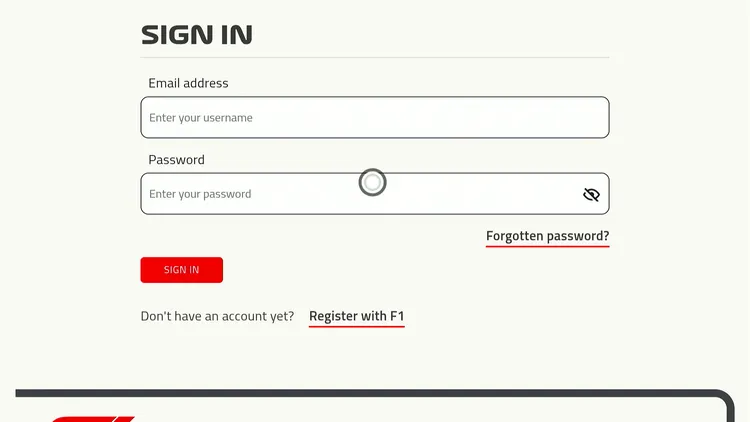
Step 15: Enter your credentials and enjoy streaming!
How to Install F1 TV on FireStick Amazon Appstore
You can also install F1 TV on FireStick from the Amazon Appstore. If you can’t find it on the Amazon Appstore, change your Amazon account to a USA address.
Before changing the Amazon account address, the app might show the “Unavailable” icon on the Amazon Appstore; but after changing the address, you will see the “Download/Get” icon.
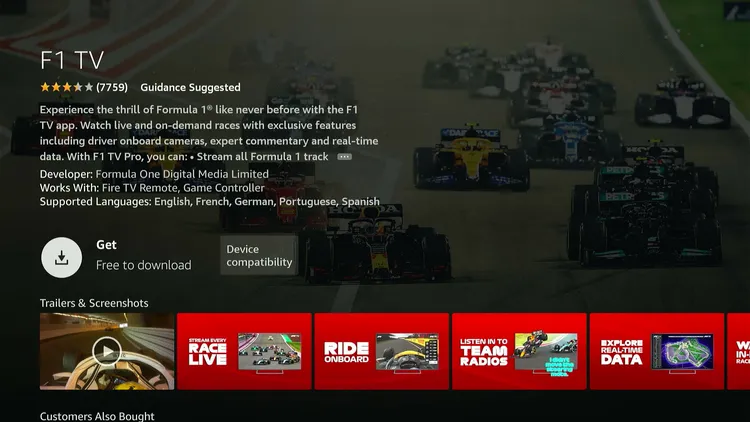
P.S. Once you have changed the address, restart the Fire TV Stick. If you still see the F1 TV app “unavailable” or “Purchasing Failure” error, wait for a few minutes and then try again.
F1 TV Pricing
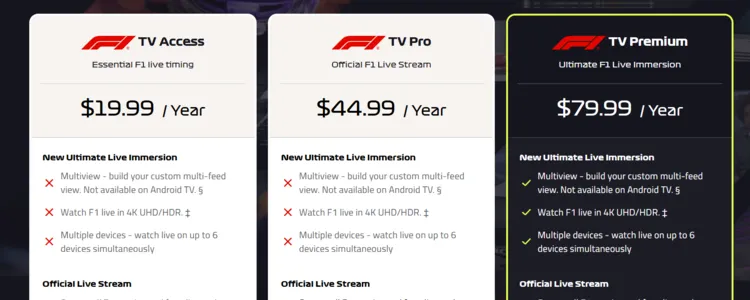
Here’s a quick pricing breakdown of F1 TV pricing:
F1 TV Access
- $2.99/month
- $19.99/year
F1 TV Pro
- $4.99/month
- $44.99/year
F1 TV Premium
- $8.99/month
- $79.99/year
Top F1 TV Features
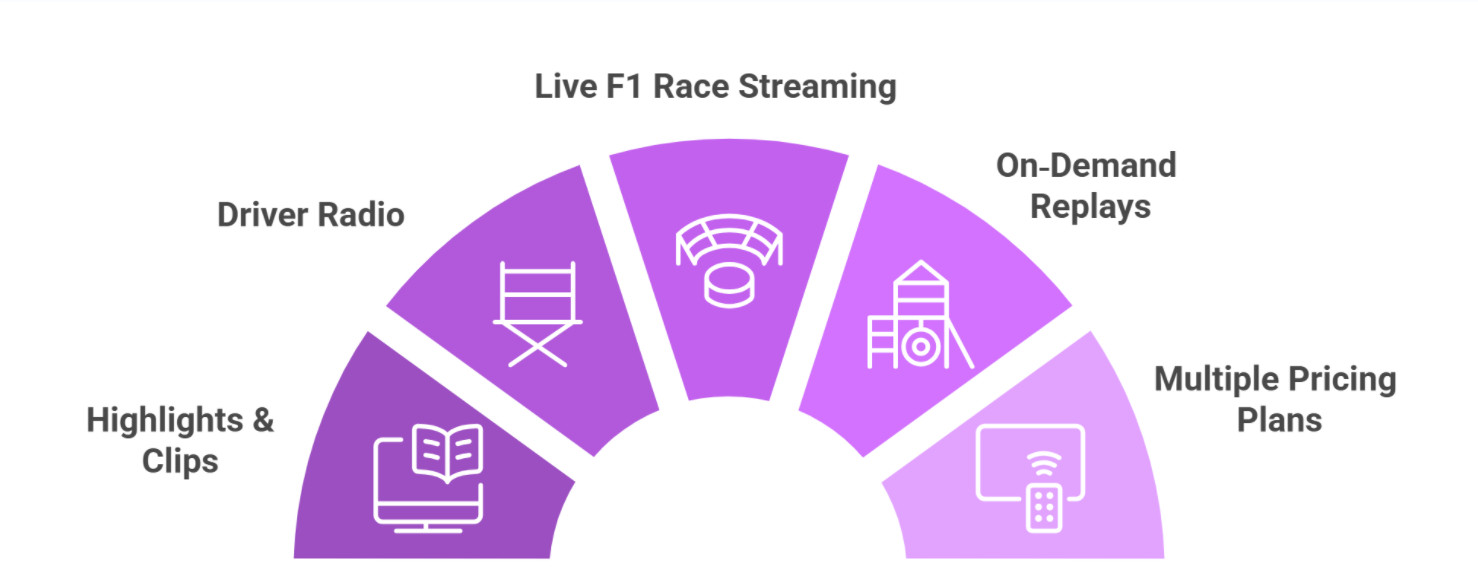
✅ Live F1 race streaming
✅ On‑demand replays
✅ Multi‑camera view
✅ Real‑time timing
✅ Different pricing plans
✅ Driver radio
✅ Highlights & clips
✅ Historic races archive
✅ 4K UHD streaming
✅ F2 & F3 coverage
Trouble Streaming Ft TV on FireStick? Try These Fixes
If you’re dealing with buffering, app crashes, or other streaming glitches on FireStick, try these quick fixes to smooth things out:
- Clear app cache
- Close background apps
- Connect FireStick via Ethernet
- Set video resolution to 1080p/4K
- Restart FireStick
P.S. If you are still facing issues, check out our detailed articles to stop buffering on FireStick and fix playback errors.
F1 TV Alternatives
If you like F1 TV, you would want to try out the following alternatives:
- Fox Sports on FireStick
- NBC Sports on FireStick
- ESPN+ on FireStick
- Sling TV on FireStick
- fuboTV on FireStick
FAQs – F1 TV
Is F1 TV available on FireStick?
Yes, you can install it via the Amazon Appstore. You can also install the APKM/XAPK file using Downloader.
Is F1 TV free on FireStick?
No, F1 TV is a paid subscription service starting at $2.99/month.
Does F1 TV stream Formula 2 and Formula 3?
Yes, F1 TV Pro and Premium include F2 and F3 coverage.
Does F1 TV offer 4K streaming?
Yes, 4K UHD streaming is available with the Premium plan in supported regions.
Can I watch previous seasons on F1 TV?
Yes, F1 TV includes an archive of past races and historic seasons.
Does F1 TV show practice and qualifying sessions?
Yes, F1 TV Pro and Premium stream all practice, qualifying, and sprint sessions live.
Final Thoughts
F1 TV is the official, direct-to-fan platform built specifically for Formula 1 followers who want more than what traditional broadcasters offer.
Beyond live Grand Prix coverage, it gives you deeper access to the sport through onboard cameras, team radios, real-time data, historic race archives, and feeder series like F2 and F3.
While geo-restrictions and subscription tiers are things to keep in mind, F1 TV remains one of the most comprehensive ways to follow the sport year-round.
F1 TV could be geo-restricted in some regions, so you’ll need a reliable VPN like Surfshark to access it worldwide.