Disclosure: Our experts test apps for security before recommending them. If you buy through our links, we may earn a commission. See how it works.
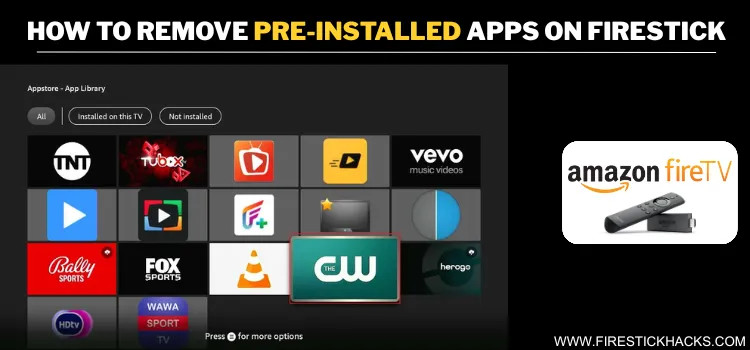
FireStick comes with limited storage (you get a maximum of 16 GB in a few models). While there’s an option to add external storage to FireStick, it’s more convenient to free up the internal storage.
One of the main culprits for low storage is the number of pre-installed Amazon apps like Prime Video, Amazon Music, or Amazon Kids.
These apps can’t be removed, but there’s a workaround. You can uninstall updates on pre-installed apps to cut down on storage and block future updates.
How to Remove Pre-Installed Apps on FireStick [Video]
How to Remove Pre-Installed Apps on FireStick [Screenshots]
To get started, you’ll need the file manager app called MiXplorer. It is a free and easy-to-use tool that lets you access and manage installed and system apps on your FireStick.
Follow the steps below:
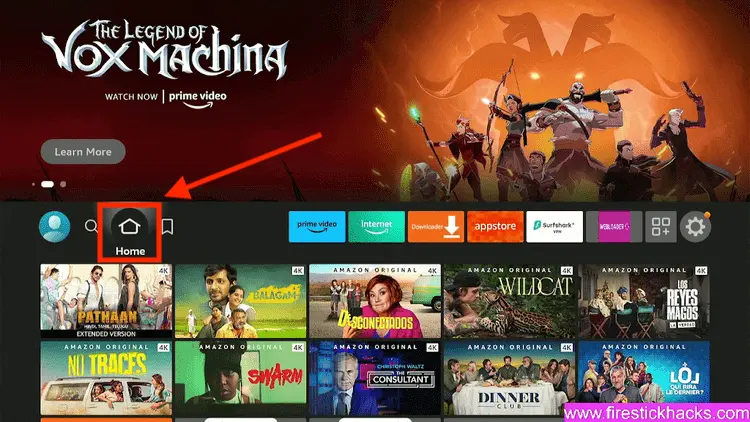
Step 1: Turn ON your FireStick device and Go to FireStick Home
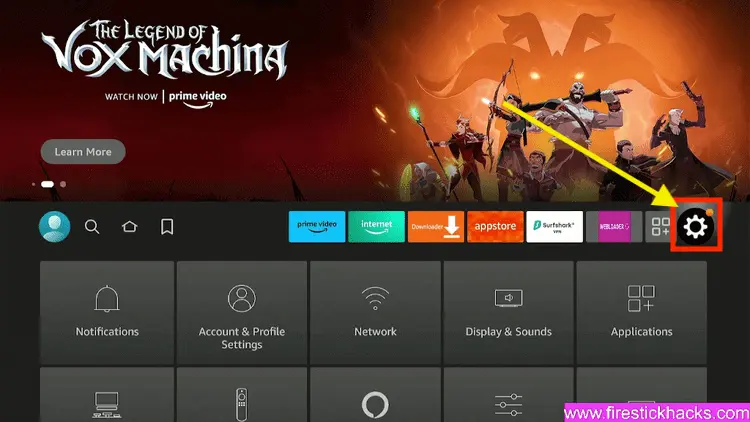
Step 2: Click on the Settings icon
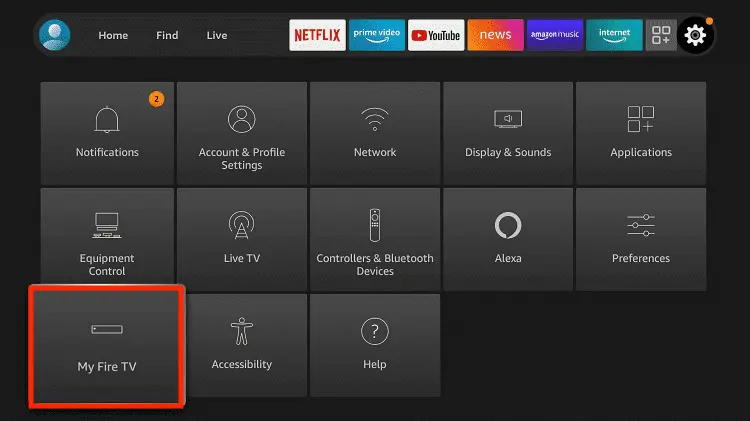
Step 3: Select the My Fire TV option
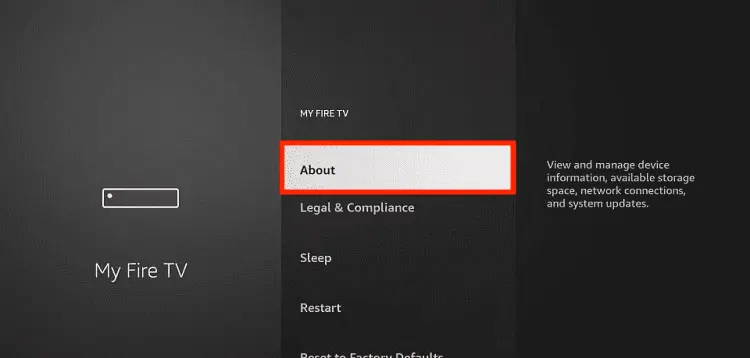
Step 4: To enable the Developer Option, click About.
Note: If you have already enabled the Developer Option, then proceed to Step 10
Step 5: Click on the Fire TV Stick option quickly at least 7 times
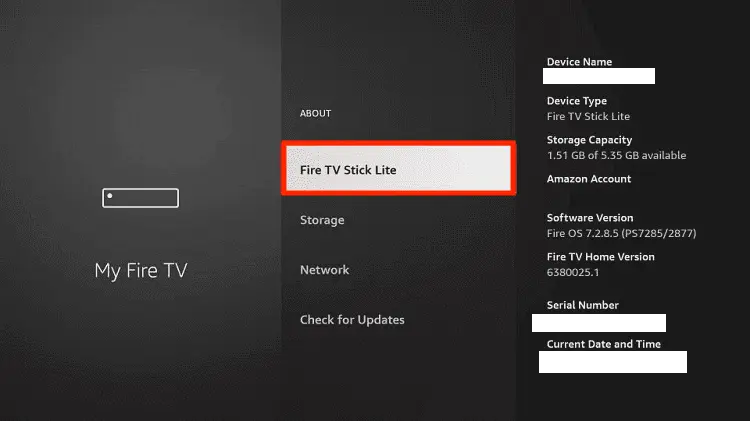
Step 6: Now you will see this message at the bottom saying "No need, you are already a developer". So stop clicking then
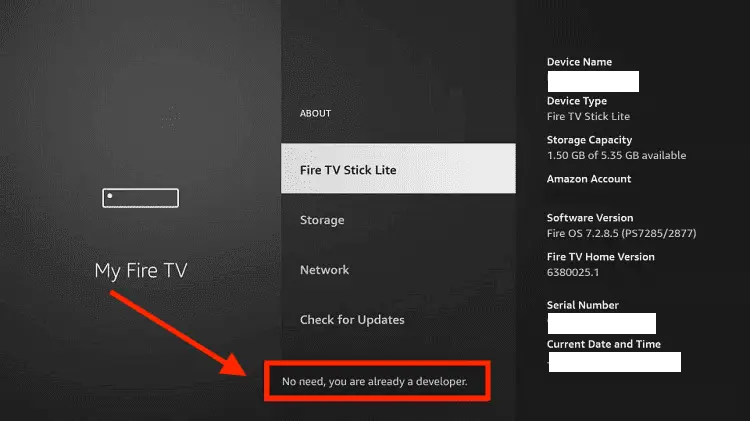
Step 7: Now the Developer Option will appear in the menu so click on it
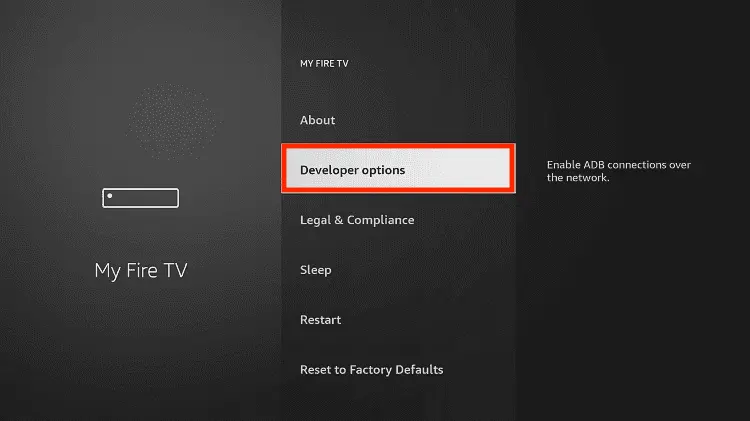
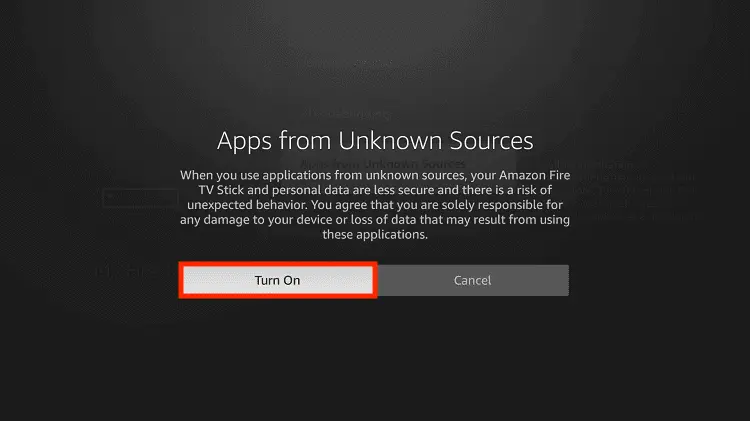
Step 8: Choose Apps from Unknown Sources to turn it ON
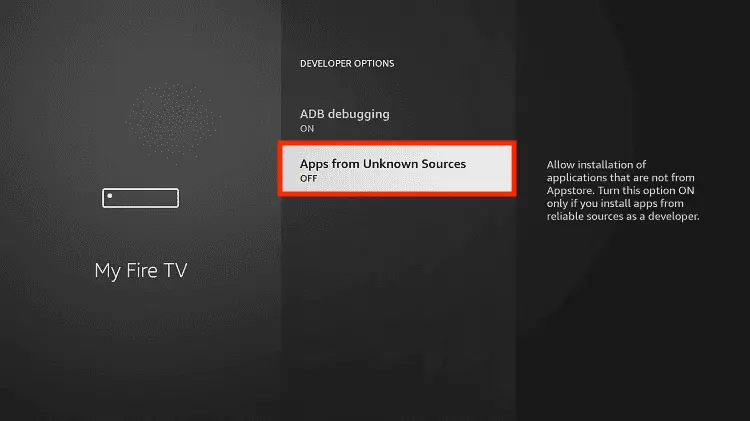
Step 9: Simply click Turn On
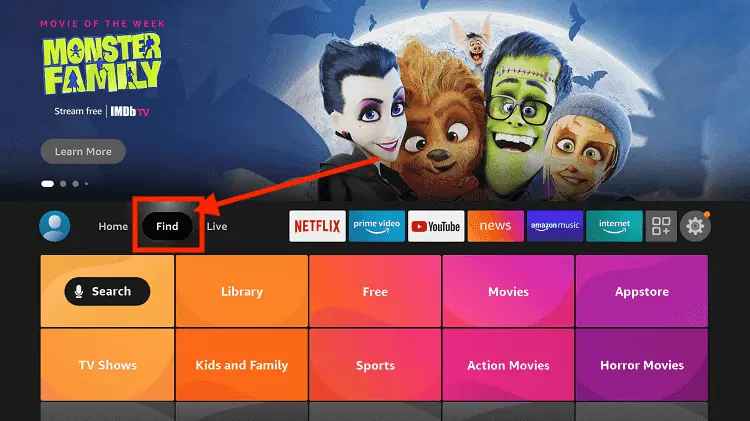
Step 10: Now return to the FireStick Home menu by pressing the "Home" icon on the remote and click on Find
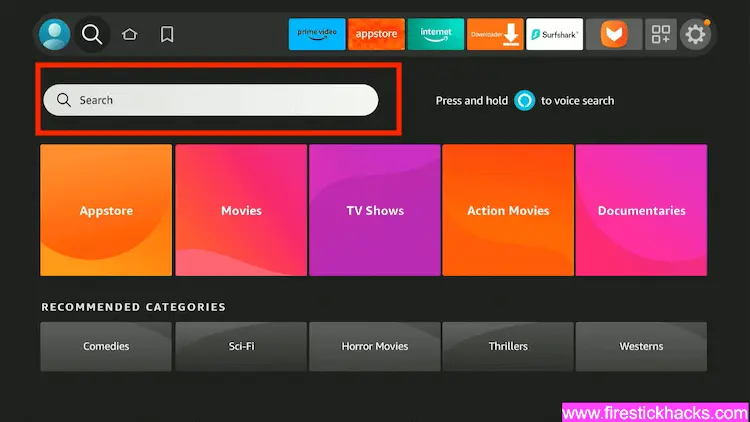
Step 11: Now select the Search icon
Step 12: Type Downloader and press search
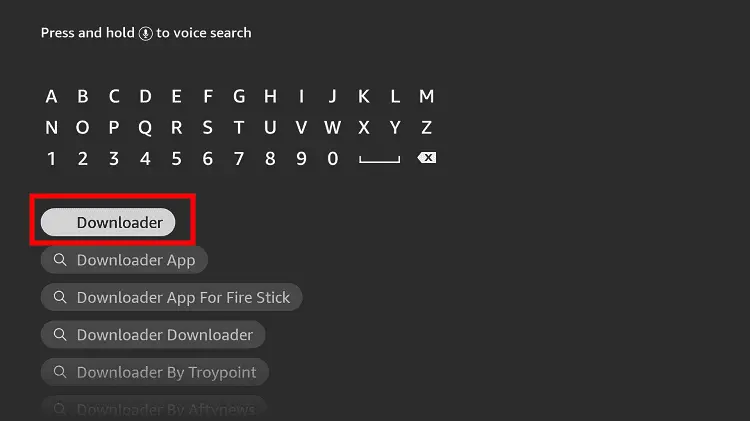
Step 13: Select the Downloader App icon from the list available in the Amazon Store
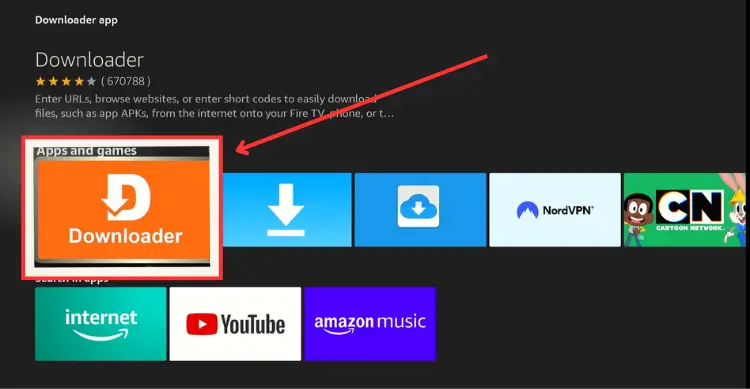
Step 14: Tap Get/Download
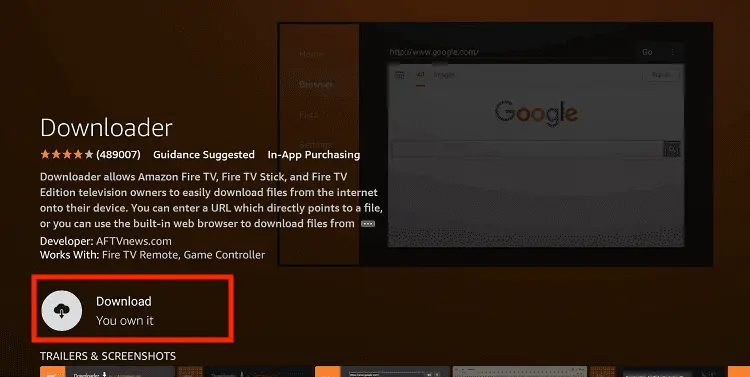
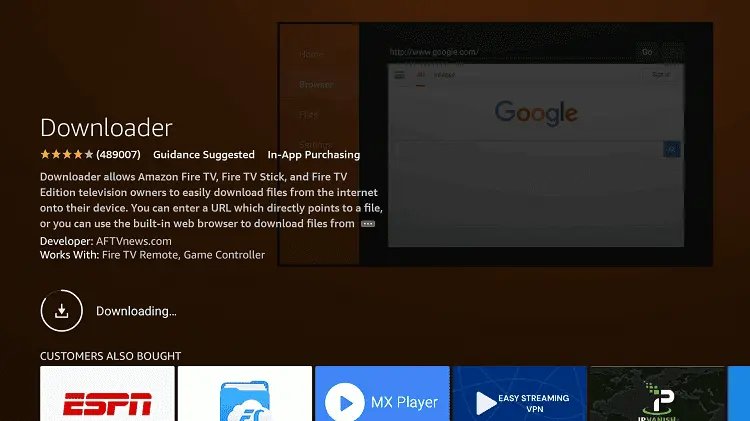
Step 15: Wait for a while until the installation process is completed
Step 16: Now click Open
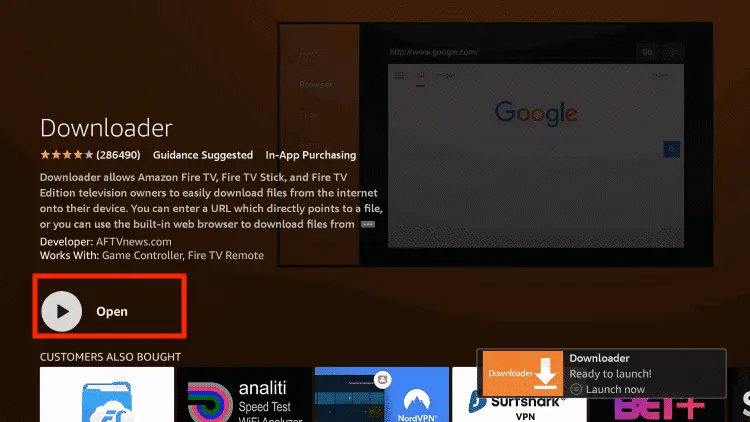
Step 17: You will see a popup about Downloader app latest update. Click "OK".

Step 18: Click OK again

Step 19: This is the Downloader App interface, Click the Search Bar on top

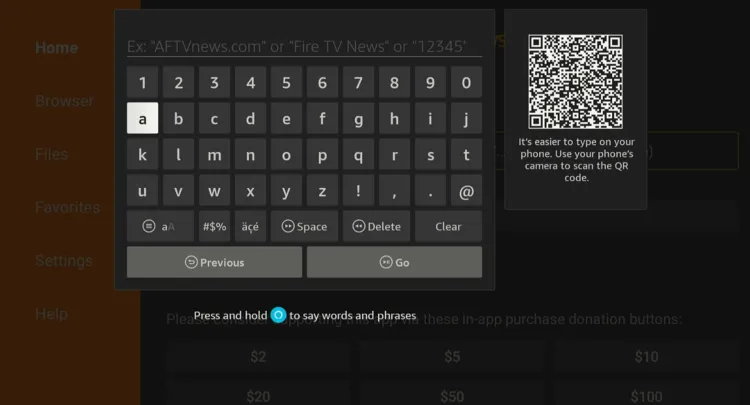
Step 20: Enter the MiXplorer Downloader Code 730116 in the search box OR enter this URL bit.ly/fsh-downloads and click Go.
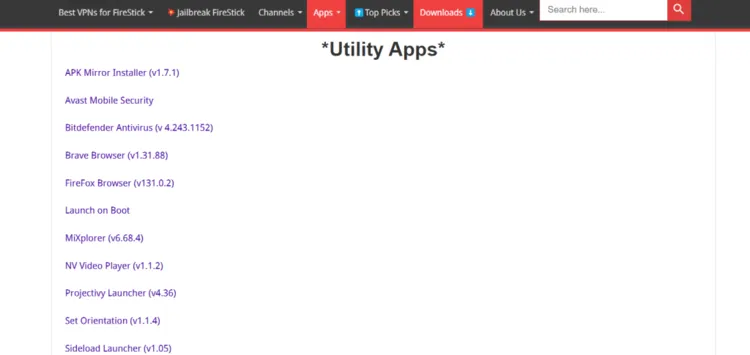
Step 21: Select “MiXplorer” from the “Utility Apps” section.
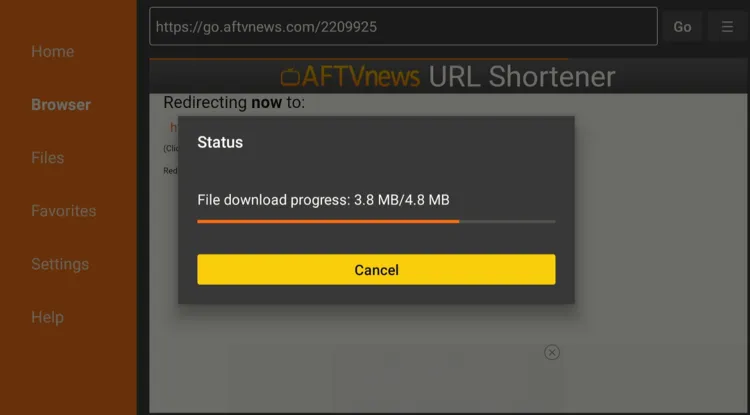
Step 22: Wait for the download to complete.
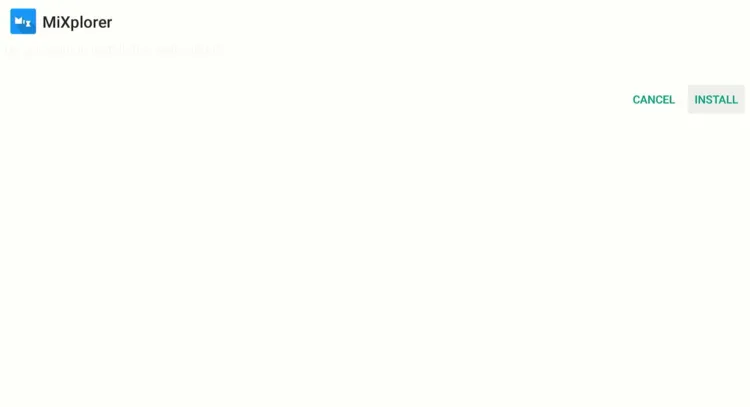
Step 23: Tap “Install”.
Step 24: Click “Done”.
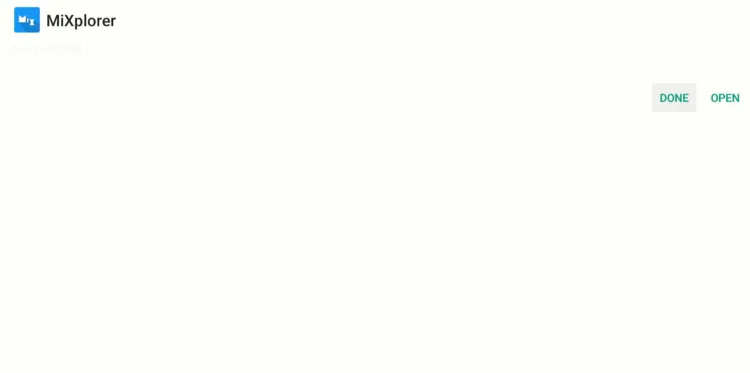
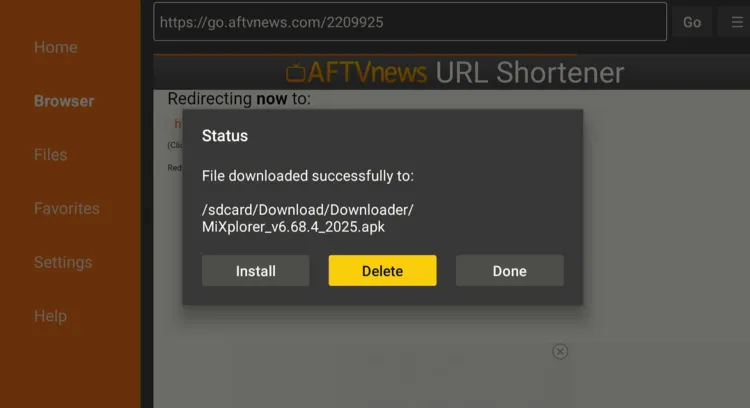
Step 25: Select “Delete”.
Note: Deleting the MiXplorer APK will free up space on the FireStick.
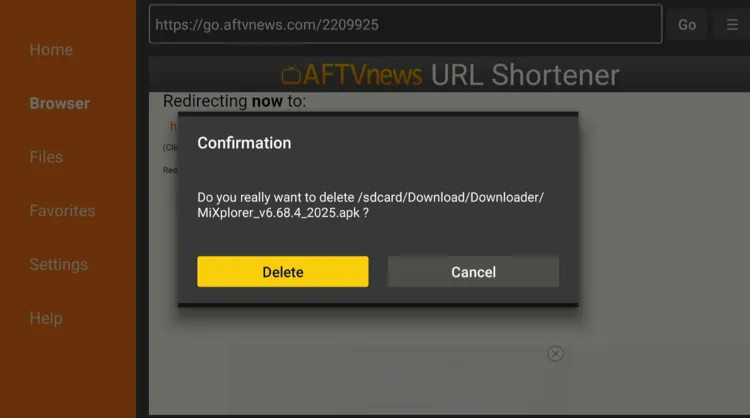
Step 26: Select “Delete” to complete the process.
Step 27: Select “Apps Library” from the FireStick home screen.
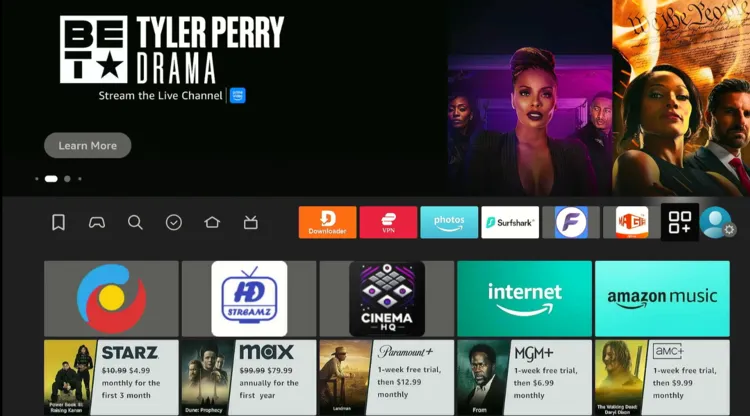
Step 28: Choose “MiXplorer”.
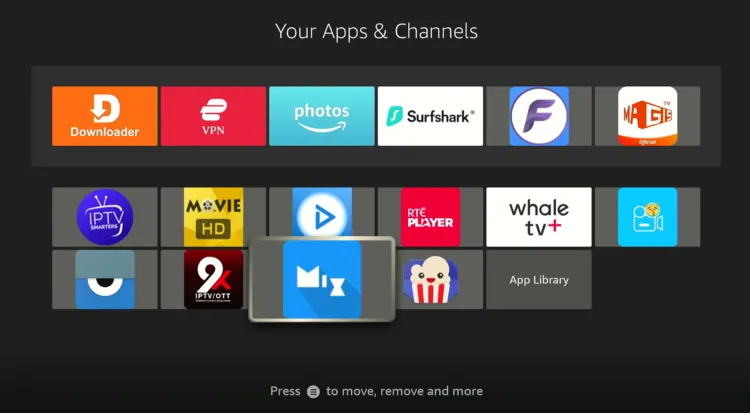
Step 29: Click “Agree”.
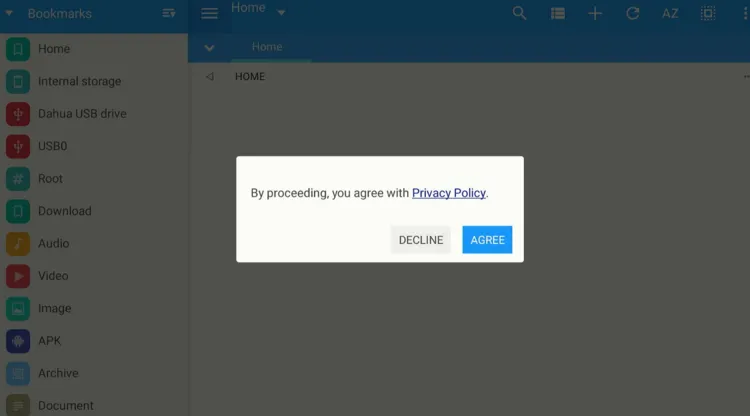
Step 30: Tap “Agree” again.
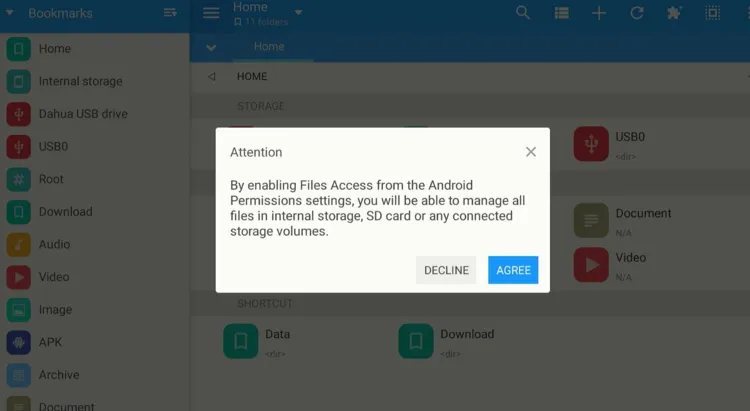
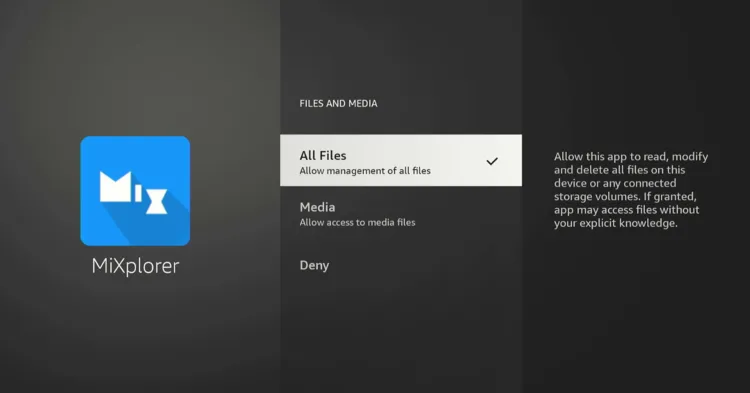
Step 31: Now you will be taken to this section; select “Files and Media“.
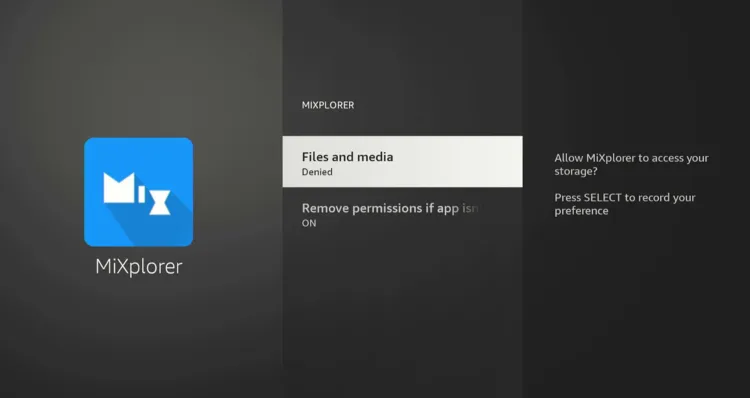
Step 32: Choose “All Files” and click the back button on your FireStick remote to go back to the MiXplorer app.
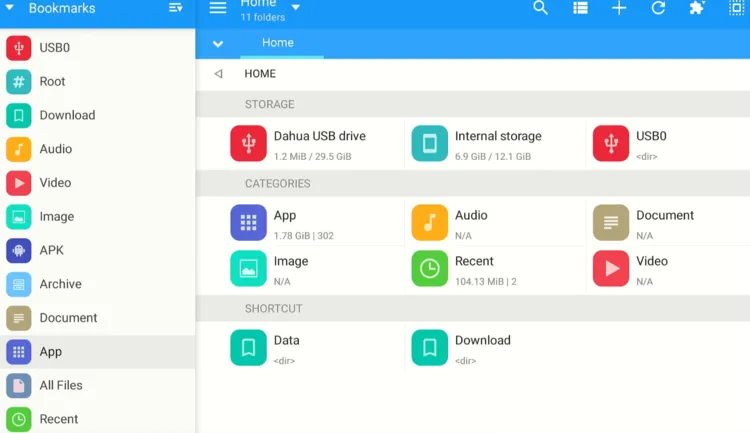
Step 33: Select “App” from the left sidebar.
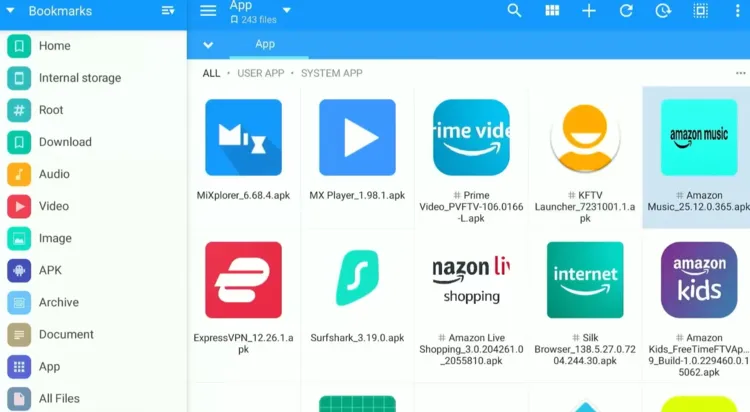
Step 34: You will see all apps installed and system apps here. Select a system app and then long-press the “Select” button on FireStick.
P.S. To save time, you can select multiple apps in one go.
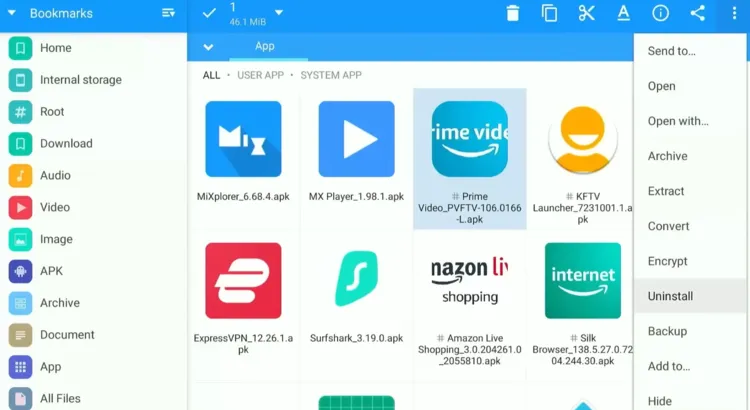
Step 35: Tap “Three Dots” from the top right corner and then navigate to “Uninstall”.
Step 36: Select “OK”.
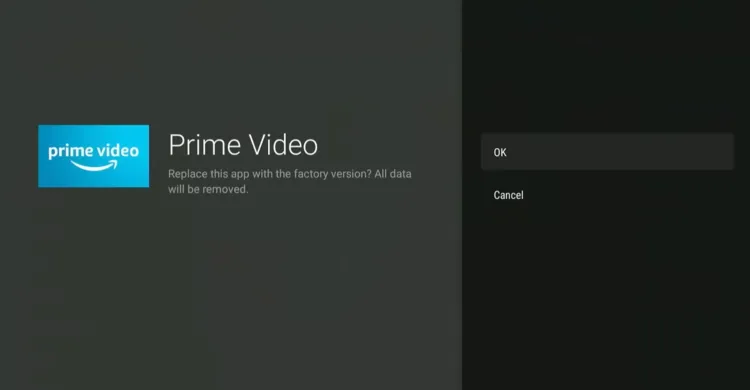
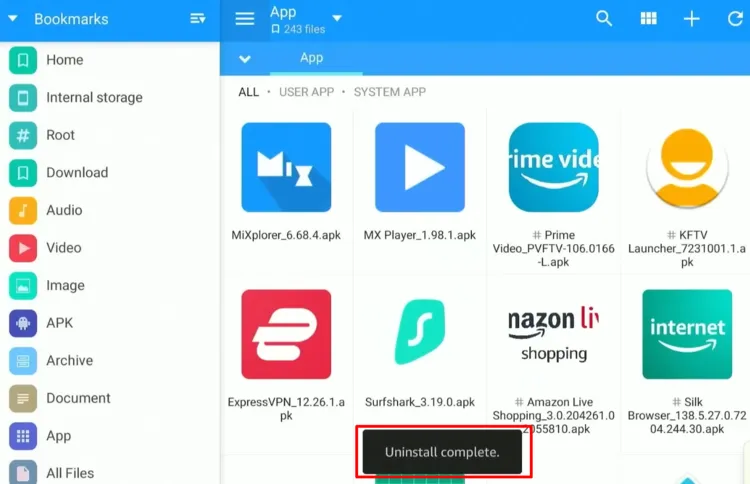
Step 37: As you can see, the uninstallation process is complete.
How to Block Updates for Pre-Installed Apps on FireStick
Amazon keeps releasing updates for pre-installed apps. So if you don’t want to uninstall updates frequently, then you have the option to block updates.
We know that there’s a hack to block updates on FireStick. However, you can keep only selected pre-installed apps from updating.
Note: Fire OS only allows one VPN to be active at a time. Since NetGuard works by creating a local VPN connection to control network routing, it uses up the only available VPN slot.
Follow the steps below:
Step 1: Turn ON your FireStick device and Go to FireStick Home
Step 2: Click on the Settings icon
Step 3: Select the My Fire TV option
Step 4: To enable the Developer Option, click About.
Note: If you have already enabled the Developer Option, then proceed to Step 10
Step 5: Click on the Fire TV Stick option quickly at least 7 times
Step 6: Now you will see this message at the bottom saying "No need, you are already a developer". So stop clicking then
Step 7: Now the Developer Option will appear in the menu so click on it
Step 8: Choose Apps from Unknown Sources to turn it ON
Step 9: Simply click Turn On
Step 10: Now return to the FireStick Home menu by pressing the "Home" icon on the remote and click on Find
Step 11: Now select the Search icon
Step 12: Type Downloader and press search
Step 13: Select the Downloader App icon from the list available in the Amazon Store
Step 14: Tap Get/Download
Step 15: Wait for a while until the installation process is completed
Step 16: Now click Open
Step 17: You will see a popup about Downloader app latest update. Click "OK".
Step 18: Click OK again
Step 19: This is the Downloader App interface, Click the Search Bar on top
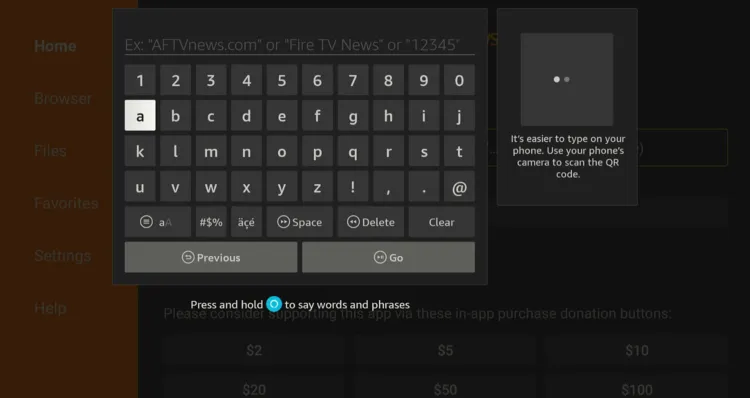
Step 20: Enter the NetGuard Downloader Code 730116 in the search box OR enter this URL bit.ly/fsh-downloads and click Go.
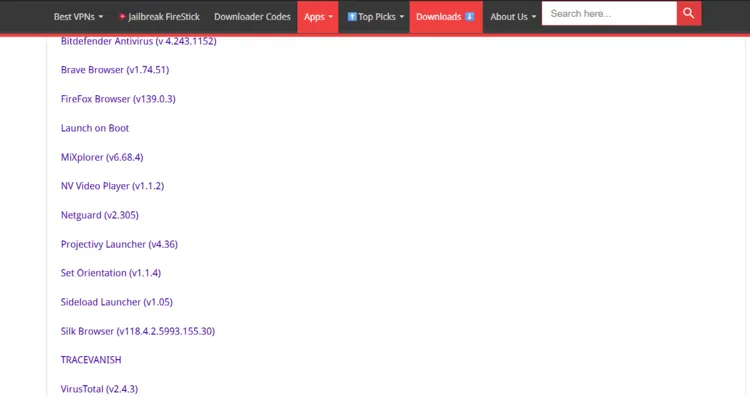
Step 21: Scroll down and tap “NetGuard” from the “Utility Apps” category.
Step 22: The downloading will start.
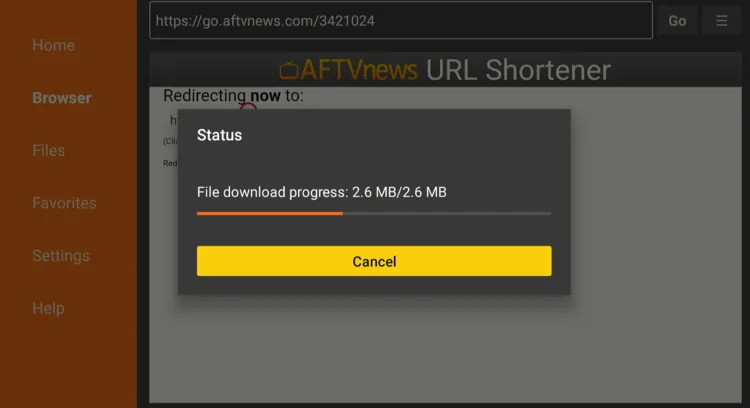
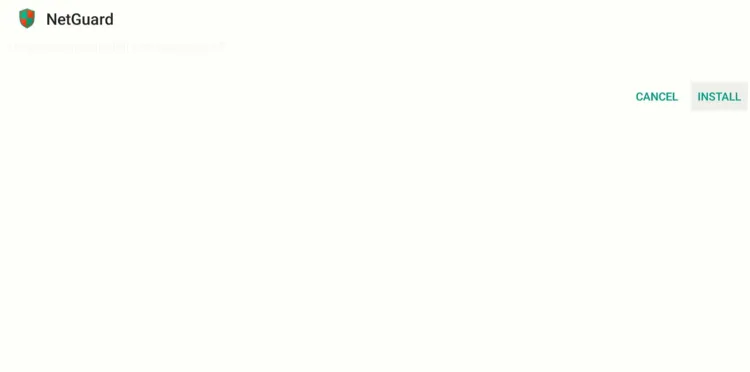
Step 23: Click “Install”.
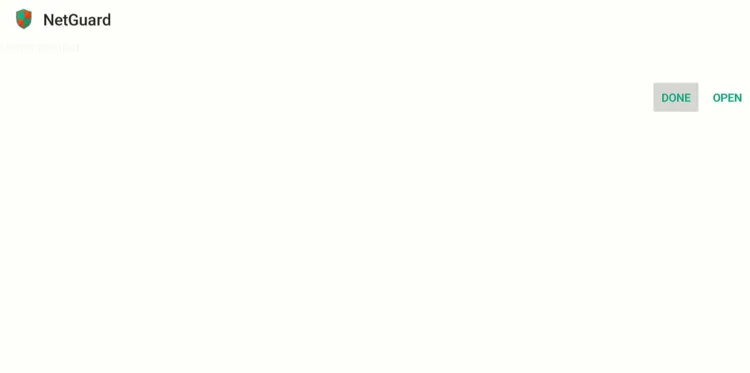
Step 24: Click “Done”.
Step 25: Select “Delete”.
Note: Deleting the NetGuard APK will free up space on the FireStick.
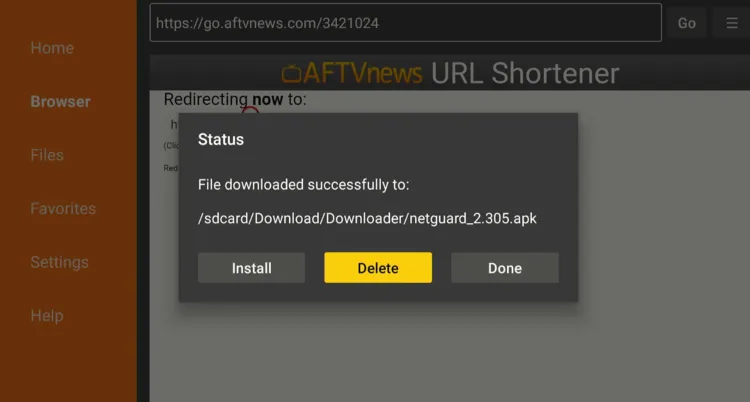
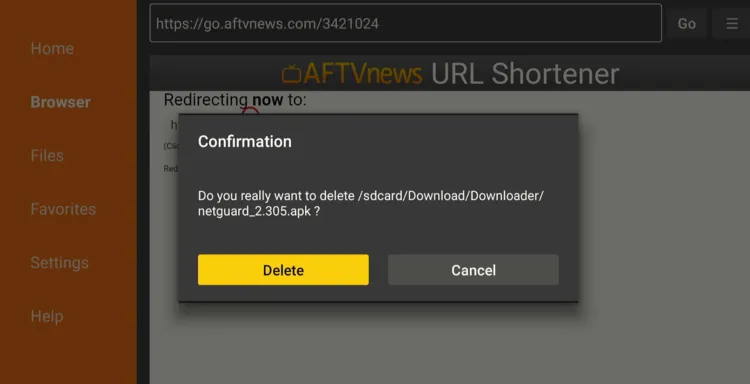
Step 26: Select “Delete” again for confirmation.
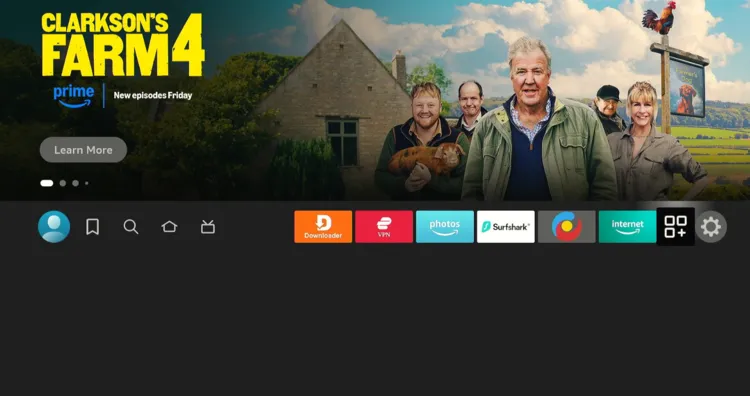
Step 27: Go to the FireStick home screen and select the “Apps Library” icon next to the settings.
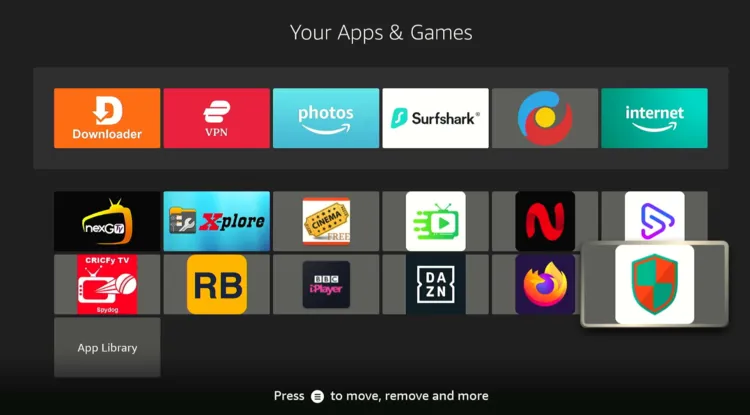
Step 28: Choose the “NetGuard” app.
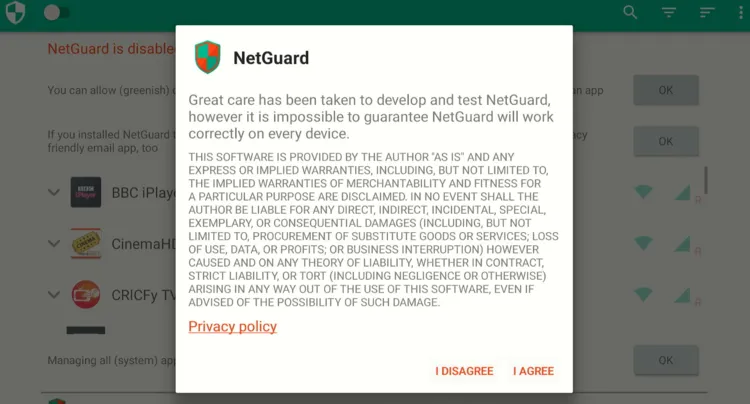
Step 29: Click “Agree”.
Step 30: Click the “three dots” icon in the top right corner.
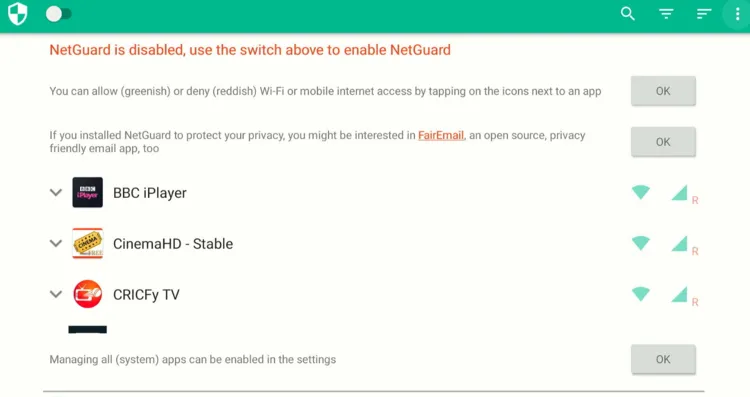
Step 31: Choose “Settings”.
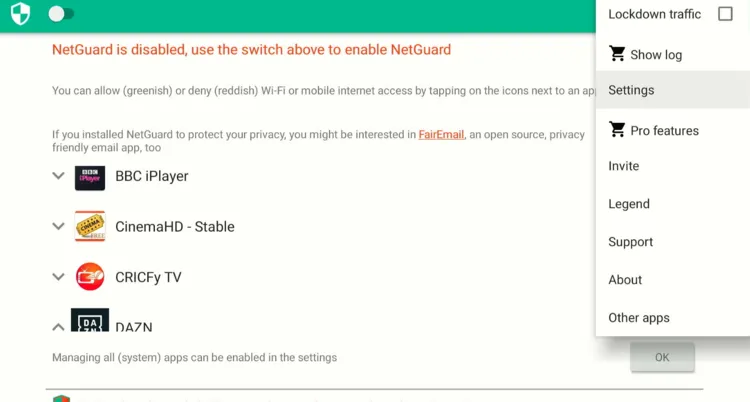
Step 32: Click “Advanced Options”.
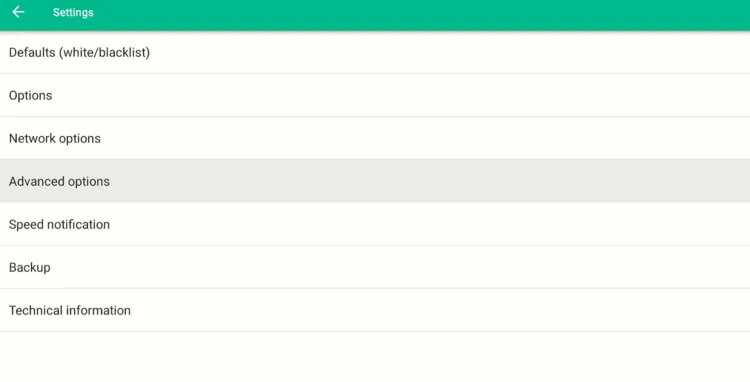
Step 33: Turn on “Manage System Apps”.
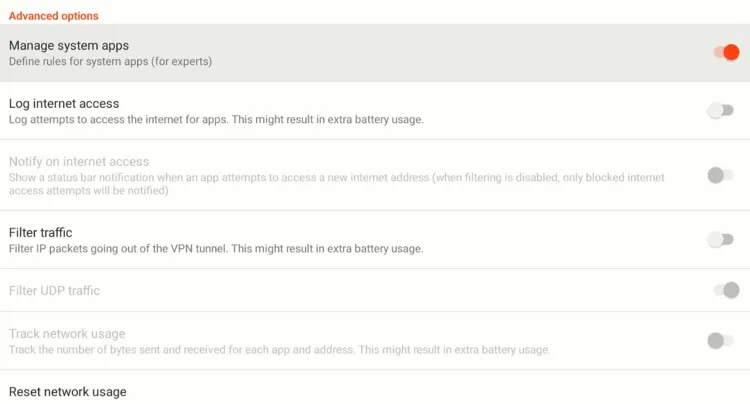
Step 34: Now, come back to the NetGuard home screen. Scroll down and disable the “Wi-Fi” and “Data” icons of the apps you want to stop updates for.
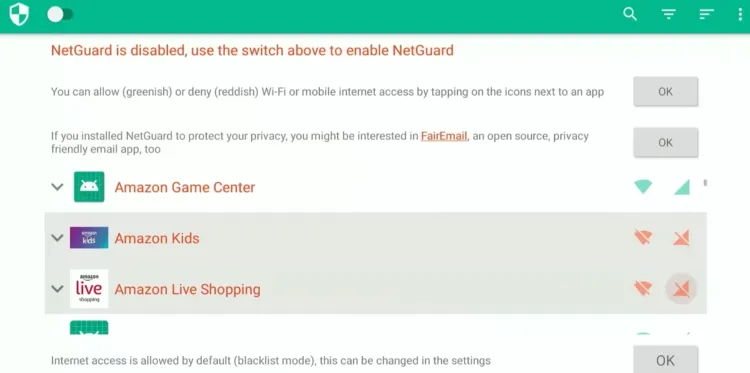
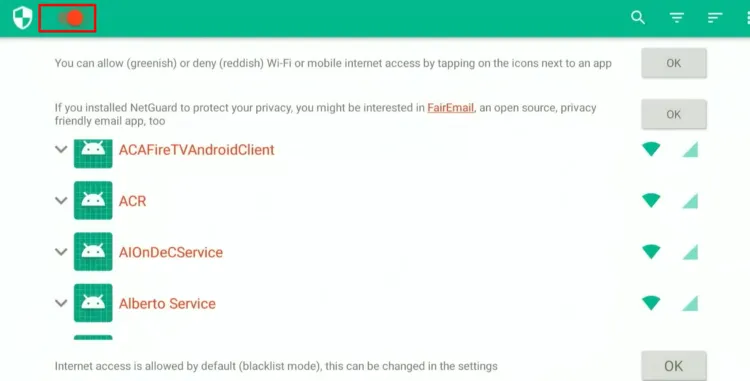
Step 35: Click the “Toggle” button in the top left corner to activate NetGuard after you restart the device.
FAQs – Remove Pre-Installed FireStick Apps
Can I uninstall pre-installed apps on FireStick?
No, you can’t remove them completely, but you can uninstall their updates to free up space on FireStick.
Will blocking updates affect my FireStick’s performance?
Blocking updates will only affect selected apps; other apps will continue to work normally.
Can I use a VPN and NetGuard together on FireStick?
No, Fire OS allows only one VPN at a time, and NetGuard uses that slot for its network control.
Do I need to keep NetGuard running all the time?
Yes, it must stay active to maintain blocked network connections for selected apps.
Conclusion
At the end of the day, keeping your FireStick efficient is about smart management. With a few tweaks, you’ll have a faster, smoother streaming experience and more space for the apps you actually use.
While Amazon’s pre-installed apps can’t be completely removed, uninstalling their updates and blocking future ones can free up a lot of space on FireStick.
Using tools like MiXplorer and NetGuard, you can easily manage storage and stop unwanted updates from taking up precious space.
Just remember, since NetGuard uses FireStick’s VPN slot, you can’t use any other VPN with it.