Disclosure: Our experts test apps for security before recommending them. If you buy through our links, we may earn a commission. See how it works.
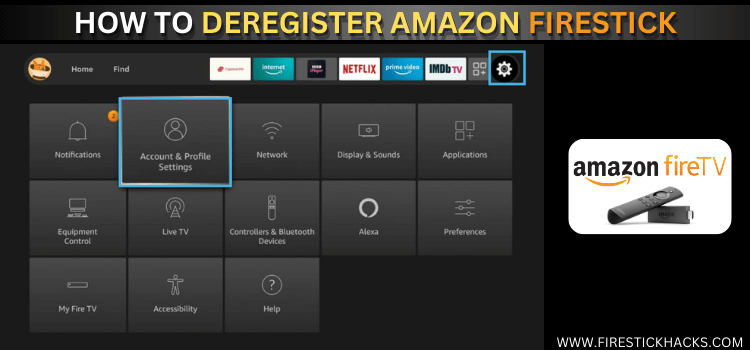
Before selling or giving away your FireStick, deregister it. Otherwise, the new user could access your Amazon apps, purchases, and other personal information.
Deregistering a FireStick is simple. The most common method is through the Firestick settings. However, you can also deregister your device even after handing it over or selling it to someone.
Curious how? Keep reading, and we’ll walk you through both methods step by step so you can make sure your Firestick is completely unlinked from your Amazon account.
2 Ways to Deregister FireStick
The following 2 methods will let you deregister FireStick in a jiffy:
How to Deregister FireStick from Settings
The easiest way to unlink your Firestick from your Amazon account is through settings. This method takes just a few seconds and ensures your account is safely removed before handing over the device.
Follow the steps below:
Step 1: Click the “Settings” icon in the top right corner.
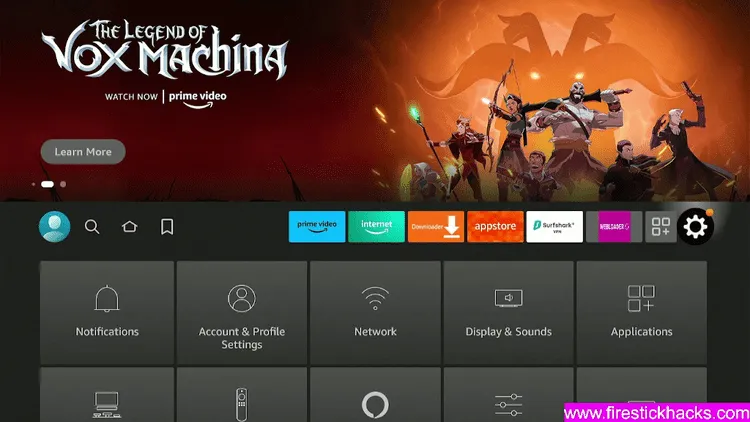
Step 2: Choose “Account & Profile Settings”.
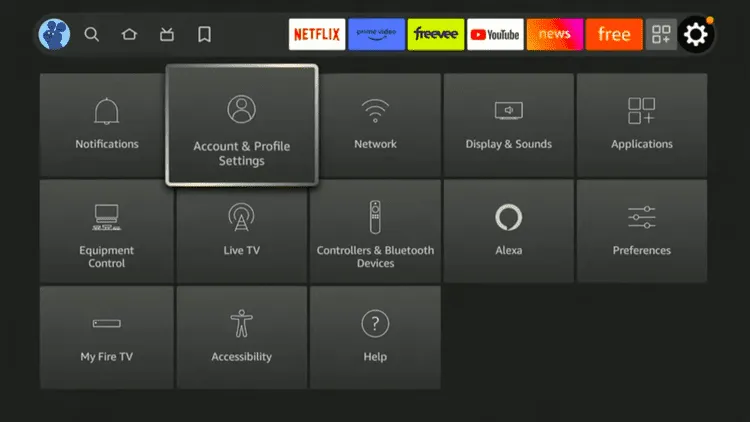
Step 3: Click on the “Amazon Account” icon.
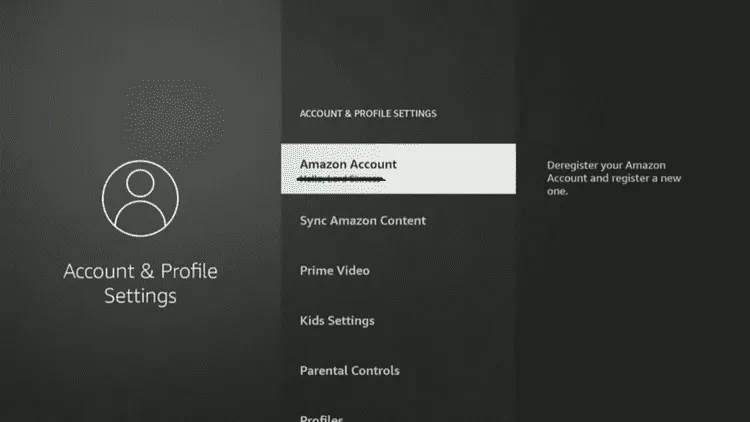
Step 4: Tap “Deregister”.
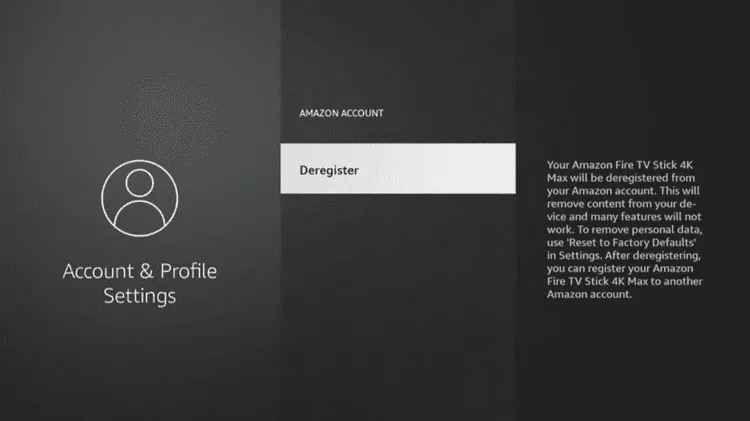
Step 5: Click “Deregister” again to complete the process.
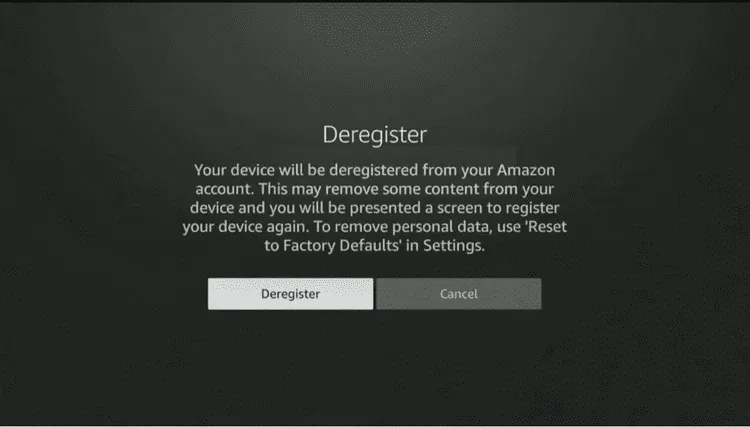
Step 6: Wait for the process to complete.

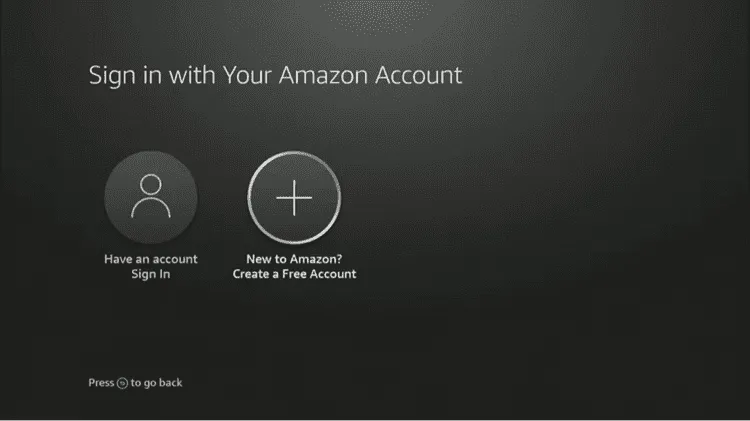
Step 7: Now you will see this pop-up, which means the deregistration process is complete.
How to Deregister FireStick After Selling/Gifting It
Forgot to deregister FireStick before selling or gifting it to someone? Don’t worry; you can still do it remotely without needing the device.
Follow the steps below:
Step 1: Log in to your Amazon account via www.amazon.com and click “Accounts & Lists”.
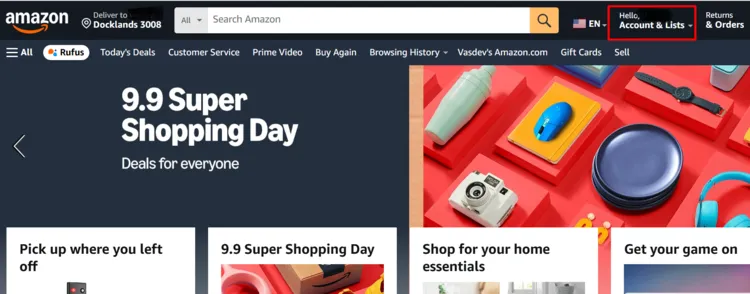
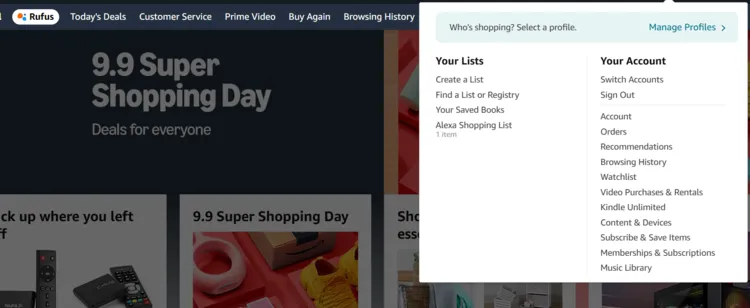
Step 2: Navigate to “Content & Devices”.
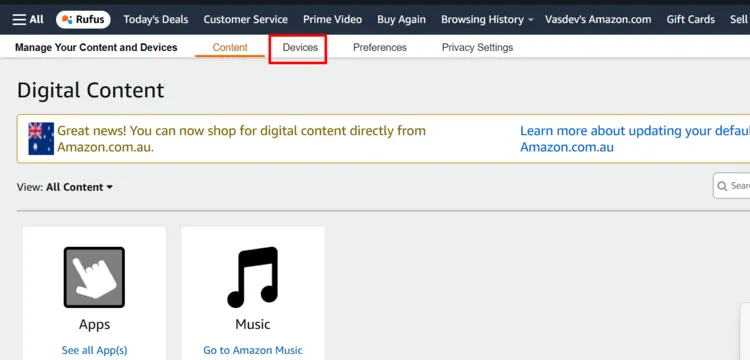
Step 3: Choose “Devices”.
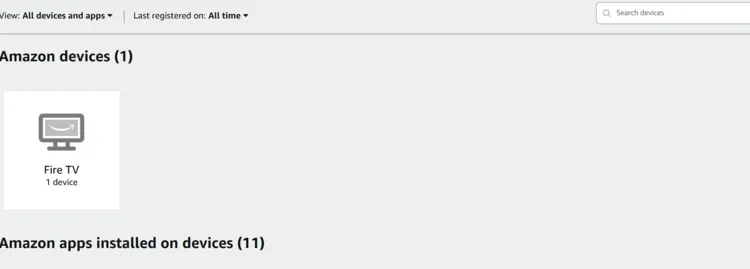
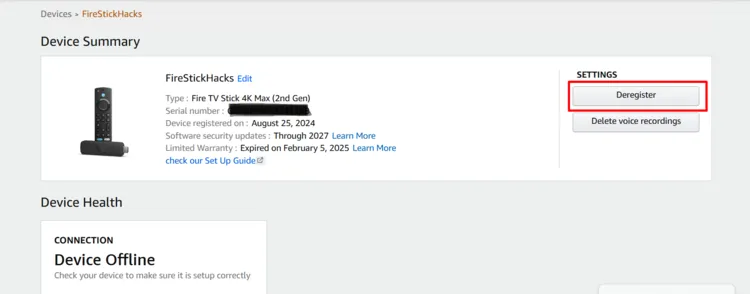
Step 4: Now you will see all the FireStick devices linked to your account; choose the device you want to deregister.
Step 5: Tap “Deregister”.
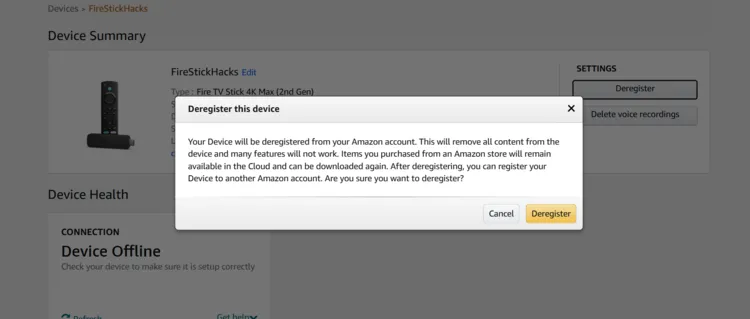
Step 6: Click “Deregister” again to complete the process.
Deregistering vs Resetting FireStick
People often confuse deregistering with resetting a FireStick, but they’re two different things.
Deregistering simply unlinks your Amazon account, removing access to your apps and purchases.
Resetting, on the other hand, wipes the device completely. It erases all apps, data, and settings, simply bringing it back to factory condition.
In short, deregister signs you out, while reset makes the FireStick brand new.
Common Issues When Deregistering FireStick (and Fixes)
While deregistering a FireStick is usually a straightforward process, you may sometimes face a few hiccups along the way.
Here are some common issues and how you can fix them:
1. FireStick Not Showing in Your Amazon Account
Sometimes, your FireStick may not appear under “Devices” in your Amazon account.
👉 Fix: Make sure you’re logged in with the same Amazon account that was used on the FireStick. If it still doesn’t show, refresh the page or check again after a few minutes.
2. Deregister Option Missing in Settings
If you don’t see the deregister button on your FireStick, it could be due to a temporary glitch.
👉 Fix: Restart the FireStick and check again. If that doesn’t work, update the FireStick software or try deregistering through your Amazon account online.
3. Device Still Linked After Deregistering
Occasionally, even after deregistering, the FireStick may appear tied to your account.
👉 Fix: Perform a factory reset on the device or remove it again from the “Devices” section in your Amazon account.
FAQs – Deregister FireStick
What happens when I deregister my FireStick?
Your Amazon account gets unlinked, removing access to your apps, purchases, and personal data.
Can I use my FireStick after deregistering it?
No, you’ll need to sign in again with the same or a new Amazon account.
Do I need the FireStick device to deregister it?
No, you can also deregister it remotely through your Amazon account online.
Will deregistering delete my apps and data?
Yes, it removes all account-related apps, data, and settings tied to your Amazon account.
Why should I deregister before selling or gifting my FireStick?
It protects your Amazon account and ensures the new user can set it up without issues.