Disclosure: Our experts test apps for security before recommending them. If you buy through our links, we may earn a commission. See how it works.
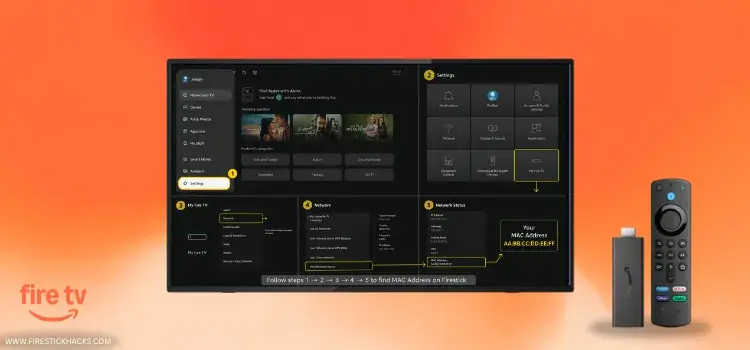
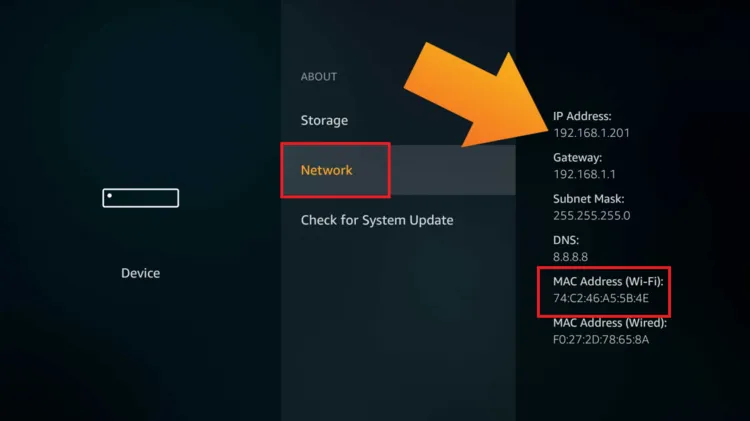
If you’re trying to connect your FireStick to a dorm, hotel, or public Wi-Fi network, you may be asked to provide the device’s MAC address.
However, Amazon has redesigned the FireStick interface multiple times since 2014. So the steps to find the MAC address vary depending on your Fire OS interface.
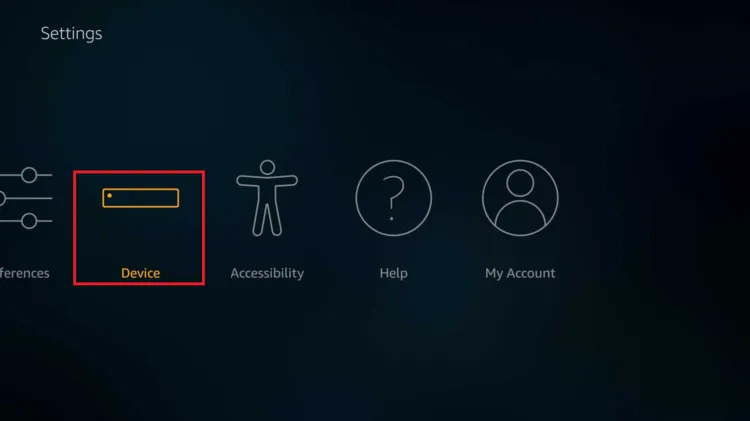
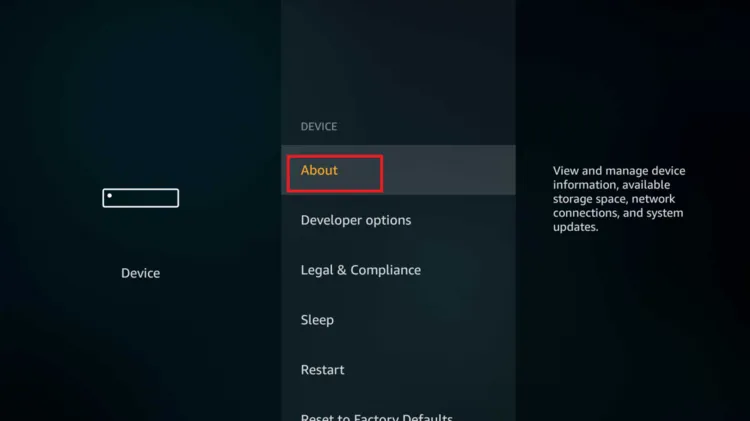
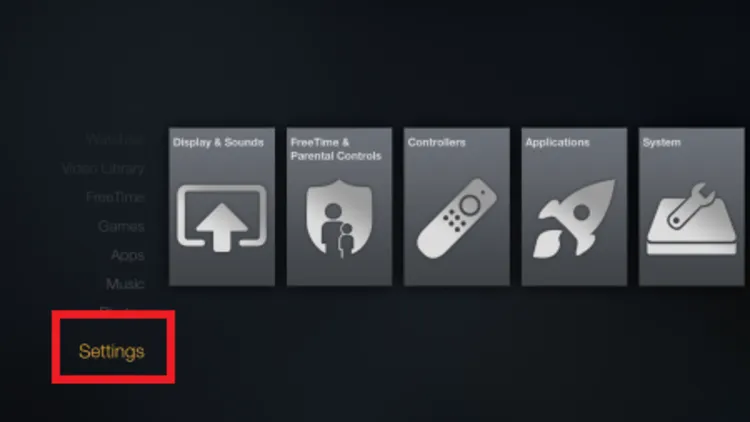
In this guide, I’ll show you how to find your FireStick’s MAC address on all three Fire TV interfaces (2014–2016, 2016–2020, and 2020–present).
Always up to date: We update this guide every time FireStick receives a software update or Amazon changes its menu layout.
How to Find MAC Address on FireStick
Choose the Fire TV interface below based on your FireStick’s release year, then follow the corresponding steps to find the MAC address.
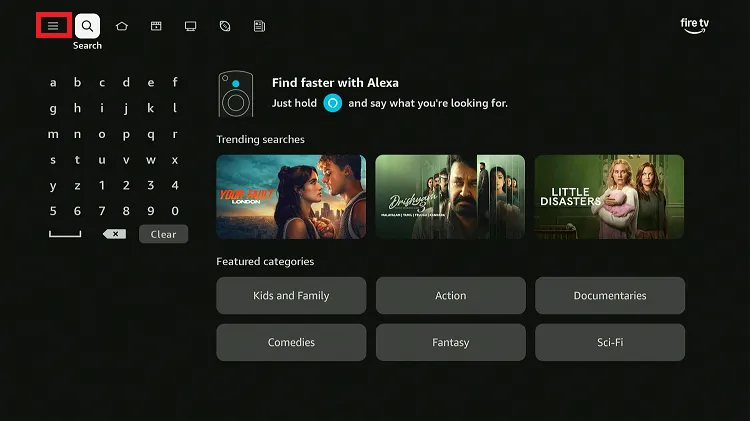
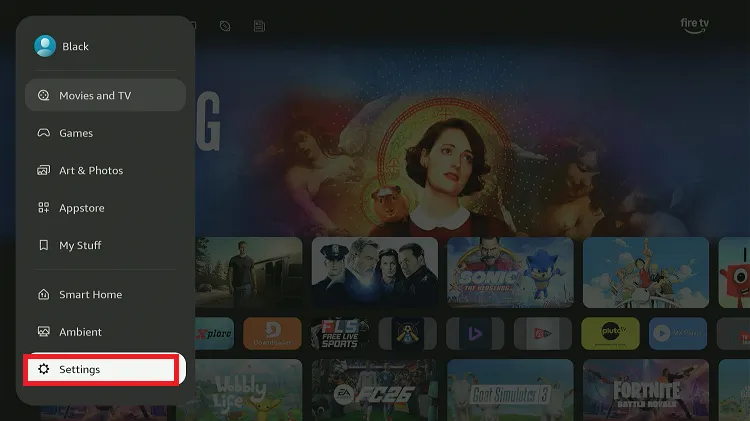
FireStick Interface 2020 – Present
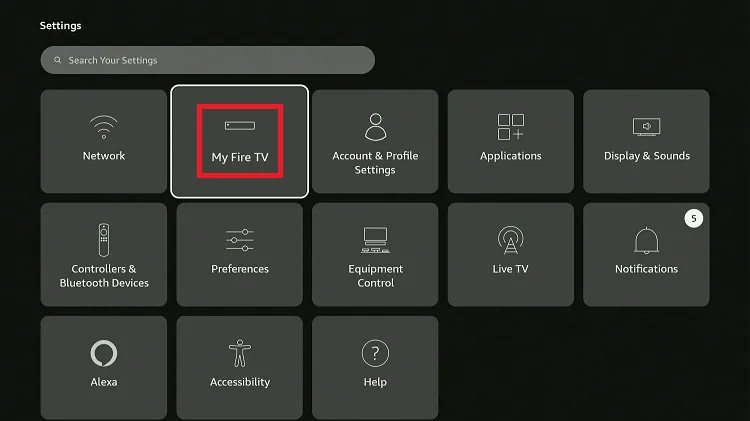
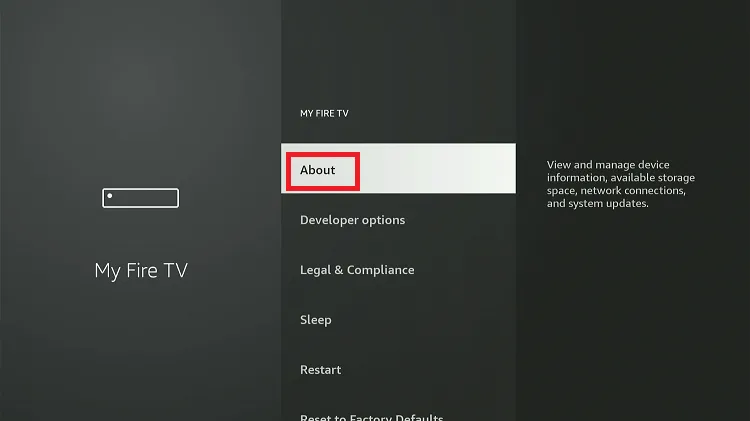
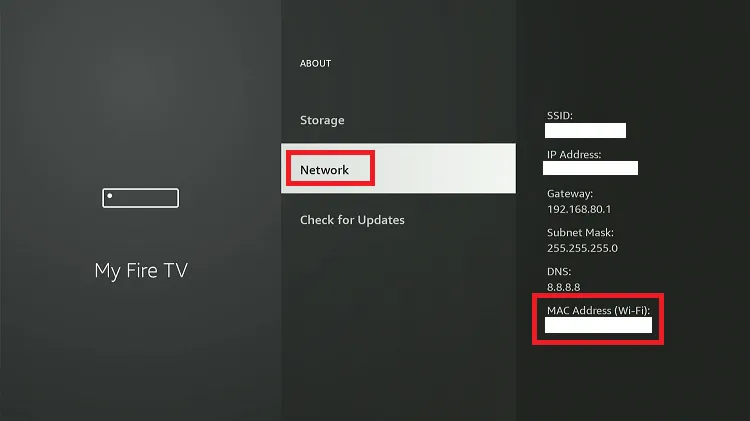
Interface 2016 – 2020
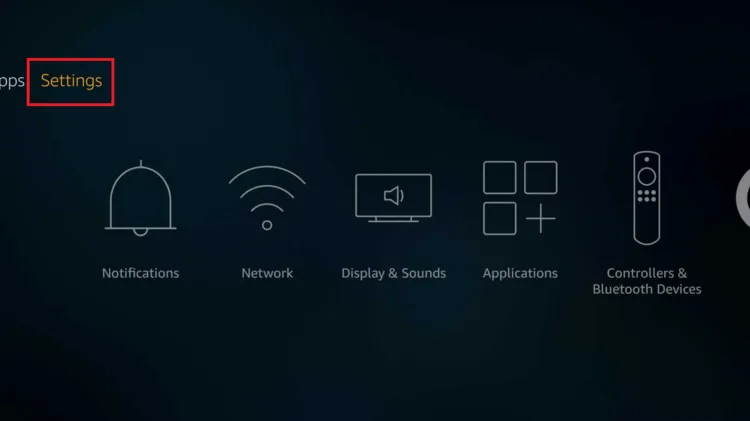
Interface 2014 – 2016
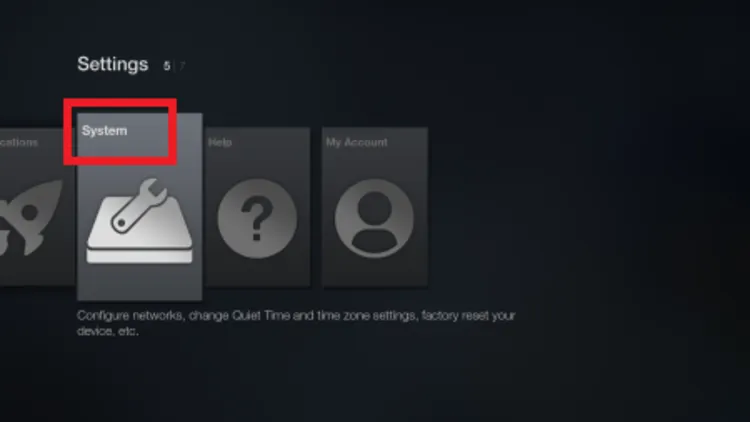
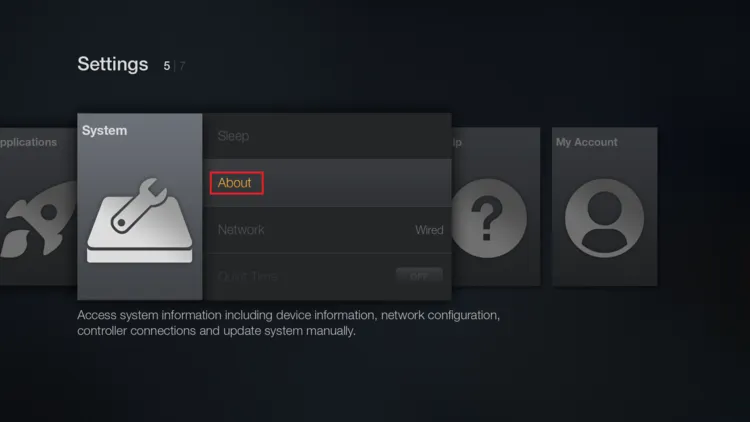
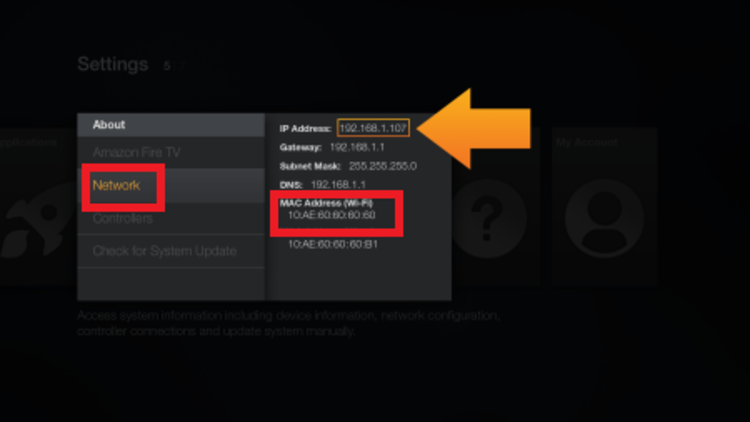
Can’t See the MAC Address on Your FireStick? Try These Fixes!
Sometimes, the MAC address field may show “Not connected” 👇:
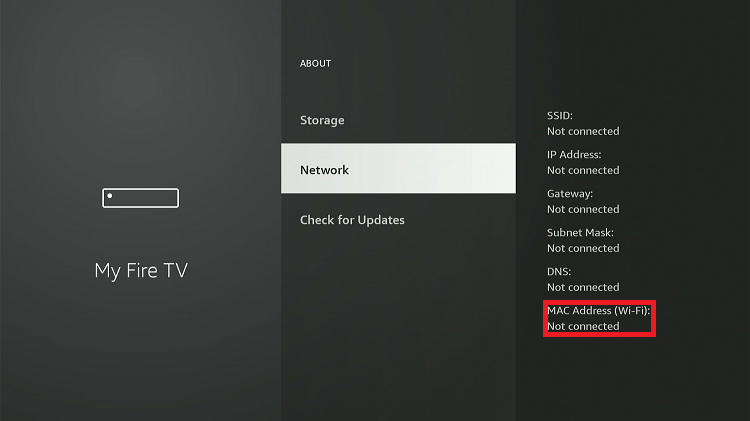
If that happens, your FireStick may not be connected to Wi-Fi. Make sure you’re connected to a wireless network with an active internet connection.
If this doesn’t fix the issue, try the following:
- Restart Your FireStick
- Update FireStick
- Restart Your Router
Why You May Need FireStick’s MAC Address
- Connect to hotel Wi-Fi
- Register devices on university/college networks
- Add devices to a router whitelist
- Troubleshoot network issues
- Identify your FireStick among multiple devices
MAC Address vs. IP Address: What’s the Difference?
Many people confuse the MAC address with the IP address.
However, both have different functionalities. Look at the table below for a better understanding:
| MAC Address | IP Address |
|---|---|
| Permanent | Can change |
| Assigned to hardware | Assigned by the network |
| Identifies the device | Identifies the connection |
FAQs – Find FireStick MAC Address
Why do I need my FireStick MAC address?
It’s used for connecting to restricted Wi-Fi networks like hotels, schools, or offices.
Can I change my FireStick MAC address?
No, it is permanently assigned and cannot be changed.
Is MAC address needed for normal home Wi-Fi?
Usually no, it’s mainly required for restricted or managed networks.
Do all FireStick models have a MAC address?
Yes, every FireStick device has a unique MAC address.
Final Thoughts
Although finding a MAC address may sound technical, the process on a FireStick is surprisingly simple.
While it’s not something you’ll need regularly, it can be incredibly useful when connecting to hotel Wi-Fi, registering a device on a university/college network, or troubleshooting internet issues.
The next time you’re asked for your FireStick’s MAC address, you’ll know exactly where to find it without digging through outdated guides.