Disclosure: Our experts test apps for security before recommending them. If you buy through our links, we may earn a commission. See how it works.
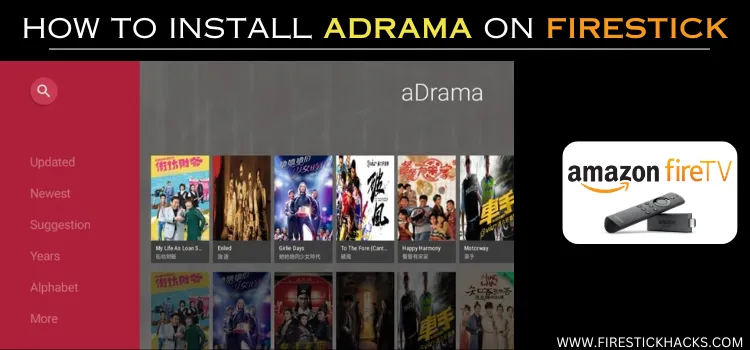

How to Install aDrama on FireStick
Since aDrama is an unofficial app, it is not available on the Amazon App Store. To install the aDrama latest APK (v6.2.9), you must sideload it using the Downloader app.
Before installing a third-party app, it is strongly recommended to install and use Surfshark VPN on your Firestick for maximum security.
Here are the steps to follow:
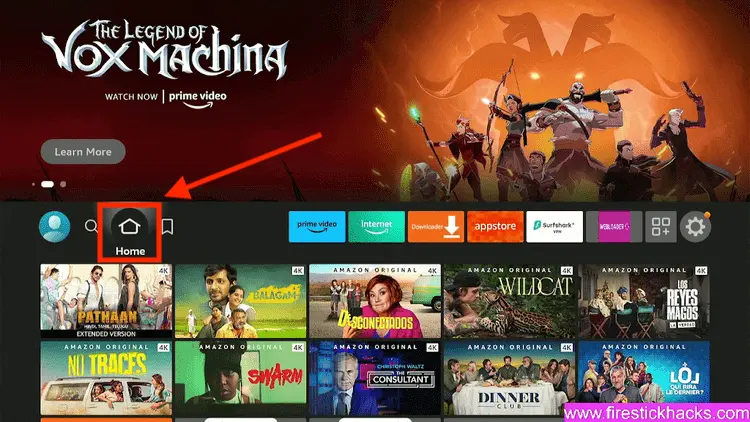
Step 1: Turn ON your FireStick device and Go to FireStick Home
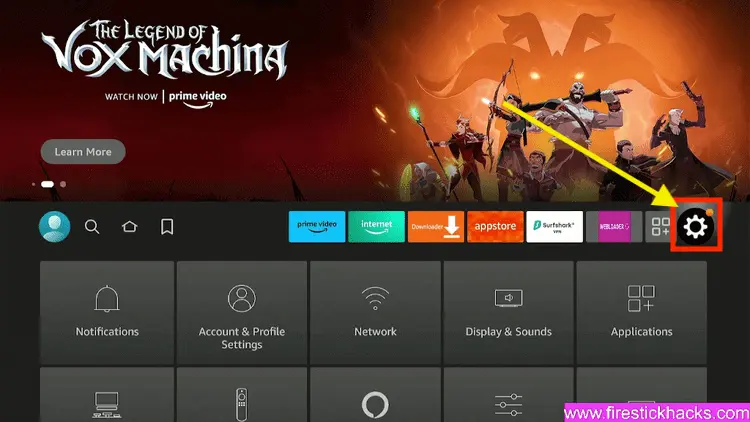
Step 2: Click on the Settings icon
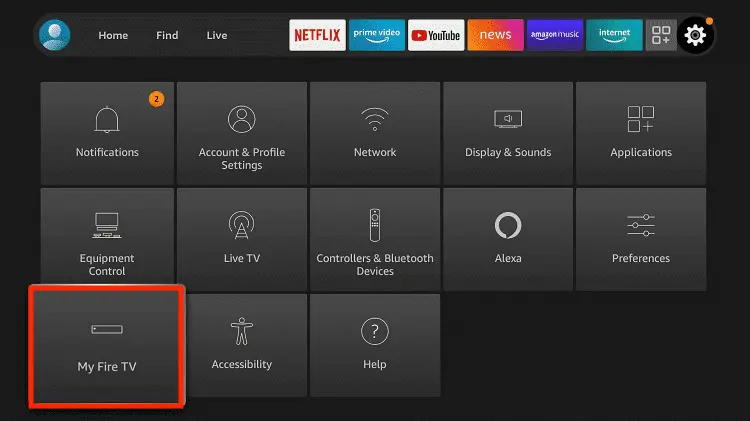
Step 3: Select the My Fire TV option
Step 4: To enable the Developer Option, click About.
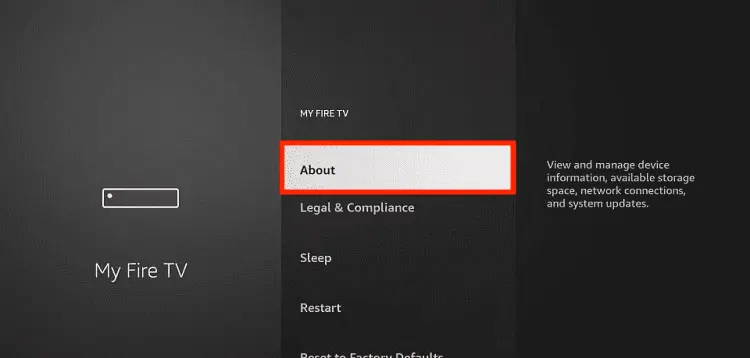
Note: If you have already enabled the Developer Option, then proceed to Step 10
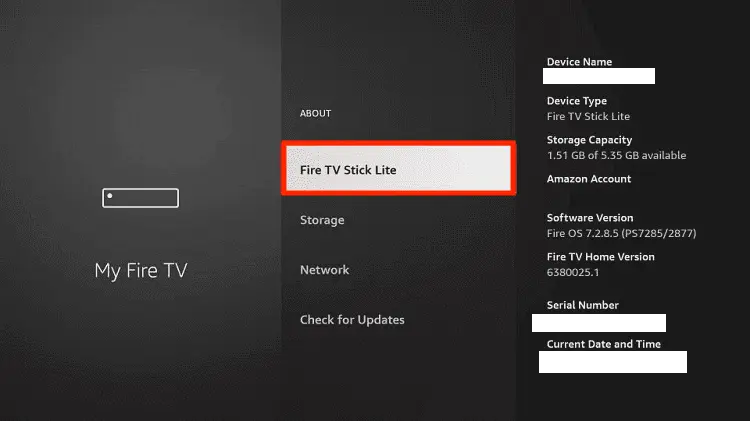
Step 5: Click on the Fire TV Stick option quickly at least 7 times
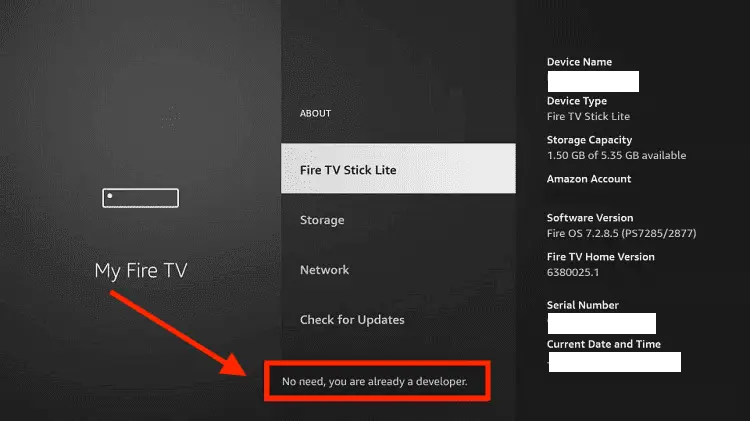
Step 6: Now you will see this message at the bottom saying "No need, you are already a developer". So stop clicking then
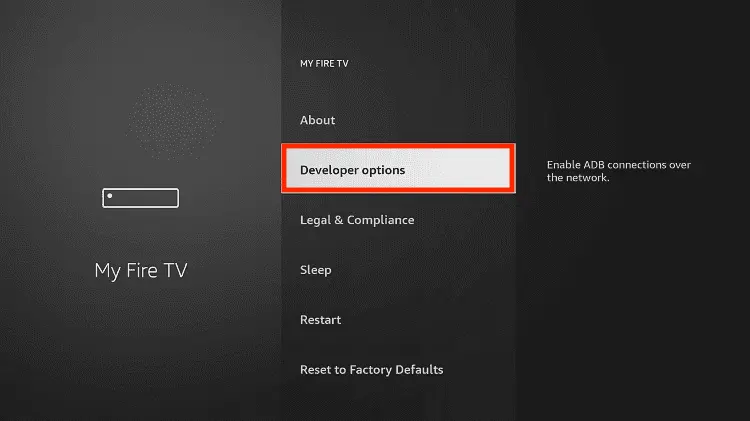
Step 7: Now the Developer Option will appear in the menu so click on it
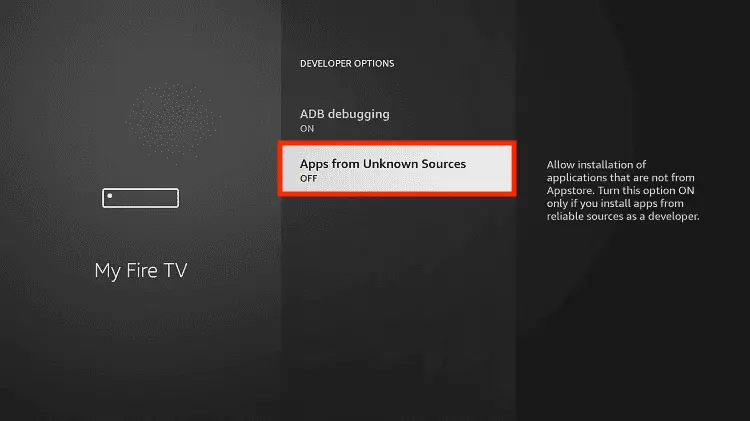
Step 8: Choose Apps from Unknown Sources to turn it ON
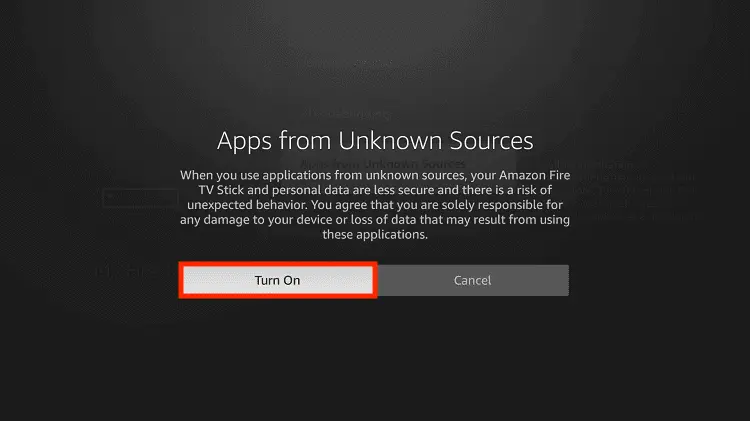
Step 9: Simply click Turn On
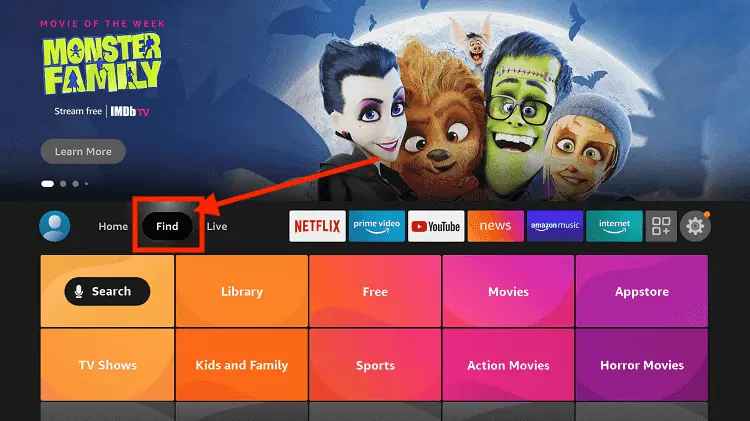
Step 10: Now return to the FireStick Home menu by pressing the "Home" icon on the remote and click on Find
Step 11: Now select the Search icon
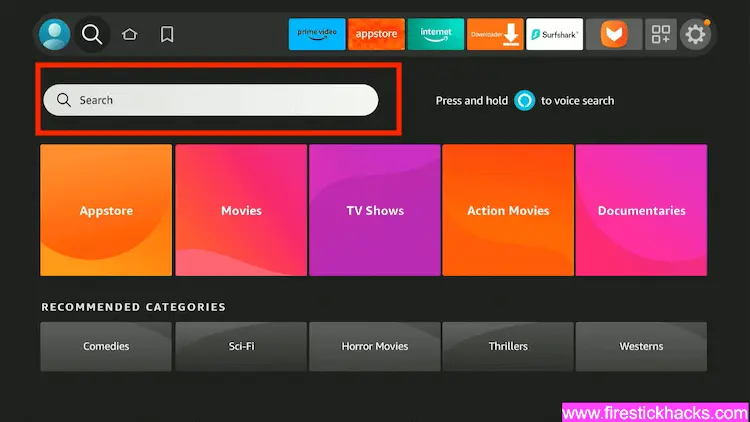
Step 12: Type Downloader and press search
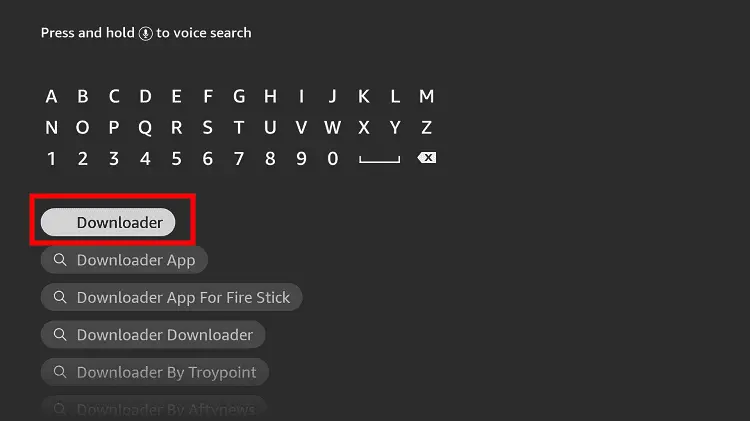
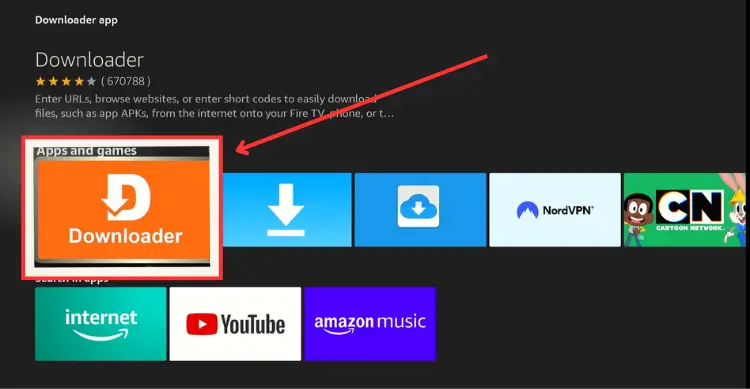
Step 13: Select the Downloader App icon from the list available in the Amazon Store
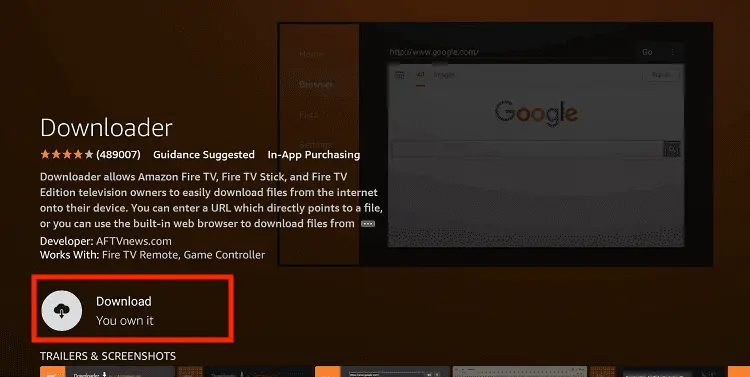
Step 14: Tap Get/Download
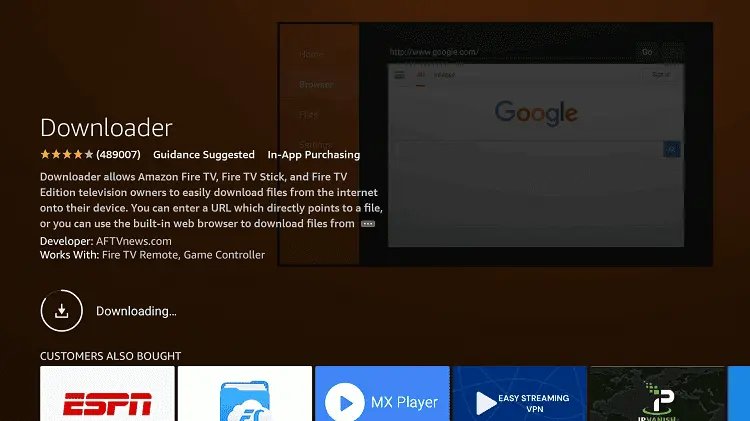
Step 15: Wait for a while until the installation process is completed
Step 16: Now click Open
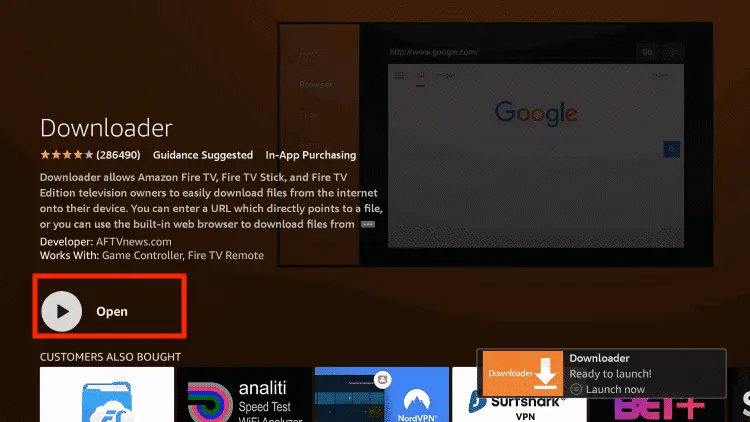
Step 17: You will see a popup about Downloader app latest update. Click "OK".

Step 18: Click OK again

Step 19: This is the Downloader App interface, Click the Search Bar on top

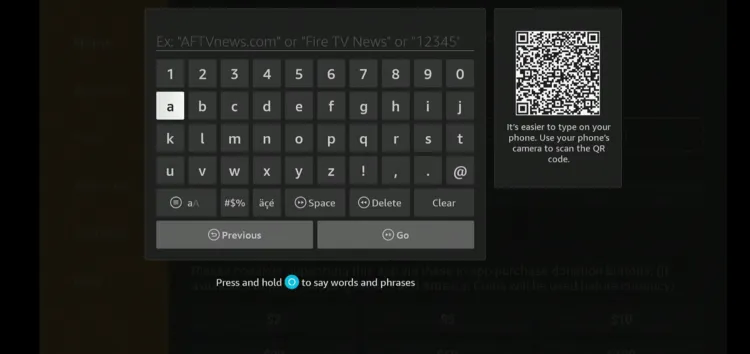
Step 20: Now enter the aDrama Downloader Code 730116 in the search box OR enter this URL bit.ly/fsh-downloads and click Go.
Note: The referenced link is the official URL of this app/website. FIRESTICKHACKS does not own, operate, or re-sell any app, streaming site, or service and has no affiliation with its developers.
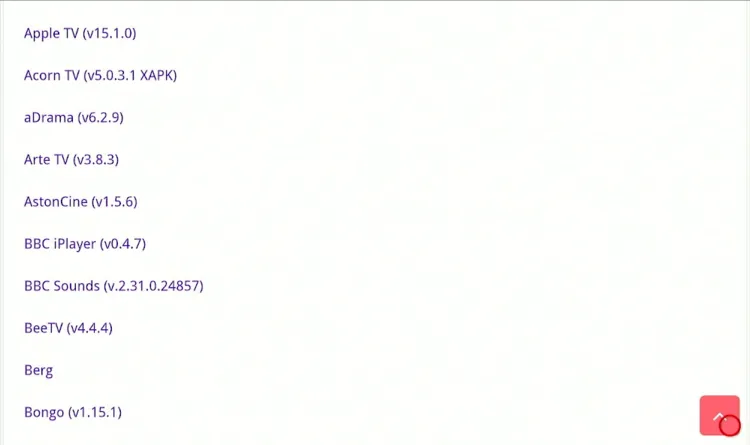
Step 21: Scroll down and click “aDrama” from the “Movies & TV Shows Apps” category.
Note: If the app does not start downloading, then clear the Downloader App cache using this article.
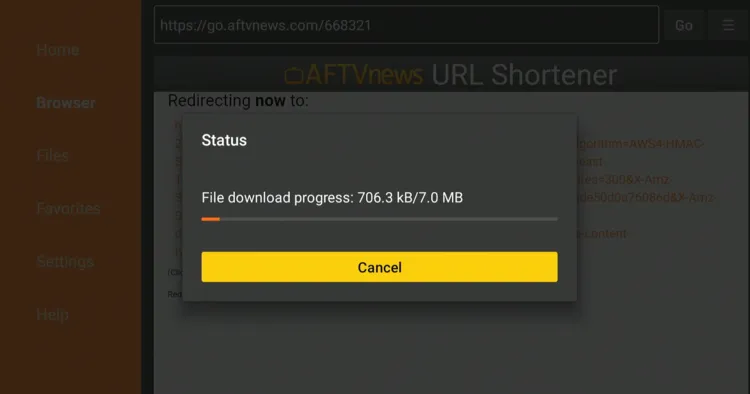
Step 22: The downloading will start. Wait for it to finish.
Step 23: Once the downloading ends, click “Install”.
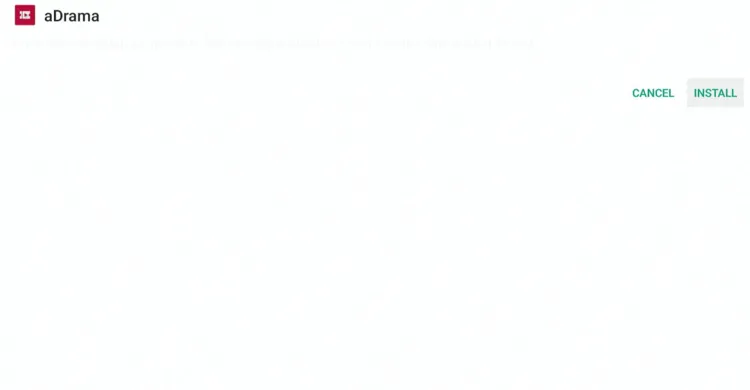 Step 24: Tap the “Done” icon.
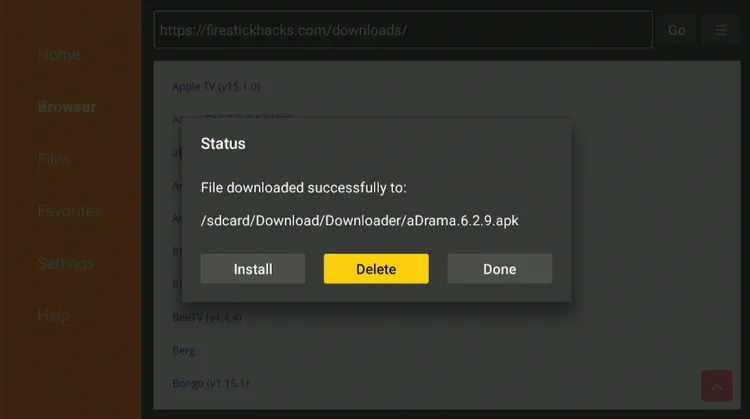
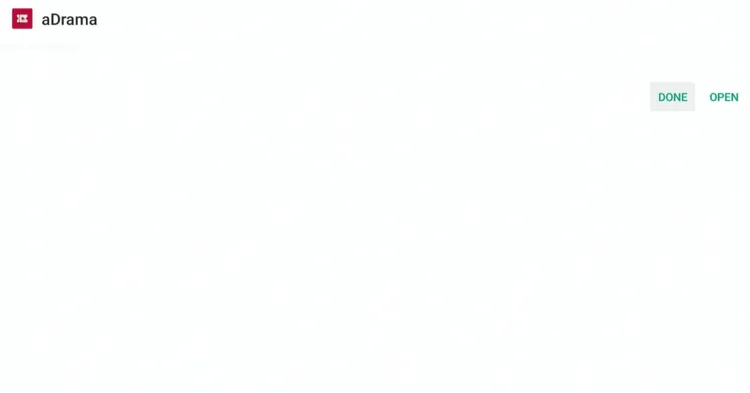 Step 25: Click “Delete” to remove the aDrama APK file from FireStick.
Note: Deleting APK files will free up space on FireStick.
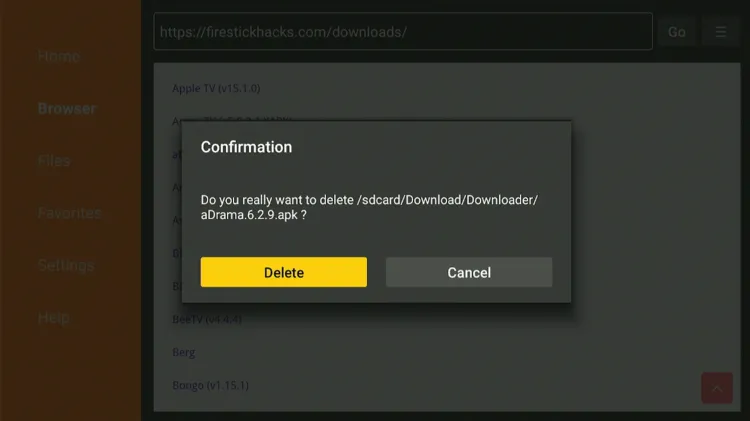
Step 26: Tap “Delete” again to complete the process.
How to Use aDrama on FireStick
After installing aDrama on your FireStick, you are all set to stream your favorite K-Dramas, Chinese, Japanese, and Thai dramas all in one place.
Additionally, it provides a “Continue Watching” feature, suggests relevant content based on your viewing habits, and includes a “Newest & Updated” section for the latest releases.
Follow the steps below:
Step 1: Open Surfshark on FireStick and connect it to the Hong Kong server.

Step 2: Go to the FireStick home and select the “icon next to the settings” from the top right corner.
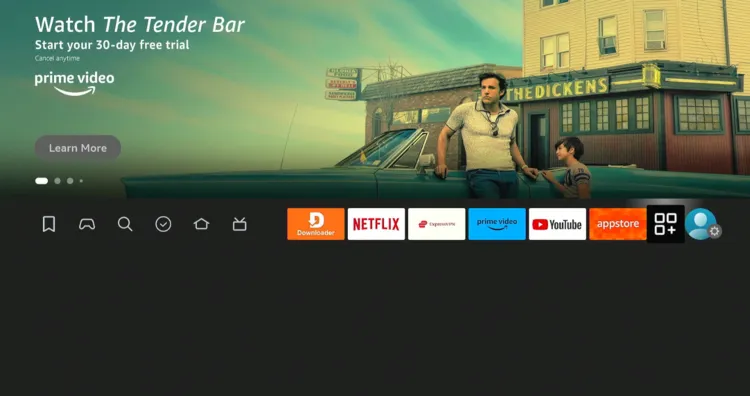
Step 3: Choose the “Drama” app
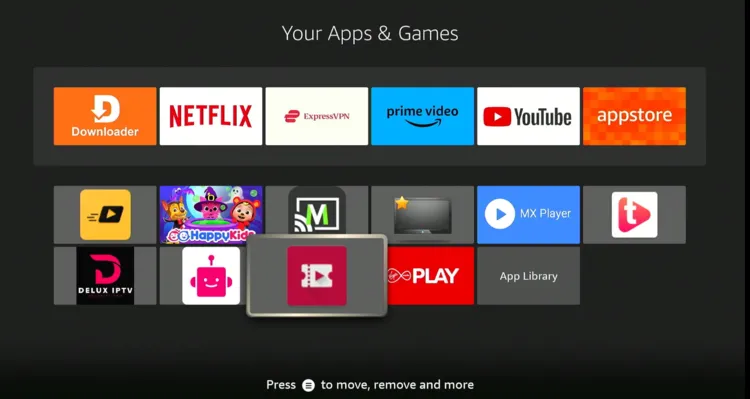
Step 4: Click “OK”.
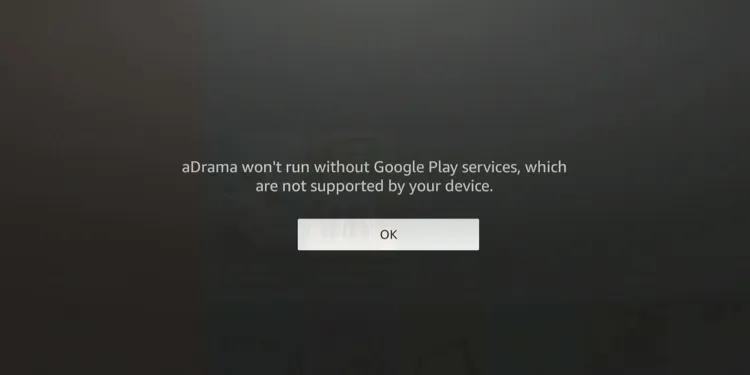
Step 5: Choose a movie/show.

Step 6: Tap “Play”.
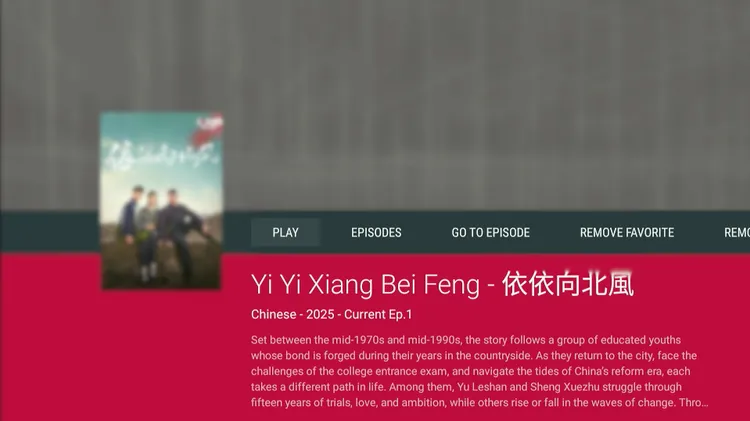
Step 7: Enjoy streaming!

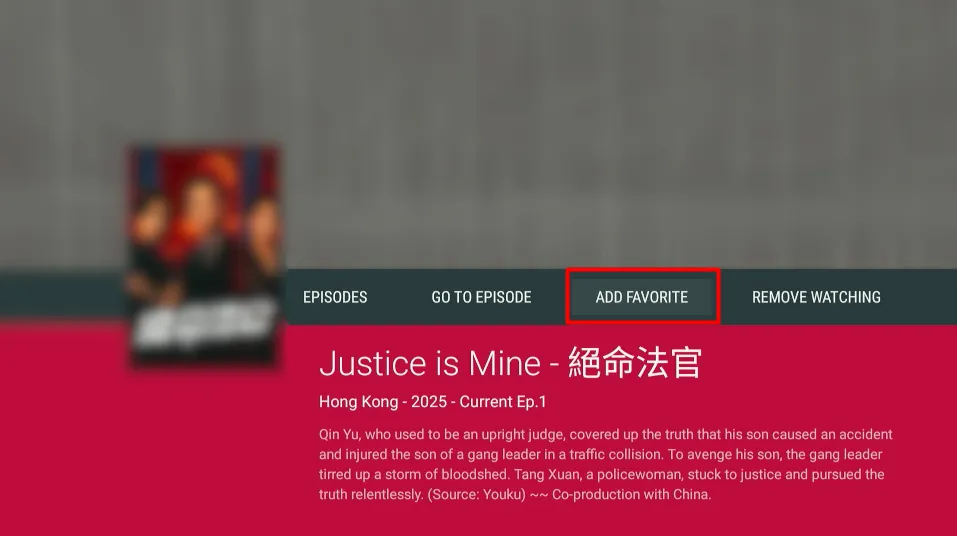
Step 8: select the movie or TV show you want to add to your “favourite list”

Step 9: Then click on the “Add favorite” option
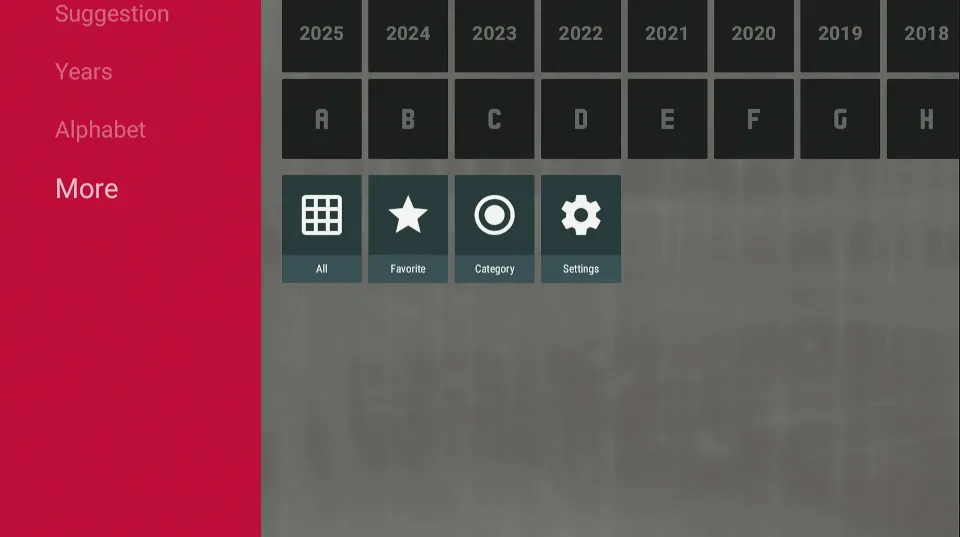
Step 10: Now select the “More” icon from the menu.
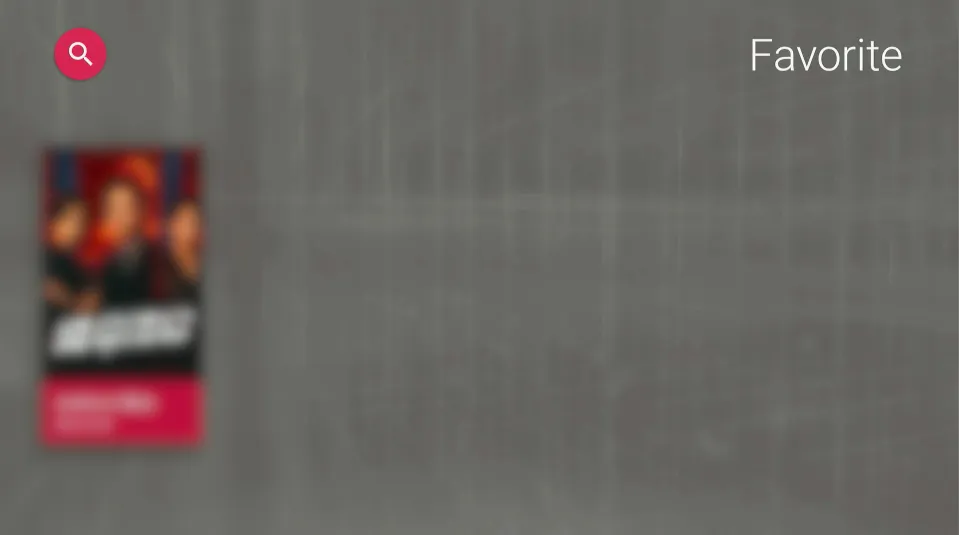
Step 11: Movies and TV shows you have added to Favorites will be visible here.
Step 12: Click on “watching”, and you will find all the movies and shows you’ve previously watched.

Step 13: Select a movie/show to continue watching
Step 14: Tap “Play” again.
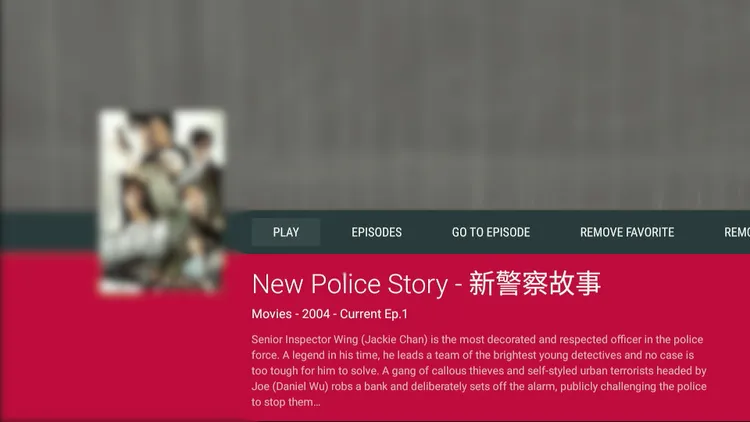
Step 15: Click on “Resume” to start playback from where you had left.
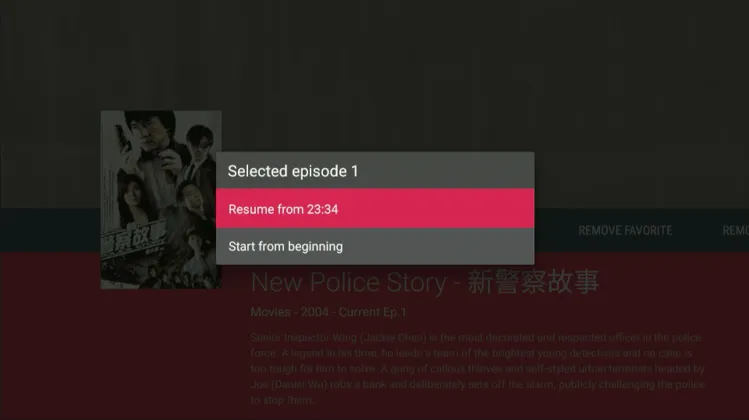
Step 16: continue streaming!

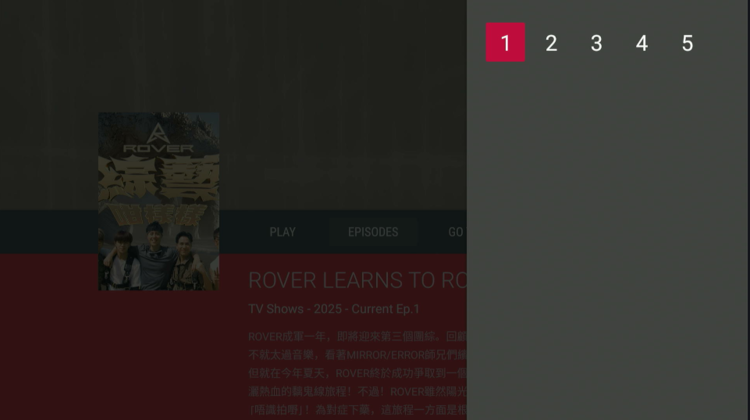
Step 17: You can also choose desired episodes by “Episodes”.
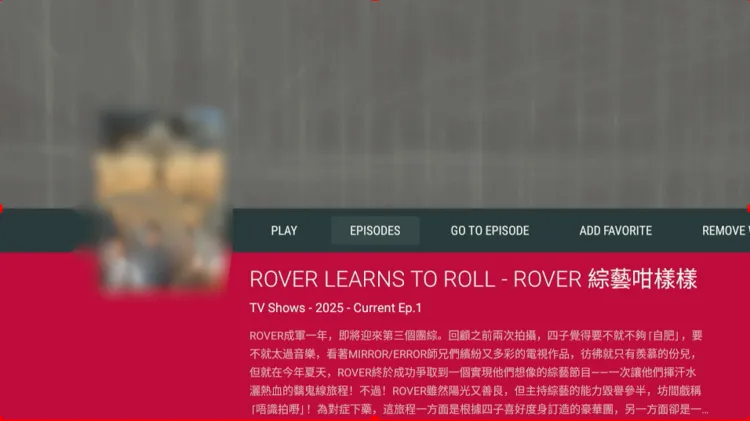
Step 18: Select the “episode number” that you want to watch.
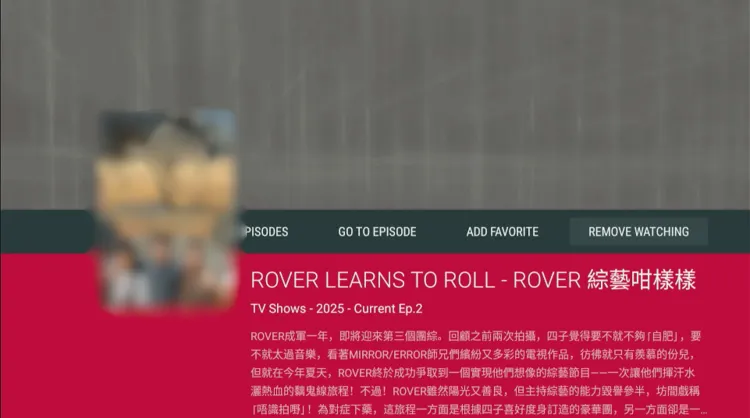
Step 19: You can also “Remove” a movie or show from your favorites once you’ve finished watching it.
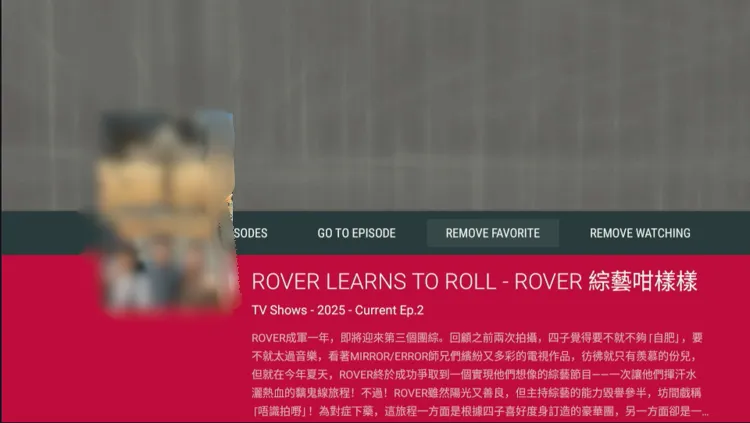
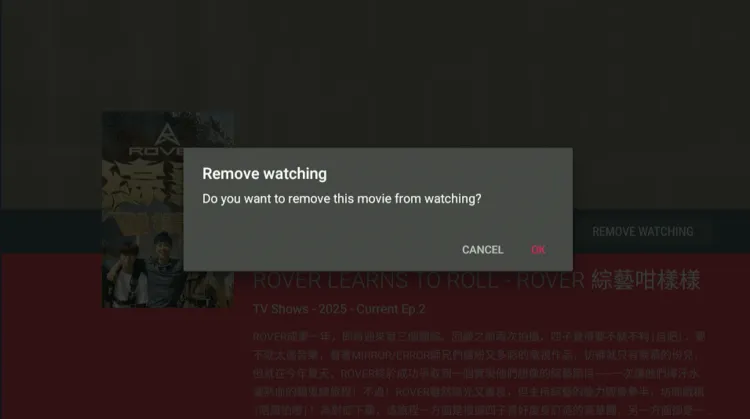
Step 20: By clicking on “Remove Watching,” you will clear it from your watch history.
Step 21: select “OK”
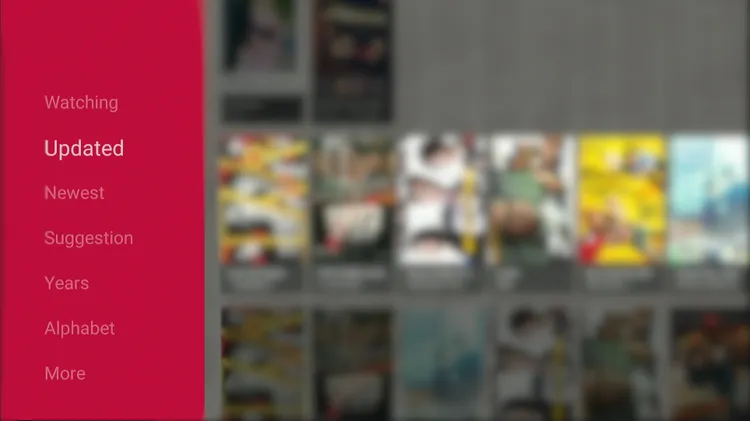
Step 22: The “updated” section features movies and TV shows with newly released episodes.
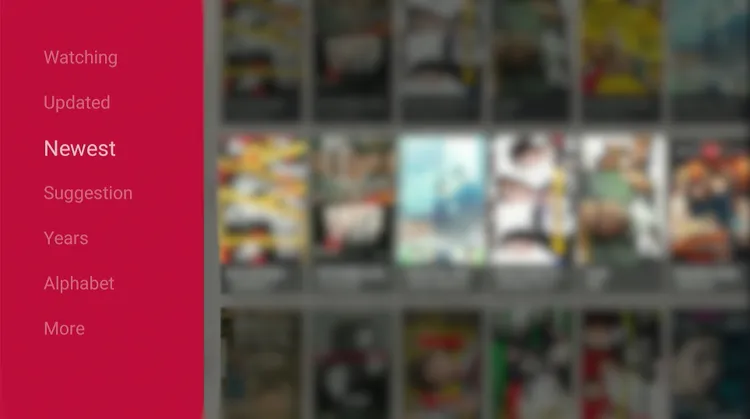
Step 23: The “Newest” section features the latest movies and TV shows available on aDrama.
Step 24: The “Suggestions” section shows movies and TV shows based on your viewing history. You’ll typically see titles with similar genres to what you’ve watched.
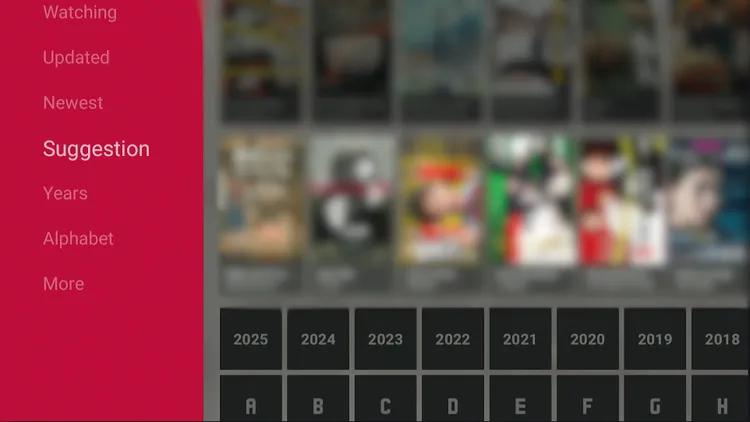
Step 25: The “Years” option lets you choose movies and TV shows by their release year. For example, selecting “2025” will display all titles released that year.
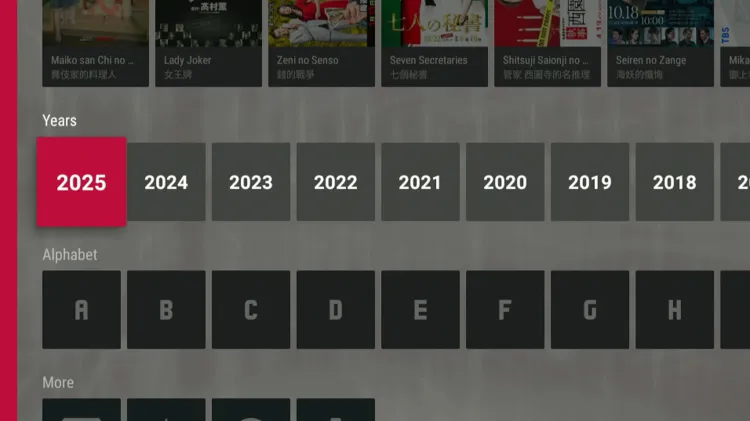
Step 26: Here is an image for your reference.
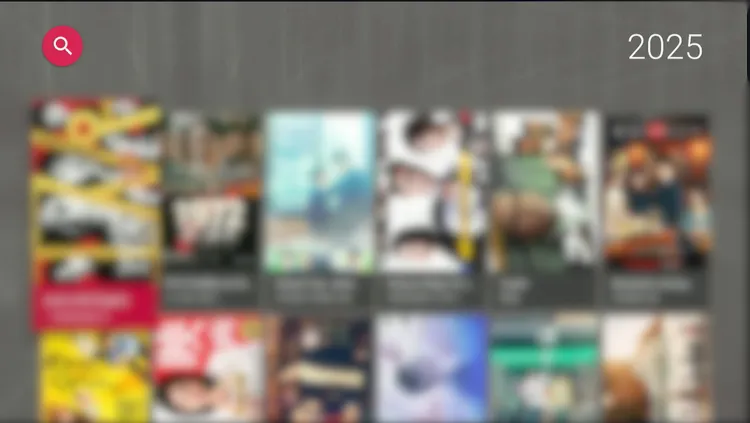
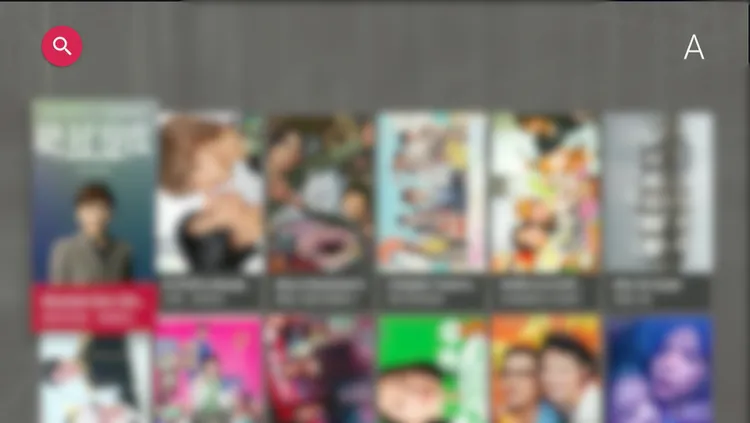
Step 27: The “Alphabet” option lets you filter movies and TV shows by the first letter of their title. Select a letter, and titles starting with it will appear.
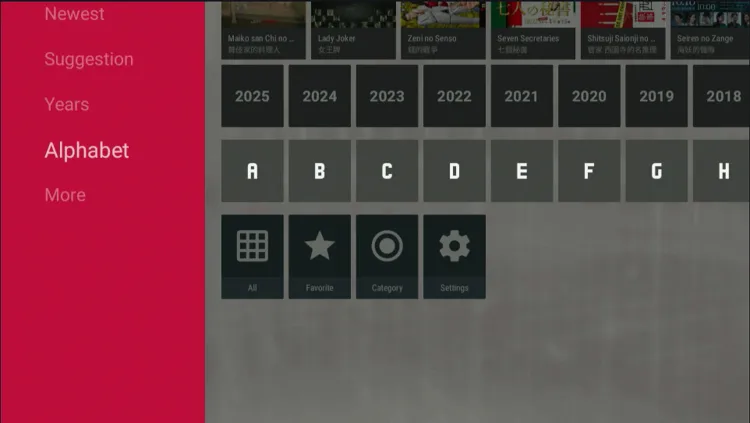
Step 28: These are the titles that start with the letter “A”.
How to Activate Subtitles on the aDrama App
As mentioned earlier, aDrama lets you watch movies and shows with English subtitles. However, you may not see subtitles for all movies/shows.
Follow the steps below:
Step 1: Select the “More” icon from the right sidebar.
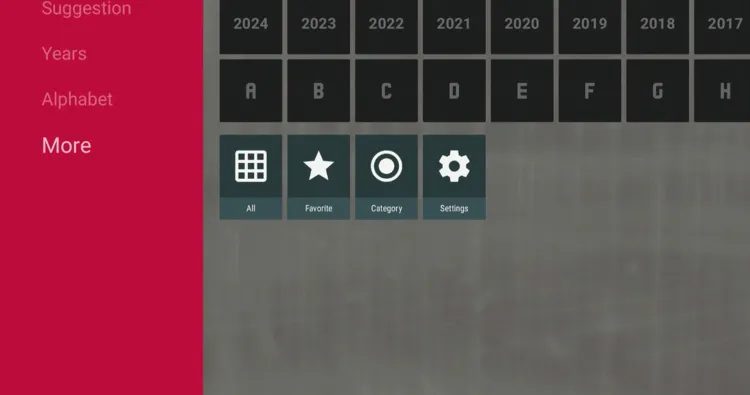
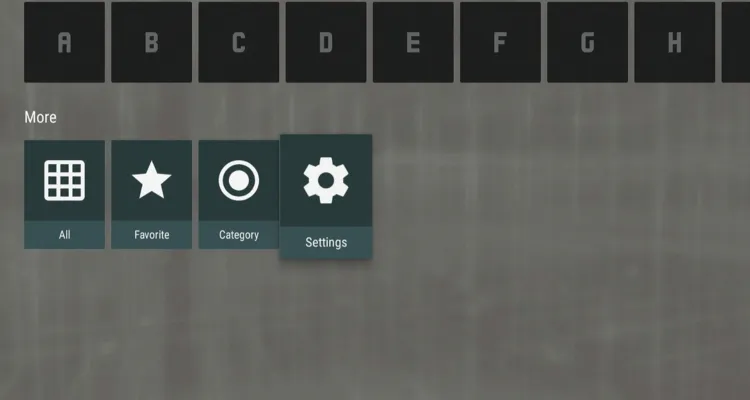
Step 2: Choose “Settings”.
Step 3: Enable “English Subtitles”.
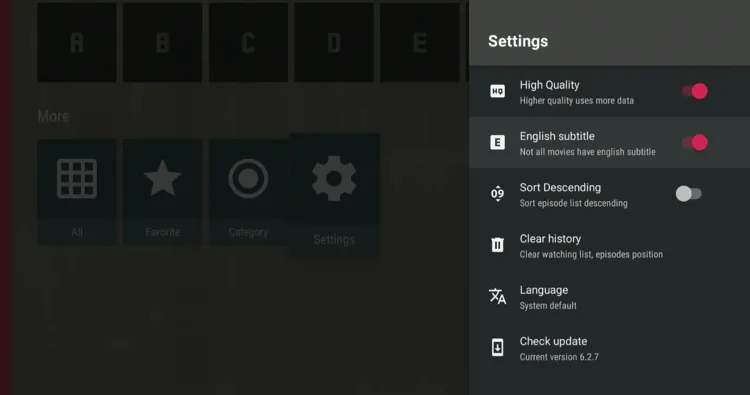
Step 4: Now you will be able to see English subtitles while streaming movies/shows on aDrama.

Is aDrama APK Safe/Legal to Use on FireStick?
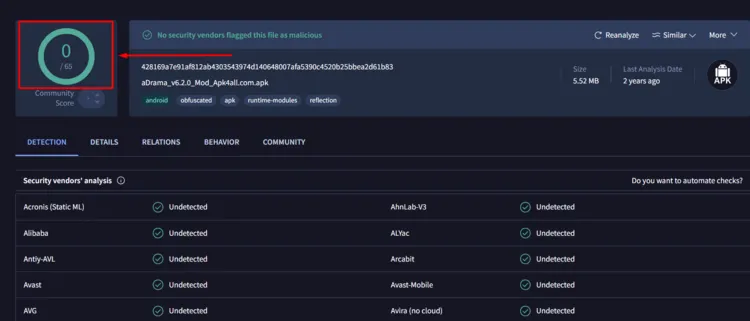
aDrama APK (v6.2.9) is 100% safe to use. We scanned its APK file on VirusTotal and did not find any security red flags (see the picture above).
However, since we are not sure about the streaming sources of aDrama, using Surfshark is important to protect your identity.
All You Need to Know About aDrama APK
Here is a quick sneak peek into aDrama:
| App Name | aDrama |
| Category | Asian Movies & TV shows |
| Version | v6.2.9 |
| Size | 6.7 MB |
| Is It Safe to Use? | Yes, but with a VPN. |
aDrama App Features
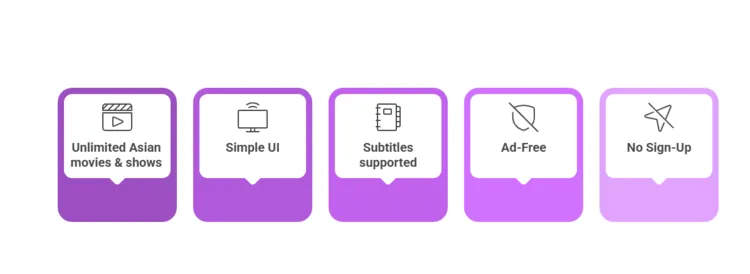
Here’s a list of the best aDrama features:
✅ Unlimited Asian movies & shows
✅ Ad-free
✅ No login required
✅ HD quality
✅ Subtitles supported
✅ Continue Watching feature
✅ Sort by release year
✅ Simple UI
aDrama Alternatives
If you like aDrama app, you would also want to try out some of its following alternatives:
- Flix Vision on FireStick
- 1905 Go on FireStick
- Cinema HD on FireStick
- Movie HD on FireStick
- Anime TV on FireStick
Top Korean Dramas to Watch on aDrama App
Here’s a simple list of the Top Korean Dramas to enjoy on aDrama app:
✅Alchemy of Souls
✅Bloodhounds
✅Coffee Prince
✅My Demon
✅The Glory
✅Mr. Queen
✅Squid Game
Top Chinese Dramas to Watch on aDrama App
Here’s a simple list of the top Chinese Dramas to enjoy on aDrama app:
✅Feud
✅The First Frost
✅Love Between Fairy and Devil
✅Perfect Match
✅Hidden Love
Top Japanese Dramas to Watch on aDrama App
Here’s a simple list of the top Japanese Dramas to enjoy on aDrama app:
✅Alice in Borderland
✅Monster
✅Demon City
✅Glass Heart
✅Unnatural
FAQs – aDrama
What can I watch on aDrama?
aDrama app features dramas and movies from South Korea, Japan, China, and Taiwan.
Is aDrama app available on Amazon Appstore?
No, aDrama is not listed on the Amazon Appstore. However, you can sideload it from a third-party source.
Does aDrama show ads on FireStick?
No, aDrama is completely ad-free.
Does aDrama offer subtitles on FireStick?
Yes, aDrama supports English subtitles for most content.
Conclusion
aDrama is a great app for anyone who loves Asian VOD content. With content from Korea, Japan, China, and Taiwan, it offers a huge selection of shows and films.
The app is user-friendly, supports subtitles, and best of all, it’s free. Since it’s not available on the Amazon App Store, you’ll need to sideload it using the Downloader app.
Please note that aDrama scrapes links from unknown sources, so do not forget to use Surfshark before using the app.