
Disclosure: Our experts test apps for security before recommending them. If you buy through our links, we may earn a commission. See how it works.

Amazon has improved FireStick devices through constant updates, introducing features like matter casting, offloading, photo slideshow, and so on.
However, not all updates come without their drawbacks. For example, the recent June 2025 update has started blocking popular third-party APKs, such as Flex Vision (v3.1.1 & v3.1.2) & Live NetTV (v1.7.4 & v1.7.5).
However, there’s a hack that will block future FireStick updates, ensuring your current setup remains the way it is.
P.S. We’re using NetGuard to stop updates, and you can’t use a VPN with this app. If you activate the VPN, NetGuard will be disabled automatically.
How to Block FireStick Updates
If you’re looking to maintain your FireStick setup without interruptions from automatic updates, you will have to use the free utility app NetGuard.
Follow these simple steps to block FireStick updates:
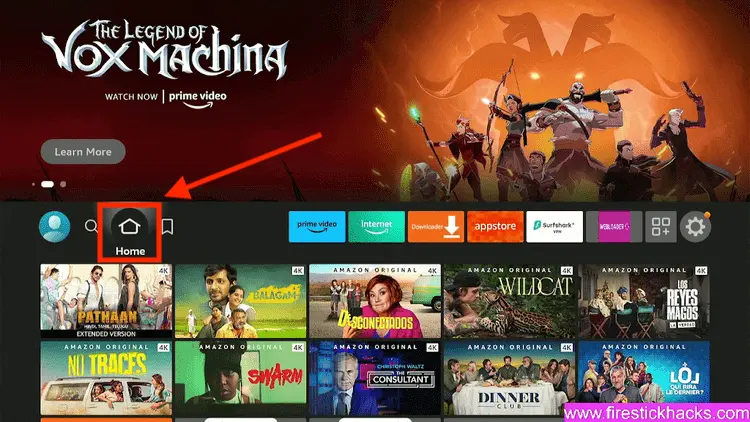
Step 1: Turn ON your FireStick device and Go to FireStick Home
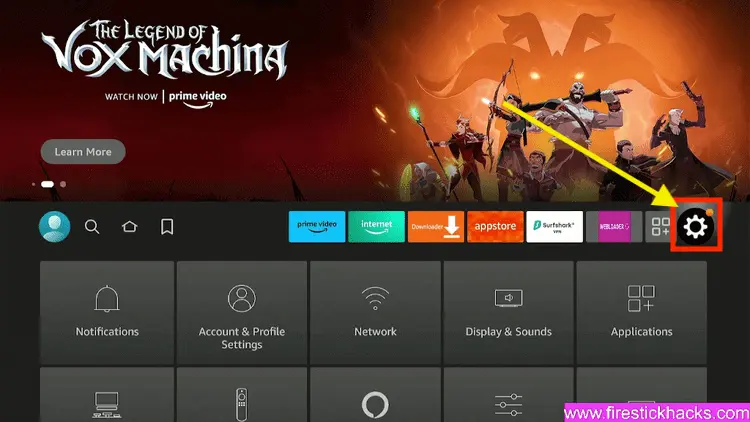
Step 2: Click on the Settings icon
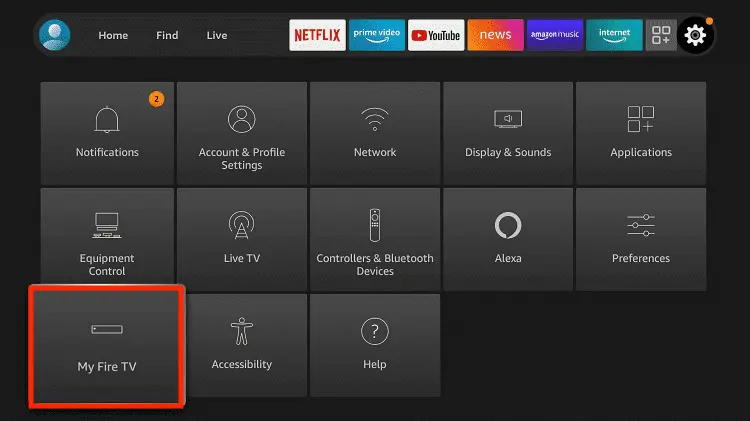
Step 3: Select the My Fire TV option
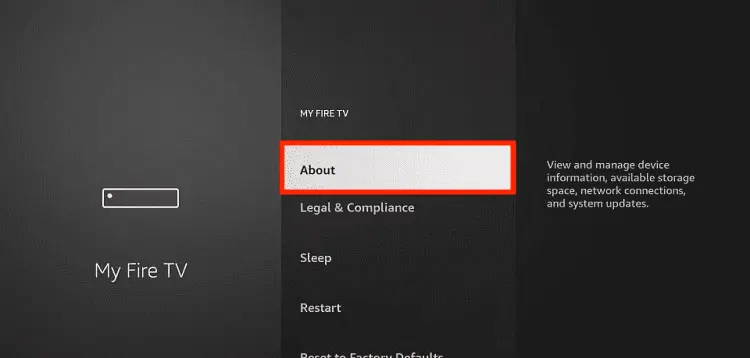
Step 4: To enable the Developer Option, click About.
Note: If you have already enabled the Developer Option, then proceed to Step 10
Step 5: Click on the Fire TV Stick option quickly at least 7 times
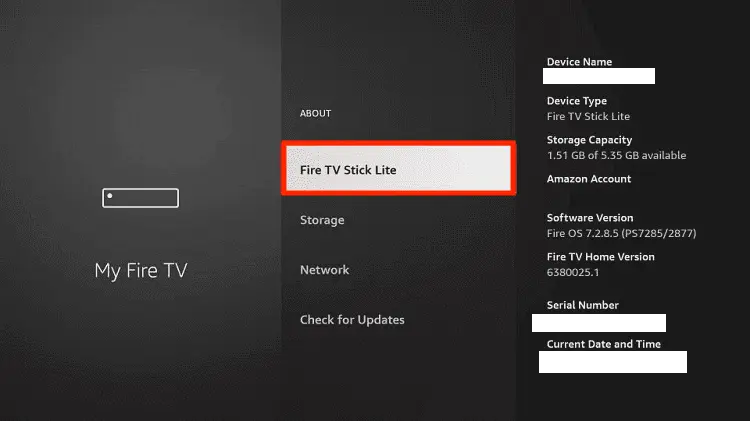
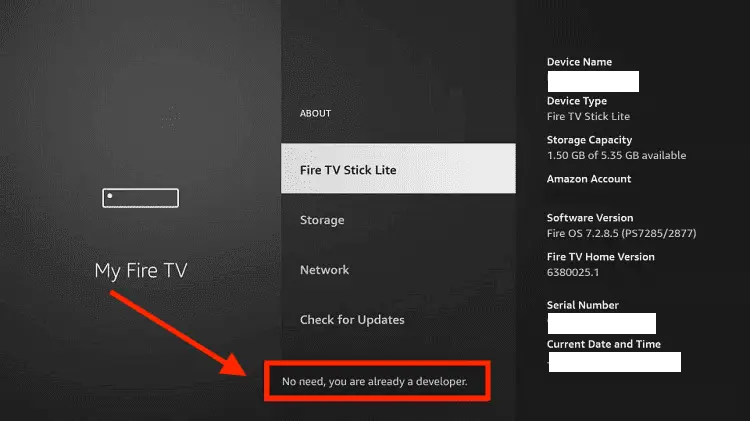
Step 6: Now you will see this message at the bottom saying "No need, you are already a developer". So stop clicking then
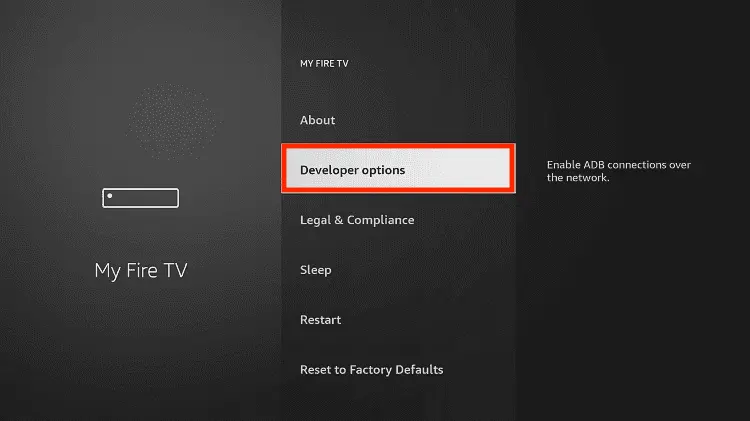
Step 7: Now the Developer Option will appear in the menu so click on it
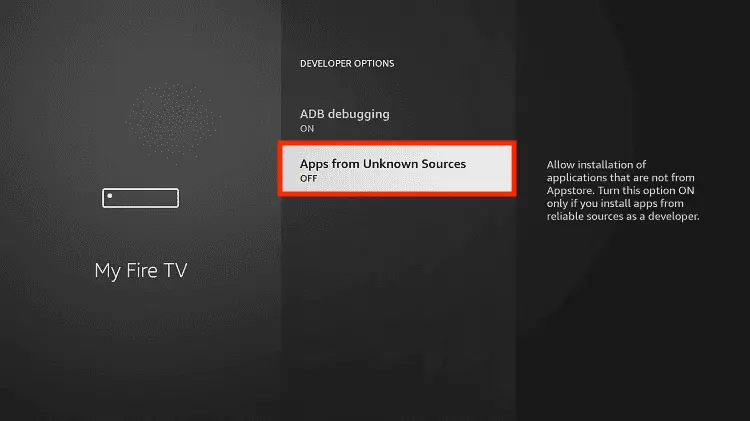
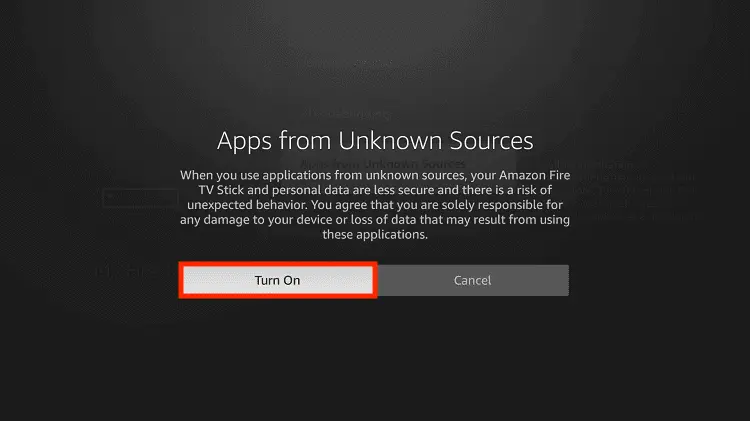
Step 8: Choose Apps from Unknown Sources to turn it ON
Step 9: Simply click Turn On
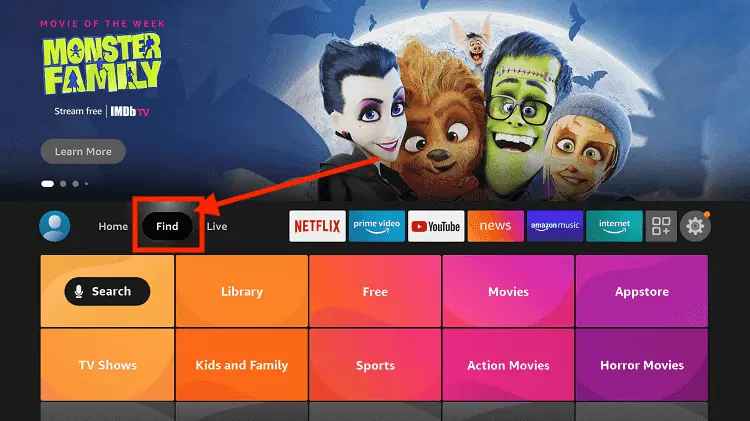
Step 10: Now return to the FireStick Home menu by pressing the "Home" icon on the remote and click on Find
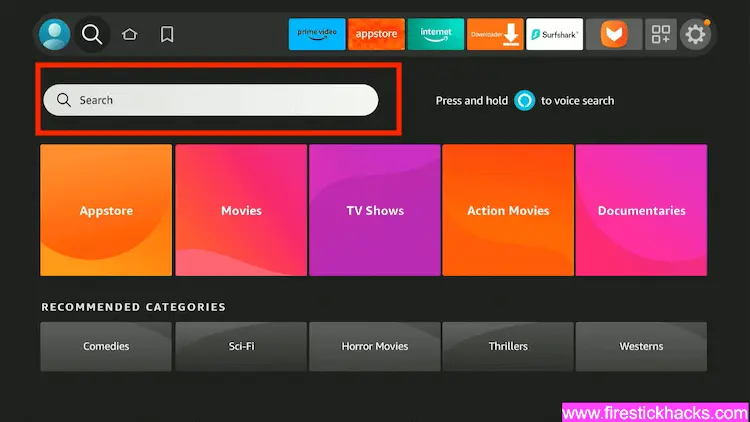
Step 11: Now select the Search icon
Step 12: Type Downloader and press search
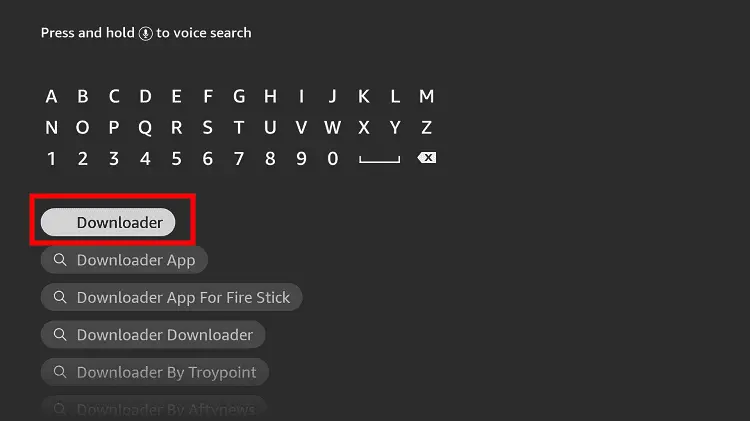
Step 13: Select the Downloader App icon from the list available in the Amazon Store
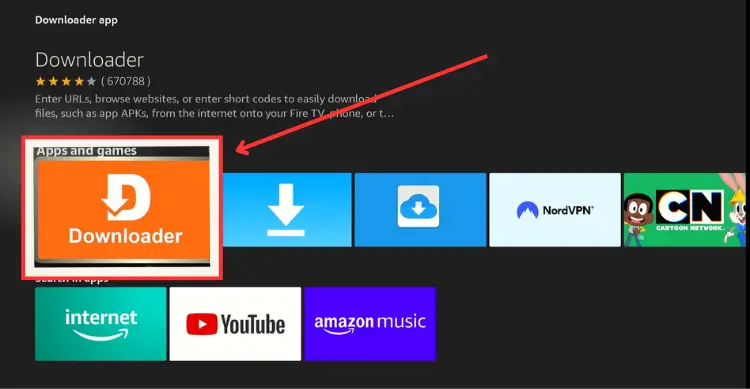
Step 14: Tap Get/Download
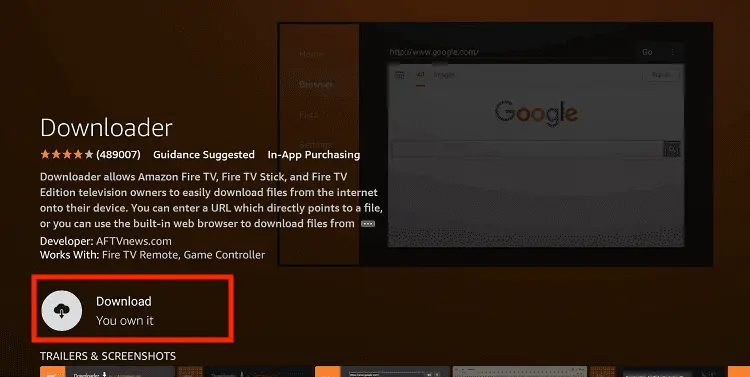
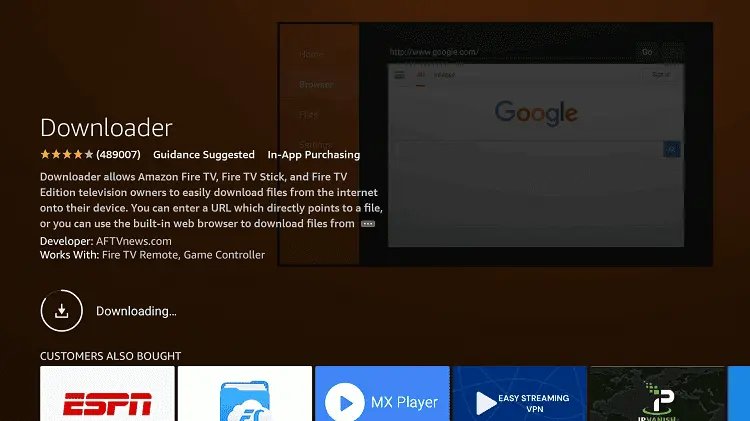
Step 15: Wait for a while until the installation process is completed
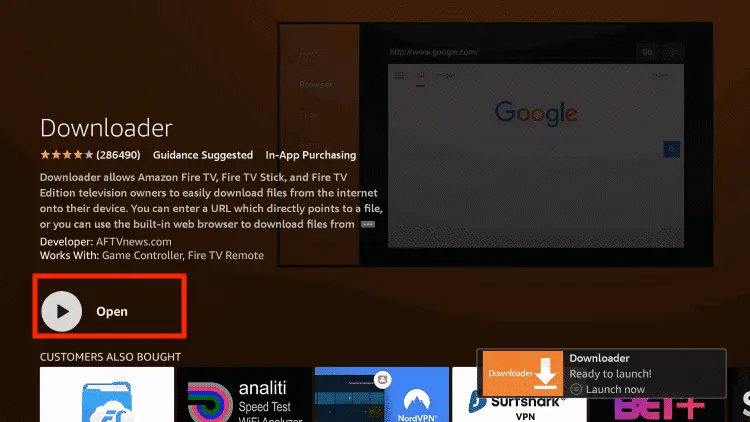
Step 16: Now click Open
Step 17: You will see a popup about Downloader app latest update. Click "OK".

Step 18: Click OK again

Step 19: This is the Downloader App interface, Click the Search Bar on top

Step 20: Now enter the NetGuard Downloader Code 730116 in the search box OR enter this URL bit.ly/fsh-downloads and click Go.
Note: The referenced link is the official URL of this app/website. FIRESTICKHACKS does not own, operate, or re-sell any app, streaming site, or service and has no affiliation with its developers.

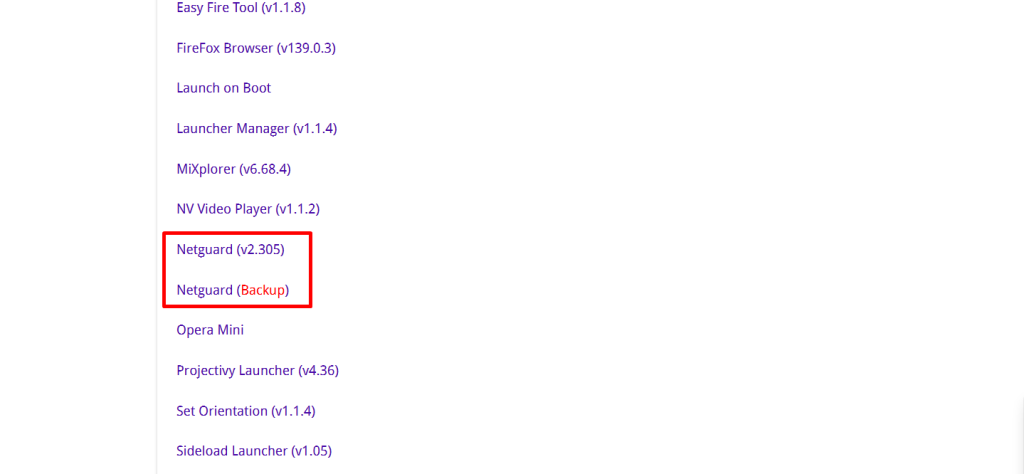
Step 21: Scroll down and tap “NetGuard” from the “Utility Apps” category.
Note: If FireStick blocks the app or shows a “harmful” warning, then install “NetGuard Backup.”
Step 22: The installation will start. Please wait until it is done.

Step 23: Click “Install”.

Step 24: Once the installation completes, click “Done”.

Step 25: Select “Delete”.
Note: Deleting the NetGuard APK will free up space on the FireStick.

Step 26: Select “Delete” again for confirmation.

Step 27: Go to the FireStick home screen and select the “Apps Library” icon next to the settings.

Step 28: Choose the “NetGuard” app.

Step 29: Click “Agree”.

Step 30: Click the “three dots” icon in the top right corner.

Step 31: Choose “Settings”.

Step 32: Click “Advanced Options”.

Step 33: Turn on “Manage System Apps”.

Step 34: Now, come back to the NetGuard home screen. Scroll down and disable the “Wi-Fi” and “Data” icons of “DeviceSoftwareOTA“.

Step 35: Scroll down further and disable the “Wi-Fi” and “Data” icons of “System Updates“.
P.S. If these icons are already disabled, leave them as is.

Step 36: Click the “Toggle” button in the top left corner.

Step 37: Click “OK”.

Step 38: As you can see, the toggle button is turned on. Now go to FireStick home screen.

Step 39: Click “Settings”.

Step 40: Choose “My Fire TV”.

Step 41: Tap “About”.

Step 42: Choose “Check for Updates”.

Step 43: If the update is available, click “Install Update”.

Step 44: Now you will see “Update Error”. This indicates that the update is not installed.

FAQs – Block FireStick Updates
What happens if I don’t block FireStick updates?
The recent June 2025 Amazon updates will block certain third-party APKs such as Flex Vision (v3.1.1 & v3.1.2) & Live NetTV (v1.7.4 & v1.7.5).
Is it safe to block Amazon updates?
Yes, it’s safe, but you’ll miss out on new features and security fixes.
How can I unblock updates?
Simply reverse the settings in NetGuard to allow updates again.
Can I block updates on all Fire TV devices?
Yes, this method works for all Fire TV and FireStick devices.
Wrapping Up
Blocking FireStick updates could be a handy way to maintain control over your device and prevent unwanted disruptions, especially if you’re relying on third-party apps.
However, it’s important to remember that blocking updates comes with a trade-off. You’ll miss out on new features and the latest security fixes that come with each update.
If security and the latest features are important to you, it might be worth reconsidering or selectively allowing certain updates.






But will it not just auto update at a later point of time? Do we not need to block some update servers?
Hey Tom! Don’t worry, it won’t auto-update itself sometime later if you have turned the Auto-update OFF.
Wow this is so great and helpful. Thanks for all you do @firestickhacks.
Thank you so much for you kind words! Please do check out our YouTube channel as well 🙂
Hey. I just followed your video to the letter. When I got to end and went to My Fire TV / About I did not get Check Updates I got Install Update and in the side panel it says it will Auto begin update next time. I don’t know what I did wrong. Please help.
Hey, so if you are seeing “Install Update”, this means your FireStick has downloaded the update but hasn’t installed it yet. When you click on “Install Update”, it will show “Update Error”.
To keep your device from auto updating on boot, just disconnet wi-fi before unplugging/restarting the device. Now open NetGuard and check that “DeviceSoftwareOTA” and “System Updates” both have Wi-Fi & Data disabled. Reconnect Wi-Fi to avoid auto updating FireStick.
Hi how long after you click “install update” should the update error come up? I went through the steps but when I clicked install update, it started the update process and I had to shut off the power to my firestick and TV to be safe.
Hello, after you click “install update”, the update process might start, but it won’t finish. You will see “update error” pop-up in the end.
does this app have it’s own built in vpn, or something? if i turn on my nordvpn, it disables netguard, but when i test my dns servers or test my ip location, it does not show my local ip address or dns servers.
Ok, I see that netguard does use a local VPN now that I’ve installed it on a second device but that part is not working on that device. When I test for what my local ip address is or test what dns servers I’m using, they show real ip address and my IP’s dns servers.
Hello Fred, while NetGuard routes traffic through a local VPN to block specific apps (like DeviceSoftwareOTA), it does not encrypt your traffic or mask your public IP/DNS like NordVPN does. It’s meant for firewall-level control, not anonymity.
Did not block updates on my Firestick 4k max
Hi Mark, it could be perhaps because updates have been automatically installed on your FireStick. try it next time when there’s a new update from Amazon.
I followed your instructions and the option for DeviceSoftwareOTA and System Updates were not in the NetGuard list of installed applications installed on the Stick. Do you have any suggestions of why they did not show up? At the time there was a Firestick update pending. Any suggestions would be appreciated.
Hi Thomas, you are perhaps not properly following the instructions. You won’t find “DeviceSoftwareOTA” and “System Updates” under installed applications. To see these two, you will have to first turn ON “Manage System Apps” as mentioned in the article.
I too don’t have these two apps listed (after toggling on ‘Manage system apps’) on my Fire TV 4K stick.
Software Version: Fire OS 8.1.4.9 (RS8149/3133).
Hi Peter, I’m also using Fire OS 8.1.4.9. I can see these two apps after enabling ‘Manage system apps’. Pls launch the app again and check! Or maybe restart FireStick. If you still can’t see the apps, let me know!
I installed Netguard on my firestick. followed the instructions and it caused constant buffering on my app?
Hi Jim, did you block any updates yet using NetGuard? If so, sometimes blocking updates could lead to buffering issues cause outdated FireStick firmware may not handle newer streaming app versions efficiently.
Will amazon block apps on firestick 4k 1st generation OS 6.7.1.1 ?
Yes, Amazon is blocking apps across all its FireStick models including firestick 4k 1st generation.
Thanks for that straightforward explanation…My “check for updates”…only said “Your Fire TV is up to date”….hopefully this is before any harmful updates have already been downloaded,,,Will I now just have to wait until it tells me an update is available, and then when I attempt to update, it just says “Update Error”…Hopefully I have set it up correctly, and the next button press on the update button will NOT update my stick….
Yeah Bob, if you have followed all the steps in the guide, you will see “Update Error” when you install a new update next time.
I have version OS6.7.1.1 , How do I use or get a old version for this firestick. They are blocking Live NetTV (v1.7.4 & v1.7.5) app.
Hi Jim, you can install the latest Live Net tv Apk (v1.8.2) using our downloader code 730116.
When I toggle NetGuard on it turns off my VPN and when I switch on my VPN it toggles NetGuard off. Is there a way to have both running?
Unfortunately, no. NetGuard is automatically disabled when you use a VPN and vice versa
With respect, and Ive already put Netguard on one of my sticks, and its stopping any updates, but without a VPN that hides my identity, surely Amazon and my Internet provider can now see what I have on my firestick, or at least the sites I visit….and could then follow up on that information…I have Surfshark, but I cant run that at the same time that Netguard is switched on….Is there a solution to this…as my internet security is possibly more important to me than evading Amazon Updates..
On another stick I attempted to put Netguard on, it wont download…Is it possible Amazon have stopped this download now..Ive gone through the procedure and follwed the instructions to the letter(just as I did on the stick I talk about above)…
Hey Dave, Fire OS have a limitation that only allows one VPN to be active at any given time. Since NetGuard works by creating a local VPN connection to control network routing, it uses up the only available VPN slot.
As for the download issue, what exact problem are you facing (like parsing package issue, download error, etc.)? Also, which FireStick model do you have? NetGuard might not be compatible with older FireStick versions.
Hi I use surfshark vpn and the netguard app is giving a conflict. Should I ignore this?
Hi David, FireStick only allows one VPN at a time. And since NetGuard works by creating a local VPN connection to control network routing, it uses up the only available VPN slot. In short, you can’t use NetGuard and a VPN together.
Hi Jason, I got to step 38 but there isn’t a toggle switch at the top of the screen, or anywhere else, can you suggest anything?
Hello, the toggle switch is right on top left corner of the NetGuard app.
Not seeing these options in Netguard in fire Os 8.1.5.3 on a 4k Max 2nd Gen. There is an update pending as well. Don’t know if the options are just missing because of the update pending or if installing the update will make it worse.
Hey, NetGuard options have nothing to do with the FireStick update. Please follow the steps carefully again from the guide and you will be able to block updates successfully.
If the options are still missing, please specify which options you are talking about. Thanks!
Mine showed update error for 3 days.. But checking tonight it has updated settings still the same
Is it possible it’s updating befor net guard kicks in. Can I block the updates via my asus router running merlin
Hi Paul, did you turn on the VPN? Because when you use the VPN on FireStick, it automatically disables NetGuard and updates start to roll in.
P.S. You can’t use both the VPN and NetGuard at the same time on FireStick.
It practically does not work. It slows down the download process but in the end it is downloaded anyway.
Hey Mark, this method works fine as of Nov 24, 2025. You might have enabled the VPN, which automatically turns off the NetGuard. Try it out next time after ensuring your VPN is not activated.
Wheni i go to download NetGuard it wont download.
Hello Richard, i just downloaded NetGuard. Installs and work fine for me. can you share what exact problem are you facing when downloading NetGuard?
I blocked the fire updates with this tutorial months ago, but now it started blocking apps with unlicensed content. So somehow I think the updates are still being downloaded. Firestick max 2nd Gen.
Unfortunately, there’s no way you can block Amazon updates permanently just as yet. You can block updates only temporarily via NetGuard (the FireStick won’t update as long you don’t restart/reboot it).
As for the apps getting blocked, developers keep coming with new versions to dodge Amazon’s patchwork. Let me know the specific app you are looking for.
@Black Joseph
BeeTV, XCIPTV and TIVIMATE are just a few apps that are now blocked by Amazon. Going to have to keep an eye on true Vanilla android boxes (not Google streamer) when they go on sale. Onn has drastically increased their prices in Canada recently due to high demand.
hey, i don’t agree with you brother. Apart from a few apps (like Cinema HD and Live Net TV, which developers discontinued themselves), almost all the apps are working. Yes, a few of them get disabled but they get back up and running in a few hours or a few days at max.
BTW, XCIPTV and Tivimate working perfectly fine on firestick. BeeTV will be back soon too. For updated/working apks, use our downloader code 730116
Followed your directions to the letter. Seemed to work just fine.
firestick 4k max.
Now the voice function of the remote doesnt seem to work ? related ? coincidence ?
It beeps, just doesnt register anything I am saying.
Blocking updates through NetGuard has nothing to do with your remote. Replace your batteries and it will fix the issue.
However, pls double check to ensure you have only disabled internet for the apps mentioned in our blog.