Disclosure: Our experts test apps for security before recommending them. If you buy through our links, we may earn a commission. See how it works.

NetGuard is an open-source firewall app that allows you to block WiFi and mobile data access for selected apps on FireStick.
While the app was primarily built for Android, I have used it to stop updates on FireStick and remove ads from FireStick home screen.
NetGuard offers basic functionality for free. However, for advanced features like exportable traffic logs, address-based filtering, etc, you will have to donate some money.
Note: When using NetGuard, you can’t use any VPN on your FireStick. If you do, NetGuard will be automatically turned off.
How to Install NetGuard on FireStick Using Downloader App
The NetGuard app is unavailable on the Amazon Appstore, which means you will have to sideload it from a third-party source using the Downloader app.
Here’s how you can install NetGuard on FireStick:
Step 1: Turn ON your FireStick device and Go to FireStick Home
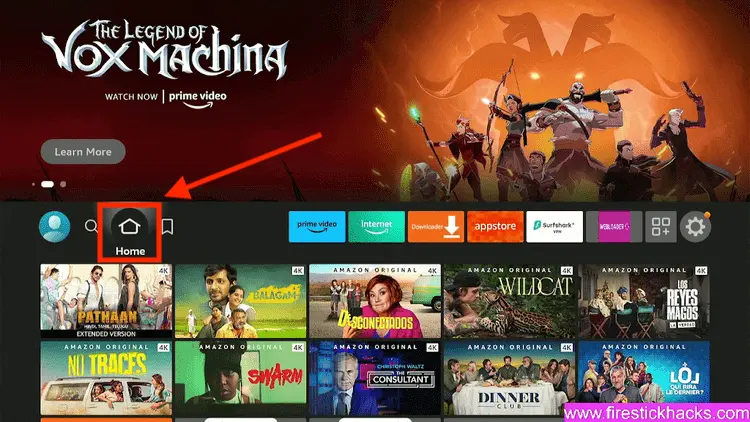
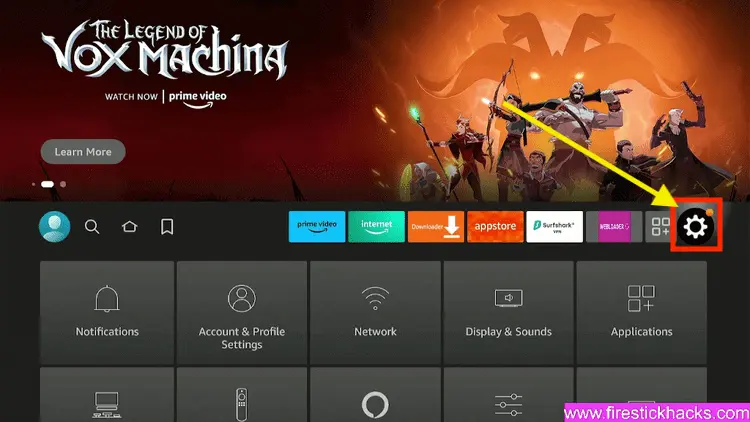
Step 2: Click on the Settings icon
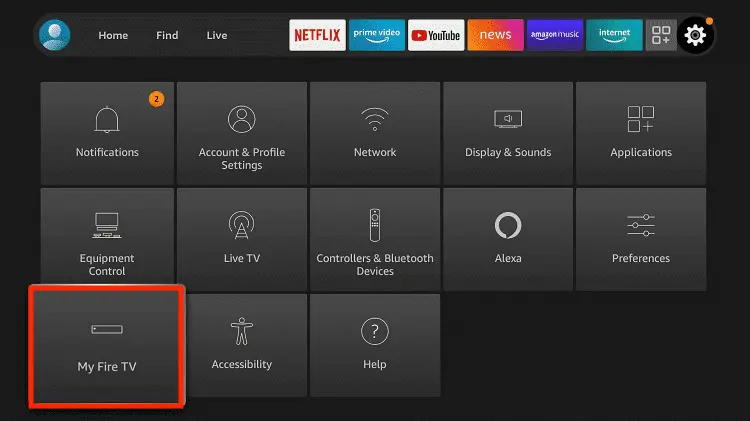
Step 3: Select the My Fire TV option
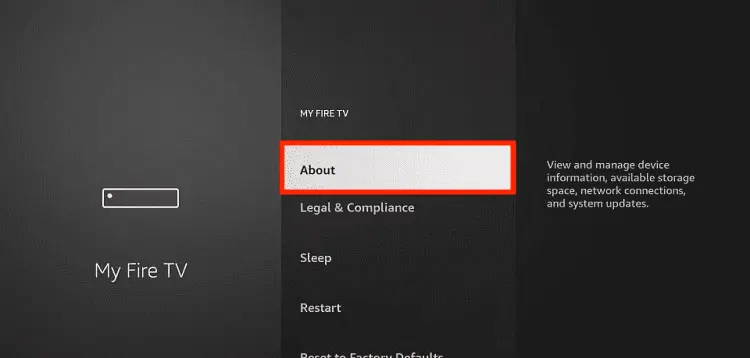
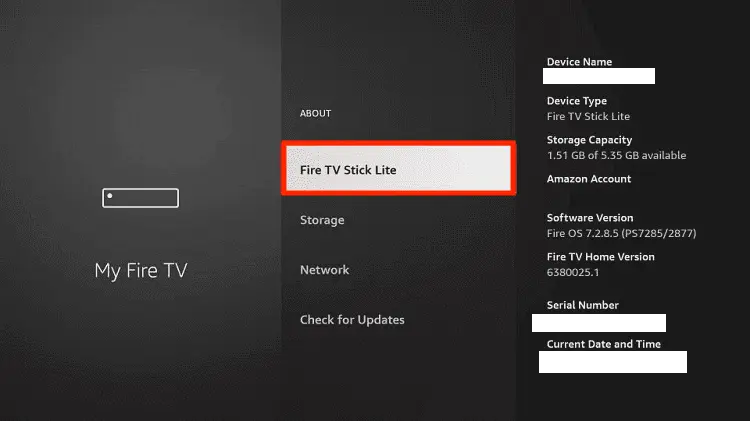
Step 4: To enable the Developer Option, click About.
Note: If you have already enabled the Developer Option, then proceed to Step 10
Step 5: Click on the Fire TV Stick option quickly at least 7 times
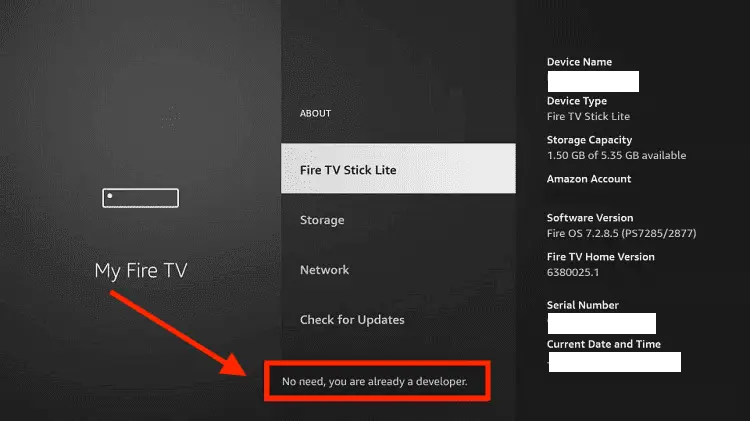
Step 6: Now you will see this message at the bottom saying "No need, you are already a developer". So stop clicking then
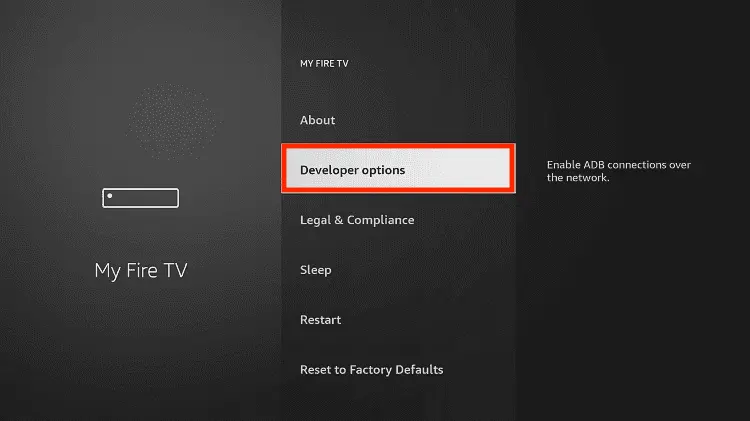
Step 7: Now the Developer Option will appear in the menu so click on it
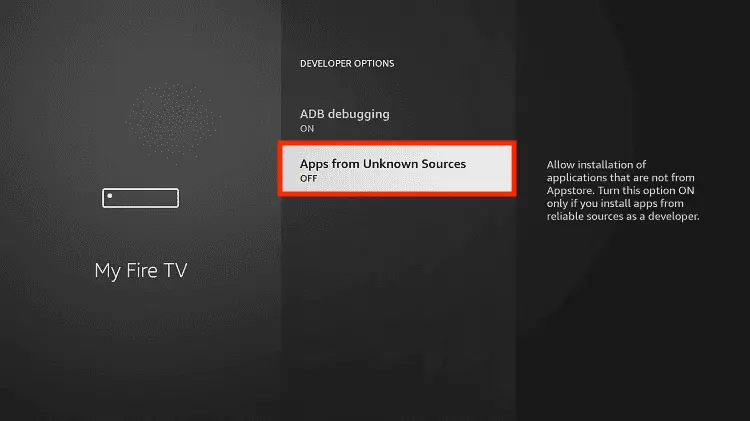
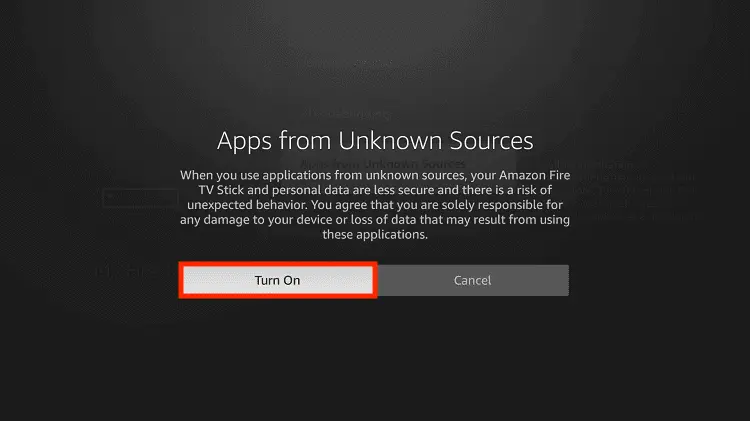
Step 8: Choose Apps from Unknown Sources to turn it ON
Step 9: Simply click Turn On
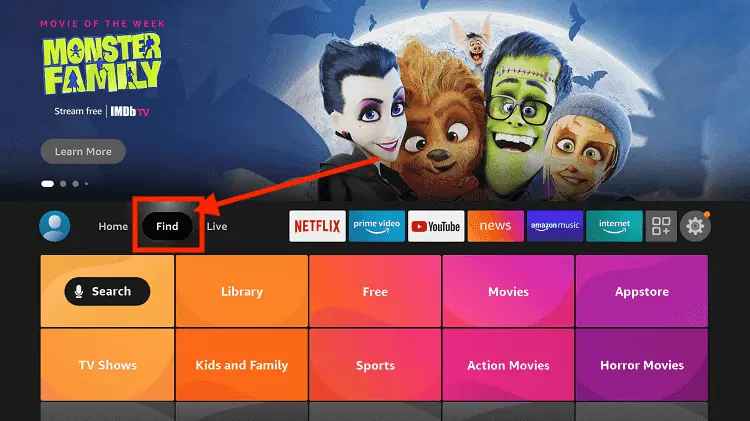
Step 10: Now return to the FireStick Home menu by pressing the "Home" icon on the remote and click on Find
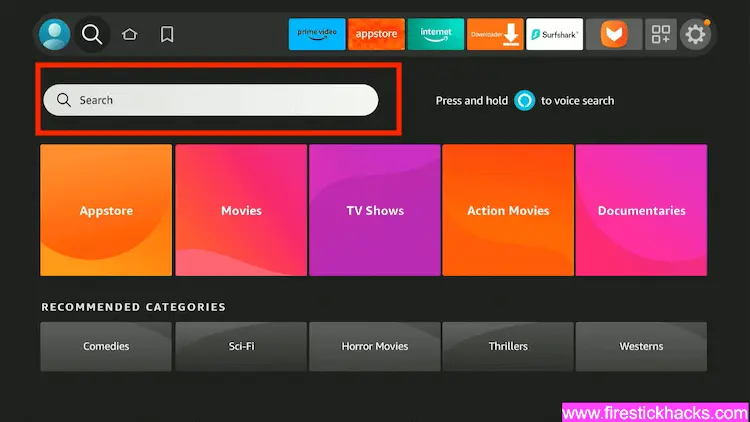
Step 11: Now select the Search icon
Step 12: Type Downloader and press search
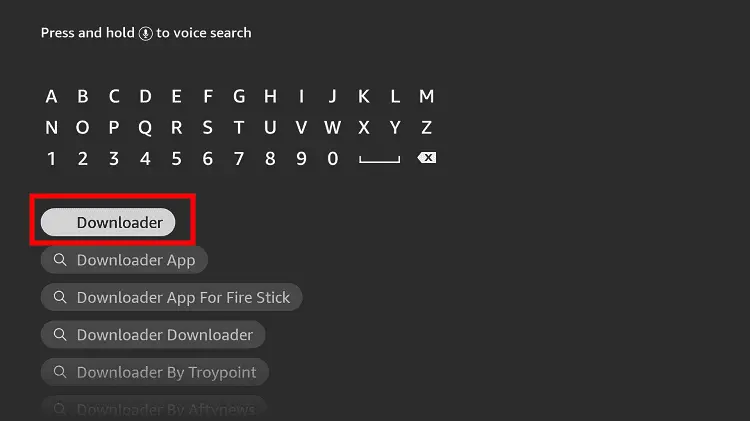
Step 13: Select the Downloader App icon from the list available in the Amazon Store
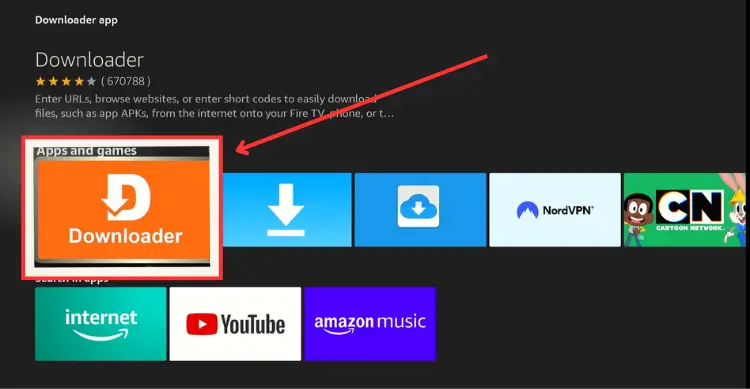
Step 14: Tap Get/Download
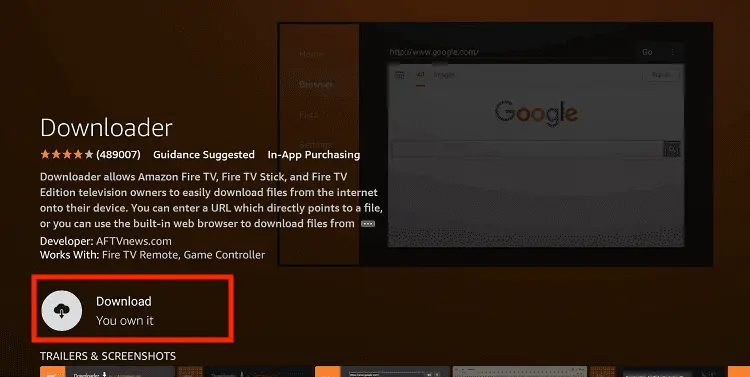
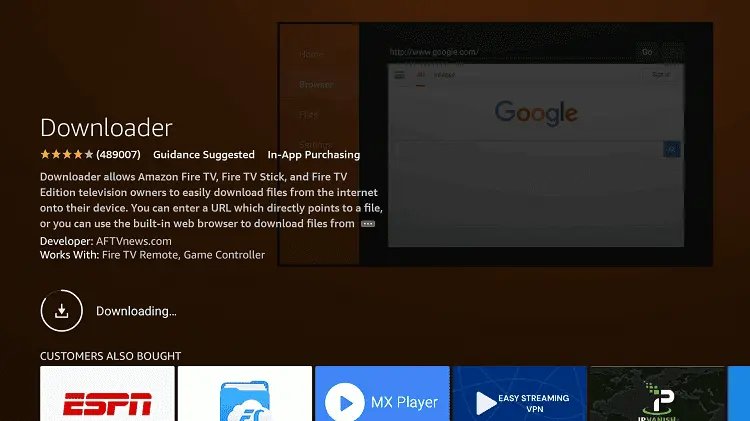
Step 15: Wait for a while until the installation process is completed
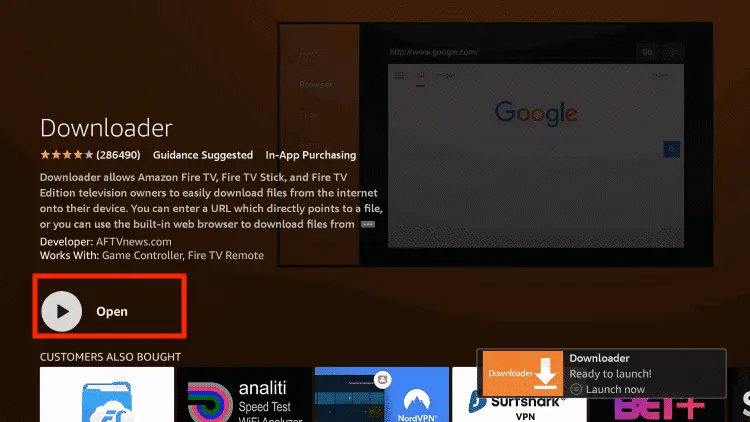
Step 16: Now click Open
Step 17: You will see a popup about Downloader app latest update. Click "OK".

Step 18: Click OK again

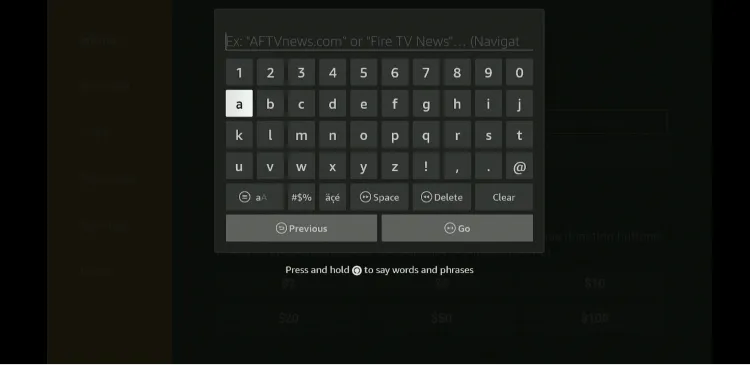
Step 19: This is the Downloader App interface, Click the Search Bar on top

Step 20: Enter the NetGuard Downloader Code 730116 in the search box OR enter this URL bit.ly/fsh-downloads and click Go.
Note: The referenced link is the official URL of this app/website. FIRESTICKHACKS does not own, operate, or re-sell any app, streaming site, or service and has no affiliation with its developers.
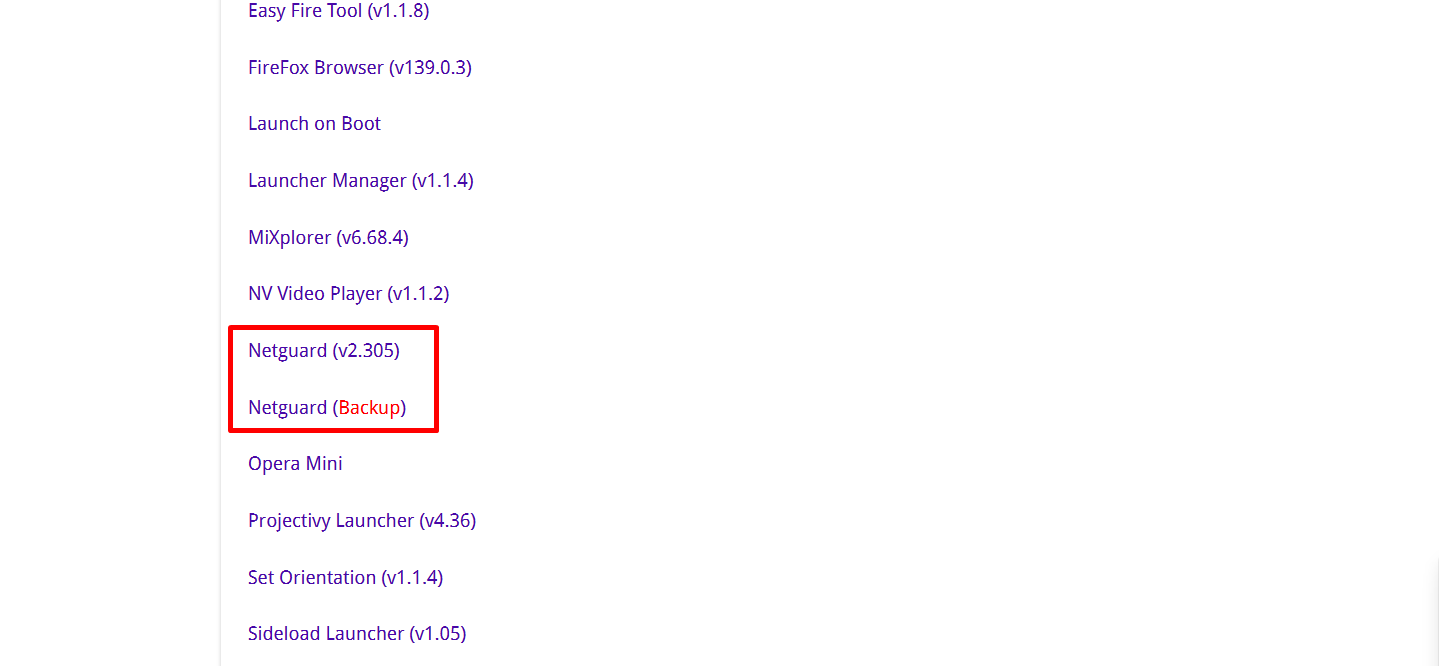
Step 21: Scroll down and click “NetGuard” from the “Utility Apps” category.
Note: If FireStick blocks the app or shows a “harmful” warning, then install “NetGuard Backup.”
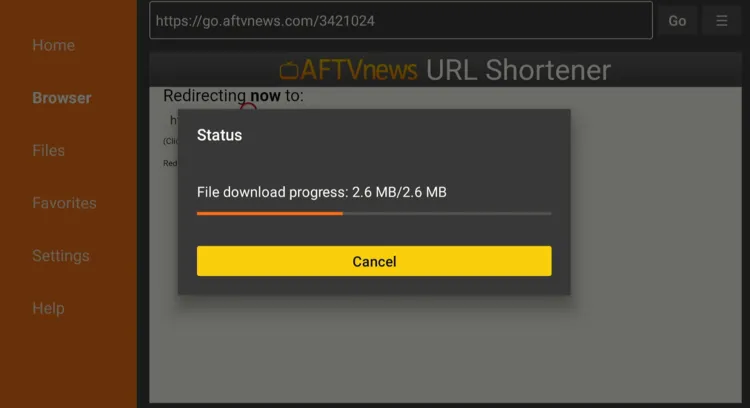
Step 22: The downloading will start. Wait for it to finish.
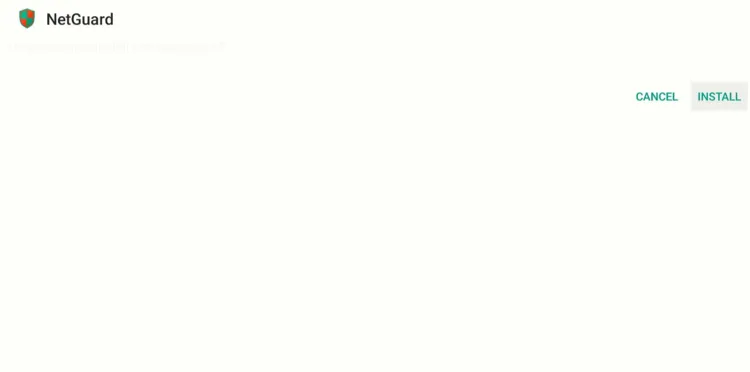
Step 23: Once the downloading ends, click “Install”.
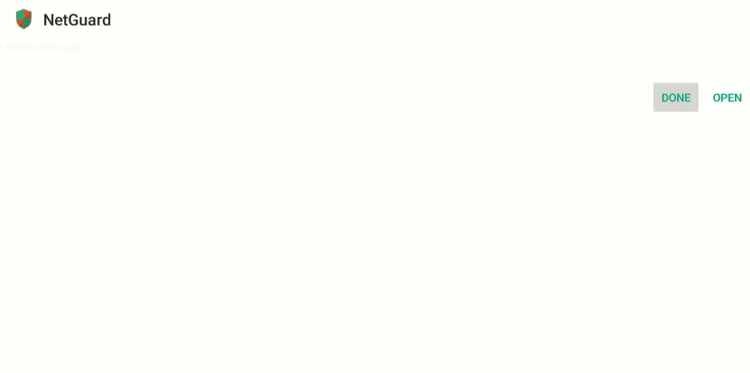
Step 24: Tap the “Done” icon.
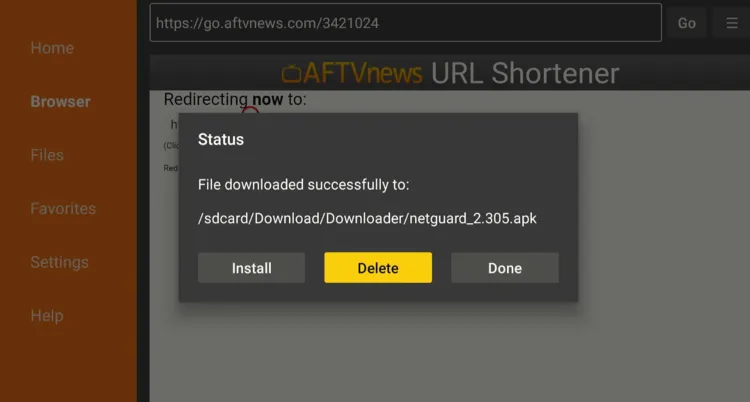
Step 25: Click “Delete” to remove the NetGuard APK file from FireStick.
Note: Deleting APK files will free up space on FireStick.
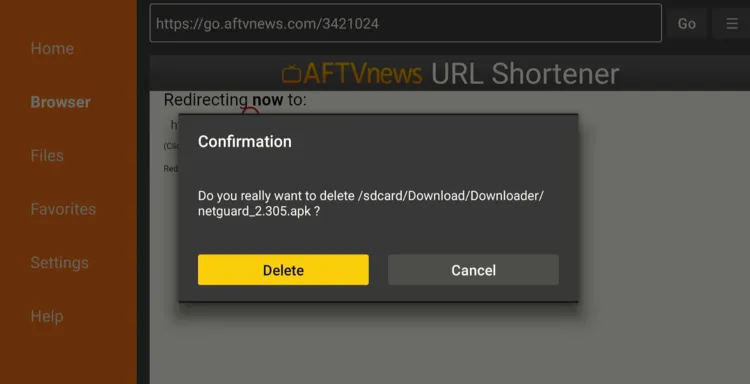
Step 26: Tap “Delete” again to complete the process.
How to Use NetGuard on FireStick
Using NetGuard doesn’t require any additional tools. However, you need to keep in mind that FireStick doesn’t allow users to use NetGuard and VPN simultaneously.
The reason behind this is that NetGuard uses a local VPN to filter internet traffic.
Follow the steps below:
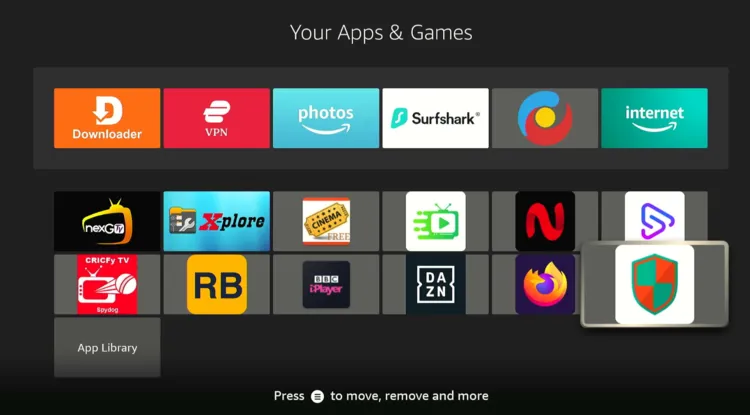
Step 1: Go to the FireStick home screen and select the “Apps Library” icon next to the settings.

Step 2: Choose “NetGuard”.
Step 3: Tap “I Agree”.
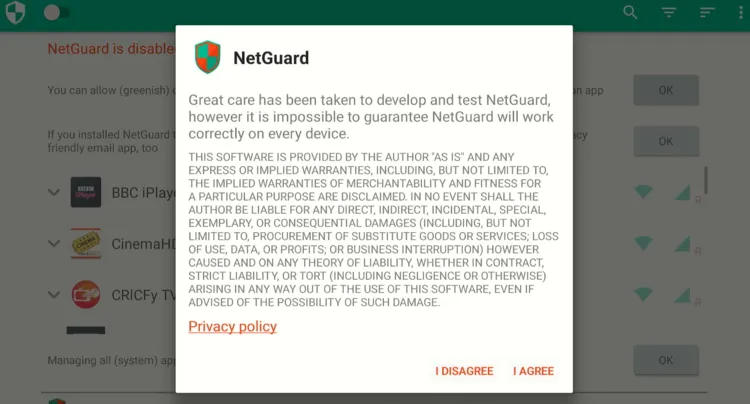
Step 4: Enable the switch of the “Toggle Icon” from the top left corner.

Step 5: You will see this warning, which reitrates that you can’t use a VPN and NetGuard together. Click “OK”.

Step 6: Tap “OK”.

Step 7: Scroll down and disable the “Wi-Fi” and “Data” options for the app you wish to cut off from the internet.

Step 8: To block internet access for system apps, tap the “three dots” icon in the top right corner.

Step 9: Choose “Settings”.

Step 10: Click “Advanced Options”.
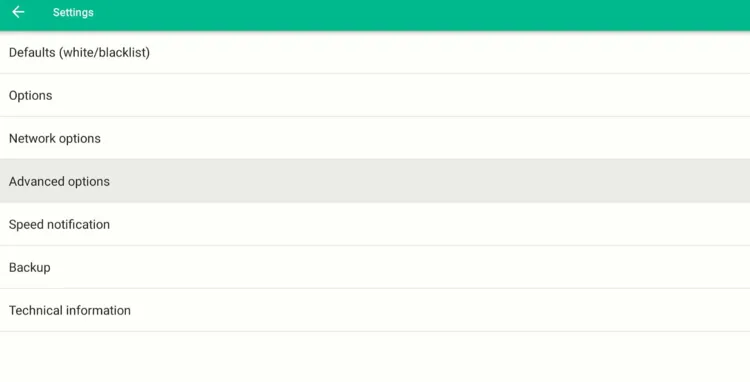
Step 11: Turn on the toggle for “Manage System Apps”.

Step 12: Now, come back to the NetGuard home screen. Scroll down and disable the “Wi-Fi” and “Data” icons for specific system apps to block FireSick updates or remove ads from the homescreen.

Is NetGuard APK Safe/Legal to Use on FireStick

The NegGuard latest APK (v2.305) is completely safe to use. We scanned its APK file using VirusTotal and found no malware or viruses.
Top NetGaurd Features

Check out some of the top NetGuard features:
✅ Basic functionality for free
✅ Block system & installed apps
✅ Supports dark mode
✅ No root required
✅ Ad-free experience
✅ Open-source firewall
✅ Wi-Fi & mobile data control
✅ Custom notifications
✅ Pro features unlock
✅ Lightweight APK (only 2.6 MB)
FAQs – NetGuard
Can I use NetGuard and a VPN together on FireStick?
No. Since NetGuard uses a local VPN to block connections, it cannot run alongside any VPN service.
Does NetGuard require root access?
No, NetGuard works without root access on FireStick and Android devices.
Is NetGuard free or paid?
NetGuard is free, but you can unlock Pro features like traffic logs and address filtering with a donation.
Can I block FireStick updates using NetGuard?
Yes, you can disable Wi-Fi access for the update service app to stop FireStick from downloading updates.
Does NetGuard block ads?
It doesn’t directly remove ads, but it can prevent apps responsible for ads from accessing the internet.
Final Thoughts
NetGuard helps you take control of your FirreStick. Whether you’re using it to block system updates, stop apps from consuming unnecessary data, or remove home screen ads, it does the job.
The best part is that it doesn’t require root access or any complex setup. One thing to keep in mind is that NetGuard relies on a local VPN to filter traffic. This means it cannot run simultaneously with other VPNs.
For those situations, you can temporarily disable NetGuard and switch to a VPN like Surfshark to maintain encrypted, private browsing.