
Disclosure: Our experts test apps for security before recommending them. If you buy through our links, we may earn a commission. See how it works.
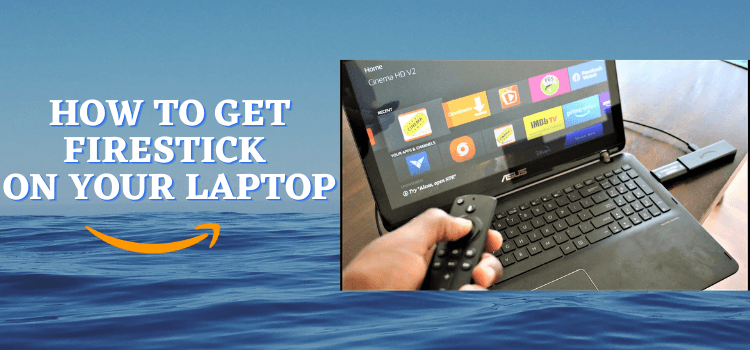
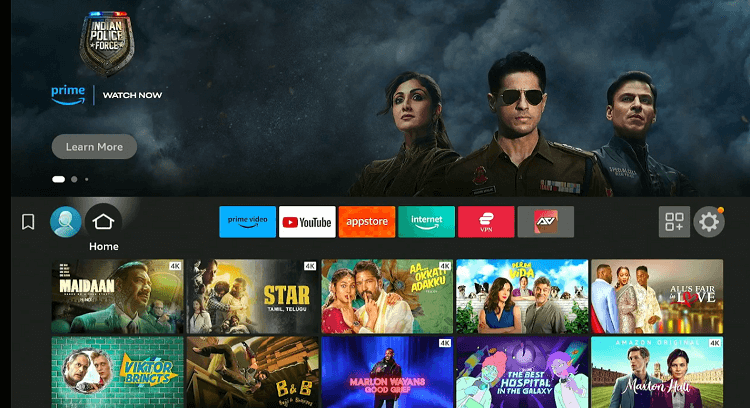
Amazon Fire TV Stick is portable, not just designed to be set up on your TV, but you can also use it with a laptop (Dell, HP, Acer, ASUS, etc) using an HDMI video capture card, an HDMI extender, and free capture software such as OBS Studio (Free).
Once everything is connected, you can view and control the Fire TV interface from your laptop.
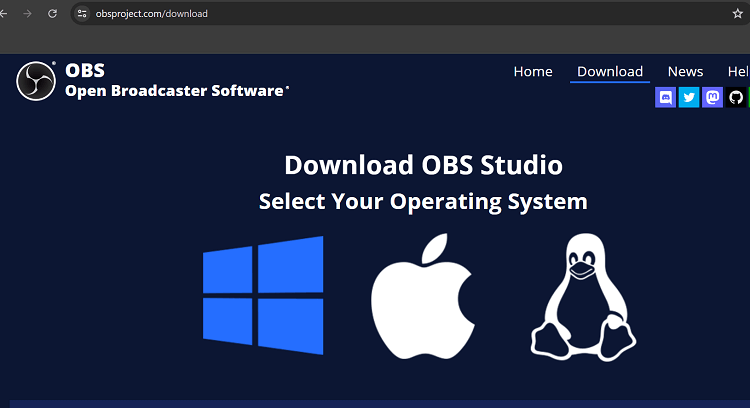
Download and install OBS Studio (free) on your Windows laptop from obsproject.com.
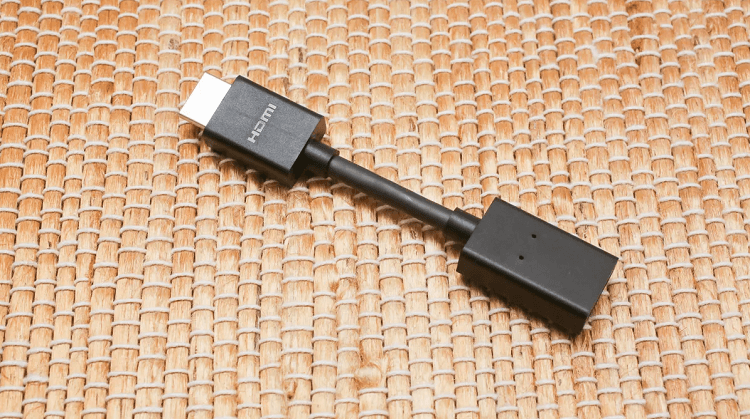
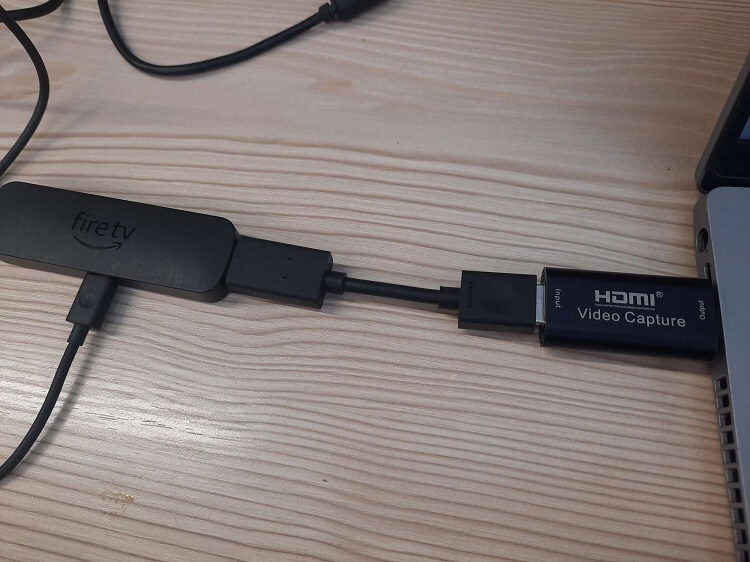
Connect the HDMI extender to your FireStick, then attach it to the HDMI video capture card.
Plug the capture card into your laptop’s USB port.
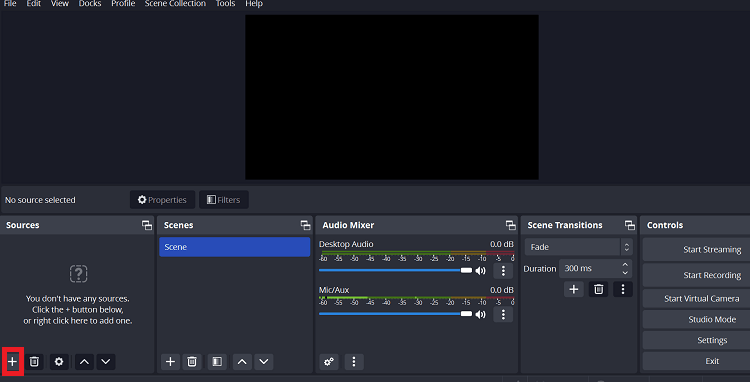
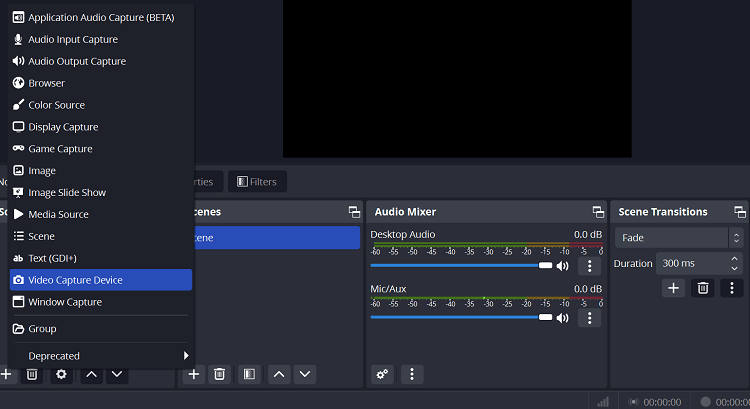
Open OBS Studio, click the “+” icon under Sources, and select Video Capture Device.
Choose “USB Video” under the Device tab; your FireStick screen now displays on your laptop!
Hardware Requirements for Setting Up FireStick on Your Laptop
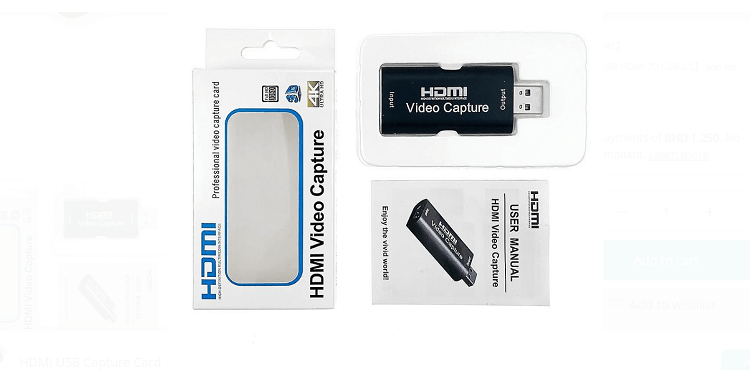
Before going further, make sure you fulfill all the hardware requirements listed below:
How to Connect FireStick on Windows Laptop
Once you have got your hands on all the equipment, you can follow this step-by-step process of connecting your FireStick to a laptop. For Mac, see this guide.
Step 1: Open a web browser on your laptop and type www.obsproject.com/download. Select the “Windows” icon.
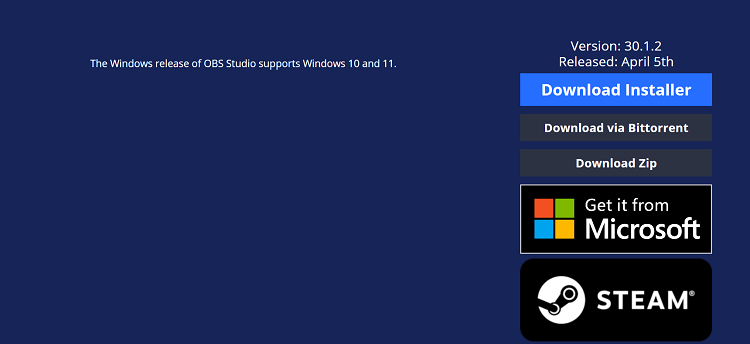
Step 2: Scroll down and click “Download Installer”.
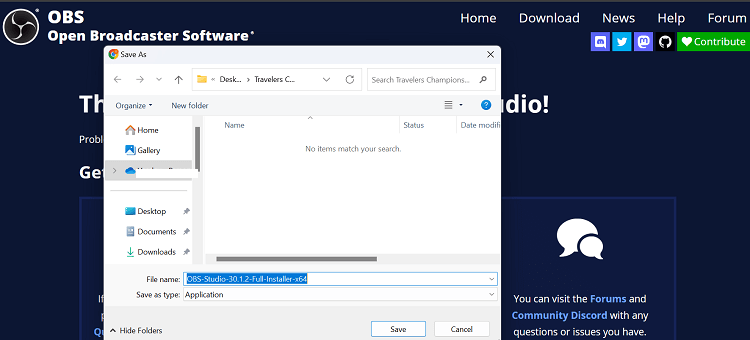
Step 3: Tap “Save”.
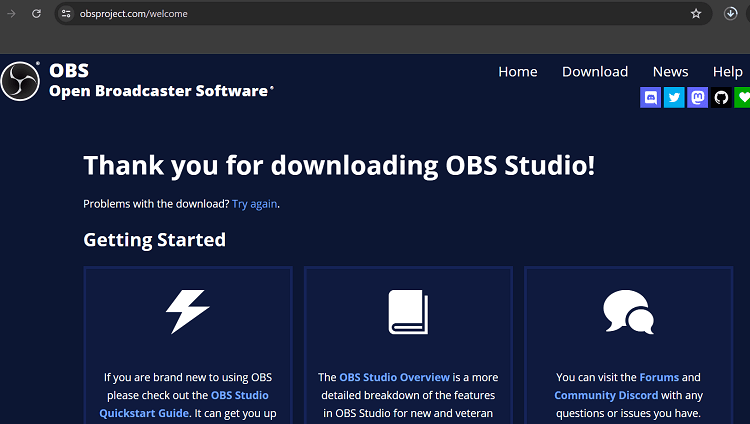
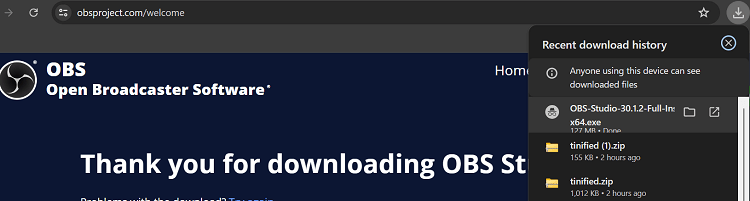
Step 4: The downloading will start. In Google Chrome, you will be able to see in the top right corner.
Step 5: Once the process ends, click the downloaded file.
Step 6: Tap “Next”.
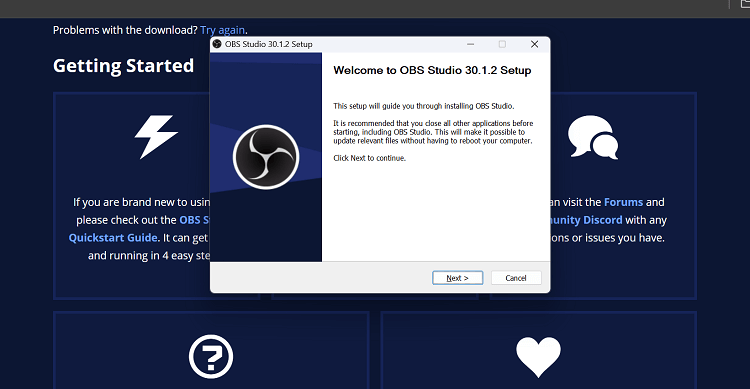
Step 7: Tap “Next” again.
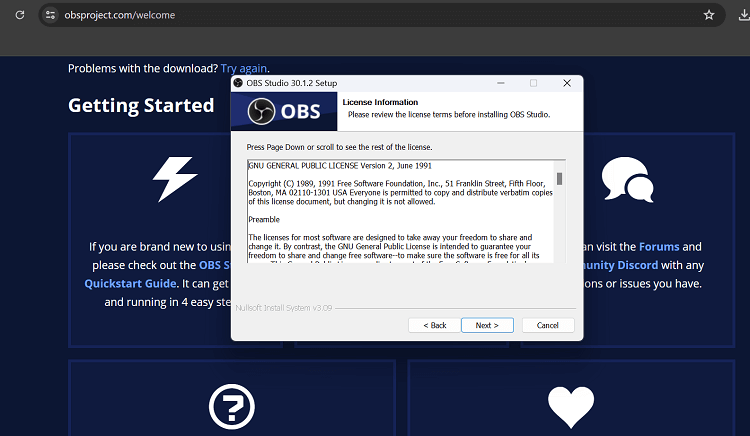
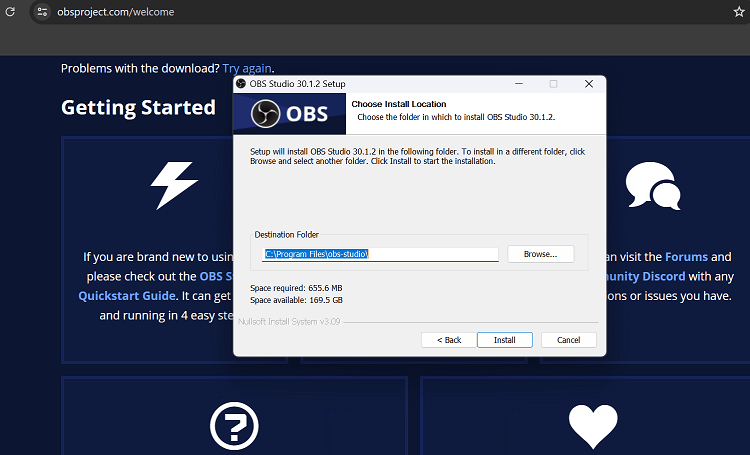
Step 8: Click “Install”.
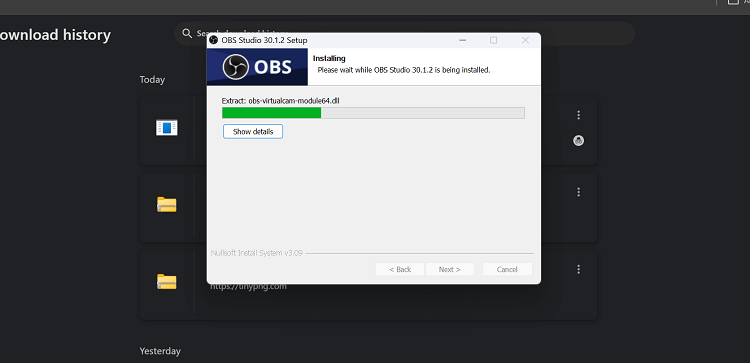
Step 9: The installation process; wait for it to finish.
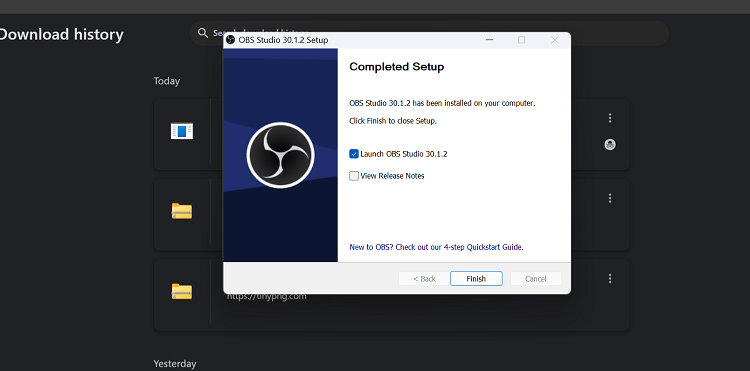
Step 10: Once the installation ends, click “Finish”.
Step 11: Now attach the HDMI extender to FireStick first, then connect the extender to the video capturing device, and finally plug it into your laptop port.
Step 12: Launch OBS Studio on FireStick and click the “Plus” icon under the “Sources” tab.
Step 13: Navigate to “Video Capture Device”.
Step 14: Click “OK”.
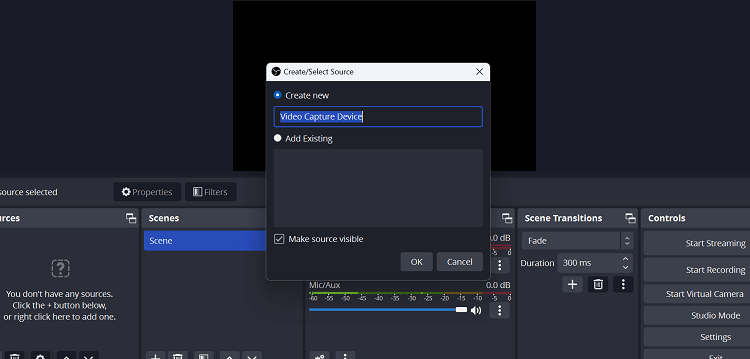
Step 15: Click the “Device” tab and choose “USB Video”.
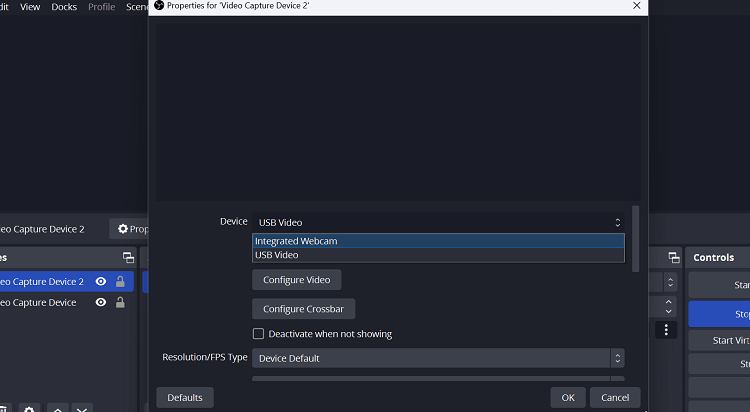
Step 16: Now you can watch FireStick on your laptop.
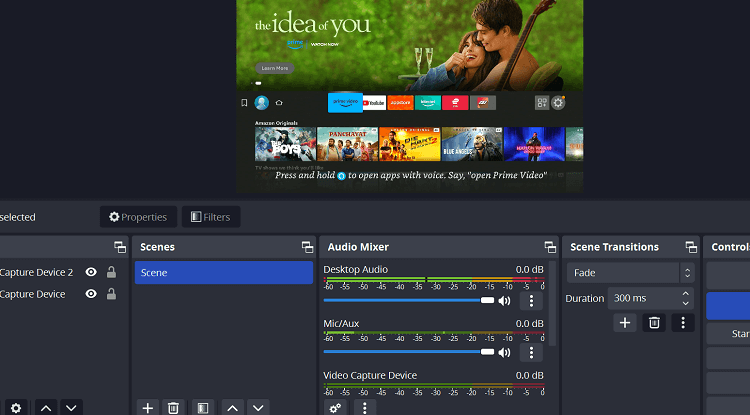
Step 17: To expand the screen size, “Right Click” anywhere on the OBS screen, navigate to “Fullscreen Projector” and select “Display: 1920×1080”.
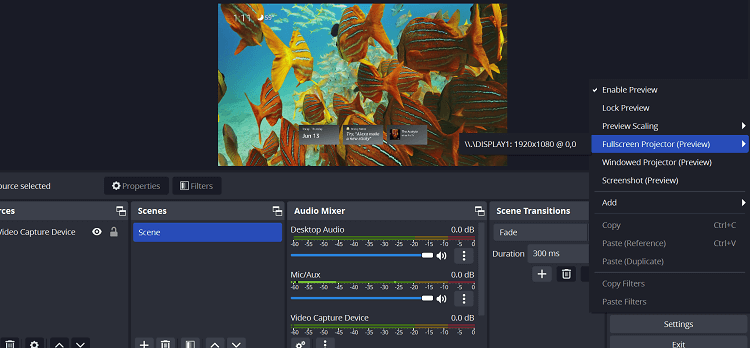
Step 18: The screen has been expanded. Enjoy streaming!
FireStick Audio Not Working on Laptop
When using FireStick in OBS Studio, you can only hear the audio through your laptop speakers after recording the videos.
However, you can use your Bluetooth earbuds and speakers to enjoy the audio; you can connect them on FireStick using the following guides:
FAQs – FireStick on Laptop
Can I connect my FireStick directly to my laptop?
No, laptops do not support HDMI input, only output.
What equipment do I need to connect FireStick to my laptop?
You need an HDMI extender and an HDMI capture card to capture the video input.
Will using a capture card affect the video quality?
It depends on your HDMI capture card. High-quality capture cards can stream content in HD quality.
Can I also record FireStick content on my laptop?
Yes, OBS Studio lets you record all the FireStick.
Can I connect a FireStick to my Laptop?
Yes, you can connect a Fire TV Stick to most Windows laptops, including models from Dell, HP, Lenovo, ASUS, Acer, MSI, Samsung, and Microsoft Surface, as well as MacBooks. However, you’ll need an HDMI video capture card and capture software such as OBS Studio to display the Fire TV Stick on your laptop screen.
Wrapping UP
By connecting your FireStick to your laptop, you unlock a whole new level of versatility and user control. However, the streaming quality will largely depend on your video capture card and the resolutions supported by your laptop.






Thanks for the guide, I’ve followed this and I’m getting video but no audio from my laptop once the firestick is connected.
Do you have any advice for this please?
Sure, in the audio mixing section, please check the ‘video capturing device’ and increase the volume from this section. let me know if its working