
Disclosure: Our experts test apps for security before recommending them. If you buy through our links, we may earn a commission. See how it works.
If you own a FireStick, the Downloader app is probably the first thing you installed on it. However, Fire TV users got a wake-up call recently when Downloader was removed from Amazon Appstore.
Even though it was eventually back after a few days, that brief disappearance proved that you must get familiar with Downloader alternatives.
So, next time when the Downloader app goes missing from Amazon Appstore or stops working for any reason, you can use the other apps like Downloader to sideload APKs on FireStick.
Best Downloader Alternatives [Video]
Top 2 Downloader App Alternatives
In this guide, I’m sharing 2 methods to install APKs on FireStick without using the Downloader app.
How to Install APKs on FireStick Using FireSend
FireSend is a free app that supports Downloader codes & Downloader links. You can also create and join rooms to install different APKs on FireStick.
To use it as a Downloader alternative, follow the steps below:
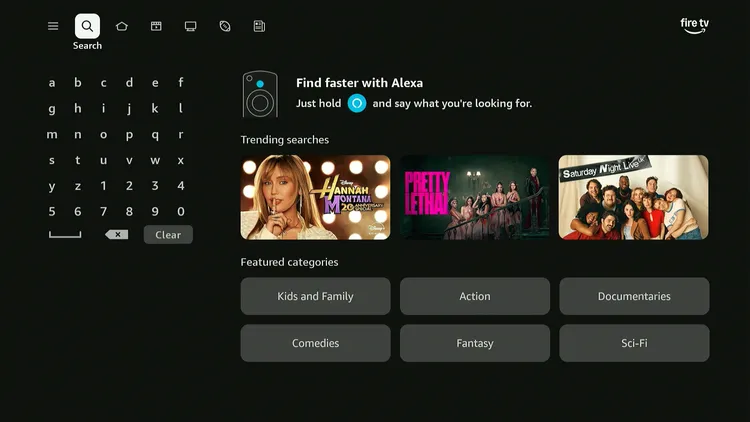
Step 1: Go to the FireStick home screen and click the “Search” icon.
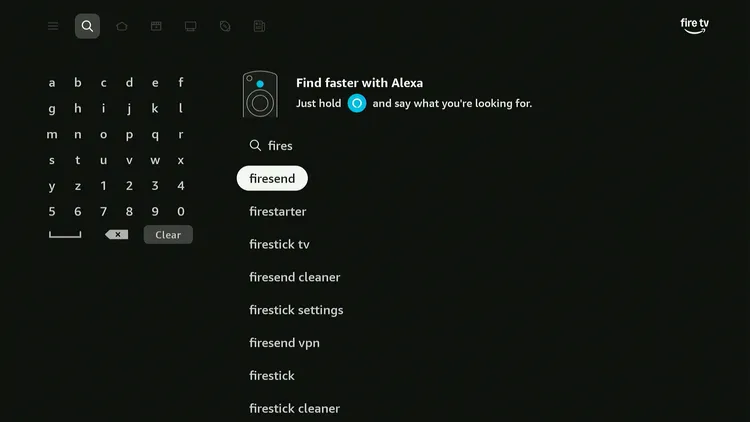
Step 2: Type “FireSend” and select it from the results.
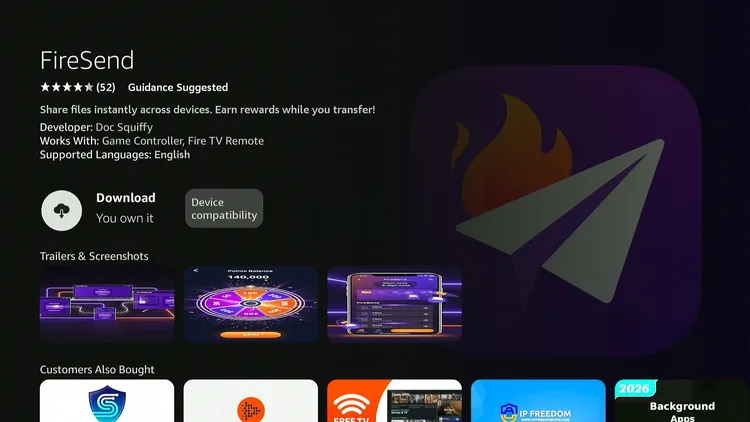
Step 3: Click on “FireSend.”
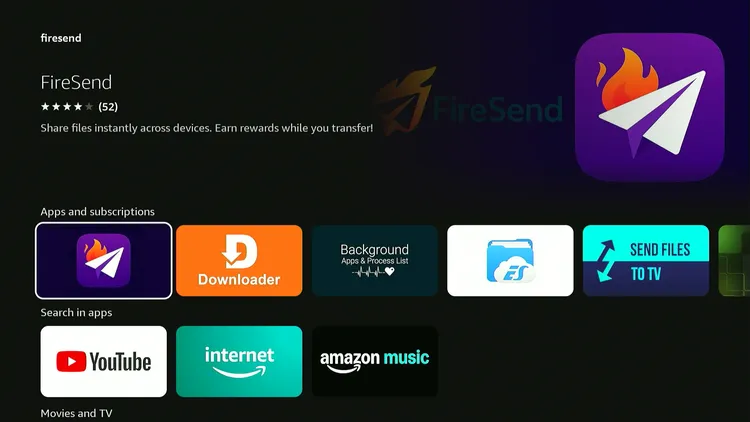
Step 4: Tap “Download.” Once the downloading ends, don’t launch it. Go to the FireStick homescreen.
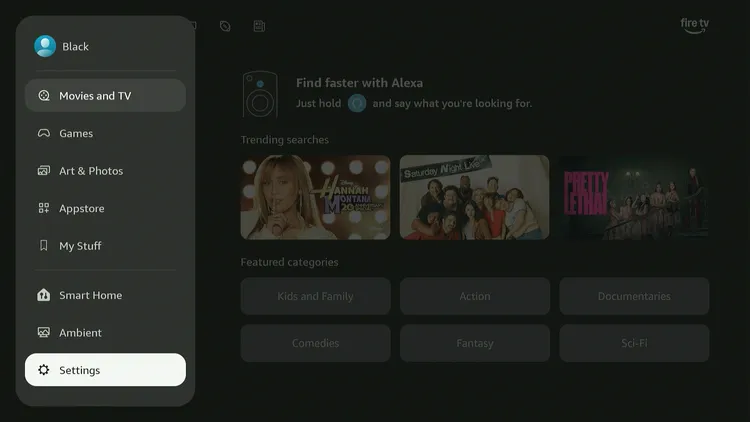
Step 5: Go to FireStick “Settings.”
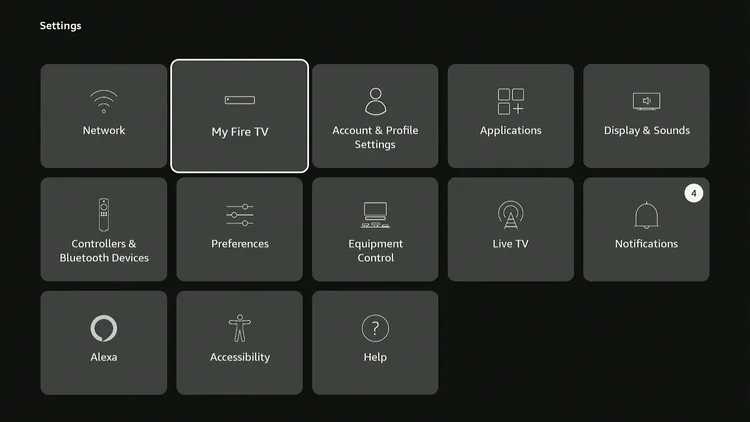
Step 6: Click “My Fire TV.”
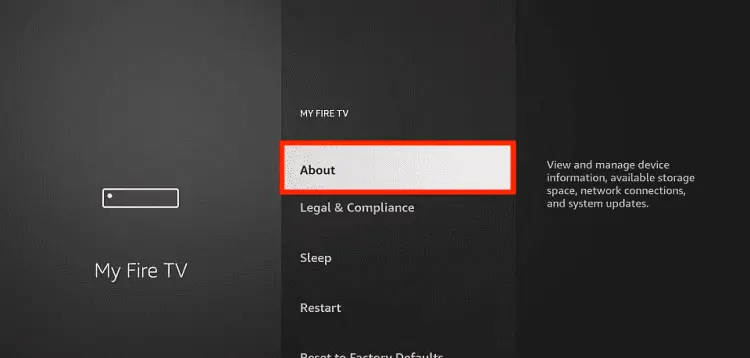
Step 7: Tap “About.”
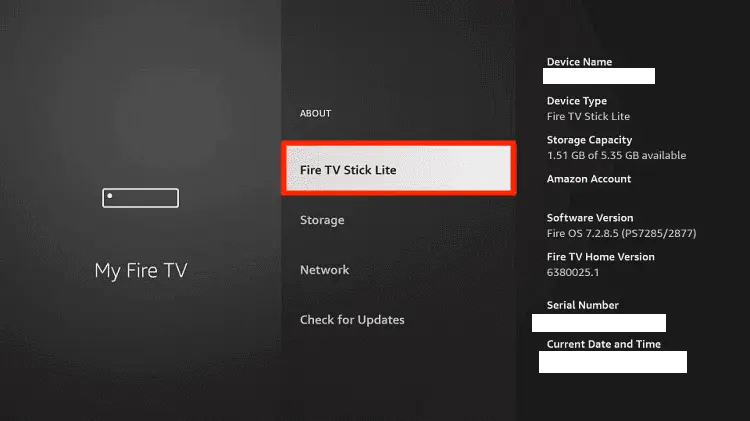
Step 8: Click on the “Fire TV Stick” option quickly at least 7 times.
If you have already enabled this feature, go to step 10.
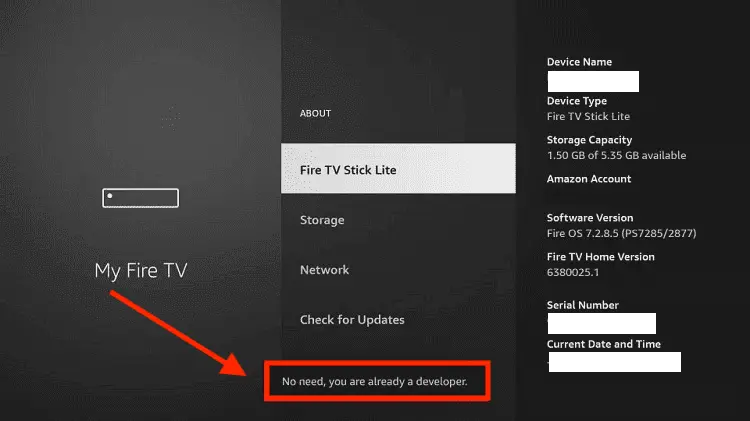
Step 9: Now you will see “No need, you are already a developer.”
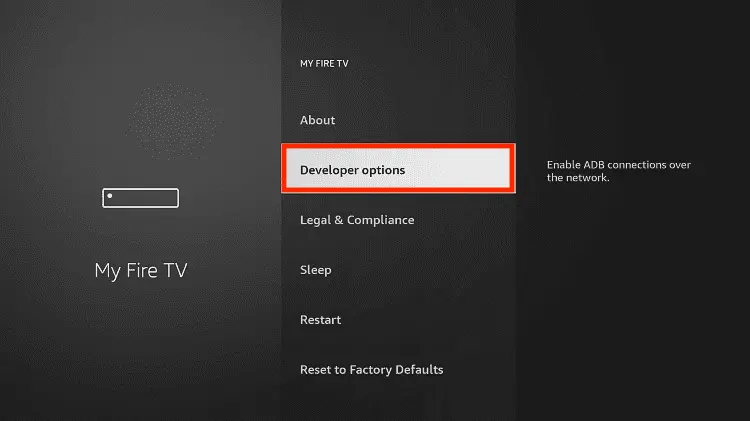
Step 10: Click “Developer Options” under About.
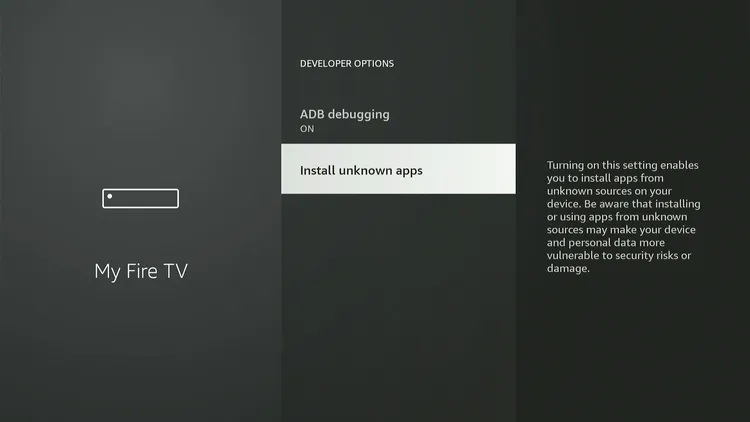
Step 11: Select “Install Unknown Apps.”
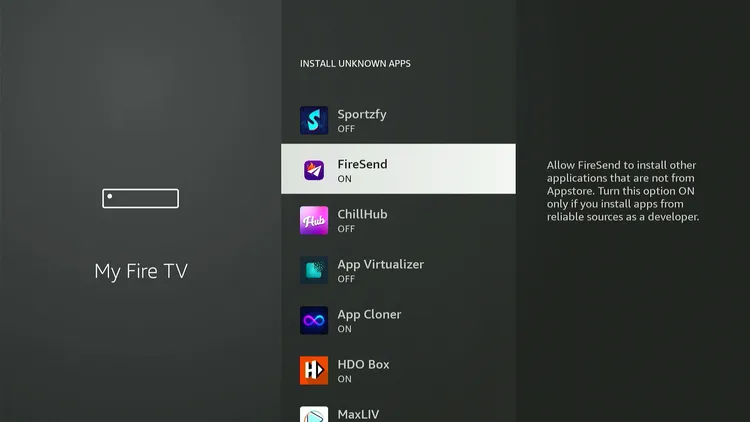
Step 12: Turn “ON” unknown sources under the “FireSend app.”
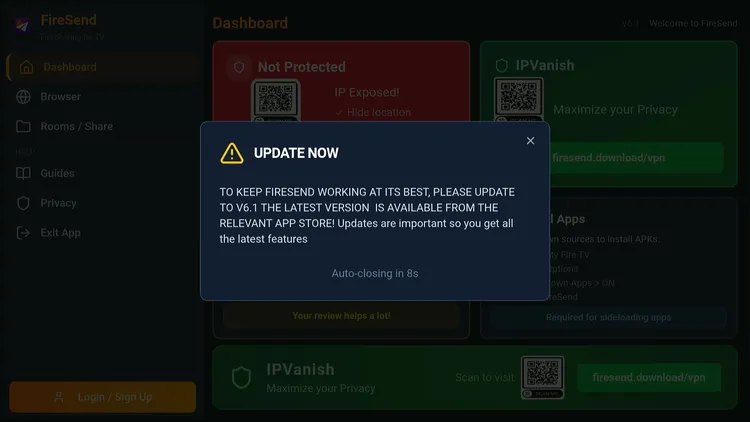
Step 13: Now launch the FireSend app. Wait for this pop-up to disappear.
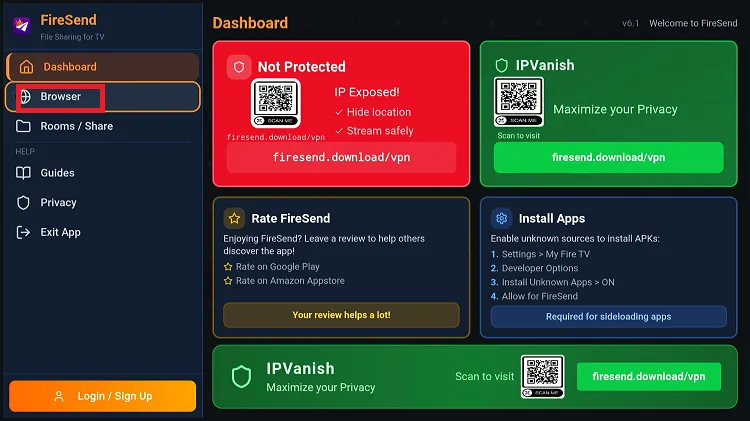
Step 14: Click “Browser.”
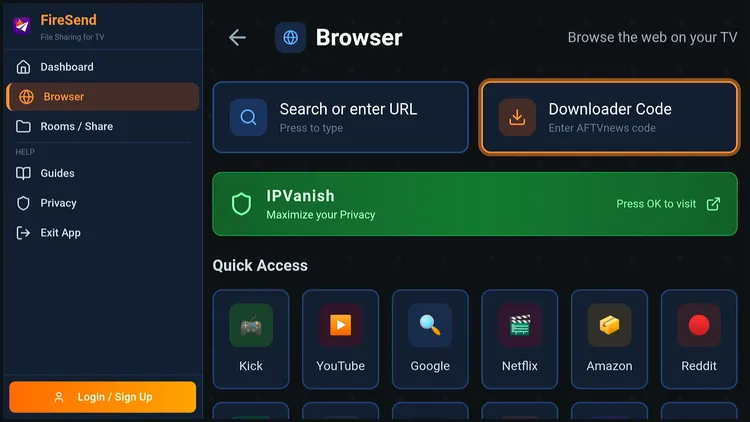
Step 15: Choose “Downloader Code.”
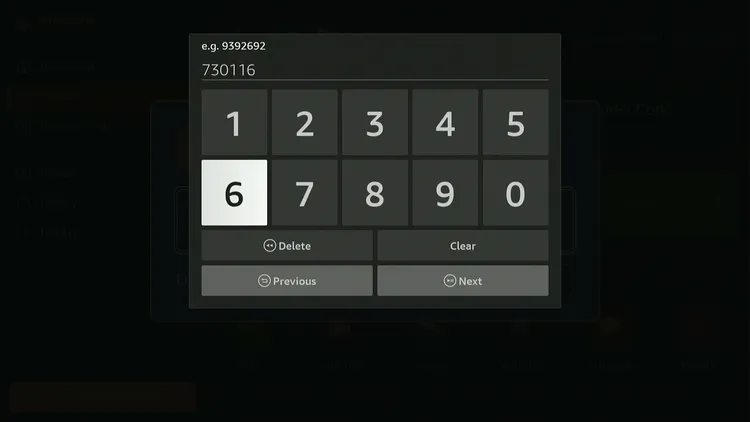
Step 16: Type Downloader code 730116.
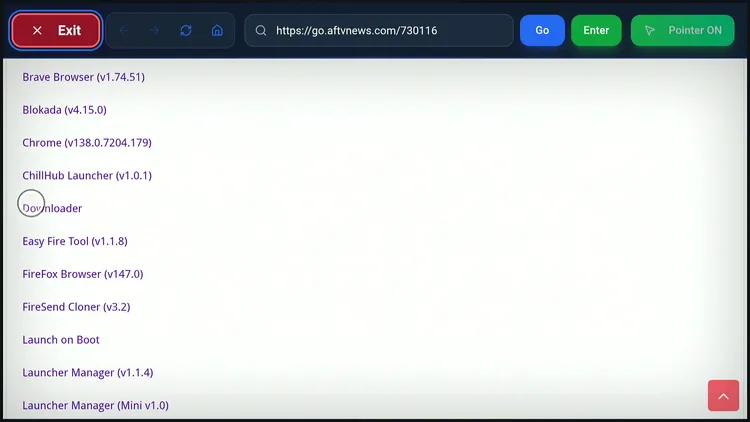
Step 17: Scroll down and select any app you want to install. I’m selecting the Downloader app.
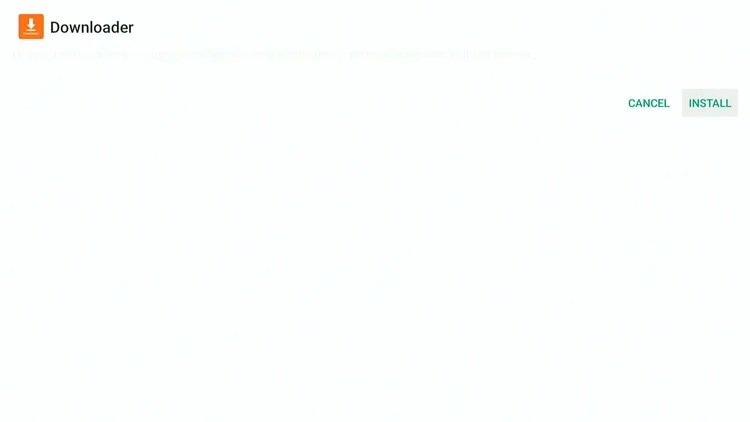
Step 18: Tap “Install.”
Step 19: After installation ends, click “Done.” Now launch the Downloader app.

Step 20: If the Downloader code does not work, click “Search or Enter URL” and enter the URL bit.ly/fsh-downloads to access our apps library.
How to Install APKs on FireStick Using LocalSend
LocalSend is a popular app that allows you to send APK files to FireStick via Android and iPhone. To extract the APK file, you will have to use a file manager like X-Plore on FireStick.
Follow the steps below:
Step 1: Click “Search.”
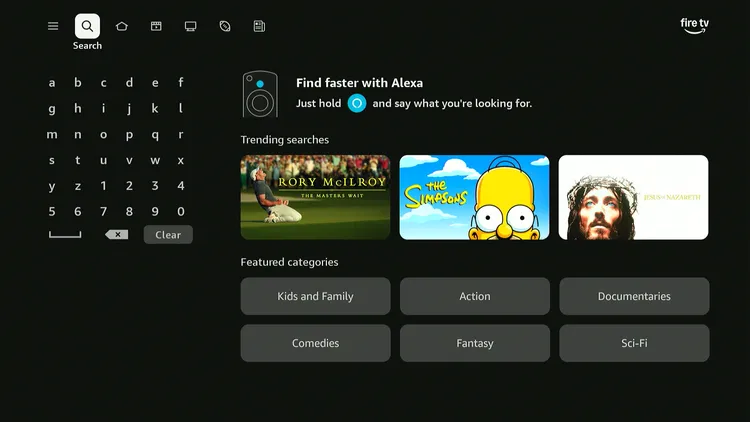
Step 2: Type “LocalSend” and select it from the results.
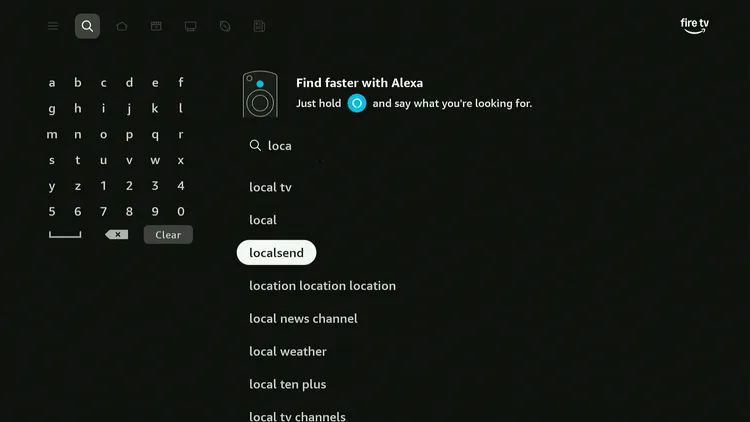
Step 3: Click on “LocalSend.”
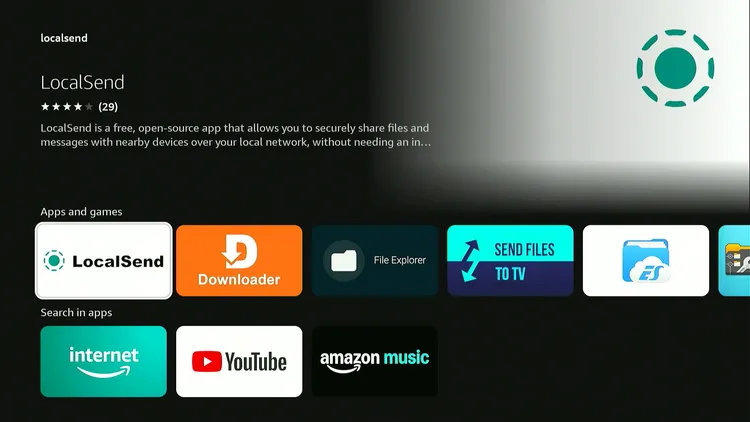
Step 4: Tap “Download.”
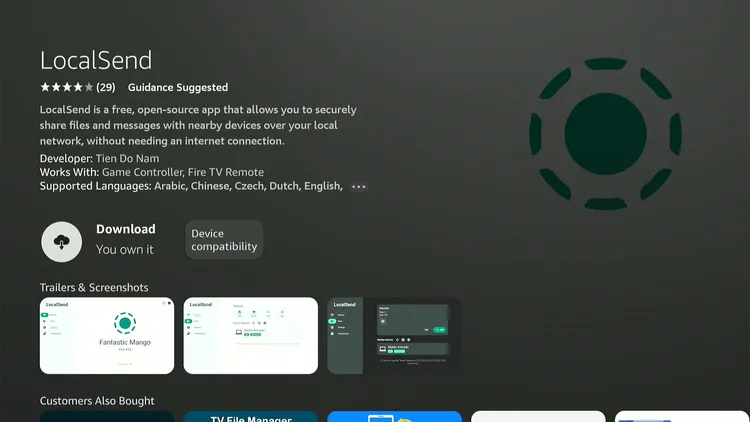
Step 5: Once the downloading ends, don’t launch it. Go to the FireStick homescreen.
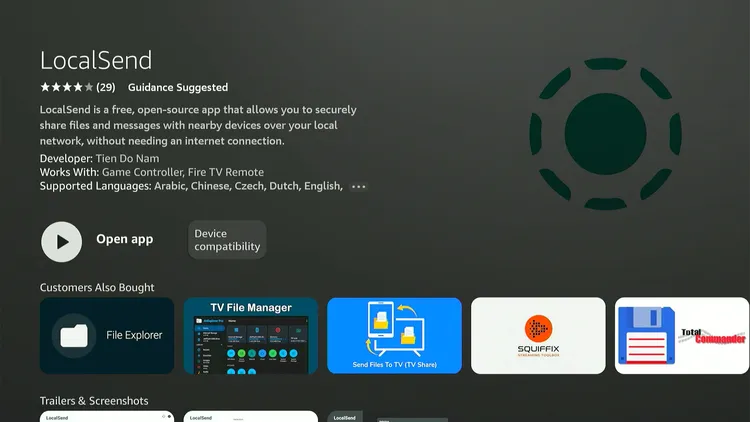
Step 6: Go to FireStick “Settings.”
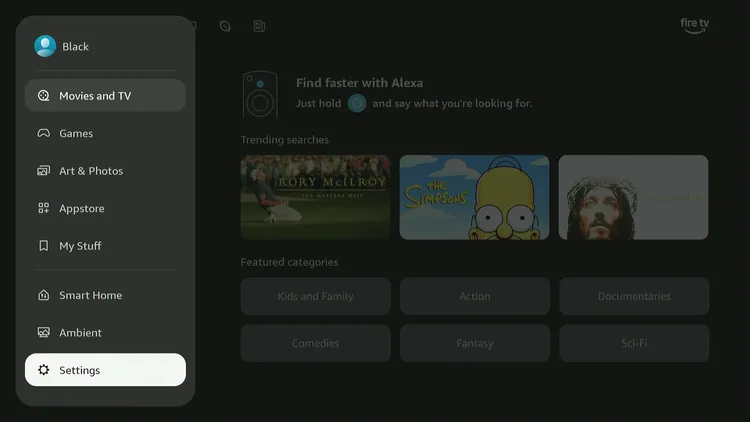
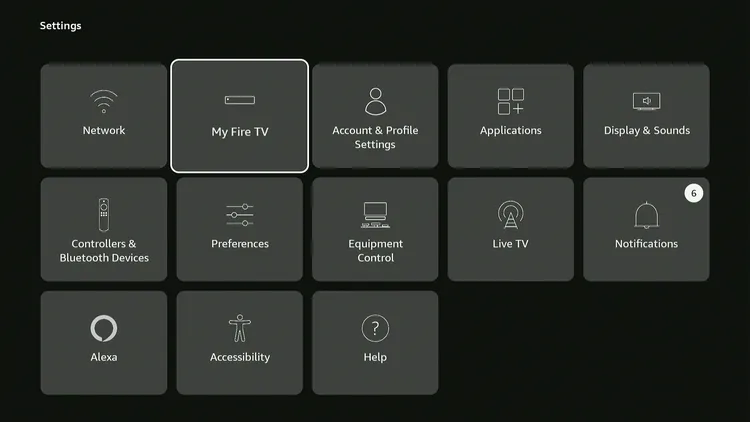
Step 7: Click “My Fire TV.”
Step 8: Tap “About.”
Step 9: Click on the “Fire TV Stick” option quickly at least 7 times. Now you will see, “No need, you are already a developer.”
If you have already enabled this feature, go to step 10.
Step 10: Now tap “Developer Options.”
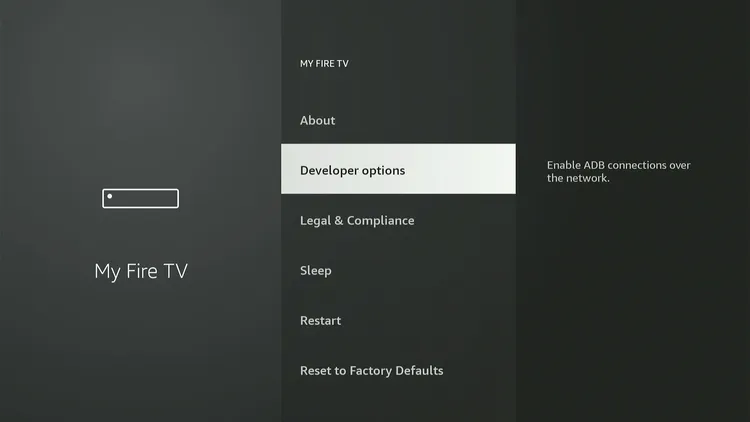
Step 11: Tap “Install Unknown Apps.”
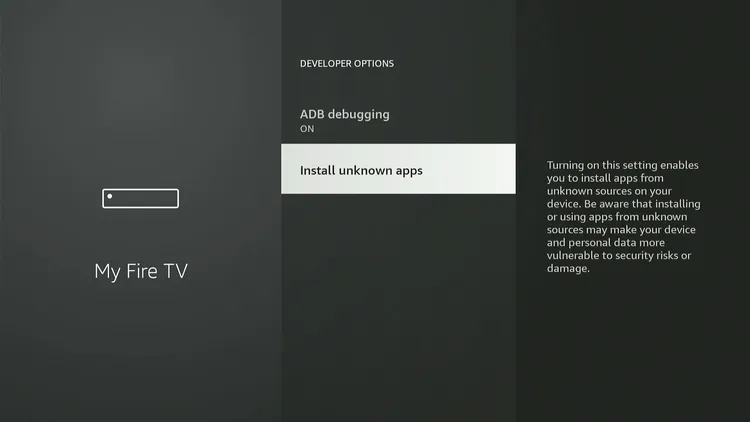
Step 12: Turn “ON” unknown sources under the “LocalSend app.”
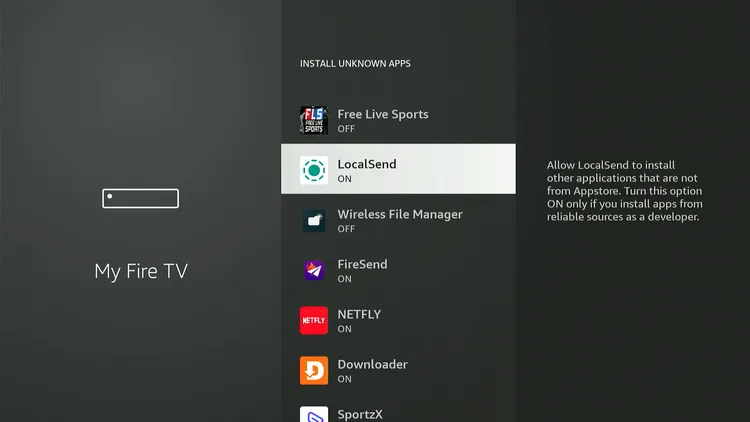
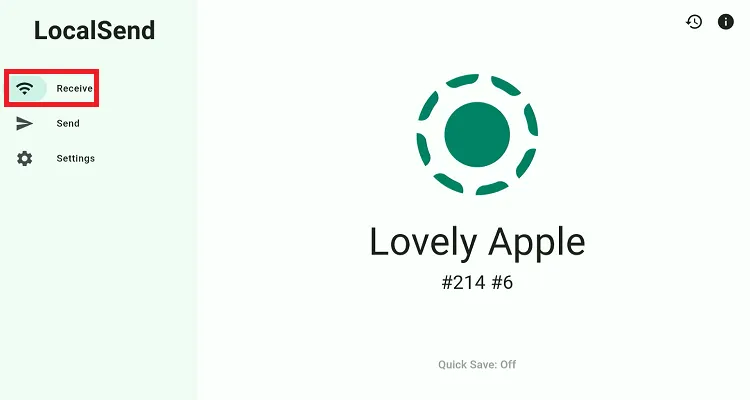
Step 13: Launch LocalSend, tap “Receive”. Now, stay on this screen and go to your mobile.
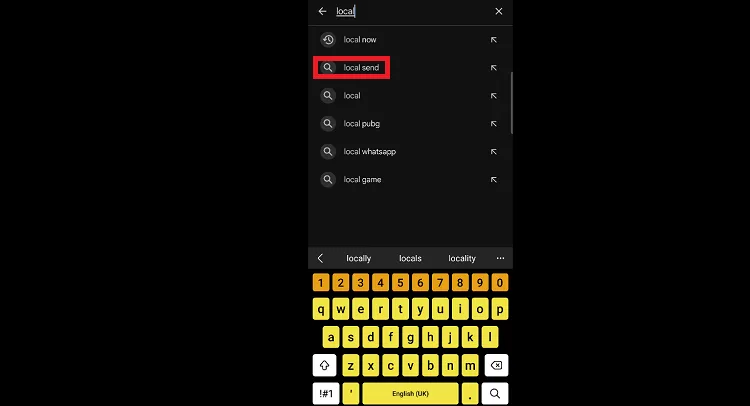
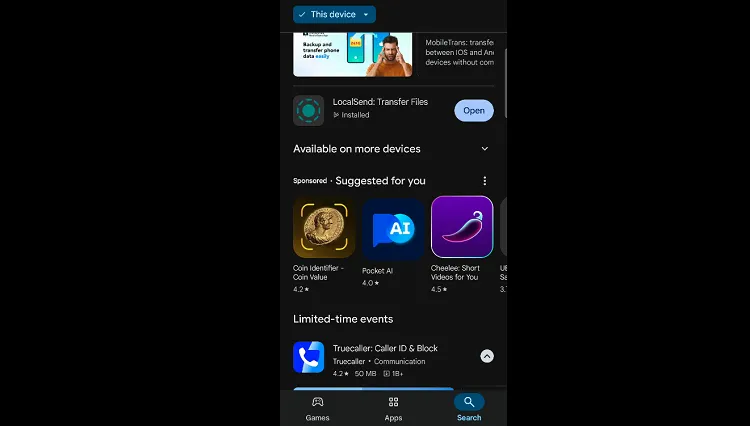
Step 14: Open Appstore on iPhone or the Google Play Store on your Android mobile and type “LocalSend.”
Step 15: Choose the LocalSend app and click “Install.”
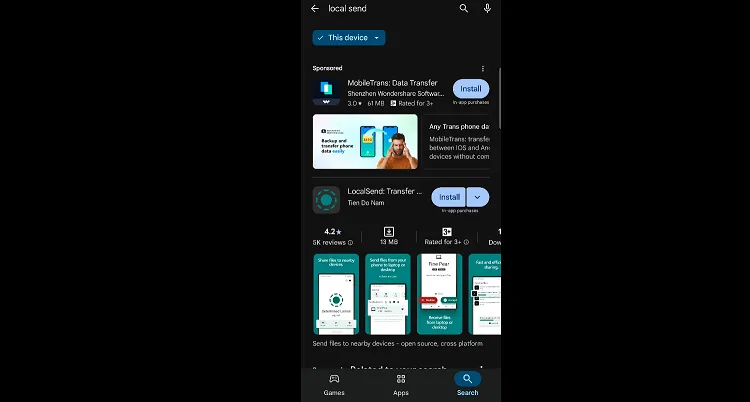
Step 16: Once the installation ends, tap “Open.”
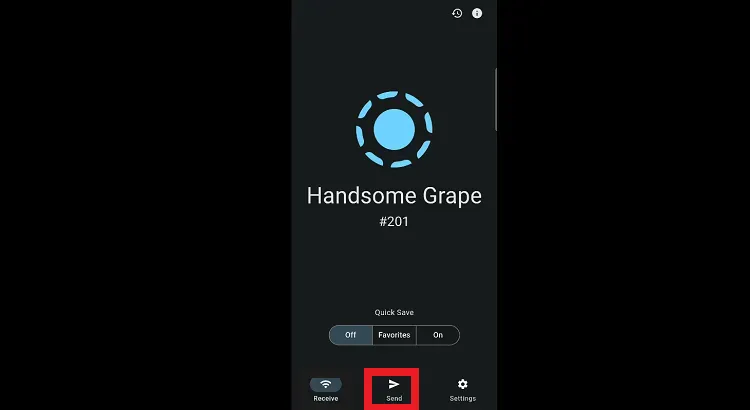
Step 17: Choose “Send.”
P.S. Make sure your FireStick and mobile are connected to the same Wi-Fi.
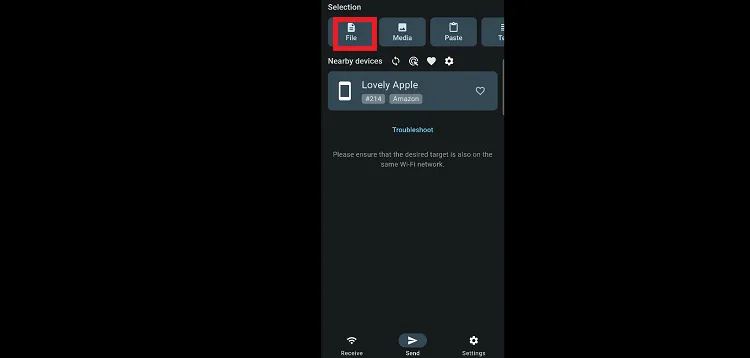
Step 18: Tap “File.”
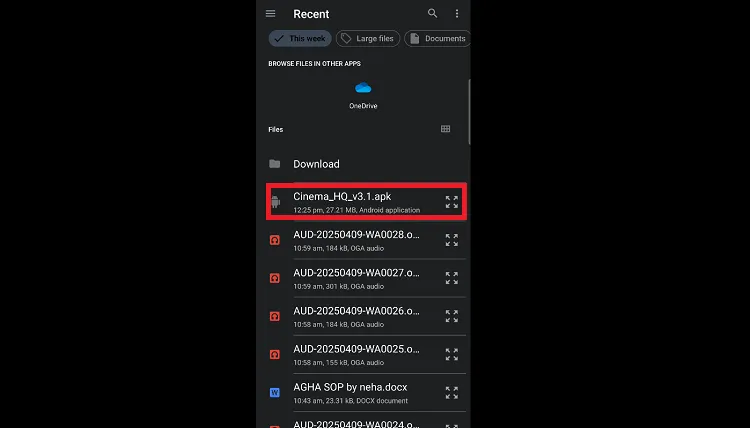
Step 19: Select the APK file from your mobile.
Important: You can install the latest APK files on your laptop/PC from our Downloads page.
Step 20: You will see a pop-up on FireStick; choose “Accept.”
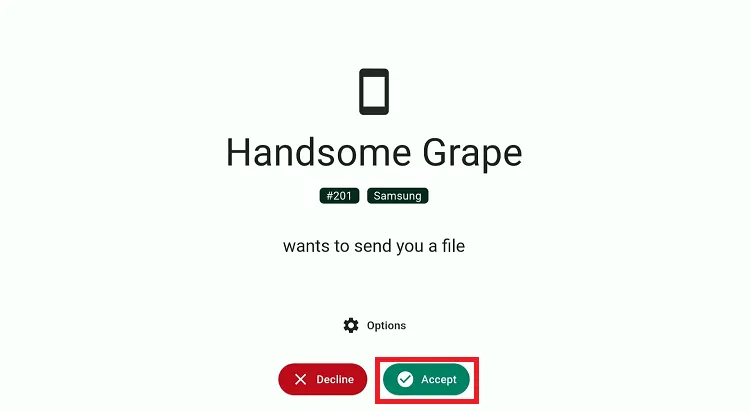
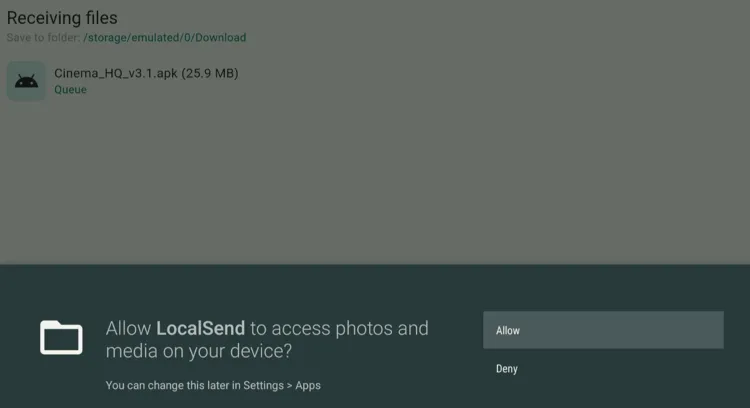
Step 21: Tap “Allow.”
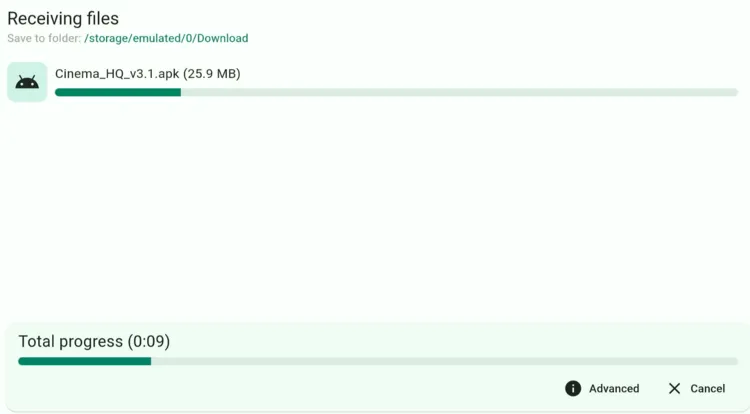
Step 22: Now the file transfer will start; wait for the process to complete.
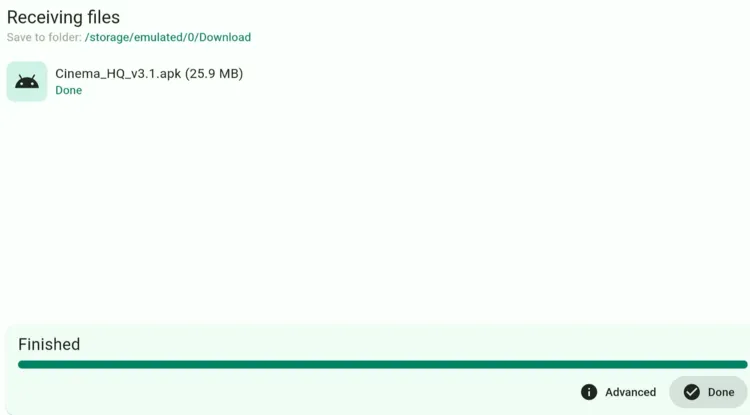
Step 23: Click “Done.”
Step 24: Now go to the FireStick home screen and click the “Find” icon and then tap “Search.”
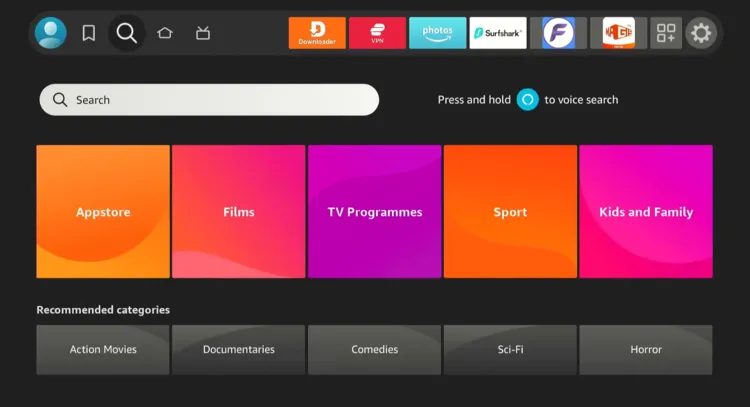
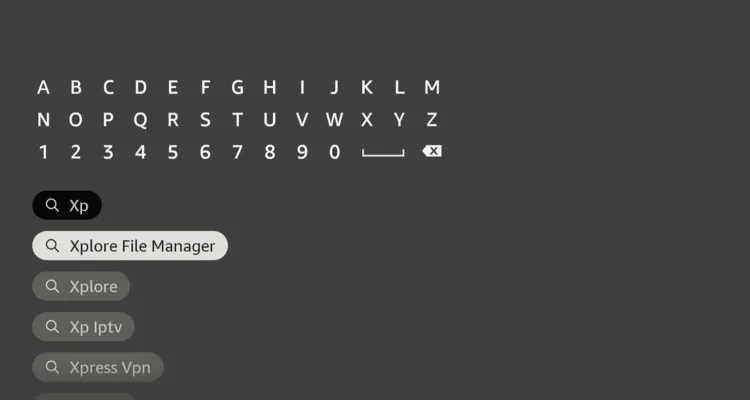
Step 25: Type “Xplore File Manager” and select it from the results.
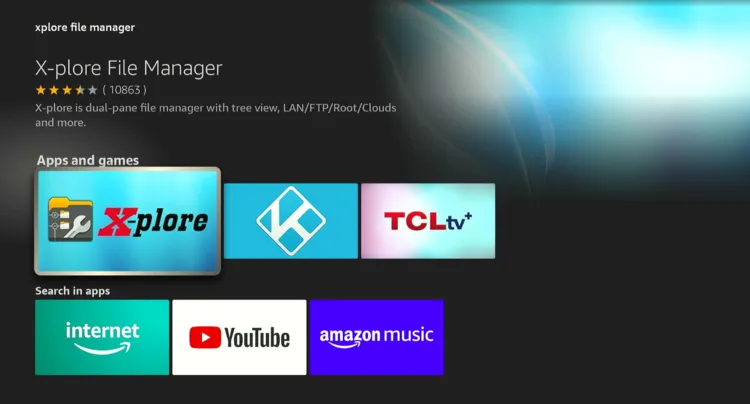
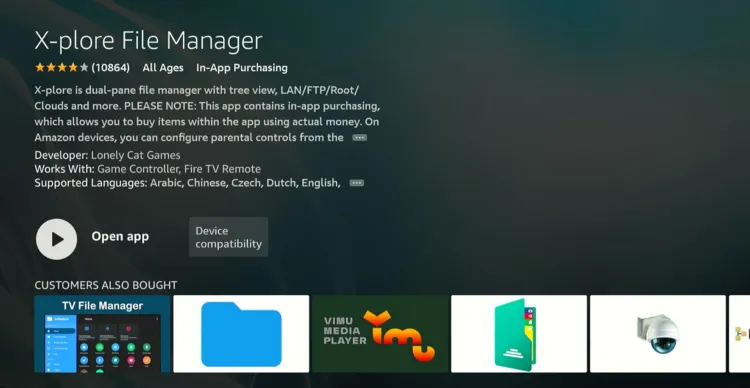
Step 26: Choose the “X-Plore File Manager” app.
Step 27: Click “Download/Get.”
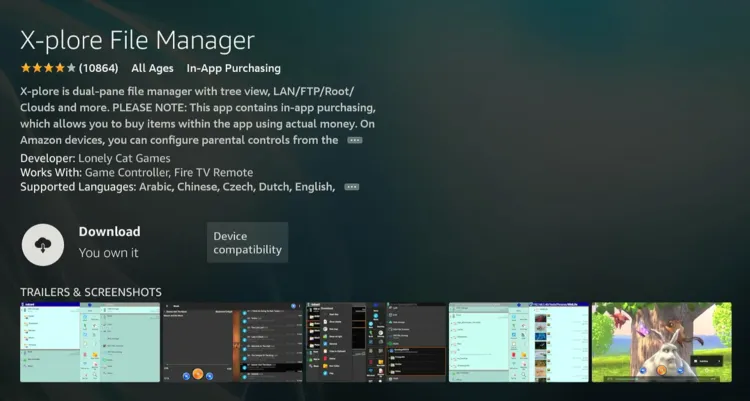
Step 28: Once the downloading ends, you will see the “Open App” icon. But don’t open it for now.
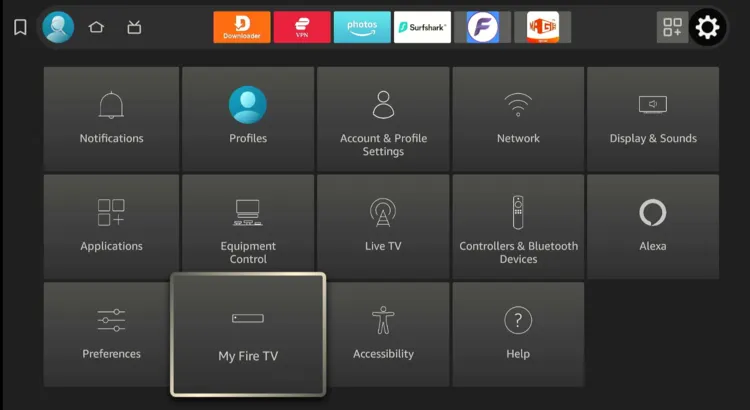
Step 29: Click “My Fire TV.”
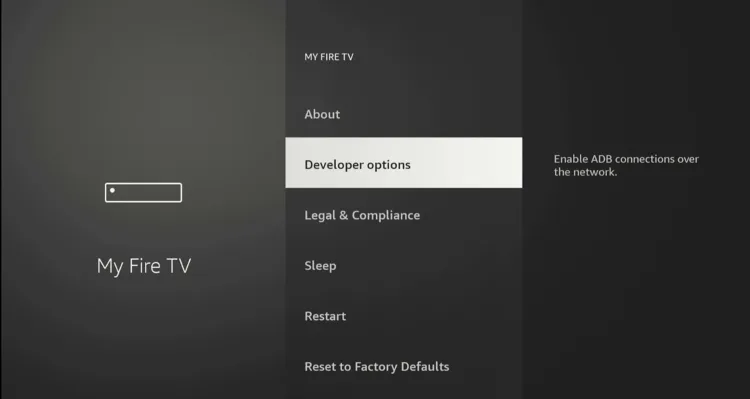
Step 30: Select “Developer Options.”
Step 31: Click “Install Unknown Apps.”
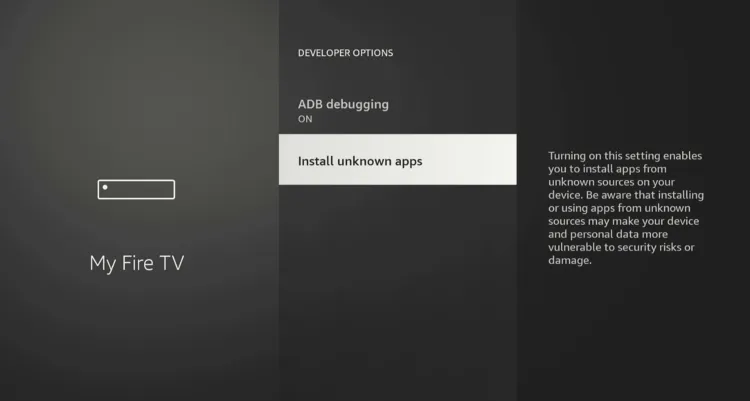
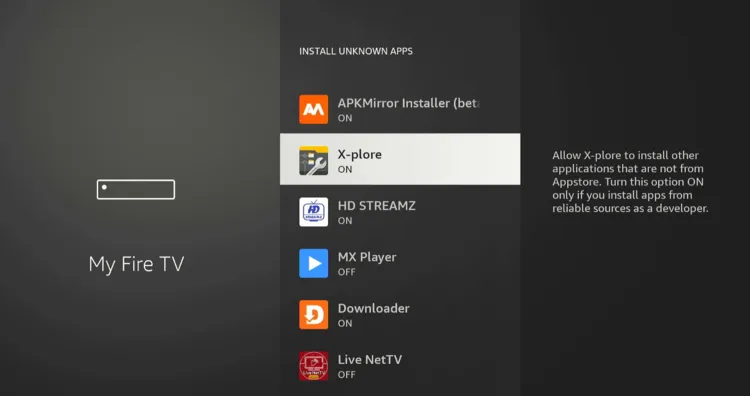
Step 32: Navigate to “X-Plore” and turn “ON” installation from unknown sources.
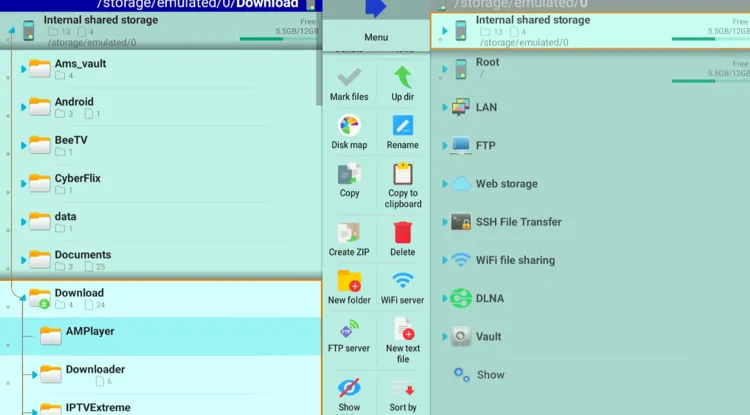
Step 33: Now launch X-Plore File Manager, click “Internal Shared Storage“ and navigate to “Download.”
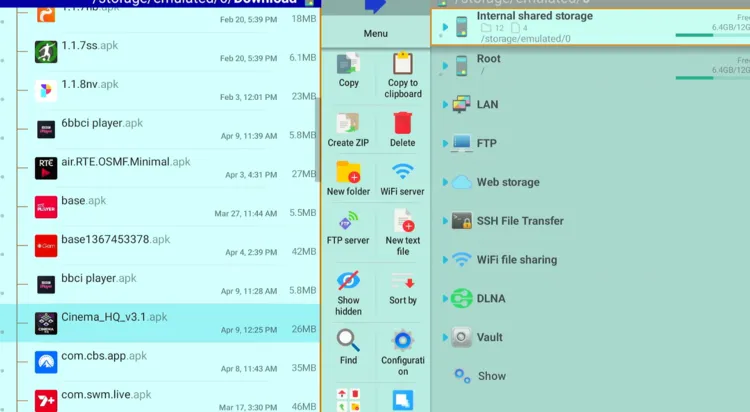
Step 34: Select “Cinema HQ.“
Step 35: Tap “Install.“
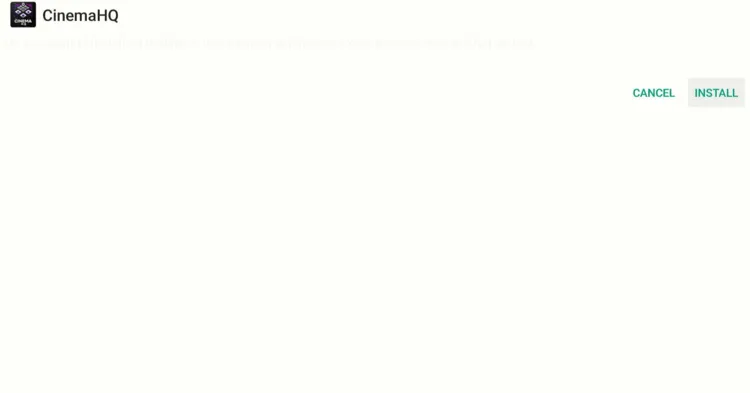
Step 36: Click “Done“ to complete the installation process.
Don’t Sideload Without a VPN: Here’s Why
People use sideloading to install third-party apps. However, since these apps aren’t vetted by Amazon, your ISP (Internet Service Provider) can monitor what you’re streaming.
Therefore, you must use a VPN like Surfshark VPN. Here’s what it does:
- Avoid ISP Throttling: Many providers slow down your speeds, specifically when they detect third-party streaming traffic.
- Privacy from Data Trackers: Sideloaded APKs often contain trackers that broadcast your IP address and location to unknown servers.
- Unlock Geo-Blocked Content: Many third-party/unverified apps available only work in specific regions like the US or UK.
Other Downloader Alternatives
If the above methods/apps stop working, you can turn to the following options:
Common Issues & Fixes When Using Downloader Alternatives
Here are some quick fixes for the most common issues you may face while using Downloader alternatives:
✅ Transfer failing? – Ensure mobile & FireStick are on the same Wi-Fi.
✅ Invalid URL/Code? – Check for typos.
✅ Download won’t start? – Check internet connection.
✅ X-Plore shows empty? – Grant storage permissions.
✅ Parsing Package Error? – Redownload the APK.
FAQs – Downloader Alternatives
Do I need a computer to use LocalSend?
No, you can use LocalSend to transfer files directly from your Android or iOS smartphone to your FireStick.
Can I use LocalSend without Wi-Fi?
No, both your FireStick and mobile must be connected to the same Wi-Fi network.
Can I use Downloader codes in FireSend?
Yes, FireSend includes a “Downloader Code” feature that supports the same numeric codes used in the original Downloader app.
Why was the Downloader app removed from Amazon Appstore?
It was temporarily removed due to policy or compliance issues but was later restored.
Will APKs work if Amazon switches to “Vega OS”?
No, standard Android APKs are incompatible with Amazon’s new non-Android “Vega” operating system (FireStick 4K Select).
Final Thoughts
While the Downloader app has long been the go-to option for sideloading APKs on FireStick, its temporary removal from Amazon Appstore proved that you must have backup options.
That’s where tools like FireSend, LocalSend & atvTools come in. Depending on the specific app, you can install APKs on FireStick using codes, direct links, or by transferring files from your mobile device.
The best part is that these alternatives are simple, effective, and completely free.





Hello, I had Streamfire and Sportsfire and both are not available. Which apps do yo have for downloading that would be comparable to the two?
hello, both sportsfire and streamfire are working fine. Please install them via NoroFire using this guide.